1. پیژندنه
This manual provides detailed instructions for the installation, operation, and maintenance of your MERCUSYS AC1200 Wireless Dual Band Router, model AC12. Please read this guide thoroughly to ensure proper setup and optimal performance of your device.
The MERCUSYS AC1200 Router offers high-speed Wi-Fi connectivity with dual-band support, designed to provide reliable internet access for your home or office network.
2. د بسته محتويات
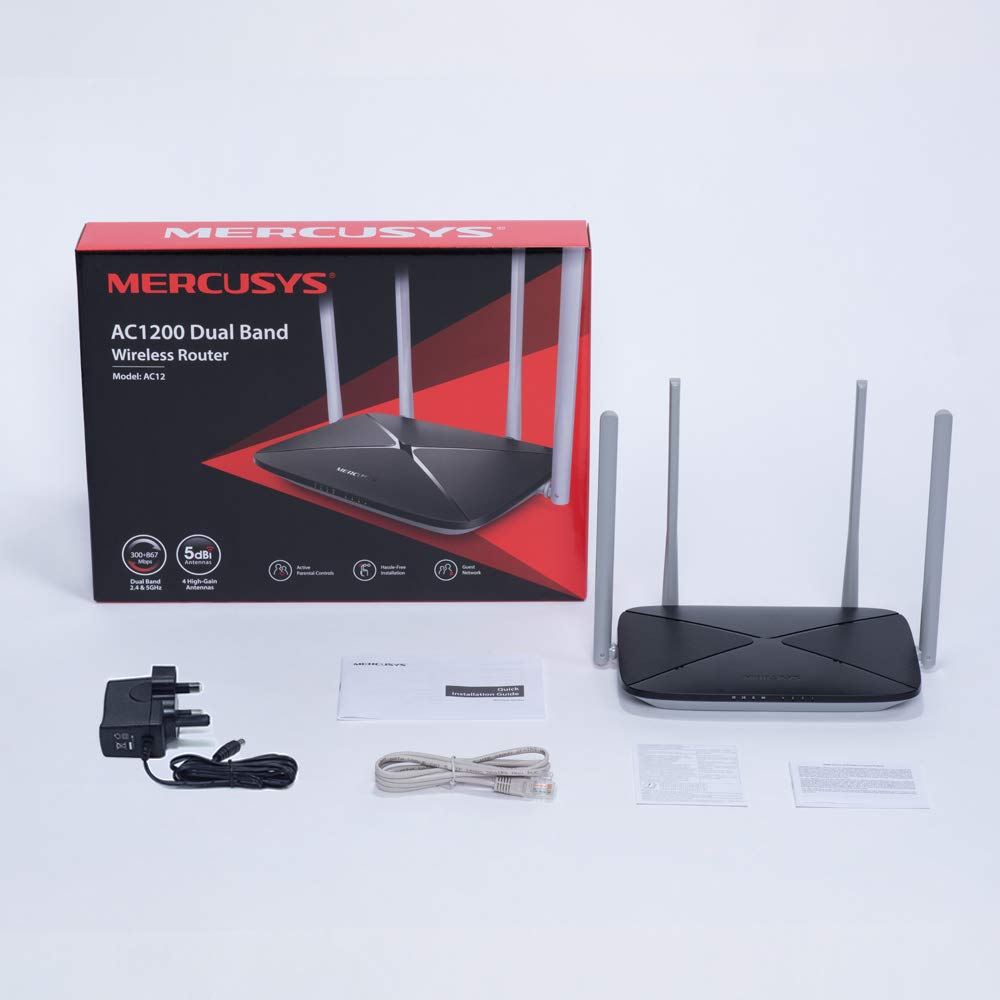
ډاډ ترلاسه کړئ چې ټول توکي ستاسو د محصول په کڅوړه کې شتون لري:
- MERCUSYS AC1200 Dual Band Wireless Router (AC12)
- د بریښنا اډاپټر
- د چټک نصبولو لارښود
- ایترنیټ کیبل
3. هارډویر ختمview
3.1 مخکښ پینل
The front panel features LED indicators that provide status information about the router's operation, including power, internet connection, and Wi-Fi activity.

3.2 شاته پینل
The rear panel contains all the physical ports and buttons necessary for connecting the router to your network and power source.
- WAN Port (Orange): ستاسو د موډیم یا انټرنیټ خدماتو چمتو کونکي (ISP) تجهیزاتو سره وصل کیږي.
- LAN Ports (Blue): Connects to wired devices such as computers, gaming consoles, or network printers. The AC12 model features 4 LAN ports.
- د بریښنا ننوتل: د ورکړل شوي بریښنا اډاپټر سره وصل کیږي.
- د بیا تنظیم / WPS تڼۍ: Used to reset the router to factory settings or to initiate a Wi-Fi Protected Setup (WPS) connection.

3.3 انتن
The router is equipped with four external 5dBi omni-directional antennas, designed to enhance wireless coverage and signal strength.

4. د تنظیم کولو لارښود
Follow these steps to set up your MERCUSYS AC1200 Router:
- هارډویر وصل کړئ:
- خپل موډیم بند کړئ.
- Connect the modem's Ethernet cable to the WAN port (orange) of the AC12 router.
- Connect your computer to one of the LAN ports (blue) on the router using an Ethernet cable, or connect wirelessly using the default Wi-Fi name (SSID) and password printed on the router's label.
- Power on your modem, then power on the AC12 router.
- Configure Router via Web انٹرفیس:
خلاص a web browser on your connected computer or device. The intuitive webpage guides you through the setup process in minutes.
- لومړی ګام: Create a unique login password for the router's management page.
- لومړی ګام: Choose your internet service type and enter any required information provided by your ISP.
- لومړی ګام: Set your wireless network name (SSID) and password for both 2.4 GHz and 5 GHz bands.

5. عملیاتي لارښوونې
5.1 Dual Band Wi-Fi
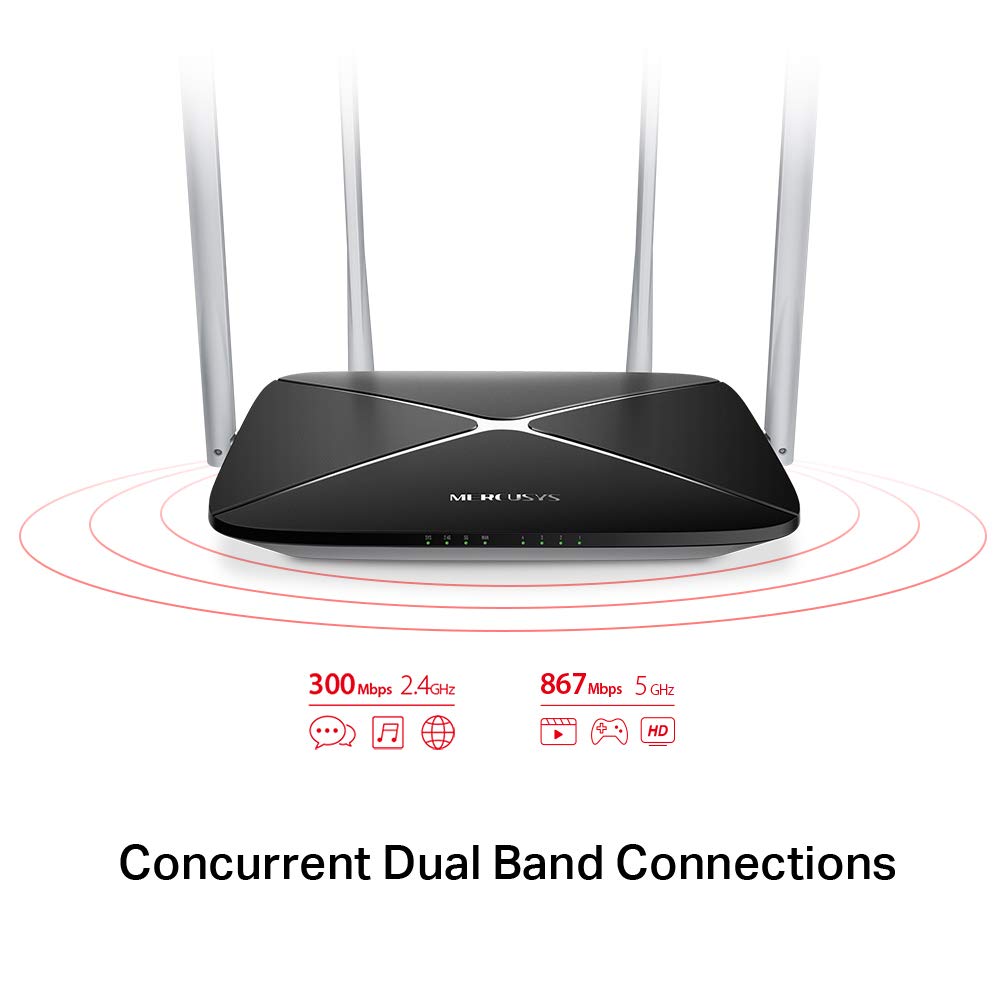
The AC1200 router operates on two distinct Wi-Fi bands:
- ۶ GHz بانډ: Provides speeds of up to 300 Mbps, suitable for general internet use, web لټون کول، او بریښنالیک.
- ۶ GHz بانډ: Offers faster speeds of up to 867 Mbps, ideal for online gaming, HD video streaming, and other bandwidth-intensive applications.
5.2 Enhanced Wireless Coverage
The four external 5dBi omni-directional antennas are designed to provide extensive wireless coverage and strong signal intensity throughout your home or office, minimizing weak spots and dropped connections.

5.3 د میلمنو شبکه
The Guest Network feature allows you to provide secure Wi-Fi access to guests without sharing your main network password. This enhances security by isolating guest devices from your primary network resources.
5.4 امنیتي پروتوکول
The router supports WPA-PSK / WPA2-PSK security protocols to protect your wireless network from unauthorized access.
6. ساتنه
- د فرم ویئر تازه معلومات: Regularly check the MERCUSYS official webد غوره فعالیت او امنیت ډاډمن کولو لپاره د فرم ویئر تازه معلوماتو لپاره سایټ.
- فزیکي پاکوالی: روټر پاک او له دوړو څخه پاک وساتئ. د پاکولو لپاره نرم او وچ ټوکر وکاروئ. د مایع پاکوونکو څخه کار مه اخلئ.
- ځای په ځای کول: روټر په مرکزي ځای کې ځای په ځای کړئ، د خنډونو او وسایلو څخه لرې چې ممکن مداخله وکړي (د بیلګې په توګه، مایکروویو، بې تار تلیفونونه).
- بیا پیل کول: که تاسو د شبکې ستونزې تجربه کوئ، نو د روټر بیا پیلولو هڅه وکړئ د 10 ثانیو لپاره د بریښنا اډاپټر خلاصولو سره او بیا یې بیرته ولګوئ.
7. ستونزه حل کول
- انټرنیټ ته لاسرسی نشته:
- وګورئ چې د WAN پورټ LED روښانه شوی که نه. که نه، ډاډ ترلاسه کړئ چې ستاسو د موډیم څخه ایترنیټ کیبل په خوندي ډول وصل دی.
- ډاډ ترلاسه کړئ چې ستاسو موډیم په سمه توګه کار کوي.
- خپل موډیم او روټر دواړه بیا پیل کړئ.
- که ستونزه دوام ومومي، د خپل انټرنیټ خدماتو چمتو کونکي (ISP) سره اړیکه ونیسئ.
- د وای فای کمزوری سیګنال:
- روټر یو ډیر مرکزي موقعیت ته واړوئ.
- ډاډ ترلاسه کړئ چې انتنونه په عمودي ډول موقعیت لري.
- Minimize physical obstructions (walls, large furniture) between the router and your devices.
- Avoid placing the router near other electronic devices that may cause interference.
- روټر ته لاسرسی نشم کولی Web مدیریت پاڼه:
- ډاډ ترلاسه کړئ چې ستاسو وسیله د روټر سره وصل ده (تار یا بېسیم).
- Verify that you are using the correct IP address (e.g.,
192.168.1.1ormwlogin.net) ستاسو په web براوزر - د خپل براوزر کیش پاک کړئ یا بل براوزر هڅه وکړئ.
- د وای فای پاسورډ یا د ننوتلو پاسورډ مو هېر شوی:
- You can reset the router to factory default settings by pressing and holding the Reset/WPS button on the rear panel for approximately 6-10 seconds until the LEDs flash. Note that this will erase all your custom settings.
8. مشخصات
| فیچر | تفصیل |
|---|---|
| برانډ | مرسي |
| د ماډل نوم | AC12 |
| بيسيم ستندرد | 802.11ac |
| د فریکونسی بانډ ټولګی | دوه ګونی بانډ (2.4 GHz او 5 GHz) |
| د ۲.۴ GHz وای فای سرعت | تر 300 Mbps پورې |
| د ۲.۴ GHz وای فای سرعت | تر 867 Mbps پورې |
| انتن | 4 x 5dBi Omni-Directional Antennas |
| ایترنیټ بندرونه | ۱ وان، ۳ لینونه |
| امنیت پروټوکول | WPA-PSK / WPA2-PSK |
| د محصول ابعاد | 22.2 x 14 x 3.2 سانتي متره |
| د توکي وزن | 260 ګرامه |
| والیtage | 9 ولټه |
| د عملیاتي سیسټم مطابقت | Windows (for setup via web انٹرفیس) |
9. تضمین او ملاتړ
9.1 د تضمین معلومات
This MERCUSYS AC1200 Router comes with a 3 کلن تضمین. Please retain your purchase receipt for warranty claims. The warranty covers manufacturing defects under normal use conditions.
9.2 تخنیکي ملاتړ
For technical assistance, please visit the official MERCUSYS website or contact their customer support. Manufacturer: TP-Link Technologies Co.,Ltd.


