1. Koniec produktuview
The ProtoArc EM03 NL is an ergonomic wireless trackball mouse designed for comfort and efficiency. It features an index finger-controlled trackball, multi-device connectivity, quiet clicking, adjustable DPI settings, and a rechargeable battery, making it suitable for various computing environments.
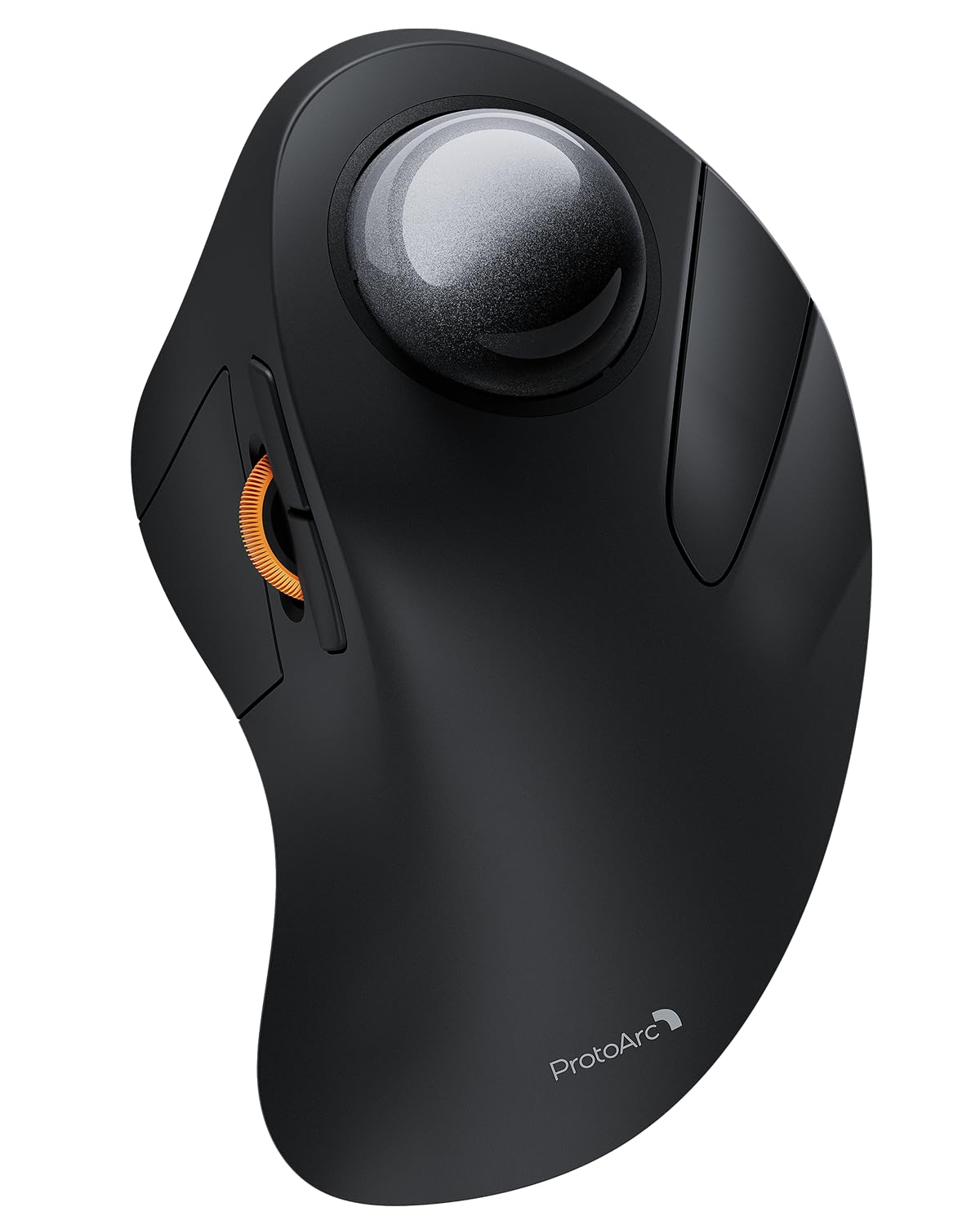
Image 1: The ProtoArc EM03 NL Wireless Bluetooth Trackball Mouse in gray, showcasing jego ergonomicznej konstrukcji.
2. Co znajduje się w pudełku
- ProtoArc EM03 NL Trackball Mouse
- Instrukcja obsługi
- Odbiornik USB
- Kabel ładujący (USB-C)
3. Główne cechy
- Ergonomic Index Finger Trackball: Sculpted to fit the hand naturally, promoting a comfortable wrist posture and precise control with its 44mm trackball.
- Łączność wielourządzeniowa: Connects to up to 3 devices via 2.4G USB receiver or Bluetooth (BT1, BT2), allowing seamless switching.
- Ciche klikanie: Smooth frosted surface and quiet clicks for a better user experience without disturbing others.
- Regulowane DPI: 5 DPI levels (200/400/800/1200/1600 DPI) for customizable cursor sensitivity and precise tracking.
- Akumulator: Built-in 930mAh lithium battery provides up to 60 days of power on a single full charge. Features auto-sleep mode to conserve battery.
- Oszczędność miejsca: Stationary trackball design frees up desk space, ideal for small workstations or minimalist setups.

Image 2: A hand resting comfortably on the ProtoArc EM03 NL mouse, highlighting its ergonomic design for all-day comfort.

Image 3: Close-up of the ProtoArc EM03 NL trackball mouse, emphasizing the large 44mm trackball designed for index finger control and precise handling.

Image 4: The ProtoArc EM03 NL trackball mouse shown in different usage scenarios: an office desk, an aircraft cabin, and a library, illustrating its versatility and space-saving design.
4. Przewodnik konfiguracji
4.1. USB Receiver Connection (2.4G Wireless)
- Znajdź odbiornik USB znajdujący się w schowku na spodzie myszy.
- Podłącz odbiornik USB do dostępnego portu USB w komputerze.
- Włącz mysz za pomocą włącznika zasilania na dole.
- Switch the channel selector on the bottom of the mouse to the '2.4G' position (usually indicated by a USB icon or '1'). The mouse should connect automatically.
4.2. Połączenie Bluetooth (BT1 / BT2)
- Włącz mysz za pomocą włącznika zasilania na dole.
- Switch the channel selector on the bottom of the mouse to either 'BT1' or 'BT2' position.
- Press and hold the channel button for 3 seconds until the corresponding indicator light flashes quickly, indicating pairing mode.
- On your device (PC, iPad, Mac, etc.), go to Bluetooth settings and search for new devices.
- Select 'ProtoArc EM03 NL' from the list of available devices to connect. The indicator light will turn solid once connected.

Image 5: Diagram illustrating the multi-device connection options (2.4G, BT1, BT2) on the underside of the ProtoArc EM03 NL mouse, showing how to switch between devices.
5. Instrukcja obsługi
5.1. Funkcje przycisków

Image 6: Labeled diagram of the ProtoArc EM03 NL mouse, showing the positions of the trackball, left button, right button, scroll wheel, forward button, backward button, DPI button, channel switch, power switch, and USB receiver slot.
- Lewy przycisk: Standardowa funkcja lewego kliknięcia.
- Prawy przycisk: Standardowa funkcja prawego przycisku myszy.
- Kółko przewijania: Scroll up and down pages.
- Przycisk do przodu: Przejdź dalej w web przeglądarki lub file odkrywcy.
- Przycisk Wstecz: Przejdź wstecz w web przeglądarki lub file odkrywcy.
- Kulka: Control cursor movement with your index finger.
5.2. Regulacja DPI
The DPI button is located on the bottom of the mouse. Press it to cycle through the 5 available DPI levels (200/400/800/1200/1600 DPI) to adjust cursor speed and precision according to your preference.
5.3. Przełączanie między wieloma urządzeniami
Use the channel switch on the bottom of the mouse to seamlessly switch between the 2.4G USB receiver connection and the two Bluetooth connections (BT1, BT2).
6. Konserwacja
6.1. Czyszczenie trackballa
To ensure smooth operation, periodically clean the trackball:
- Gently push the trackball from the bottom opening to remove it.
- Use a soft, lint-free cloth to wipe any dust or debris from the trackball and the inside of the trackball cavity.
- Reinsert the trackball into its slot.

Image 7: Step-by-step visual guide on how to remove, clean with a soft cloth, and reinsert the trackball of the ProtoArc EM03 NL mouse.
6.2. Ładowanie
Connect the provided USB-C charging cable to the charging port on the mouse and to a USB power source. The mouse can be used while charging. A full charge takes approximately 3.5 hours and provides up to 60 days of use.

Image 8: Visual representation of the USB-C charging port on the ProtoArc EM03 NL mouse and an illustration of the 5 adjustable DPI modes.
7. Rozwiązywanie Problemów
- Mysz nie odpowiada: Ensure the mouse is turned on and fully charged. Check the connection mode (2.4G or Bluetooth) and ensure it matches your device's connection. For 2.4G, ensure the USB receiver is securely plugged in. For Bluetooth, re-pair the device if necessary.
- Ruch kursora jest nieregularny lub lepki: Clean the trackball and its cavity as described in the Maintenance section.
- Problemy z połączeniem Bluetooth: Ensure your device's Bluetooth is enabled. Try forgetting the device in your Bluetooth settings and re-pairing. Ensure the mouse is in pairing mode (flashing indicator light).
- DPI się nie zmienia: Press the DPI button firmly on the bottom of the mouse to cycle through settings.
8. Specyfikacje
| Funkcja | Szczegół |
|---|---|
| Marka | ProtoArc |
| Model | EM03 NL |
| Technologia łączności | 2.4G, Bluetooth |
| Technologia wykrywania ruchu | Kulka manipulacyjna |
| Poziomy DPI | 200/400/800/1200/1600 |
| Pojemność baterii | Bateria litowa 930mAh |
| Czas ładowania | Około 3.5 godzin |
| Czas czuwania | Do 60 dni |
| Cechy specjalne | Ergonomic Design, Rechargeable, Soundless |
| Waga przedmiotu | 13.1 uncji |
| Wymiary opakowania | 6.89 x 4.92 x 3.27 cala |
9. Oficjalny film o produkcie
Video 1: An official product video from ProtoArc showcasing the features and benefits of the Wireless Bluetooth Trackball Mouse. This video highlights the ergonomic design, multi-device connectivity, and overall user experience.
10. Gwarancja i wsparcie
For warranty information, technical support, or customer service, please refer to the contact details provided in the included User Manual or visit the official ProtoArc website. ProtoArc aims to deliver innovative workspace solutions that enhance comfort, boost productivity, and foster overall wellness.
Możesz również odwiedzić Sklep ProtoArc na Amazonie Więcej produktów i informacji.


