1. Koniec produktuview
The HP OfficeJet Pro 9125e is a versatile All-in-One printer designed for office and hybrid workspace environments. This certified refurbished unit offers print, scan, copy, and fax functionalities, along with advanced features like a color touchscreen and HP Wolf Pro Security. It is engineered for professional-quality color documents and efficient operation.
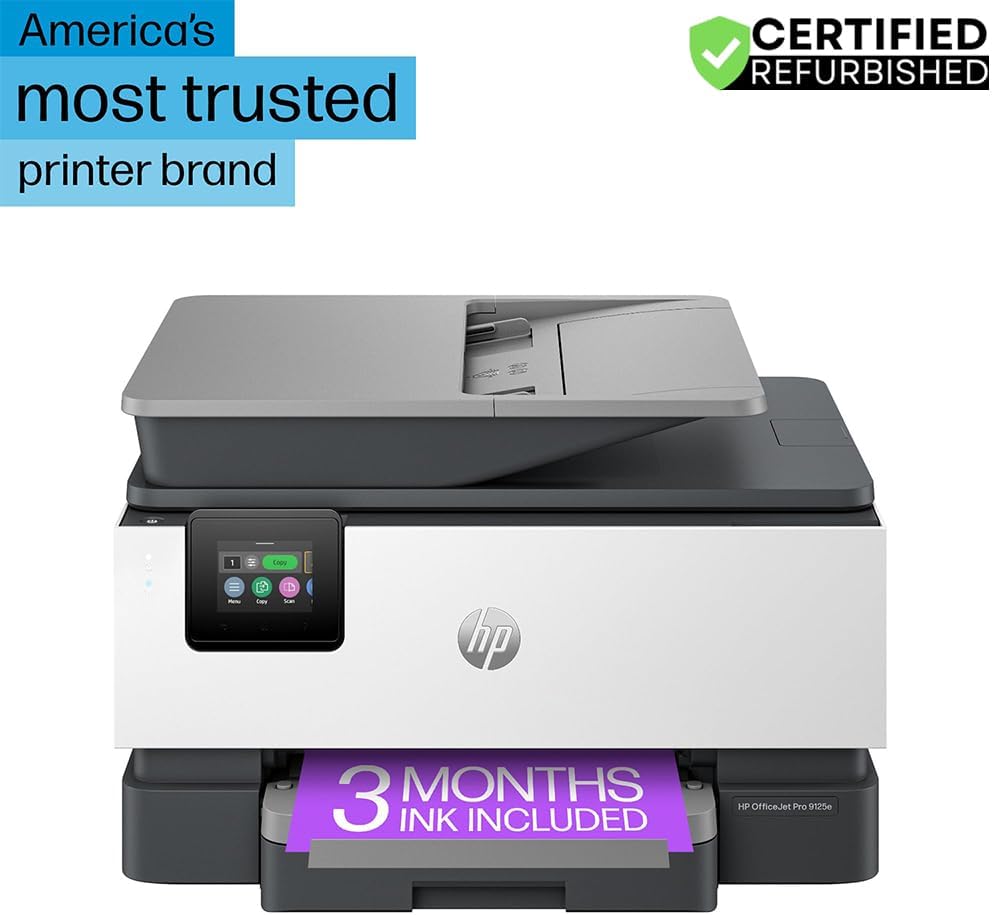
Rycina 1: Przód view of the HP OfficeJet Pro 9125e All-in-One Printer.
Główne cechy:
- Funkcjonalność „wszystko w jednym”: Możliwość drukowania, kopiowania, skanowania i faksowania.
- Szybkie drukowanie: Up to 22 pages per minute (ppm) for black and 18 ppm for color.
- Połączenie bezprzewodowe: Reliable dual-band Wi-Fi with automatic connection issue resolution.
- Aplikacja HP Smart: Enables printing, scanning, copying, and faxing directly from a smartphone.
- HP Wolf Pro Security: Integrated security tools to protect data and networks.
- Kolorowy ekran dotykowy o przekątnej 2.7 cala: Intuitive user interface for easy navigation.
- Automatyczny podajnik dokumentów (ADF): Do wydajnego skanowania i kopiowania wielu stron.
- Drukowanie dwustronne: Automatic two-sided printing.
- Zrównoważony projekt: Constructed with over 40% recycled plastic.

Rysunek 2: Koniecview of the HP OfficeJet Pro 9125e's primary functions and features.
2. Instrukcje konfiguracji
2.1 Rozpakowanie i zawartość
Carefully unpack the printer and ensure all components are present. The package should contain the following:
- Drukarka wielofunkcyjna HP OfficeJet Pro 9125e
- Czarny wkład atramentowy HP 936 Setup
- HP 936 Setup Cyan Ink Cartridge
- HP 936 Setup Magenta Ink Cartridge
- HP 936 Setup Yellow Ink Cartridge
- Przewód zasilający
- Ulotka z przepisami
- Ulotka z przestrogą dotyczącą atramentu
- Plakat instalacyjny
- Przewodnik referencyjny

Figure 3: Included items in the HP OfficeJet Pro 9125e package.
2.2 Initial Printer Setup
- Podłączenie zasilania: Podłącz przewód zasilający do drukarki, a następnie do gniazdka ściennego.
- Włączanie: Naciśnij przycisk zasilania, aby włączyć drukarkę.
- Instalacja wkładu atramentowego: Follow the on-screen instructions on the 2.7-inch touchscreen to install the HP 936 setup ink cartridges. Ensure each cartridge clicks into place.
- Ładowanie papieru: Load plain paper into the 250-sheet input tray. Adjust the paper guides to fit the paper size.
- Język i region: Select your preferred language and region on the touchscreen.
- Połączenie internetowe: Connect the printer to your wireless network using the touchscreen. The dual-band Wi-Fi will help ensure a stable connection.
- HP Smart App Installation: Download the HP Smart App on your smartphone or computer for guided setup and advanced features.
- HP+ Activation (Optional): If you wish to enroll in the Instant Ink delivery service and extend your warranty, activate HP+ during the setup process. This may include 3 months of Instant Ink.
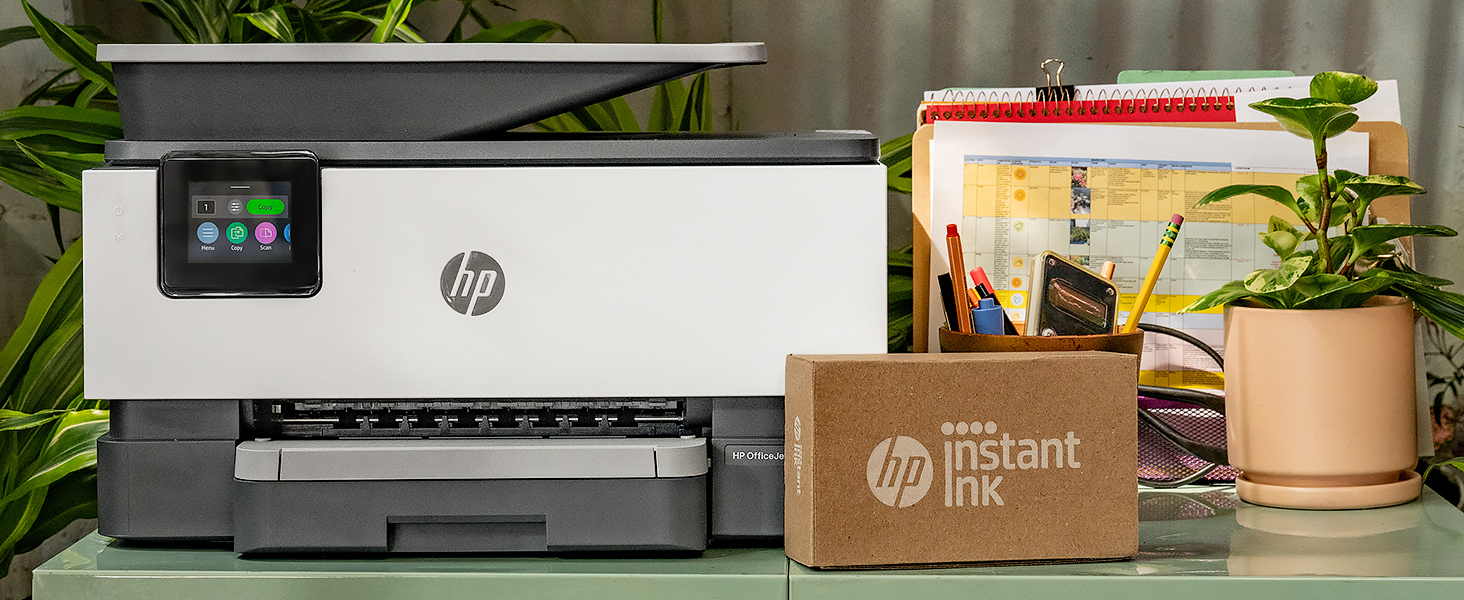
Figure 4: Printer ready for setup, showing the Instant Ink box.
3. Instrukcja obsługi
3.1 Drukowanie dokumentów
The HP OfficeJet Pro 9125e supports printing from various devices, including computers and smartphones.
- Z komputera: Ensure the printer drivers are installed. Select "Print" from your application, choose the HP OfficeJet Pro 9125e, and adjust settings as needed (e.g., color, black and white, duplex printing).
- Z urządzenia mobilnego (aplikacja HP Smart): Open the HP Smart App, select "Print Documents" or "Print Photos," choose the file, and send it to the printer.
- Prędkości drukowania: Up to 22 ppm for black and 18 ppm for color.
- Drukowanie dwustronne: The printer supports automatic two-sided printing. This option can be selected in your print settings.
3.2 Skanowanie dokumentów
Documents can be scanned using the flatbed scanner or the Automatic Document Feeder (ADF).
- Korzystanie z platformy: Place a single document face down on the scanner glass. Close the lid. Select "Scan" on the printer's touchscreen or through the HP Smart App.
- Korzystanie z ADF: Load multiple pages face up into the ADF. The ADF supports dual-pass 2-sided scanning. Select "Scan" on the printer's touchscreen or through the HP Smart App and choose the ADF option.
- Miejsca skanowania: Scanned documents can be sent to a computer, email, or cloud services via the HP Smart App.
3.3 Kopiowanie dokumentów
The printer allows for quick and efficient copying.
- Initiate Copy: Press the "Copy" icon on the printer's touchscreen.
- Umieść dokument: Umieść dokument na skanerze płaskim lub w podajniku ADF.
- Dostosuj ustawienia: Select the number of copies (up to 99), color or black and white, and other options like resizing or quality.
- Rozpocznij kopiowanie: Press the "Start Copy" button on the touchscreen.
3.4 Faksowanie dokumentów
The HP OfficeJet Pro 9125e includes fax functionality.
- Załaduj dokument: Umieść dokument na skanerze płaskim lub w podajniku ADF.
- Wprowadź numer: Press the "Fax" icon on the touchscreen and enter the recipient's fax number.
- Send Fax: Confirm settings and send the fax.
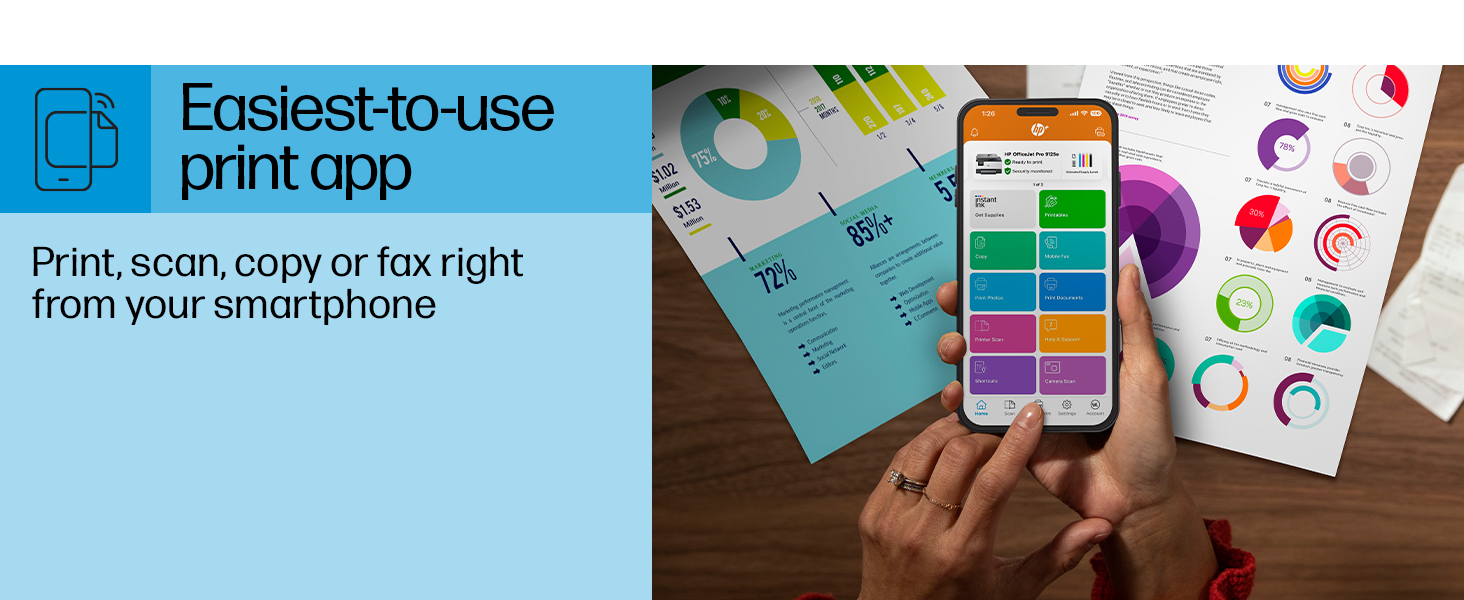
Figure 5: The HP Smart App allows control of print, scan, copy, and fax functions from a smartphone.
4. Konserwacja
4.1 Wymiana wkładu atramentowego
The printer uses HP 936 series ink cartridges (Black, Cyan, Magenta, Yellow). The touchscreen will indicate when ink levels are low or when a cartridge needs replacement.
- Otwórz drzwiczki dostępu do wkładów atramentowych.
- Naciśnij zakładkę na starym wkładzie, aby go zwolnić, a następnie wyciągnij go.
- Unpack the new HP 936 cartridge, being careful not to touch the electrical contacts or ink nozzles.
- Włóż nowy wkład do odpowiedniego gniazda, aż zatrzaśnie się na miejscu.
- Zamknij drzwiczki dostępu do pojemników z tuszem.
4.2 Obsługa papieru
- Tacka wejściowa: The printer features a 250-sheet input tray. Ensure paper is loaded correctly and paper guides are adjusted to prevent jams.
- Taca wyjściowa: The output tray has a capacity of 60 sheets.
- Obsługiwane nośniki: The printer supports various paper types and sizes, including plain paper, photo paper, and envelopes. Supported sizes range from 3 x 5 inches to 8.5 x 14 inches.
- Envelope Stopper: Utilize the built-in envelope stopper to prevent jams when printing envelopes.
4.3 Czyszczenie
Regularne czyszczenie pomaga zachować jakość druku i długowieczność drukarki.
- Zewnętrzny: Przetrzyj zewnętrzną część drukarki miękką, miękką szmatką.amp, ściereczka nie pozostawiająca włókien.
- Szyba skanera: Wyczyść szybę skanera miękką ściereczką i nieściernym środkiem do czyszczenia szyb.
- Rolki ADF: Zapoznaj się z pomocą techniczną HP website or the HP Smart App for instructions on cleaning ADF rollers if paper feed issues occur.
5. Rozwiązywanie Problemów
This section provides solutions to common printer issues. For more detailed troubleshooting, refer to the HP support website or the HP Smart App.
5.1 Problemy z łącznością
- Drukarka offline: Ensure the printer is powered on and connected to the correct Wi-Fi network. Restarting both the printer and your router can often resolve temporary network glitches.
- Rozłączenie Wi-Fi: The printer's dual-band Wi-Fi is designed to automatically resolve connection issues. If problems persist, try reconnecting through the printer's touchscreen or the HP Smart App.
- USB/Ethernet Connection: If using a wired connection, ensure cables are securely plugged into both the printer and the computer/router.
5.2 Problemy z jakością druku
- Wyblakłe lub smugowate nadruki: Check ink levels and replace any low or empty cartridges. Perform a printhead cleaning cycle through the printer's maintenance menu.
- Nieprawidłowe kolory: Ensure you are using genuine HP ink cartridges. Run a printhead alignment from the printer's maintenance menu.
- Zacięcia papieru: Follow the on-screen instructions to clear any jammed paper. Ensure paper is loaded correctly and not overfilled in the input tray.
5.3 Scanning/Copying Issues
- Blank Scans/Copies: Ensure the document is placed correctly on the scanner glass or in the ADF.
- Lines on Scans/Copies: Clean the scanner glass and the ADF rollers.
6. Specyfikacje techniczne
| Funkcja | Specyfikacja |
|---|---|
| Nazwa modelu | HP OfficeJet Pro 9125e |
| Funkcje | Drukowanie, kopiowanie, skanowanie, faksowanie |
| Technologia druku | Inkjet (Four-color inkjet cartridges) |
| Maksymalna prędkość drukowania (czarny) | 22 stron na milion |
| Maksymalna prędkość drukowania (kolor) | 18 stron na milion |
| Max Print Resolution (Black) | 1200 x 1200 dpi |
| Maksymalna rozdzielczość druku (kolor) | Zoptymalizowana rozdzielczość do 4800 x 1200 dpi |
| Drukowanie dwustronne | Automatyczny |
| Typ skanera | Łatwe do zsunięcia szkło, dwustronny automatyczny podajnik dokumentów (ADF) |
| Maksymalna rozdzielczość kopii | 600 x 600 dpi (Black & Color) |
| Max Copies per Run | 99 |
| Łączność | Ethernet, USB, Wi-Fi (Dual-band) |
| Metoda kontroli | Aplikacja, ekran dotykowy |
| Rozmiar ekranu dotykowego | 2.7 cali |
| Pojemność arkuszy wejściowych | 250 arkuszy |
| Pojemność arkuszy wyjściowych | 60 arkuszy |
| Obsługiwane rozmiary nośników | Od 3 x 5 cali do 8.5 x 14 cali |
| Pojemność pamięci masowej | 512 MB |
| Wymiary produktu (Gł. x Szer. x Wys.) | 13.48" x 17.3" x 10.94" |
| Waga przedmiotu | 20.5 funta |
| Pobór mocy | 5.06 watów |

Figure 6: Physical dimensions of the HP OfficeJet Pro 9125e.
7. Gwarancja i wsparcie
7.1 Informacje o gwarancji
- Certified Refurbished Warranty: This unit comes with a 90-day manufacturer warranty, ensuring reliable, like-new performance.
- Extended Protection Pack: The product bundle includes a 2-year CPS Enhanced Protection Pack.
- HP+ Offer Warranty: A one-year limited hardware warranty is provided, with an option to extend to two years upon acceptance of the HP+ Offer during setup.
For specific terms and conditions regarding your warranty, please refer to the documentation included with your product or visit the official HP support webstrona.
7.2 Obsługa klienta
For further assistance, technical support, or to access detailed user guides and drivers, please visit the official HP support webstrona:
You can also utilize the HP Smart App for troubleshooting and accessing support resources directly from your mobile device.