1. Wprowadzenie
This manual provides essential information for the installation, operation, and maintenance of your ZOTAC GAMING GeForce RTX 4070 Ti SUPER SOLID OC 16GB graphics card. Please read this manual thoroughly before installation to ensure proper functionality and to prevent damage.

Image 1.1: ZOTAC GAMING GeForce RTX 4070 Ti SUPER SOLID OC 16GB Graphics Card and its retail packaging.
2. Zawartość opakowania
Sprawdź, czy w opakowaniu znajdują się wszystkie elementy:
- ZOTAC GAMING GeForce RTX 4070 Ti SUPER SOLID OC 16GB Graphics Card
- Stojak podtrzymujący procesor graficzny
- Podręcznik użytkownika (ten dokument)
- Power Adapter Cable (if applicable, check your specific model)
3. Wymagania systemowe
- Płyta główna zgodna z PCI Express z jednym gniazdem graficznym x16 o podwójnej szerokości
- Minimum 750W power supply with three available 8-pin PCIe power connectors (or equivalent 12VHPWR connector)
- Minimum 16GB system memory
- Microsoft Windows 10/11 64-bit or Linux 64-bit operating system
- Internet connection for driver installation
4. Instrukcja instalacji
4.1. Przygotowanie
- Wyłącz komputer i odłącz kabel zasilający.
- Otwórz obudowę komputera.
- Uziem się, aby rozładować ładunki elektrostatyczne.
4.2. Installing the Graphics Card
- Znajdź wolne gniazdo PCI Express x16 na płycie głównej.
- Zdejmij z obudowy komputera zaślepki niezbędnych gniazd rozszerzeń.
- Carefully insert the graphics card into the PCIe x16 slot until it is fully seated. Ensure the retention clip locks into place.
- Przymocuj kartę graficzną do obudowy za pomocą śrub.
- Connect the required power cables from your power supply to the graphics card. This model typically requires three 8-pin PCIe power connectors or a single 12VHPWR connector. Ensure all connections are secure.
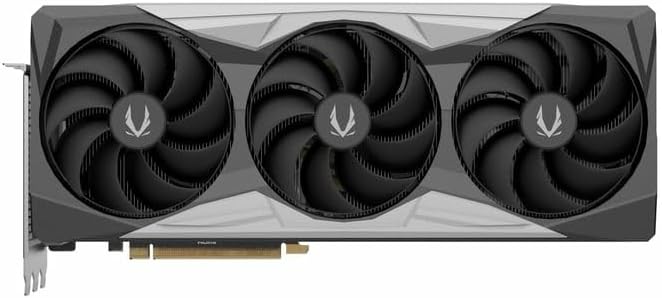
Obraz 4.1: Przód view karty graficznej, pokazującej konstrukcję z trzema wentylatorami.
4.3. Installing the GPU Support Stand
The included GPU support stand helps prevent sag and provides additional stability for the graphics card. Follow the instructions provided with the stand for proper installation within your PC case.
4.4. Closing the Case and Connecting Peripherals
- Zamknij obudowę komputera.
- Connect your monitor(s) to the display outputs on the graphics card (DisplayPort or HDMI).
- Reconnect the power cable and other peripherals to your computer.

Obraz 4.2: Tył view of the graphics card, showing three DisplayPort outputs and one HDMI output.
5. Instrukcja obsługi
5.1. Instalacja sterownika
- Włącz komputer.
- Once the operating system loads, download the latest graphics drivers from the official NVIDIA webStrona (www.nvidia.com/drivers) or the ZOTAC webStrona (www.zotac.com/support).
- Postępuj zgodnie z instrukcjami wyświetlanymi na ekranie, aby dokończyć instalację sterownika. Może być konieczne ponowne uruchomienie systemu.
5.2. Narzędzia programowe
ZOTAC provides utilities such as FireStorm for monitoring and adjusting graphics card settings, including fan speed control (Active Fan Control, FREEZE Fan Stop) and performance profiles. These can be downloaded from the ZOTAC webstrona.
6. Konserwacja
- Usuwanie kurzu: Okresowo czyść wentylatory karty graficznej i radiator sprężonym powietrzem z kurzu. Przed czyszczeniem upewnij się, że komputer jest wyłączony i odłączony od zasilania.
- Aktualizacje sterowników: Keep your graphics drivers updated to ensure optimal performance and compatibility.
- Monitorowanie temperatury: Use monitoring software to keep track of the graphics card's temperature during operation. Excessive temperatures can indicate poor airflow or dust buildup.

Obraz 6.1: Pod kątem view of the graphics card, highlighting its robust cooling solution.
7. Rozwiązywanie Problemów
- Brak wyjścia wyświetlacza:
- Sprawdź, czy kabel monitora jest solidnie podłączony do karty graficznej i monitora.
- Sprawdź, czy karta graficzna jest całkowicie osadzona w gnieździe PCIe.
- Check that all power cables are properly connected to the graphics card.
- Jeśli to możliwe, przetestuj urządzenie przy użyciu innego monitora lub kabla.
- Niestabilność lub awarie systemu:
- Ensure graphics drivers are correctly installed and up to date.
- Check for adequate power supply capacity.
- Monitoruj temperaturę, aby zapobiec przegrzaniu.
- Verify system memory (RAM) stability.
- Hałas lub awaria wentylatora:
- Wyczyść wentylatory i radiator z kurzu.
- Ensure no cables are obstructing fan rotation.
- Use ZOTAC FireStorm utility to check fan speed settings.
8. Specyfikacje
| Funkcja | Szczegół |
|---|---|
| Numer modelu | ZT-D40730R-10P |
| Procesor graficzny | NVIDIA GeForce RTX 4070 Ti SUPER |
| Pamięć wideo | 16 GB pamięci GDDR6X |
| Interfejs pamięci | 256-bit |
| Zegar pamięci | 21000 MHz (efektywna) |
| Zegar silnika | Wzmocnienie: 2640 MHz |
| Wyświetl wyjścia | 3 x DisplayPort 1.4a, 1 x HDMI 2.1a |
| Wsparcie HDCP | Tak |
| Maksymalna rozdzielczość cyfrowa | Up to 4K (7680x4320 @60Hz) |
| PCI Express | PCI Express 4.0 x16 |
| Zalecany zasilacz | 750 W |
| Złącza zasilania | 1 x 12VHPWR (or 3 x 8-pin PCIe via adapter) |
| Wymiary (dł. x szer. x wys.) | 16.73 x 11.54 x 3.94 cala (w przybliżeniu) |
| Waga | 2.2 funta (w przybliżeniu) |
| Układ chłodzenia | IceStorm 2.0 Advanced Cooling, Triple 100mm Fans, FREEZE Fan Stop, Active Fan Control |
| Cechy | NVIDIA DLSS 3.5, Ray Tracing, Metal Backplate, GPU Support Stand |
9. Gwarancja i wsparcie
For detailed warranty information, please refer to the warranty card included with your product or visit the official ZOTAC website's support section. ZOTAC provides technical support and resources for their products.
- Wsparcie ZOTAC Webstrona: www.zotac.com/support
- Rejestracja produktu: Register your product on the ZOTAC webwitryna, w której można aktywować gwarancję i otrzymywać aktualizacje produktu.


