1. Wprowadzenie
This manual provides essential information for the safe and efficient use of your HUAWEI PixLab B5 Multifunction Laser Printer. Please read it thoroughly before operating the device and keep it for future reference.
The HUAWEI PixLab B5 is a versatile 3-in-1 device, offering high-speed printing, copying, and scanning functionalities. It features automatic duplex printing, a user-friendly one-step toner replacement system, and multiple connectivity options including USB, Wi-Fi, and LAN.
2. Informacje dotyczące bezpieczeństwa
Podczas korzystania z tego produktu należy zawsze przestrzegać podstawowych zasad bezpieczeństwa, aby zmniejszyć ryzyko pożaru, porażenia prądem elektrycznym i obrażeń ciała.
- Do not place the printer on an unstable cart, stand, or table.
- Do not block or cover the slots and openings in the printer.
- Use only the power cord and power source indicated in this manual.
- Nie próbuj samodzielnie naprawiać drukarki. Wszelkie prace serwisowe zleć wykwalifikowanemu personelowi.
- Chroń drukarkę przed wodą i wilgocią.
- Należy zapewnić odpowiednią wentylację wokół drukarki.
3. Zawartość opakowania
Sprawdź, czy w pakiecie znajdują się wszystkie elementy:
- HUAWEI PixLab B5 Multifunction Laser Printer
- Kabel zasilający
- Kabel USB
- HUAWEI F-1500BZ Toner Cartridge
- HUAWEI X-15000BZ Drum Unit
- Instrukcja obsługi (ten dokument)
4. Koniec produktuview
Familiarize yourself with the main components of your HUAWEI PixLab B5 printer.

Rysunek 4.1: Przód view of the HUAWEI PixLab B5 printer, showing the HUAWEI logo on the front panel.

Rysunek 4.2: Z góry na dół view of the HUAWEI PixLab B5 printer, illustrating a document exiting the output tray after printing.
5. Konfiguracja
5.1 Rozpakowanie
- Ostrożnie wyjmij drukarkę z opakowania.
- Usuń wszystkie taśmy ochronne i materiały opakowaniowe z zewnętrznej i wewnętrznej części drukarki.
5.2 Instalacja tonera i bębna
The HUAWEI PixLab B5 features an innovative drawer-type toner cartridge for easy replacement.
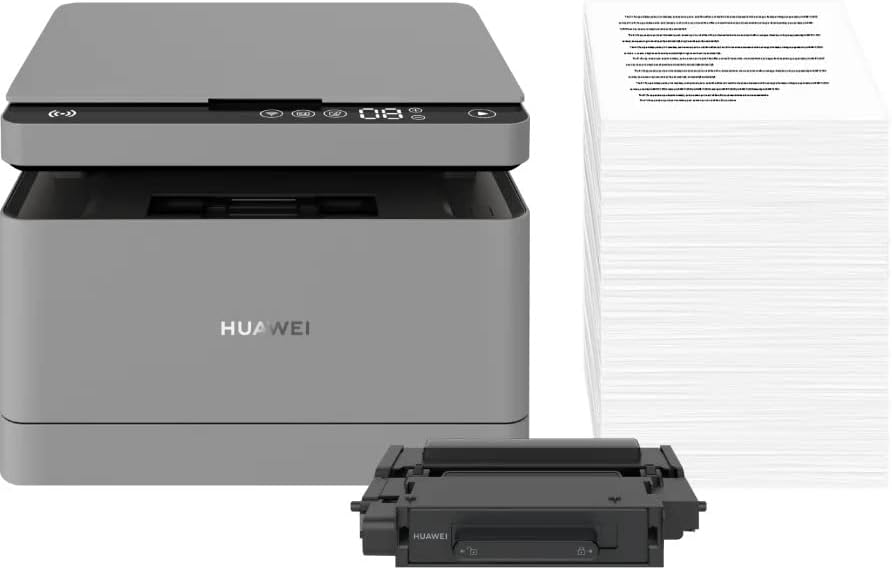
Rysunek 5.1: The HUAWEI PixLab B5 printer shown alongside a replacement toner cartridge and a stack of paper, highlighting the separate components.

Rysunek 5.2: A diagram illustrating the toner cartridge detached from the drum unit, demonstrating the modular design for replacement.
- Otwórz przednią pokrywę drukarki.
- Gently pull out the toner cartridge drawer.
- Insert the HUAWEI F-1500BZ toner cartridge into the HUAWEI X-15000BZ drum unit until it clicks into place.
- Slide the assembled toner and drum unit back into the printer until it is securely seated.
- Zamknij przednią pokrywę.
5.3 Ładowanie papieru
- Otwórz tacę papieru.
- Adjust the paper guides to the correct paper size (e.g., A4).
- Load paper into the tray, ensuring it is not overfilled (maximum capacity: 150 sheets).
- Zamknij podajnik papieru.
5.4 Połączenie zasilania
- Podłącz kabel zasilający do portu zasilania drukarki.
- Podłącz drugi koniec kabla zasilającego do uziemionego gniazdka elektrycznego.
- Naciśnij przycisk zasilania, aby włączyć drukarkę.
5.5 Instalacja oprogramowania i łączność
The HUAWEI PixLab B5 supports multiple connection methods for seamless integration with various devices.
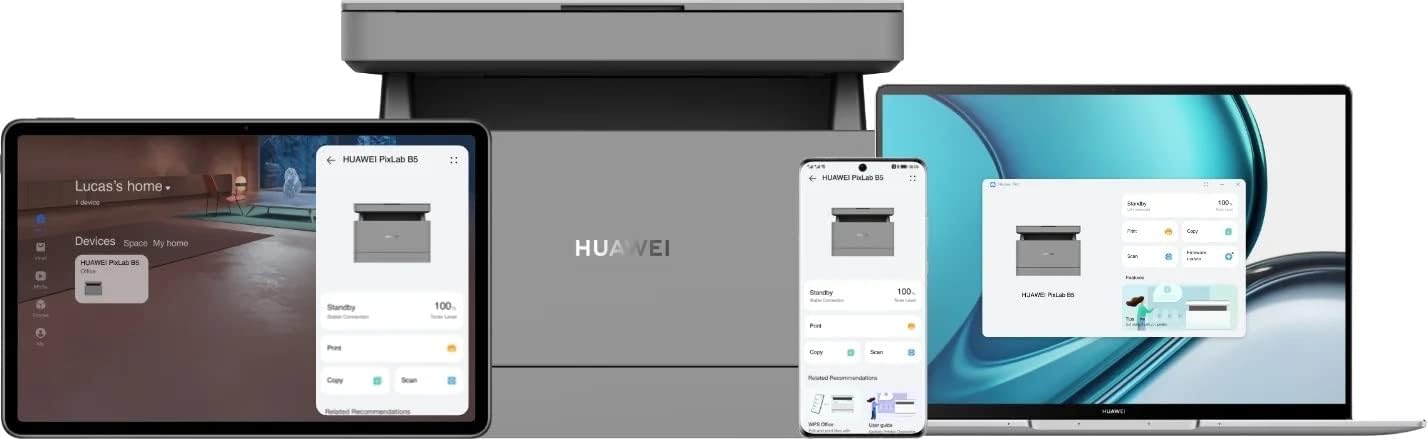
Rysunek 5.3: The HUAWEI PixLab B5 printer demonstrating its versatile connectivity by being linked to a tablet, a smartphone, and a laptop, all displaying the printer's interface.

Rysunek 5.4: An illustrative image depicting various devices such as a tablet, smartphone, and laptop connected to the printer, emphasizing multi-device compatibility.


Rysunek 5.5: Icons representing various connectivity options: USB, LAN, Wi-Fi, and Printer Hotspot.
- Połączenie USB: Connect the printer to your computer using the provided USB cable. The necessary drivers should install automatically.
- Połączenie LAN: Connect an Ethernet cable from your router or network switch to the LAN port on the printer.
- Połączenie Wi-Fi:
- Download and install the HUAWEI AI Life app on your smartphone or tablet.
- Follow the in-app instructions to connect your printer to your Wi-Fi network.
- For PC/laptop, ensure your device is on the same Wi-Fi network as the printer and add the printer through your operating system's printer settings.
- Połączenie NFC: For compatible devices, tap your device to the NFC tag on the printer to establish a quick connection.
6. Instrukcja obsługi
6.1 Drukowanie
The HUAWEI PixLab B5 offers high-speed monochrome printing at up to 30 pages per minute.

Rysunek 6.1: An image highlighting the printer's capability of printing 30 pages per minute for single-sided documents.
- Open the document you wish to print on your connected device.
- Wybierz opcję drukowania (zwykle File > Drukuj).
- Choose the HUAWEI PixLab B5 from the list of available printers.
- W razie potrzeby dostosuj ustawienia drukowania:
- Drukowanie dwustronne: The printer supports automatic double-sided printing. Select this option in your print settings to save paper.
- Jakość: The printer uses Q14 grayscale for clear and layered black and white prints.
- Kliknij „Drukuj”.
6.2 Kopiowanie
The printer can make up to 100 copies in a single series.

Rysunek 6.2: A person placing a smart card on the scanner bed of the HUAWEI PixLab B5, demonstrating the Smart Card Copy function.

Rysunek 6.3: An image showing a user placing a card on the scanner glass, indicating the process for copying or scanning small items like ID cards.
- Place the document face down on the scanner glass or face up in the automatic document feeder (if available).
- Na panelu sterowania drukarki wybierz funkcję „Kopiuj”.
- Dostosuj ustawienia, takie jak liczba kopii, intensywność lub rozmiar papieru.
- Smart Card Copy: This feature automatically corrects the position and orientation of cards for perfect copies, even if not perfectly aligned.
- Naciśnij przycisk „Start”, aby rozpocząć kopiowanie.
6.3 Skanowanie
The HUAWEI PixLab B5 functions as a photo and sheet-fed scanner.
- Umieść dokument na szybie skanera lub w podajniku dokumentów.
- On your connected computer or mobile device, open the scanning software (e.g., HUAWEI AI Life app or your operating system's scanning utility).
- Select the HUAWEI PixLab B5 as your scanner.
- Choose scan settings such as resolution, color mode (monochrome), and destination folder.
- Rozpocznij skanowanie.
6.4 Remote Printing
The HUAWEI AI Life app allows for flexible remote printing.

Rysunek 6.4: The HUAWEI PixLab B5 printer positioned on a desk next to a computer monitor, which displays the printer's software interface, indicating remote management capabilities.
- Ensure your HUAWEI PixLab B5 is connected to the internet via Wi-Fi or LAN.
- Open the HUAWEI AI Life app on your smartphone or tablet.
- Select your PixLab B5 printer from the device list.
- You can now send print jobs to your printer remotely, even when you are away from your office.
7. Konserwacja
7.1 Wymiana wkładu z tonerem
The HUAWEI PixLab B5 uses separate toner and drum units, allowing for independent replacement and cost savings.

Rysunek 7.1: An image displaying the maximum page yield for the drum cartridge (15,000 pages) and the toner cartridge (1,500 pages).
- When the toner low indicator appears, prepare a new HUAWEI F-1500BZ toner cartridge.
- Otwórz przednią pokrywę drukarki.
- Pull out the toner cartridge drawer.
- Remove the empty toner cartridge from the drum unit.
- Unpack the new toner cartridge and insert it into the drum unit until it clicks.
- Slide the assembled unit back into the printer and close the front cover.
7.2 Drum Unit Replacement
The HUAWEI X-15000BZ drum unit has a yield of up to 15,000 pages.
- When the drum unit needs replacement, open the front cover of the printer.
- Pull out the toner cartridge drawer, which contains the drum unit.
- Wyjmij wkład z tonerem ze starego bębna.
- Insert the toner cartridge into the new HUAWEI X-15000BZ drum unit.
- Slide the new assembled unit back into the printer and close the front cover.
7.3 Czyszczenie
- Wyłącz drukarkę i odłącz przewód zasilający.
- Użyj miękkiej, niestrzępiącej się szmatki dampened with water to wipe the exterior of the printer.
- For the scanner glass, use a glass cleaner applied to a cloth (not directly to the glass) to clean any smudges or dust.
- Nie należy używać środków czyszczących o właściwościach ściernych ani rozpuszczalników.
8. Rozwiązywanie Problemów
This section addresses common issues you might encounter with your HUAWEI PixLab B5 printer.
8.1 Drukarka nie odpowiada
- Check if the printer is powered on and the power cable is securely connected.
- Verify the USB, LAN, or Wi-Fi connection. For Wi-Fi, ensure the printer is connected to the correct network.
- Uruchom ponownie drukarkę i podłączone do niej urządzenie.
- Sprawdź, czy sterowniki drukarki są prawidłowo zainstalowane i zaktualizowane.
8.2 Problemy z jakością druku
- Check the toner level and replace the toner cartridge if it is low.
- Ensure the drum unit is not worn out (check its page yield).
- Wyczyść wewnętrzne podzespoły drukarki zgodnie z procedurą opisaną w rozdziale dotyczącym konserwacji.
- Use recommended paper types and ensure paper is loaded correctly.
8.3 Zacięcia papieru
- Wyłącz drukarkę i odłącz ją od zasilania.
- Carefully open all covers and remove any jammed paper, pulling in the direction of the paper path.
- Upewnij się, że w środku nie pozostały żadne małe skrawki papieru.
- Close all covers, plug in, and power on the printer.
9. Specyfikacje
| Funkcja | Specyfikacja |
|---|---|
| Marka | HUAWEI |
| Nazwa modelu | HUPIXLABB5 |
| Typ produktu | Copy, Scan, Print |
| Technologia druku | Laser |
| Wyjście drukarki | Monochromia |
| Maksymalna prędkość drukowania monochromatycznego | 30 stron na minutę |
| Maksymalna rozdzielczość druku | 600 x 600 DPI |
| Drukowanie dwustronne | Tak (automatycznie) |
| Typ skanera | Photo, Sheet-fed |
| Maksymalna liczba kopii na serię | 100 |
| Technologia łączności | Ethernet, NFC, USB, Wi-Fi |
| Łączna liczba portów USB | 1 |
| Kompatybilne urządzenia | Desktop Computer, Laptop, Smartphone, Tablet |
| Wsparcie systemu operacyjnego | OS X 10.9 Mavericks, Windows 10 |
| Maksymalny rozmiar nośnika | A4 |
| Rozmiar arkusza | 210×297 mm |
| Maksymalna pojemność podawania arkuszy | 150 |
| Pojemność pamięci | 512 MB |
| Pobór mocy | 410 waty |
| Power (Operating) | 240 watów |
| Waga przedmiotu | 12.3 kilograma |
| Wymiary produktu | 10D x 20W x 10H centymetrów |
| Kolor | Czarny |
| Cechy specjalne | Versatile connectivity (USB, LAN, Wi-Fi), Stable Wi-Fi, High print quality (Q14 grayscale), Remote printing (AI Life app), Print history erase for privacy. |
10. Gwarancja i wsparcie
For warranty information and technical support, please refer to the official HUAWEI website or contact your local HUAWEI customer service center. Keep your purchase receipt as proof of purchase.
Informacje dotyczące dostępności części zamiennych i gwarantowanych aktualizacji oprogramowania nie są w tej chwili dostępne.


