Wstęp
This manual provides comprehensive instructions for the setup, operation, and maintenance of your Targus Ambidextrous Bluetooth Mouse (Model: PMB58102GL). This compact, multi-device wireless mouse offers dual-mode connectivity (2.4 GHz and Bluetooth 5.0) and is compatible with Windows and macOS. It also features Targus DefenseGuard Protection, an antimicrobial additive that helps prevent the growth of microorganisms on the mouse surface.
Cechy produktu
- Oburęczna konstrukcja: The mouse features an oval, pebble-shaped design suitable for both left and right-handed users.
- Łączność wielourządzeniowa: Connects to up to three devices using either 2.4 GHz wireless (via USB receiver) or Bluetooth 5.0.
- DefenseGuard Protection: Infused with an antimicrobial additive (Silver Phosphate Glass (nano-)) that works continuously to protect the mouse surface by inhibiting microbial growth. This protection does not wear off.
- Essential Controls: Equipped with three essential buttons for clicking, pointing, and scrolling.
- Szeroka kompatybilność: Fully compatible with Windows and macOS operating systems.
Organizować coś
Zawartość opakowania
- Targus Ambidextrous Bluetooth Mouse (PMB58102GL)
- Odbiornik USB (przechowywany wewnątrz myszy)
- Bateria AA (wbudowana lub dołączona)
- Szybki przewodnik
Instalacja baterii
- Znajdź pokrywę komory baterii na spodzie myszy.
- Otwórz pokrywę.
- Włóż jedną baterię AA, zwracając uwagę na prawidłową biegunowość (+/-).
- Dokładnie zamknij pokrywę komory baterii.
Note: The USB receiver is typically stored inside the battery compartment for safekeeping.

Image: The underside of the Targus mouse, displaying the battery compartment, the power switch, and the multi-device pairing button.
Connecting via 2.4 GHz USB Receiver
- Wyjmij odbiornik USB z gniazda znajdującego się wewnątrz myszy.
- Podłącz odbiornik USB do wolnego portu USB-A w komputerze.
- Włącz mysz za pomocą przełącznika zasilania znajdującego się na spodzie urządzenia.
- Mysz powinna automatycznie połączyć się z komputerem.
Obraz: kątowy view of the Targus mouse, with its small USB receiver placed beside it, illustrating the 2.4 GHz wireless connection component.
Łączenie przez Bluetooth 5.0
- Włącz mysz za pomocą przełącznika zasilania znajdującego się na spodzie urządzenia.
- Press the multi-device pairing button on the underside of the mouse to select a Bluetooth channel (indicated by LED lights 1, 2, or 3).
- Press and hold the pairing button for 3-5 seconds until the selected LED light blinks rapidly, indicating pairing mode.
- On your computer (Windows or macOS), go to Bluetooth settings and search for new devices.
- Select "Targus Mouse" from the list of available devices to complete the pairing process.
Note: You can pair up to three devices (one via 2.4 GHz USB receiver, two via Bluetooth).
Instrukcja obsługi
Włączanie/wyłączanie zasilania
Use the ON/OFF switch located on the underside of the mouse to power it on or off. Turning the mouse off when not in use conserves battery life.
Przełączanie między podłączonymi urządzeniami
If you have paired the mouse with multiple devices, press the multi-device pairing button on the underside of the mouse to cycle through the connected devices (channels 1, 2, and 3). The corresponding LED light will indicate the currently active channel.
Basic Mouse Functions
- Lewy przycisk myszy: Podstawowy wybór i aktywacja.
- Kliknij prawym przyciskiem myszy: Dostęp do menu kontekstowych.
- Kółko przewijania: Scrolls content vertically. The scroll wheel also functions as a middle click button.

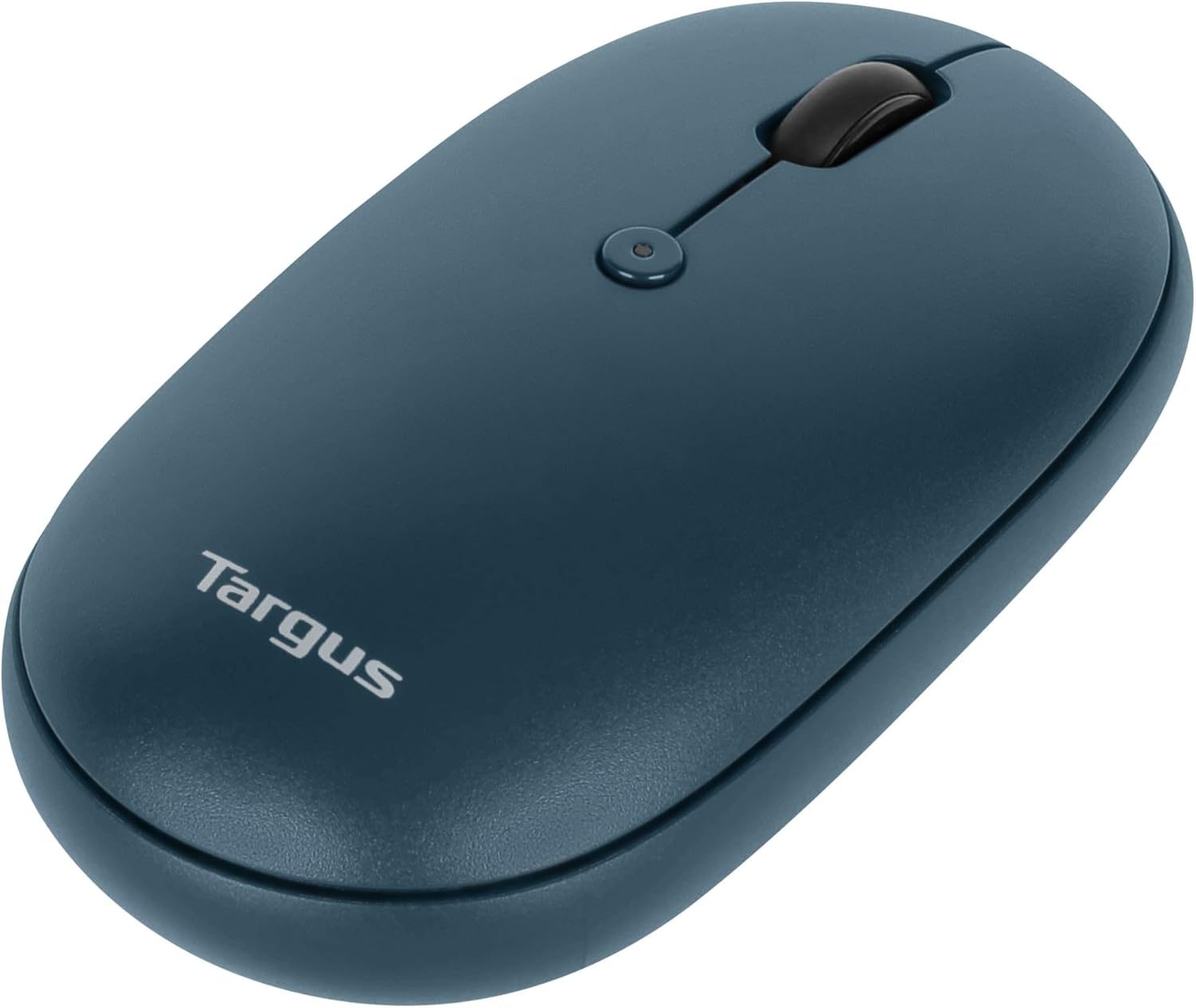
Obraz: widok z góry view of the Targus mouse, highlighting the left and right click buttons and the central scroll wheel.
DPI Adjustment (Scroll Speed)
The mouse features a button near the scroll wheel that allows you to adjust the DPI (Dots Per Inch) setting, which controls the cursor speed. Press this button to cycle through different sensitivity levels to match your preference.

Obraz: kątowy szczyt view of the Targus mouse, clearly showing the small button located behind the scroll wheel, used for DPI adjustment.
Konserwacja
- Czyszczenie: Użyj miękkiego, damp cloth to clean the exterior of the mouse. Avoid harsh chemicals or abrasive materials.
- Wymiana baterii: When the mouse performance degrades or the indicator light signals low battery, replace the AA battery as described in the "Battery Installation" section.
- Składowanie: When not in use, store the USB receiver inside the mouse's battery compartment to prevent loss.
Rozwiązywanie problemów
| Problem | Rozwiązanie |
|---|---|
| Mysz nie reaguje. |
|
| Przerywane połączenie. |
|
| Scroll wheel not working correctly. |
|
Specyfikacje
| Funkcja | Szczegół |
|---|---|
| Marka | Targus |
| Numer modelu | PMB58102GL (also AUB09QC3P5LR) |
| Technologia łączności | Łączność bezprzewodowa 2.4 GHz, Bluetooth 5.0 |
| Technologia wykrywania ruchu | Optyczny |
| Zgodność z systemem operacyjnym | Windows, macOS |
| Źródło zasilania | Zasilany bateryjnie (1x AA) |
| Waga przedmiotu | 5.3 uncji |
| Wymiary opakowania | 7.28 x 6.22 x 2.52 cala |
| Kolor | Niebieski |
| Ochrona antybakteryjna | Targus DefenseGuard (Silver Phosphate Glass (nano-)) |
Oficjalny film o produkcie
Wideo: Oficjalnyview of the Targus Compact Multi-Device Wireless Mice, demonstrating key features like multi-device connectivity and design.
Gwarancja i wsparcie
The Targus Ambidextrous Bluetooth Mouse (PMB58102GL) comes with a Ograniczona 2-letnia gwarancja. This warranty covers specific parts and types of damage for computer keyboards, mice, and accessories. For detailed warranty information and support, please refer to the official Targus webodwiedź witrynę lub skontaktuj się z obsługą klienta.
Aby uzyskać dalszą pomoc, odwiedź stronę Targus Store.


