Wstęp
This manual provides detailed instructions for the proper use and maintenance of your YOUHE Q70 Ultra-Compact 16GB Voice Recorder. Please read this manual thoroughly before using the device to ensure optimal performance and to prevent damage.
Cechy produktu
- Extended Recording & Storage: Equipped with a 2600mAh lithium-ion battery, providing up to 500 hours of continuous recording on a full charge. Features 16GB of built-in memory, capable of storing up to 1138 hours of WAV format audio data.
- Wysokiej jakości dźwięk: Supports recording at bitrates from 32kbps to 384kbps, ensuring clear audio capture. Incorporates advanced noise-canceling technology and a high-performance 360-degree omnidirectional microphone with AGC (Automatic Gain Control) to reduce ambient noise.
- Łatwa obsługa: One-touch recording activation by simply sliding a button.
- Nagrywanie sterowane głosem (VOR): Automatically starts recording when sound is detected and pauses when silent, conserving memory and battery. Features 7 adjustable sensitivity levels for VOR.
- Uniwersalna kompatybilność: Compatible with Windows and Mac computers. OTG (On-The-Go) function allows direct connection to Android smartphones for instant playback and file management. (Note: iPhone not supported via OTG).
- Kompaktowa i dyskretna konstrukcja: Palm-sized (approximately 7cm in length) and lightweight, designed for portability and discreet use.
- Mocowanie magnetyczne: Built-in strong magnets allow for easy and secure attachment to metallic surfaces, enabling discreet placement during recordings.
- Data i godzina Stamp: Synchronize with your computer to accurately stamp nagranie files with the creation date and time for easy organization.
- Automatyczne zapisywanie: Automatically saves recording data when the battery level is critically low.

Rysunek 1: Koniecview of YOUHE Q70 Voice Recorder features, highlighting its long battery life, large storage, high-quality recording, and versatile functions.
Zawartość opakowania
Sprawdź, czy w przesyłce znajdują się wszystkie elementy:
- YOUHE Q70 Voice Recorder
- Kabel USB do ładowania/danych danych
- OTG Adapter (for Android connection)
- Instrukcja obsługi (ten dokument)
Organizować coś
1. Ładowanie urządzenia
Before first use, fully charge the voice recorder. Connect the device to a computer's USB port or a USB wall adapter (not included) using the provided USB cable. The indicator light will show charging status (refer to device specific light behavior, usually red for charging, blue/off for full).
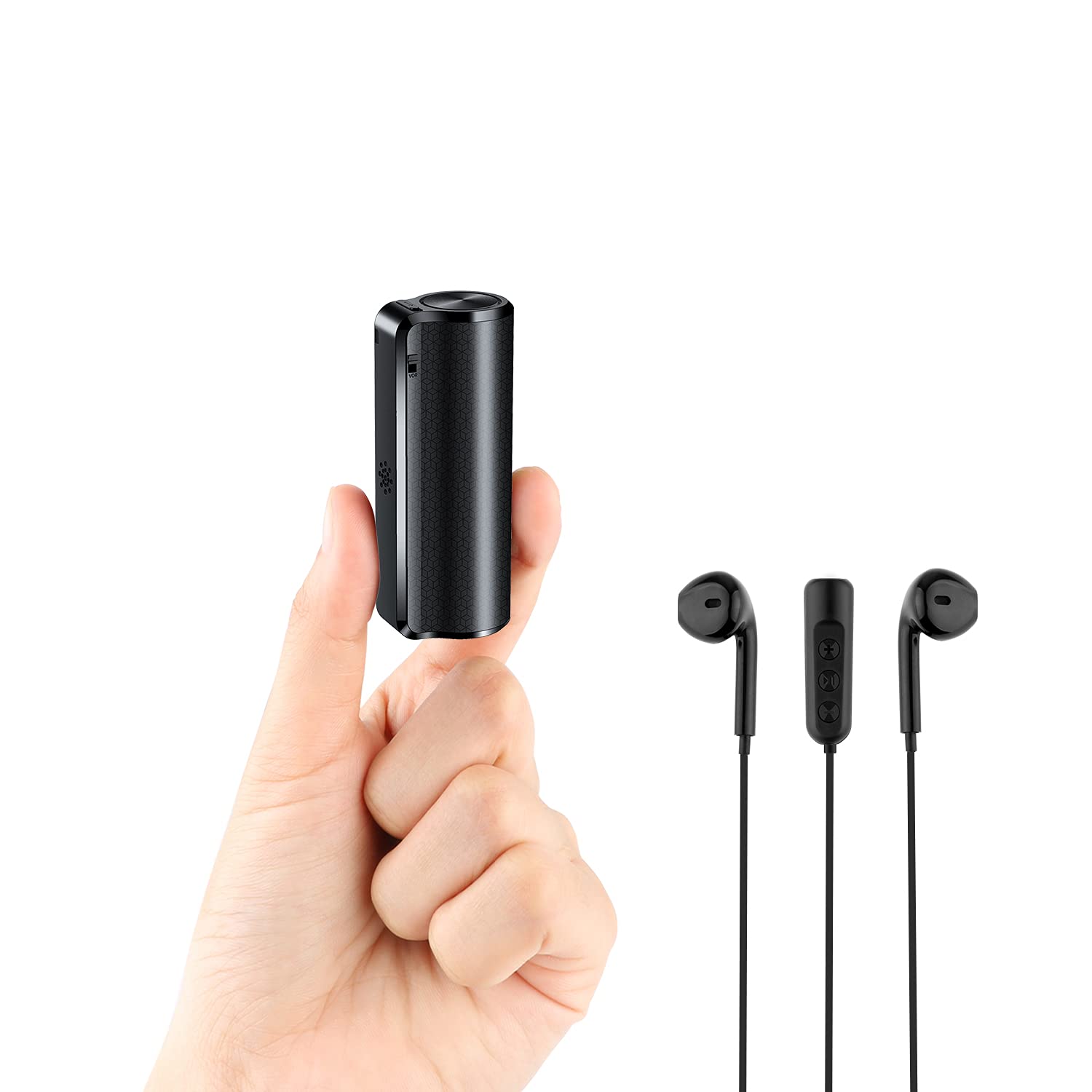
Figure 2: The YOUHE Q70 Voice Recorder, showing its compact design and charging port location.
2. Setting Date and Time (Windows/Mac)
To ensure accurate date and time stamps on your recordings, connect the recorder to your computer. The device will appear as a removable disk. Locate and run the time synchronization utility (usually a file named "SetTime.exe" or similar) on the device's storage. Follow the on-screen instructions to synchronize the device's clock with your computer's system time.
Instrukcja obsługi
1. One-Touch Recording
To start recording, slide the power switch to the ON position. The device will begin recording automatically. To stop recording and save the file, slide the power switch to the WYŁĄCZONY position. The recording will be saved as a WAV file.
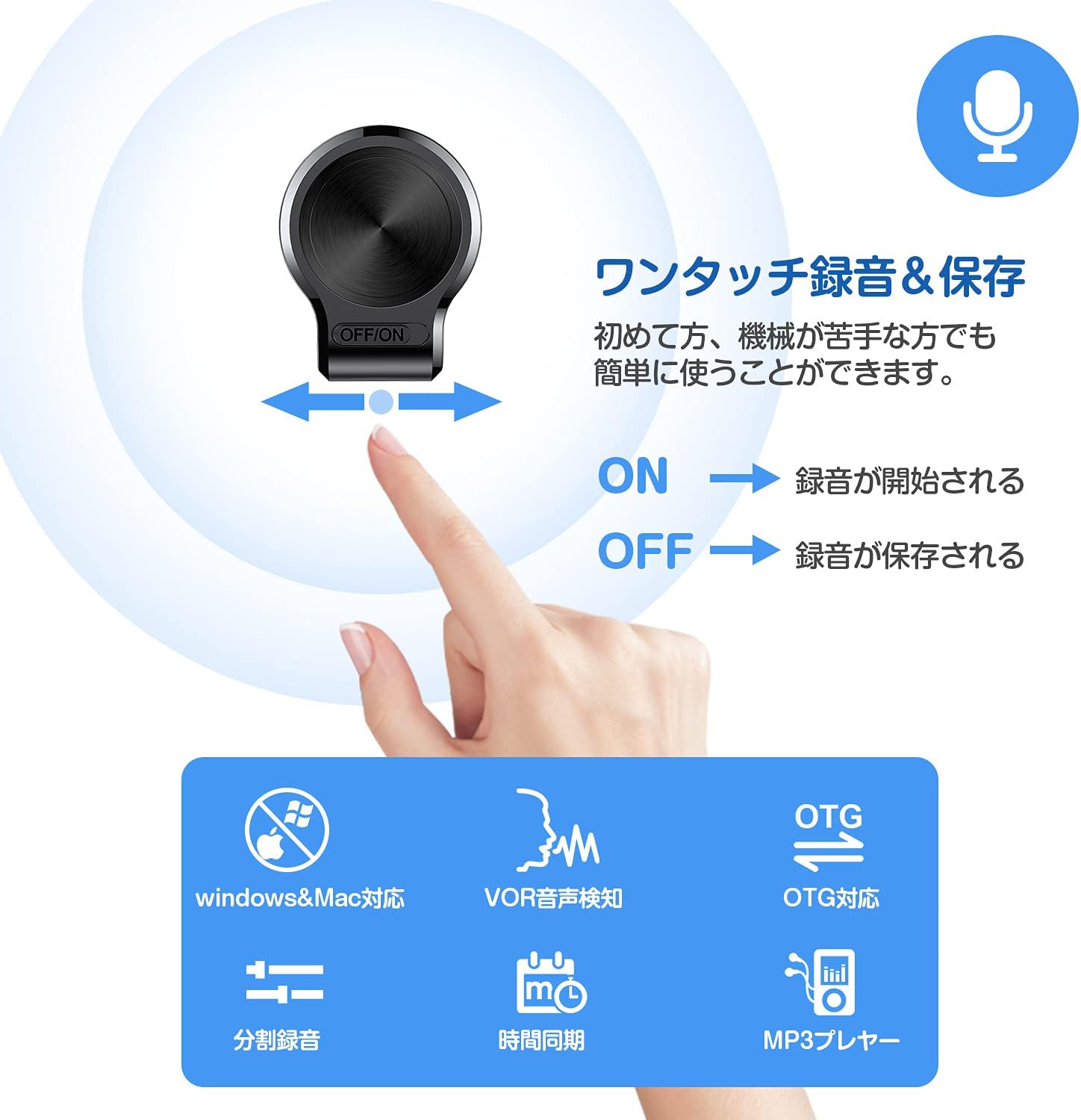
Figure 3: One-touch recording operation. Slide the switch to ON to start, and OFF to save and stop.
2. Voice Operated Recording (VOR)
The VOR function allows the recorder to start recording only when sound is detected, and pause when there is silence. This feature helps save storage space and battery life. To enable VOR, ensure the device is in recording mode and activate the VOR setting (refer to the device's configuration file or specific button if available, usually set via a configuration file when connected to PC). The sensitivity of VOR can be adjusted in 7 levels via the configuration file na komputerze.
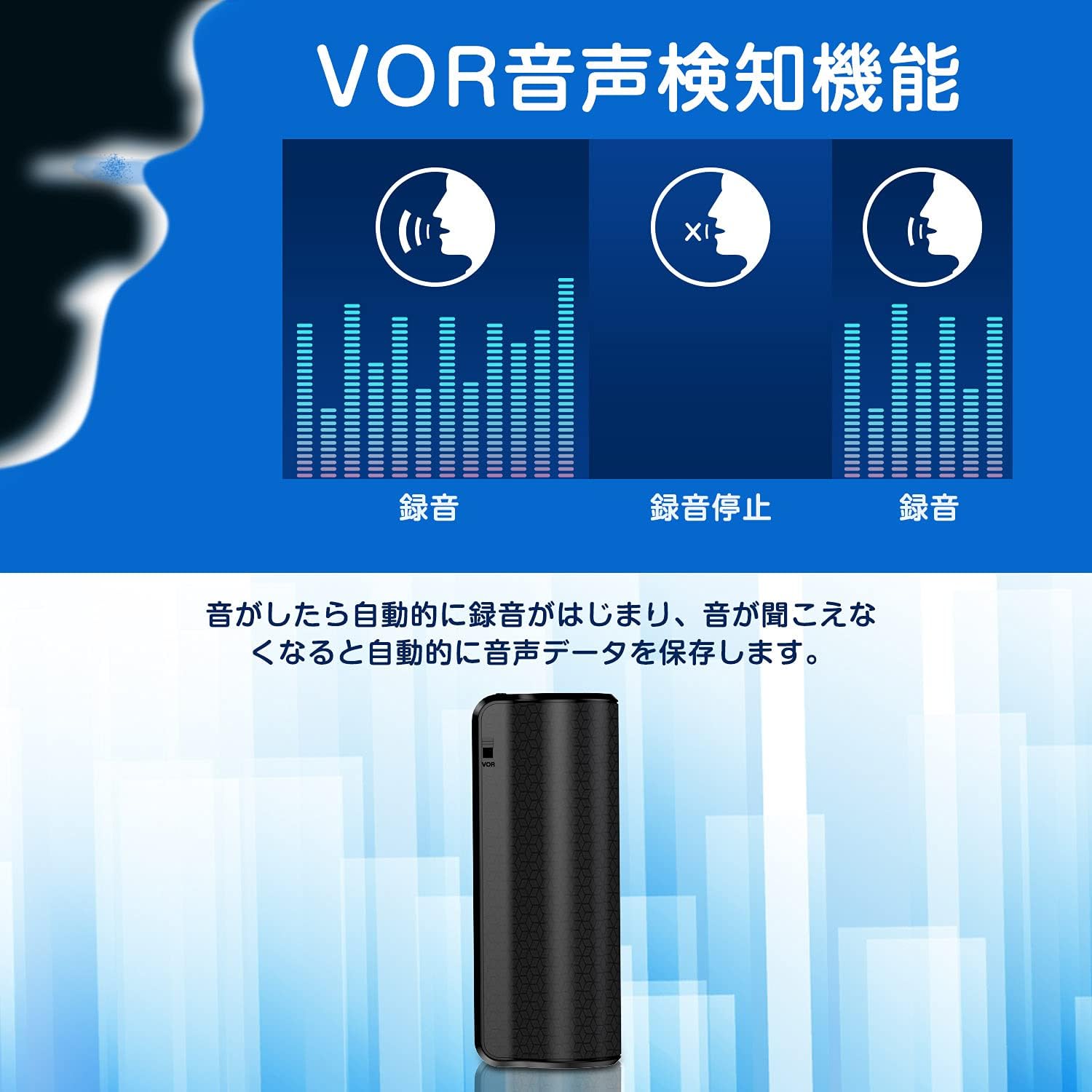
Figure 4: VOR function in action. Recording activates with sound and pauses during silence.
3. Connecting to Computer (Windows/Mac)
Connect the voice recorder to your computer using the provided USB cable. The device will be recognized as a removable storage device. You can then access the recorded WAV files, transfer them to your computer, or delete them. You can also manage device settings via a configuration file (e.g., setting VOR sensitivity, recording quality) found on the device's storage.
4. Connecting to Android Smartphone (OTG)
For Android smartphones that support OTG functionality, use the provided OTG adapter to connect the voice recorder directly to your phone. This allows you to play back, transfer, or delete recorded files bezpośrednio ze smartfona. Note: iPhone devices are not supported via OTG.

Figure 5: Direct connection to an Android smartphone using the OTG adapter for file dostęp.
5. Discreet Placement with Magnetic Attachment
The built-in magnets allow the recorder to be attached to various metallic surfaces for discreet recording. This is useful in settings like meetings, interviews, or lectures where the device needs to be inconspicuous.
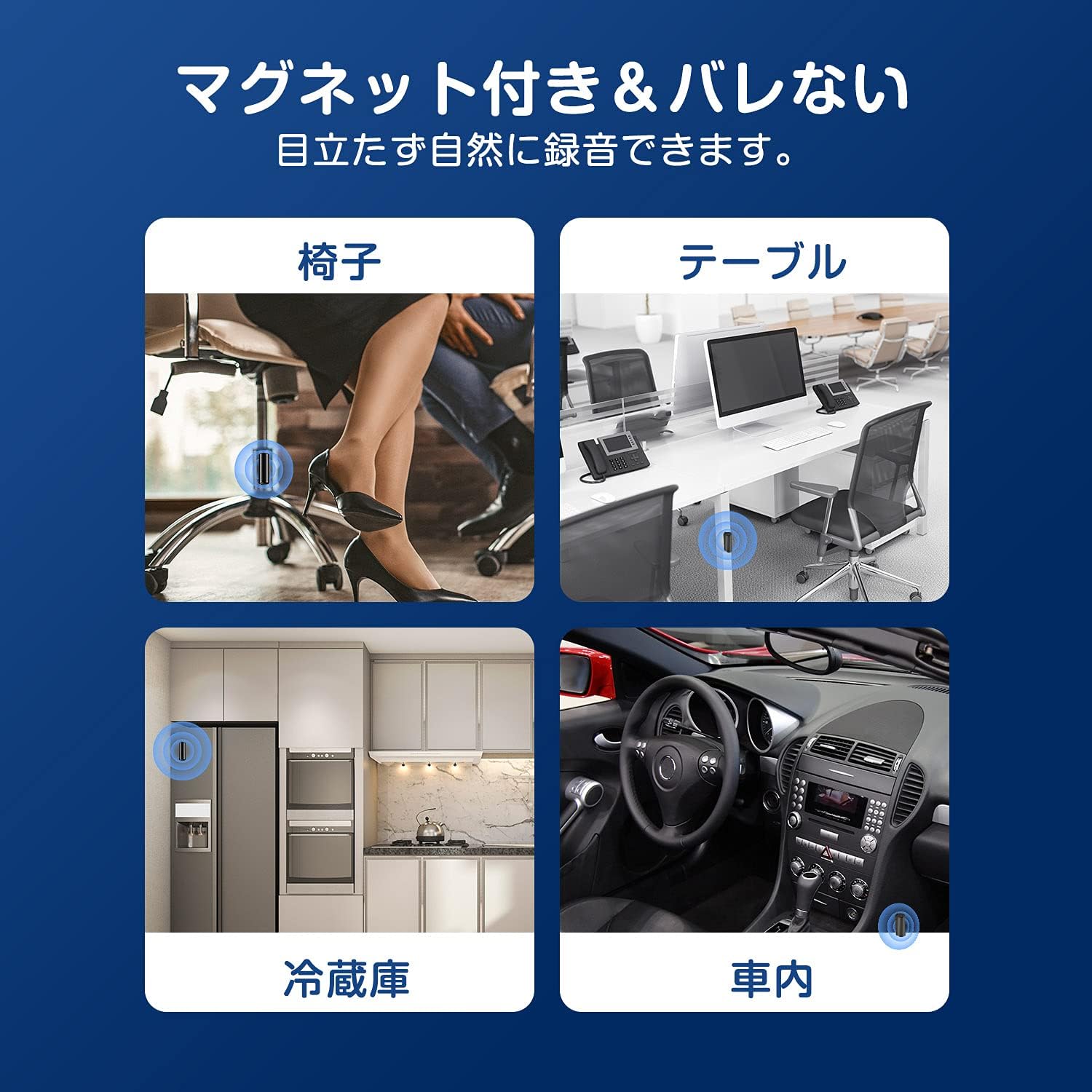
Rysunek 6: Examples of magnetic attachment for discreet recording in various environments.
6. Recording Quality Settings
The recording quality can be adjusted between 32kbps and 384kbps. This setting is typically configured via a text file (e.g., "settings.txt" or similar) on the device when connected to a computer. Higher bitrates result in better audio quality but consume more storage space.

Figure 7: The YOUHE Q70 supports adjustable recording quality up to 384kbps for clear sound.
7. Split Recording
The device supports splitting long recordings into smaller files. This feature can be configured via a settings file when connected to a computer, allowing you to set the duration for each split file (e.g., 10 to 240 minutes).

Figure 8: Split recording feature, adjustable from 10 to 240 minutes per file.
Konserwacja
- Przechowuj urządzenie w suchym miejscu. Unikaj narażenia na działanie wilgoci i płynów.
- Czyść urządzenie miękką, suchą ściereczką. Nie używaj silnych środków chemicznych ani ściernych środków czyszczących.
- Unikaj ekstremalnych temperatur. Nie przechowuj urządzenia w bardzo gorącym lub zimnym otoczeniu.
- Aby zachować sprawność baterii, ładuj urządzenie regularnie, nawet jeśli nie używasz go często.
- Back up important recordings to your computer regularly to prevent data loss.
Rozwiązywanie problemów
| Problem | Możliwa przyczyna | Rozwiązanie |
|---|---|---|
| Urządzenie się nie włącza. | Bateria jest rozładowana. | Całkowicie naładuj urządzenie. |
| Nie można nagrywać. | Device memory is full. | Connect to a computer and delete old files aby zwolnić miejsce. |
| Słaba jakość nagrania. | Low bitrate setting; excessive background noise. | Adjust recording quality to a higher bitrate via computer settings. Ensure microphone is not obstructed and record in a quieter environment. |
| Urządzenie nie zostało rozpoznane przez komputer. | Wadliwy kabel USB, nieprawidłowe połączenie, problem ze sterownikiem. | Try a different USB port or cable. Ensure the device is properly connected. Restart your computer. |
| VOR not working as expected. | VOR sensitivity too low/high; VOR not enabled. | Adjust VOR sensitivity via the configuration file on a computer. Ensure VOR is enabled in settings. |
Specyfikacje
- Model: Pytanie 70
- Marka: TY ON
- Pamięć wewnętrzna: 16 GB
- Format nagrywania: WAV
- Szybkość nagrywania: 32kbps - 384kbps (adjustable)
- Pojemność baterii: 2600mAh litowo-jonowy
- Czas ciągłego nagrywania: Do 500 godzin
- Czas czuwania: Do 300 dni
- Mikrofon: 360-degree Omnidirectional, Built-in
- Redukcja hałasu: AGC Noise Canceling Technology
- Łączność: USB, OTG (for Android)
- Zgodność: Windows, Mac, Android (OTG)
- Wymiary: Approximately 7cm length (palm-sized)
- Cechy: One-touch recording, VOR (Voice Operated Recording) with 7 levels, Magnetic attachment, Date/Time stamp, Automatic save on low power.
Gwarancja i wsparcie
For warranty information and technical support, please refer to the contact details provided with your purchase or visit the official YOUHE webZachowaj paragon jako dowód zakupu na wypadek reklamacji.


