1. Wprowadzenie
The Zenec Z-E1010 is an advanced 10.1-inch infotainment system designed for vehicle integration. This system provides a wide range of features including digital radio (DAB+), FM radio, Bluetooth connectivity, USB media playback, and smartphone integration capabilities. It is part of the ZENEC E>GO CORE series, offering a large display and intuitive operation for an enhanced in-car experience. This manual provides essential information for the proper installation, operation, and maintenance of your Z-E1010 unit.
2. Informacje dotyczące bezpieczeństwa
- Przeczytaj uważnie wszystkie instrukcje przed instalacją i obsługą.
- Aby zapobiec uszkodzeniu urządzenia lub pojazdu, montaż powinien zostać przeprowadzony przez wykwalifikowanego specjalistę.
- Nie używaj urządzenia w sposób, który rozprasza Cię podczas jazdy. Zawsze priorytetowo traktuj bezpieczeństwo na drodze.
- Unikaj wystawiania urządzenia na działanie ekstremalnych temperatur, długotrwałego bezpośredniego światła słonecznego i nadmiernej wilgoci.
- Use only approved accessories and parts with the Z-E1010.
3. Zawartość opakowania
Sprawdź, czy w opakowaniu znajdują się wszystkie elementy:
- Zenec Z-E1010 Infotainment Unit
- Główna wiązka przewodów
- USB Extension Cables (2x)
- Antena GPS
- Mikrofon
- Instrukcja obsługi (ten dokument)
- Note: Vehicle-specific mounting kits and DAB+ antenna are optional and sold separately.
4. Konfiguracja i instalacja
The Z-E1010 is designed for integration into specific vehicle models using dedicated installation kits. These kits typically include mounting frames and necessary components for vehicle connection.
4.1. Kontrole przed instalacją
- Przed rozpoczęciem instalacji należy upewnić się, że zapłon pojazdu jest wyłączony, a akumulator odłączony.
- Confirm compatibility with your vehicle model and that you have the correct vehicle-specific mounting kit.
4.2. Połączenia okablowania
Connect the main wiring harness to the vehicle's electrical system. The Z-E1010 features an integrated CAN BUS adapter for automatic vehicle model detection and simplified connection. Connect the GPS antenna, microphone, and USB extension cables to the designated ports on the unit.
4.3. Montaż urządzenia
Follow the instructions provided with your vehicle-specific mounting kit to securely install the Z-E1010 into the dashboard. Ensure all cables are routed safely and do not interfere with vehicle operation.
5. Instrukcja obsługi
The Zenec Z-E1010 features a 10.1-inch capacitive touchscreen for intuitive control. The main interface provides access to various functions via distinct icons.
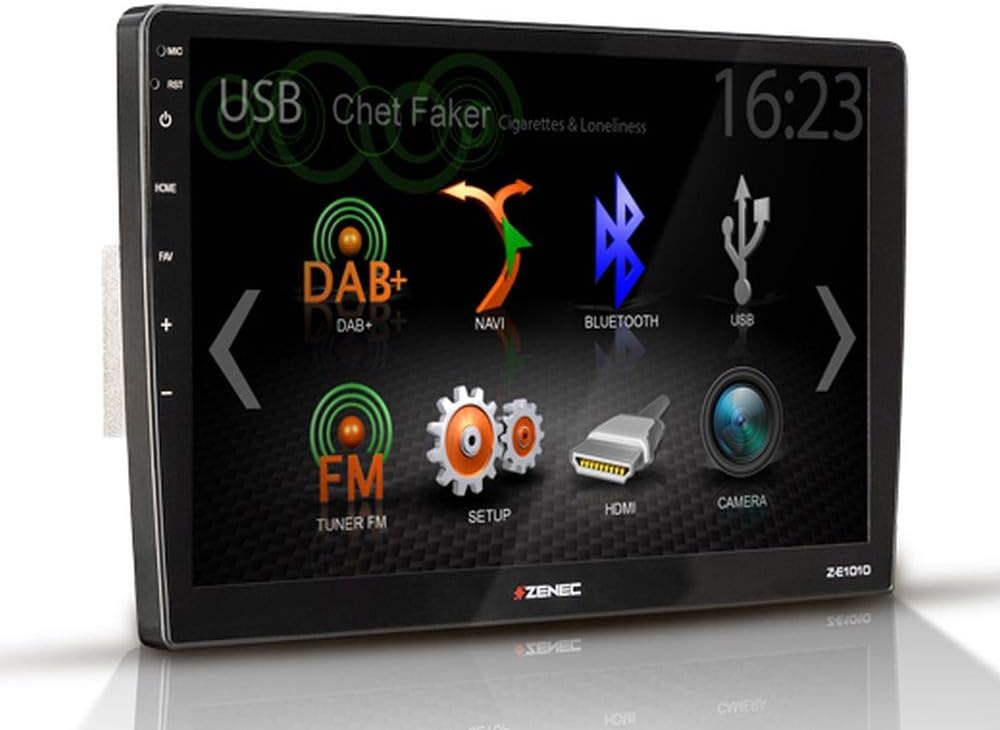
Rysunek 5.1: Zenec Z-E1010 Infotainment System main screen. This image illustrates the primary user interface of the Zenec Z-E1010 Infotainment System. The screen shows various selectable icons for core functions such as USB media playback, DAB+ digital radio, navigation, Bluetooth connectivity, FM radio, system setup, HDMI input, and camera view. The current time '16:23' is visible in the top right corner, and 'Chet Faker - Cigarettes & Loneliness' is displayed as the currently playing track via USB.
5.1. Ogólne zasady działania
- Włączanie/wyłączanie: Press and hold the power button (usually on the left side) to turn the unit on or off. A short press may mute audio or switch modes.
- Ekran dotykowy: Navigate through menus and select functions by tapping the corresponding icons on the capacitive touchscreen.
- Regulacja głośności: Use the physical volume buttons or on-screen controls to adjust audio levels.
5.2. Funkcje audio
- Tuner DAB+: Select the 'DAB+' icon to access digital radio. Features include service following, MOT Slideshow, DLS (Dynamic Label Segment), and DLS text. The tuner provides clear digital radio reception.
- Tuner FM: Select the 'FM Tuner' icon for analog radio. It supports RDS (Radio Data System) functions.
- Odtwarzanie z USB: Connect USB storage devices to the two USB 2.0 ports for audio and video file odtwarzanie nagranego dźwięku.
- Korektor: The unit includes a 3-band equalizer for audio customization.
5.3. Łączność
- Bluetooth 4.1: Access the 'Bluetooth' function for hands-free calling with good voice quality and A2DP music streaming. Pair your smartphone via the Bluetooth settings menu.
- SmartLink: This feature allows direct connection for Apple CarPlay and Android Auto, making smartphone applications available on the infotainment screen.
- WebLink 2.0: Extends integration of online content such as YouTube, ShoutCast, and various audio/video players, controllable via the Z-E1010.
5.4. Nawigacja
The Z-E1010 can be upgraded to a fully equipped GPS receiver with the optional Z-EMAP-CORE navigation package. Once installed, select the 'NAVI' icon to access navigation functions.
5.5. RealDash Application
The RealDash application provides a virtual dashboard display. This feature requires an optional OBDII dongle to connect to your vehicle's diagnostic port and display various vehicle data on the Z-E1010 screen.
5.6. System Settings ('SETUP')
Access the 'SETUP' menu to configure various system parameters, including audio settings, display preferences, Bluetooth pairing, and general device settings.
5.7. Funkcja aparatu
Jeśli kompatybilny tyłview camera is connected, select the 'CAMERA' icon to view the camera feed. This function is typically activated automatically when the vehicle is put into reverse gear.
6. Konserwacja
- Czyszczenie ekranu: Delikatnie przetrzyj ekran dotykowy miękką, niepozostawiającą włókien ściereczką. W przypadku uporczywych zabrudzeń delikatnie przetrzyj.ampPrzetrzyj ściereczkę wodą lub płynem do czyszczenia ekranów. Unikaj stosowania silnych środków chemicznych i materiałów ściernych.
- Ogólne sprzątanie: Utrzymuj urządzenie w czystości, usuwając kurz i zanieczyszczenia. Do czyszczenia szczelin używaj miękkiej szczotki lub sprężonego powietrza.
- Aktualizacje oprogramowania: Periodically check the Zenec official webwitryna z dostępnymi aktualizacjami oprogramowania, która zapewnia optymalną wydajność i dostęp do nowych funkcji.
7. Rozwiązywanie Problemów
This section addresses common issues you might encounter with your Z-E1010 unit.
- Brak zasilania: Sprawdź wszystkie połączenia zasilania i bezpieczniki pojazdu. Upewnij się, że zapłon jest włączony.
- Brak dźwięku: Sprawdź ustawienia głośności, sprawdź połączenia głośników i upewnij się, że wybrano prawidłowe źródło dźwięku.
- Problemy z parowaniem Bluetooth: Ensure Bluetooth is enabled on both the Z-E1010 and your smartphone. Delete previous pairings and attempt to pair again.
- Brak reakcji ekranu dotykowego: Try restarting the unit. If the issue persists, a factory reset might be necessary (refer to the 'SETUP' menu).
- DAB+ Reception Poor: Ensure the DAB+ antenna is correctly installed and positioned. Check for signal strength in your area.
If you experience persistent issues not covered here, please contact Zenec customer support or a qualified service technician.
8. Specyfikacje
| Funkcja | Specyfikacja |
|---|---|
| Marka | Zenek |
| Numer modelu | Z-E1010 |
| Rozmiar ekranu | 10.1 cali (25.7 cm) |
| Rozdzielczość ekranu | 1024 x 600 pikseli |
| Typ wyświetlacza | Pojemnościowy ekran dotykowy |
| Łączność | USB (2x), Bluetooth 4.1 |
| Cechy specjalne | DAB+, RDS, SmartLink (Apple CarPlay, Android Auto), WebLink 2.0, RealDash App, Integrated CAN BUS Adapter |
| Kompatybilne urządzenia | Smartfony |
| Tryb wyjścia audio | Stereofoniczny |
| Konfiguracja dźwięku przestrzennego | 4.0 |
| Wszystkie porty HDMI | 1 |
| Moc wyjściowa | 4 x 50 W |
9. Gwarancja i wsparcie
For detailed warranty information, please refer to the warranty card included with your product or visit the official Zenec website. For technical support, troubleshooting assistance beyond this manual, or inquiries about spare parts, please contact your authorized Zenec dealer or Zenec customer service directly. Keep your proof of purchase for warranty claims.


