Wstęp
This manual provides essential information for the installation, operation, and maintenance of your ZOTAC Gaming GeForce RTX 2080 Ti Blower graphics card. Please read this guide thoroughly before proceeding with installation to ensure proper setup and optimal performance.
Produkt ponadview
The ZOTAC Gaming GeForce RTX 2080 Ti Blower is a high-performance graphics card designed for demanding gaming and professional applications. It features NVIDIA's Turing architecture, 11GB of GDDR6 memory, and a blower-style cooling solution.
- New Turing architecture for advanced graphics processing.
- 11GB 352-bit GDDR6 memory for high-bandwidth performance.
- Virtual Reality Ready for immersive experiences.
- 4K ready for ultra-high-definition gaming.
- Boost Clock 1545 MHz for enhanced speed.

Obraz: Przód view of the ZOTAC Gaming GeForce RTX 2080 Ti Blower graphics card, showcasing its black shroud and single blower fan.

Image: Backplate view of the ZOTAC Gaming GeForce RTX 2080 Ti Blower graphics card, featuring a metal backplate for structural rigidity and heat dissipation.
Co jest w pudełku
Sprawdź, czy w opakowaniu znajdują się wszystkie komponenty:
- ZOTAC GAMING GeForce RTX 2080 Ti Blower Graphics Card
- 2 x Dual 6-pin to 8-pin power cables
- Instrukcja obsługi (Szybki przewodnik instalacji)
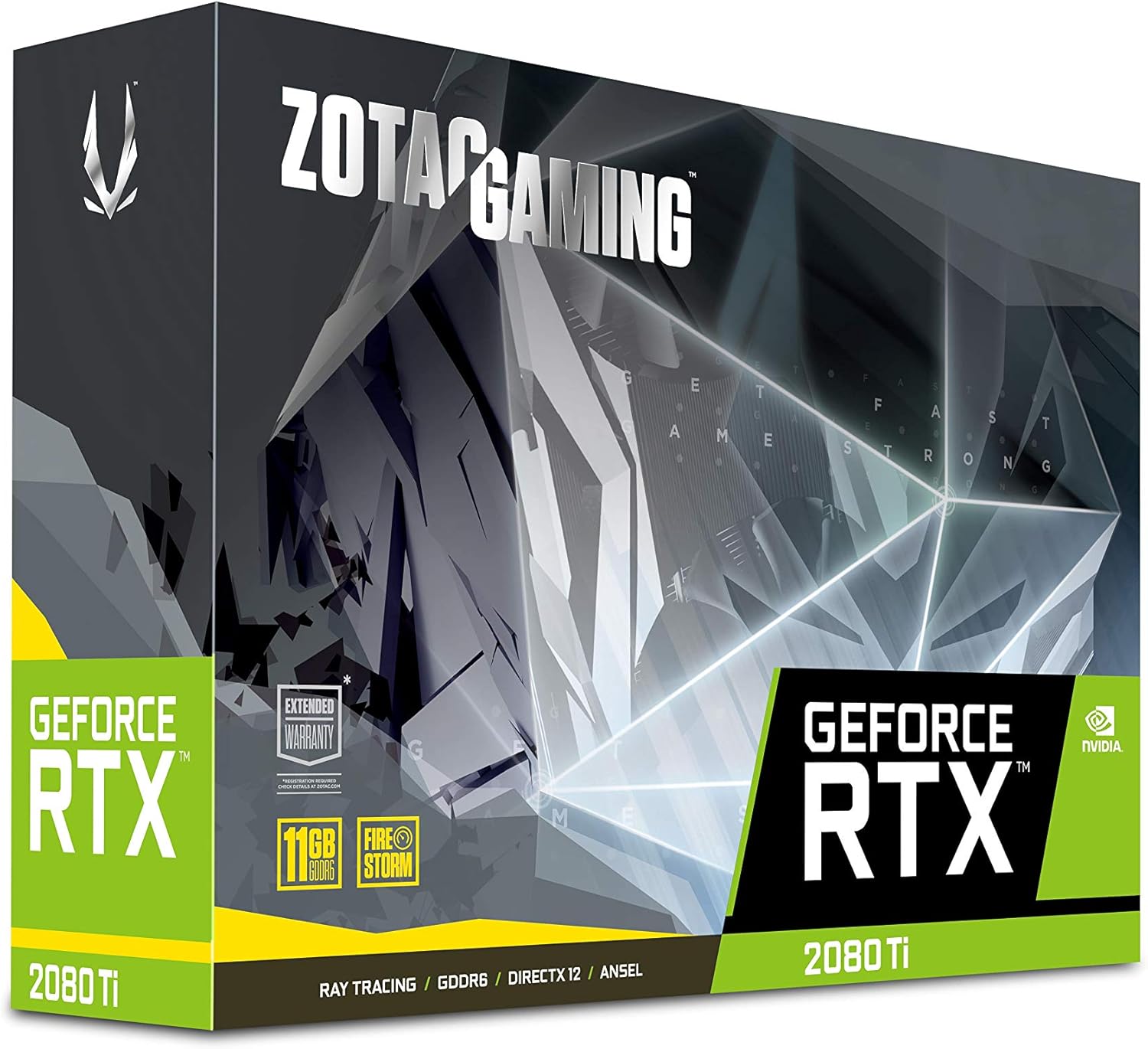
Image: The retail packaging for the ZOTAC Gaming GeForce RTX 2080 Ti Blower graphics card.

Image: The ZOTAC Quick Installation Guide, providing initial setup instructions.
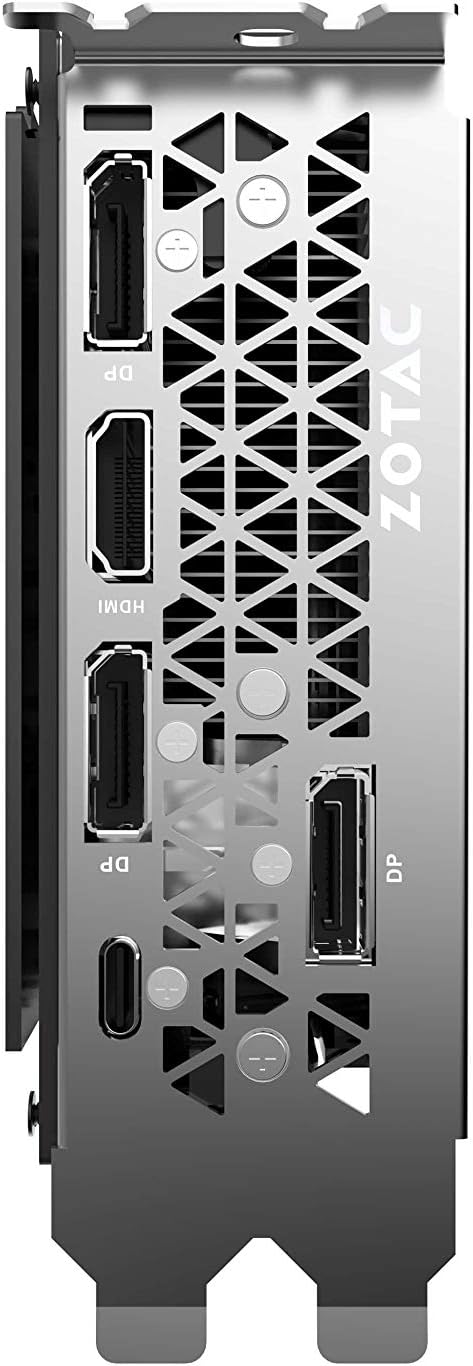
Image: The included 2 x Dual 6-pin to 8-pin power cables for connecting the graphics card to the power supply.
Konfiguracja i instalacja
Aby zainstalować kartę graficzną, wykonaj następujące czynności:
- Przygotuj swój system: Turn off your computer and disconnect the power cable. Open your computer case.
- Zlokalizuj gniazdo PCIe: Znajdź dostępne gniazdo PCI Express 3.0 x16 na płycie głównej.
- Install the Card: Carefully align the graphics card with the PCIe slot and press down firmly until it is securely seated. Secure the card with the case's retention mechanism or screws.
- Podłącz zasilanie: Connect the required 8-pin power connectors from your power supply to the graphics card. Use the provided 6-pin to 8-pin adapters if necessary.
- Zamknij obudowę i podłącz wyświetlacz: Close your computer case, reconnect the power cable, and connect your display cable(s) to the graphics card's output ports.
- Zainstaluj sterowniki: Włącz komputer. Po załadowaniu systemu operacyjnego zainstaluj najnowsze sterowniki NVIDIA z oficjalnej strony NVIDIA. webstrona.

Obraz: kątowy view of the graphics card, illustrating its form factor for installation into a PCIe slot.
Wymagania dotyczące zasilania
To ensure stable operation, your system must meet the following power specifications:
- Zalecany zasilacz: 650-watt power supply or greater.
- Maksymalne zużycie energii: Watów 250.
Note: Insufficient power supply can lead to system instability or damage.
Znajomości
The graphics card provides multiple display output options:
- 3 x DisplayPort 1.4
- 1 x HDMI 2.0B
- 1 x USB typu C
The card is capable of supporting quad simultaneous displays.
Image: The rear I/O panel of the graphics card, showing the DisplayPort, HDMI, and USB Type-C outputs.
Zgodność oprogramowania
Ensure your system meets the following software requirements for optimal performance:
- System operacyjny: Microsoft Windows 10/7 x64
- Kierowcy: Game Ready Drivers (available from NVIDIA's official webteren)
- Pszczoła: Microsoft DirectX 12 API, Vulkan API, OpenGL 4.5
Instrukcja obsługi
After successful installation and driver setup, your ZOTAC Gaming GeForce RTX 2080 Ti Blower graphics card will automatically enhance your system's graphical capabilities. For best performance, ensure your drivers are always up-to-date. You can monitor card performance and temperatures using ZOTAC's FireStorm utility or other compatible third-party software.
Konserwacja
Regular maintenance helps prolong the lifespan and performance of your graphics card:
- Usuwanie kurzu: Periodically clean dust from the fan and heatsink using compressed air. Ensure the system is powered off and unplugged before cleaning.
- Przepływ powietrza: Maintain good airflow within your PC case to prevent overheating. Ensure no cables or other components obstruct the graphics card's fan.
- Aktualizacje sterowników: Aktualizuj sterowniki karty graficznej, aby korzystać z ulepszeń wydajności i poprawek błędów.
Rozwiązywanie problemów
Jeśli napotkasz problemy, rozważ poniższe typowe rozwiązania:
- Brak wyświetlacza: Ensure the display cable is securely connected to the graphics card and the monitor. Verify the monitor is set to the correct input.
- Niestabilność/awarie systemu: Check power connections to the graphics card. Ensure your power supply meets the recommended wattage. Update or reinstall graphics drivers.
- Przegrzanie: Verify that the graphics card fan is spinning. Clean any dust buildup from the heatsink and fan. Ensure adequate case airflow.
- Problemy ze sterownikiem: Perform a clean installation of the latest graphics drivers from NVIDIA's webstrona.
If problems persist, consult the ZOTAC support webwitryny lub skontaktuj się z obsługą klienta.
Specyfikacje
| Funkcja | Specyfikacja |
|---|---|
| Procesor graficzny | NVIDIA GeForce RTX 2080 Ti |
| Rdzenie CUDA | 4352 |
| Pamięć wideo | 11 GB pamięci GDDR6 |
| Magistrala pamięci | 352-bit |
| Engine Boost Clock | 1545MHz |
| Zegar pamięci | 14.0 Gb/s |
| PCI Express | 3.0 |
| Wyświetl wyjścia | 3 x DisplayPort 1.4, 1 x HDMI 2.0B, 1 x USB Type-C |
| Obsługa wielu wyświetlaczy | Quad Simultaneous Display Capable |
| Zalecany zasilacz | 650 W |
| Pobór mocy | 250 W |
| Wymiary (dł. x szer. x wys.) | 10.55 x 4.45 x 1.5 cala |
| Wsparcie systemu operacyjnego | Windows 10/7 x64 |
Gwarancja i wsparcie
Your ZOTAC Gaming GeForce RTX 2080 Ti Blower graphics card may be eligible for an extended warranty. Registration is typically required to activate the full warranty period. Please refer to the official ZOTAC website for detailed warranty terms and conditions, and for information on how to register your product.
For technical support, driver downloads, and further assistance, visit the official ZOTAC support page:

Image: Information regarding ZOTAC's 5-year warranty, which typically requires product registration.


