1. Wprowadzenie
The Brydge 7.9 Keyboard is designed to enhance the functionality of your iPad Mini (2019) or iPad Mini 4, transforming it into a versatile laptop-like device. This keyboard features a full QWERTY layout with backlit keys and dedicated iOS function keys, providing a comfortable and efficient typing experience. Constructed from 100% high-grade aluminum, it offers durability and a premium aesthetic that complements your iPad.
The patented hinges allow for a 180-degree viewing angle, securing your iPad in various positions. The keyboard connects wirelessly via Bluetooth and can be easily detached when not needed. Its slim and lightweight design ensures portability without compromising on build quality.

This manual provides detailed instructions for setting up, operating, and maintaining your Brydge 7.9 Keyboard.
2. Informacje dotyczące bezpieczeństwa
- Nie wystawiaj klawiatury na działanie płynów i ekstremalnych temperatur.
- Avoid dropping or subjecting the keyboard to severe impacts.
- Przechowywać w miejscu niedostępnym dla dzieci.
- Należy używać wyłącznie dołączonego kabla ładującego lub certyfikowanego odpowiednika.
- Do not attempt to disassemble or repair the keyboard yourself. This may void the warranty.
3. Co znajduje się w pudełku
- Brydge 7.9 Keyboard
- Kabel ładujący USB
- Instrukcja obsługi (ten dokument)
4. Konfiguracja
4.1 Podłączanie iPada
- Ensure your iPad Mini (2019) or iPad Mini 4 is clean and free of debris.
- Gently align the iPad with the hinges of the Brydge keyboard.
- Carefully slide the iPad into the hinges until it is securely seated. The hinges are designed to hold the iPad firmly.

4.2 Ładowanie klawiatury
Before initial use, fully charge your Brydge keyboard. Connect the provided USB charging cable to the charging port on the keyboard and the other end to a USB power adapter (not included) or a computer's USB port. The charging indicator light will show the charging status.
4.3 parowanie Bluetooth
- Turn on the Brydge keyboard by pressing the power button.
- Na iPadzie przejdź do Ustawienia > Bluetooth.
- Sprawdź, czy Bluetooth jest włączony na Twoim iPadzie.
- On the Brydge keyboard, press and hold the Bluetooth key (often indicated by a Bluetooth symbol) for a few seconds until the Bluetooth indicator light flashes.
- On your iPad, select 'Brydge Keyboard' from the list of available devices.
- Follow any on-screen prompts to complete the pairing process. The indicator light on the keyboard will turn solid to confirm a successful connection.
5. Obsługa klawiatury
5.1 Ogólne pisanie
The Brydge 7.9 Keyboard provides a full QWERTY layout for comfortable and efficient typing. Keys offer a responsive tactile feedback.
5.2 Podświetlane klawisze
The keyboard features backlit keys with three adjustable brightness levels. To adjust the backlight, press the dedicated backlight key (often indicated by a sun or light bulb icon) repeatedly to cycle through the brightness settings or turn the backlight off.
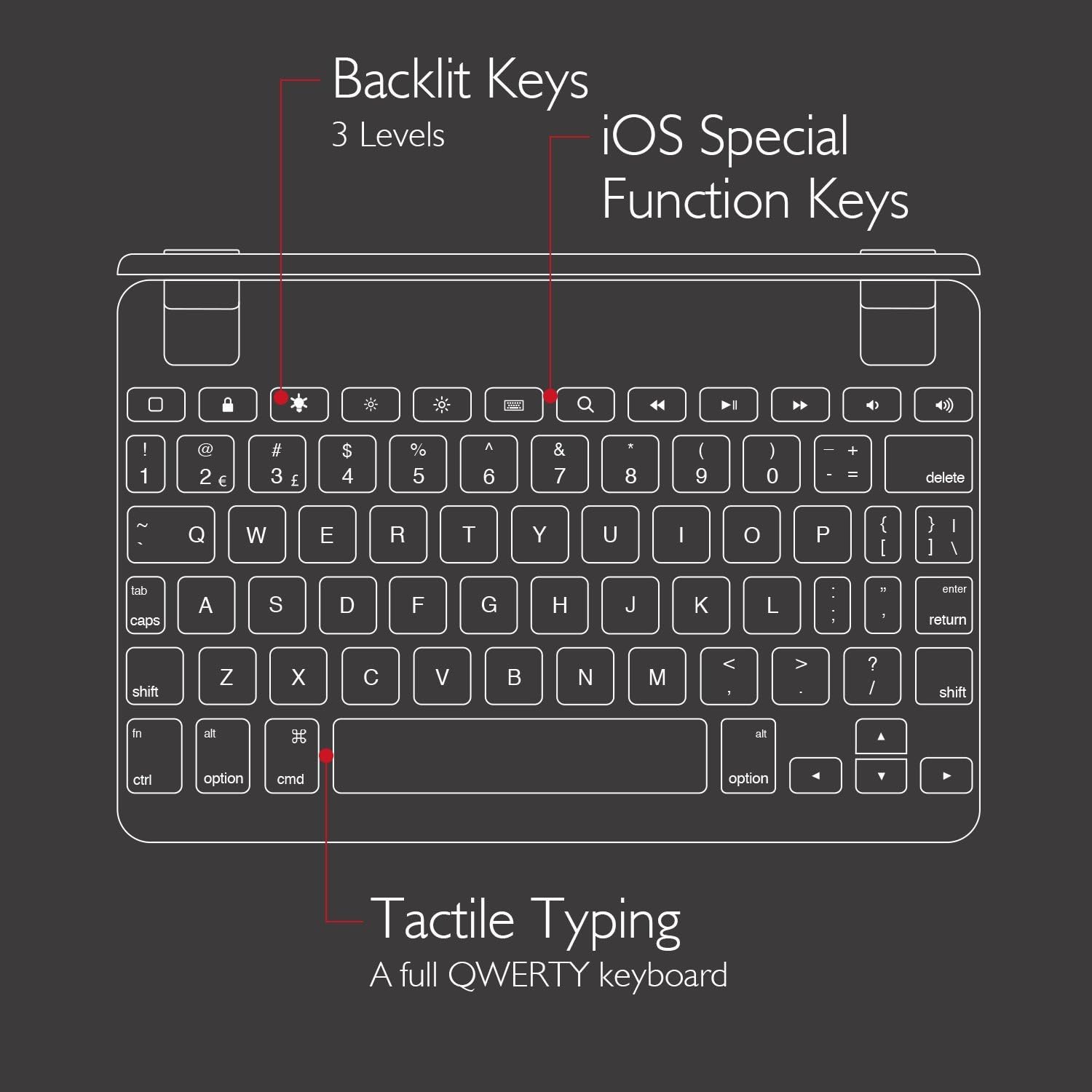
5.3 iOS Special Function Keys
The top row of the keyboard includes dedicated iOS special function keys for quick access to common iPad features, such as:
- Ekran główny
- Regulacja jasności ekranu
- Szukaj
- Sterowanie odtwarzaniem multimediów (odtwarzanie/pauza, następny/poprzedni utwór)
- Regulacja głośności
- Ekran blokady

5.4 180 stopni Viewing and Detachable Design
The keyboard's patented hinges allow the iPad to rotate up to 180 degrees, offering various viewing angles for typing, watching media, or presenting. The iPad can also be easily removed from the hinges if you prefer to use it as a standalone tablet.

6. Konserwacja
6.1 Czyszczenie
- To clean the keyboard, use a soft, lint-free cloth.
- W przypadku uporczywych plam, delikatnieamppl szmatkę wodą lub łagodnym, nieściernym środkiem czyszczącym.
- Unikaj spryskiwania klawiatury środkami czyszczącymi bezpośrednio.
- Ensure the keyboard is completely dry before use or charging.
6.2 Przechowywanie
When not in use, store the keyboard in a cool, dry place away from direct sunlight and extreme temperatures. If storing for an extended period, ensure the keyboard has a partial charge (around 50%) to preserve battery health.
7. Rozwiązywanie Problemów
Klawiatura 7.1 nie łączy się przez Bluetooth
- Sprawdź, czy klawiatura jest włączona i całkowicie naładowana.
- Sprawdź, czy Bluetooth jest włączony na Twoim iPadzie.
- Spróbuj rozłączyć i ponownie sparować klawiaturę w ustawieniach Bluetooth iPada.
- Restart both your iPad and the Brydge keyboard.
- Move the keyboard closer to your iPad to rule out interference.
7.2 Klawisze nie reagują
- Sprawdź, czy klawiatura jest prawidłowo podłączona przez Bluetooth.
- Sprawdź, czy klawiatura jest naładowana.
- If specific keys are not working, try cleaning around the keys to remove any debris.
- Perform a hard reset on the keyboard (refer to manufacturer's website for specific instructions if needed, as this model may not have a dedicated reset button).
7.3 Podświetlenie nie działa
- Ensure the keyboard is sufficiently charged, as low battery can disable backlighting.
- Press the backlight key to cycle through brightness levels.
8. Specyfikacje
| Marka | Most |
| Numer modelu | BRY5103 |
| Kompatybilne urządzenia | iPad Mini (2019), iPad Mini 4 |
| Technologia łączności | Bluetooth |
| Opis klawiatury | Bezprzewodowy |
| Cechy specjalne | Backlit, Rechargeable, 180-degree rotating hinges, Detachable |
| Tworzywo | 100% High-Grade Aluminum |
| Kolor | Gold (as per product listing, other colors may vary) |
| Waga przedmiotu | Około 11 uncji (312 gramów) |
| Wymiary produktu (dł. x szer. x wys.) | 7.9 x 5.3 x 0.3 cala (20.07 x 13.46 x 0.76 cm) |
| Źródło zasilania | Zasilanie bateryjne (w zestawie 1 bateria litowo-jonowa) |

9. Gwarancja i wsparcie
9.1 Informacje o gwarancji
Specific warranty details for your Brydge 7.9 Keyboard may vary by region and retailer. Please refer to the warranty card included with your product or visit the official Brydge webwitrynę zawierającą najbardziej aktualne informacje dotyczące gwarancji.
9.2 Obsługa klienta
For technical assistance, troubleshooting, or general inquiries, please contact Brydge customer support through their official website. You may also find additional resources, FAQs, and support articles online.


