1. Wprowadzenie
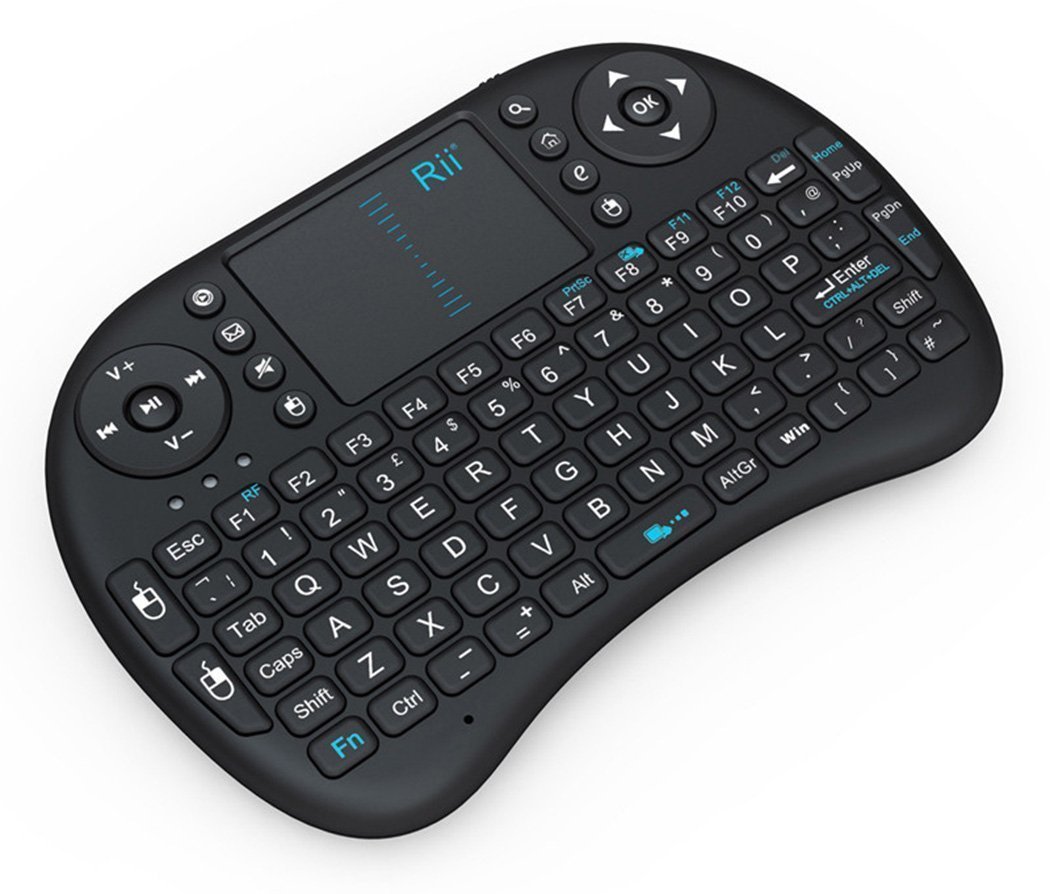
This manual provides detailed instructions for the Rii i8 2.4GHz Wireless Touchpad Keyboard Mouse, model RT-MWK-08. This compact and versatile device integrates a full QWERTY keyboard with a multi-touch touchpad, offering convenient control for various systems including PCs, smart TVs, Android TV boxes, and gaming consoles. Please read this manual thoroughly before use to ensure proper operation and to maximize your experience with the product.
2. Zawartość opakowania
Po rozpakowaniu sprawdź, czy w przesyłce znajdują się wszystkie poniższe elementy:
- 1x Rii i8 Wireless Keyboard
- 1x USB Wireless Receiver
- 1x USB Charging Data Cable
- 1x Instrukcja obsługi
3. Konfiguracja
3.1. Ładowanie urządzenia
The Rii i8 keyboard comes with a built-in lithium-ion battery. Before initial use, it is recommended to fully charge the device. Connect the provided USB charging cable to the keyboard's charging port and the other end to a standard USB power source (e.g., computer USB port, USB wall adapter). The charging indicator light will illuminate during charging and turn off when fully charged.
3.2. Podłączanie bezprzewodowego odbiornika USB
- Locate the USB wireless receiver, typically stored in a compartment on the back of the keyboard.
- Podłącz odbiornik USB do wolnego portu USB w urządzeniu docelowym (komputerze, telewizorze Smart TV, dekoderze Android TV itp.).
- Turn on the Rii i8 keyboard using the power switch (usually located on the side or back).
- The device should automatically connect. No additional drivers are typically required for most operating systems.
The image displays the back of the Rii i8 wireless keyboard, highlighting the slot for the USB receiver and the included USB charging cable. The receiver is a small USB dongle that plugs into your device for wireless connectivity.
4. Instrukcja obsługi
4.1. Funkcje klawiatury
The Rii i8 features a standard QWERTY keyboard layout. All standard alphanumeric keys and symbols function as they would on a full-sized keyboard.
4.2. Funkcje touchpada
The integrated touchpad supports multi-touch gestures for navigation:
- Stuknięcie jednym palcem: Działa jak kliknięcie lewym przyciskiem myszy.
- Stuknięcie dwoma palcami: Działa jak kliknięcie prawym przyciskiem myszy.
- Przewijanie: Slide one finger up or down the right edge of the touchpad to scroll vertically, similar to a mouse scroll wheel.

This diagram shows how to use the touchpad for vertical scrolling by sliding a finger up or down. It also highlights dedicated buttons for volume control (V+, V-), previous/next song, play/pause, and quick access to music player, email, search, and browser functions.
4.3. Special Function (Fn) Keys
The keyboard includes a 'Fn' key which, when pressed in combination with other keys, activates additional functions. Refer to the diagram below for common Fn key combinations:

This image details the functionality of various Fn key combinations. For example, Fn + F1 adjusts mouse sensitivity, Fn + Enter is a Task Manager shortcut, Fn + F8 toggles the touchpad on/off, and Fn + Win activates the Start/Menu bar. It also shows shortcuts for adjusting mouse sensitivity, print screen, maximizing pages, opening development tools, and navigating text.

A user is shown holding the Rii i8 wireless keyboard, illustrating its compact size and ergonomic design for comfortable two-hand operation. The keyboard is being used in front of a television displaying a smart TV interface, indicating its suitability for media center control.
5. Zgodność
The Rii i8 wireless keyboard is compatible with a wide range of operating systems and devices that support a standard USB interface:
- Windows 2000 / XP / 7 / 8 / CE
- Windows Vista
- Linux (Debian 3.1, Red Hat - Fedora, Ubuntu 8.10-8.10 * 9.0)
- System operacyjny Android (ze standardowym interfejsem USB)
- PC, Mac, HTPC, Smart TV, Android TV Box, Projector, Tablet (with USB port), Notebook

This diagram illustrates the broad compatibility of the Rii i8 wireless keyboard, showing it can connect to and control a variety of devices including Home Theater PCs (HTPC), Android TV Boxes, projectors, tablets with USB ports, Smart TVs, and notebooks.
6. Konserwacja
6.1. Czyszczenie
Do czyszczenia klawiatury należy używać miękkiej, suchej ściereczki. W przypadku uporczywych zabrudzeń należy użyć lekkoamp Można użyć ściereczki z łagodnym mydłem, upewniając się, że płyn nie dostanie się do wnętrza urządzenia. Unikaj środków czyszczących o działaniu ściernym i rozpuszczalników.
6.2. Pielęgnacja baterii
The built-in lithium-ion battery is not user-replaceable. To prolong battery life, avoid fully discharging the battery frequently. Charge the device when the low battery indicator appears. Store the device in a cool, dry place when not in use for extended periods.
7. Rozwiązywanie Problemów
- No Response from Keyboard:
- Sprawdź, czy klawiatura jest włączona.
- Sprawdź, czy odbiornik USB jest prawidłowo podłączony do urządzenia.
- Sprawdź, czy bateria klawiatury jest naładowana.
- Spróbuj podłączyć odbiornik USB do innego portu USB.
- Upewnij się, że w pobliżu nie ma silnych zakłóceń sieci bezprzewodowej.
- Touchpad Not Working Correctly:
- Ensure the touchpad is not disabled (check Fn+F8 combination).
- Wyczyść powierzchnię touchpada.
- If sensitivity is an issue, adjust it using Fn+F1.
- Low battery can affect touchpad performance; recharge the device.
- Klawisze nie reagują:
- Naładuj klawiaturę.
- Podłącz ponownie odbiornik USB.
- Test on another device to rule out host system issues.
- Krótki zasięg działania:
- Ensure there are no obstructions between the keyboard and the USB receiver.
- Avoid using the device near other 2.4GHz wireless devices that may cause interference.
8. Specyfikacje
| Funkcja | Szczegół |
|---|---|
| Zasięg działania | Up to 15 meters (MAX), without signal disturbance and no direction limit |
| Zakres częstotliwości | 2.403GHz ~ 2.480GHz |
| Objętość operacyjnatage | 3.3 V |
| Objętość ładowaniatage | 4.4V ~ 5.25V |
| Modulacja | GFSK |
| Kanał | 78 kanały |
| Moc TX | Mniej niż +5dBm |
| Prędkość transmisji | 1M bitów/sek |
| Tolerancja częstotliwości | +/- 30 ppm |
| Pobór mocy | 55 mA (włączony), 1 mA (uśpienie) |
| Typ baterii | Wbudowana bateria litowo-jonowa |
| Rozmiar przedmiotu | 15 x 10 x 2 cm (dł. 5.91" x szer. 3.94" x wys. 0.79") |
| Waga przedmiotu | 107 g (0.016 uncji) |
| Platforma sprzętowa | PC; Mac; UNI; Linux |
| Tworzywo | Plastikowy |
| Kolor | Czarny |
9. Gwarancja i pomoc techniczna
For warranty information or technical support, please refer to the documentation included with your purchase or contact the retailer/manufacturer directly. Keep your proof of purchase for warranty claims.