1. Wprowadzenie
Welcome to the user manual for your Logitech M705 Marathon Wireless Mouse. This document provides essential information for setting up, operating, and maintaining your device, ensuring optimal performance and longevity. The M705 mouse is designed for comfort and efficiency, featuring a long battery life and customizable controls for enhanced productivity.
2. Koniec produktuview
Główne cechy
- Dłuższa żywotność baterii: Enjoy up to 3 years of battery life, reducing the need for frequent replacements.
- Ergonomiczna konstrukcja: Sculpted to fit the natural curve of your right hand, providing comfort during prolonged use.
- Hyper-Fast Scrolling: Navigate through long documents and web pages with a single spin of the scroll wheel, or switch to click-to-click scrolling for precision.
- Przyciski programowalne: Five customizable buttons, including forward/back thumb buttons, allow for personalized shortcuts and enhanced control.
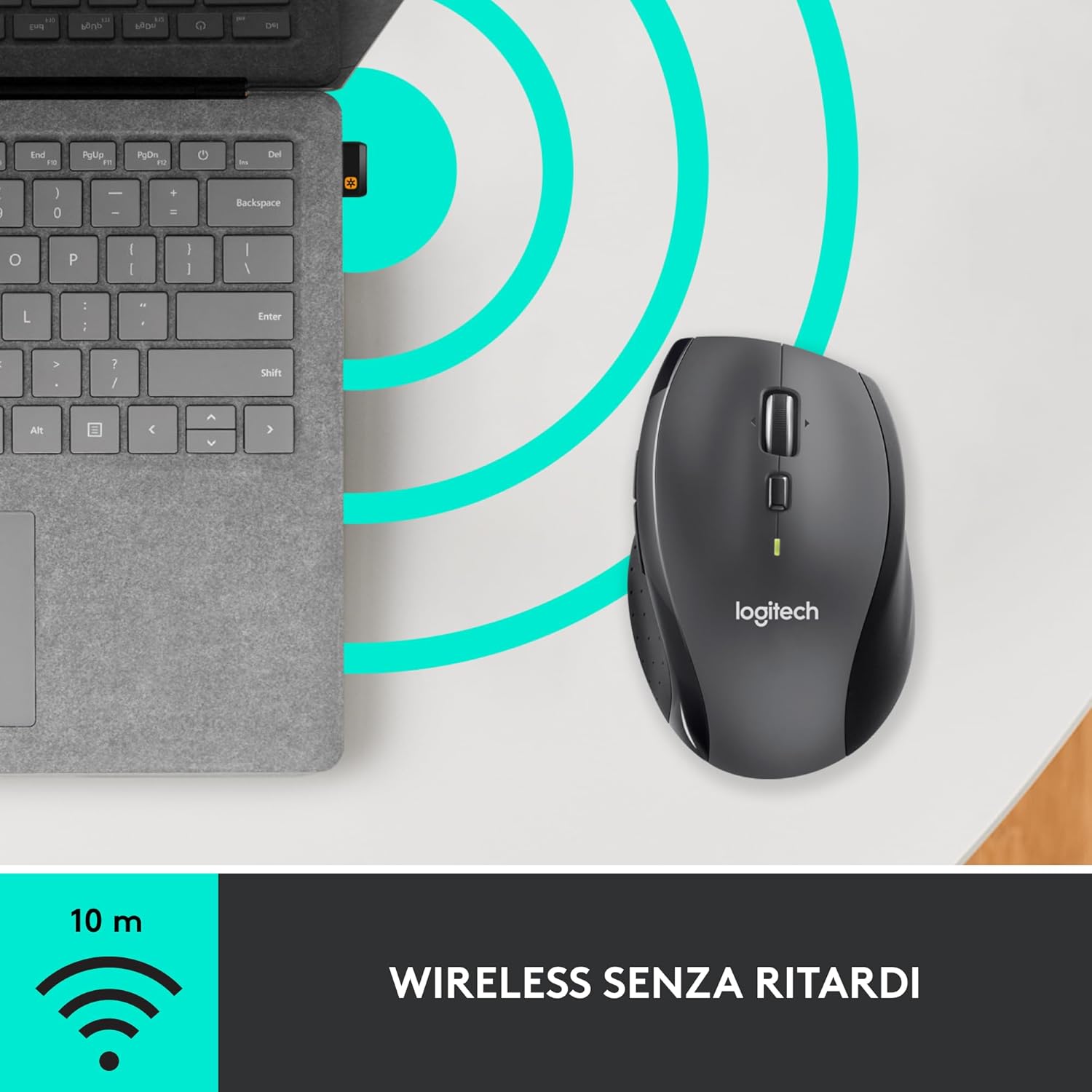
- Unifying Receiver: A small USB Unifying receiver connects up to six compatible Logitech devices, freeing up USB ports.
- Szeroka kompatybilność: Zgodny z systemami operacyjnymi Windows, macOS, Chrome OS i Linux.
Zawartość opakowania
The Logitech M705 Marathon Wireless Mouse package typically includes:
- Mysz bezprzewodowa Logitech M705
- Logitech Unifying USB Receiver
- 2 AA Alkaline Batteries (may vary by region/packaging)

3. Instrukcje konfiguracji
3.1. Instalowanie baterii
- Turn the mouse over and locate the battery compartment cover on the underside.
- Press the release button or slide the cover to open the compartment.
- Włóż dwie baterie AA, zwracając uwagę na prawidłową biegunowość (+/-).
- Załóż z powrotem pokrywę komory baterii.

3.2. Connecting the USB Unifying Receiver
- Locate the small USB Unifying receiver. It may be stored inside the battery compartment of the mouse.
- Podłącz odbiornik USB do dostępnego portu USB w komputerze.
- Włącz mysz za pomocą przełącznika Wł./Wył. znajdującego się na spodzie urządzenia.
- Your computer should automatically detect the mouse. If not, visit the Logitech support website for driver installation.
4. Instrukcja obsługi
4.1. Podstawowe funkcje myszy
The M705 mouse features standard left and right-click buttons, a scroll wheel, and additional programmable buttons.

4.2. Hiperszybkie przewijanie
Kółko przewijania oferuje dwa tryby:
- Tryb hiperszybki: Press the button directly below the scroll wheel to unlock it for smooth, rapid scrolling through long documents or web stron.
- Tryb „kliknij po kliknięciu”: Press the button again to engage precise, stepped scrolling, ideal for navigating lists or image galleries.

4.3. Programowalne przyciski
The M705 features five programmable buttons, including two thumb buttons and tilt-scroll functionality. These can be customized using the Logitech Options software.

5. Personalizacja
To unlock the full potential of your M705 mouse, download and install the Logitech Options software from the official Logitech webwitryna. To oprogramowanie pozwala na:
- Assign custom functions to the five programmable buttons.
- Dostosuj szybkość śledzenia (DPI).
- Configure application-specific settings.
- Sprawdź stan baterii.

6. Konserwacja
6.1. Czyszczenie
Do czyszczenia myszy użyj miękkiej, niepozostawiającej włókien ściereczki. W przypadku uporczywych zabrudzeń delikatnie przetrzyjampen the cloth with water. Avoid using harsh chemicals or abrasive materials, as these can damage the mouse surface or internal components.
6.2. Wymiana baterii
When the battery indicator light on your mouse begins to flash or if performance degrades, it's time to replace the batteries. Follow the steps in Section 3.1 to replace the two AA batteries. Dispose of old batteries responsibly according to local regulations.
7. Rozwiązywanie Problemów
7.1. Mysz nie odpowiada
- Upewnij się, że mysz jest włączona.
- Sprawdź poziom naładowania baterii i w razie potrzeby wymień je.
- Verify the USB Unifying receiver is securely plugged into a working USB port.
- Spróbuj podłączyć odbiornik do innego portu USB lub innego komputera, aby zidentyfikować problem.
- Jeśli używasz koncentratora USB, spróbuj podłączyć go bezpośrednio do komputera.
7.2. Nieregularny ruch kursora
- Wyczyść czujnik optyczny znajdujący się na spodzie myszy.
- Ensure you are using the mouse on a suitable surface. Highly reflective or transparent surfaces may cause tracking issues. A mouse pad is recommended.
- Check for interference from other wireless devices. Move the mouse closer to the USB receiver.
7.3. Unifying Receiver Issues
If the mouse loses connection or you need to pair it with a new receiver, download the Logitech Unifying Software from the Logitech support website. This software guides you through the pairing process.
8. Specyfikacje
| Funkcja | Szczegół |
|---|---|
| Marka | Logitech |
| Nazwa modelu | M705 |
| Numer modelu | 910-001949 |
| Technologia łączności | Wireless (2.4 GHz USB Unifying Receiver) |
| Technologia wykrywania ruchu | Laser |
| Rozdzielczość ruchu | 1000 DPI (up to 3200 DPI maximum resolution) |
| Liczba przycisków | 5 programowalne przyciski |
| Źródło zasilania | Battery (2 x AA Alkaline) |
| Średnia żywotność baterii | Do 3 lat |
| Zasięg bezprzewodowej | Do 10 metrów |
| Współczynnik kształtu | Right-hand ergonomic |
| Wymiary (dł. x szer. x wys.) | 20 x 13 x 12 cm (wymiary opakowania produktu) |
| Waga | 136 gramów |
| Kompatybilne systemy operacyjne | Windows 7, 8, 10; macOS 10.11 or later; Chrome OS; Linux |
9. Gwarancja i wsparcie
Aby uzyskać szczegółowe informacje dotyczące gwarancji i pomocy technicznej, zapoznaj się z oficjalną stroną firmy Logitech webOdwiedź witrynę lub skontaktuj się z obsługą klienta Logitech. Zachowaj dowód zakupu na wypadek reklamacji.


