
1. Product voorbijview
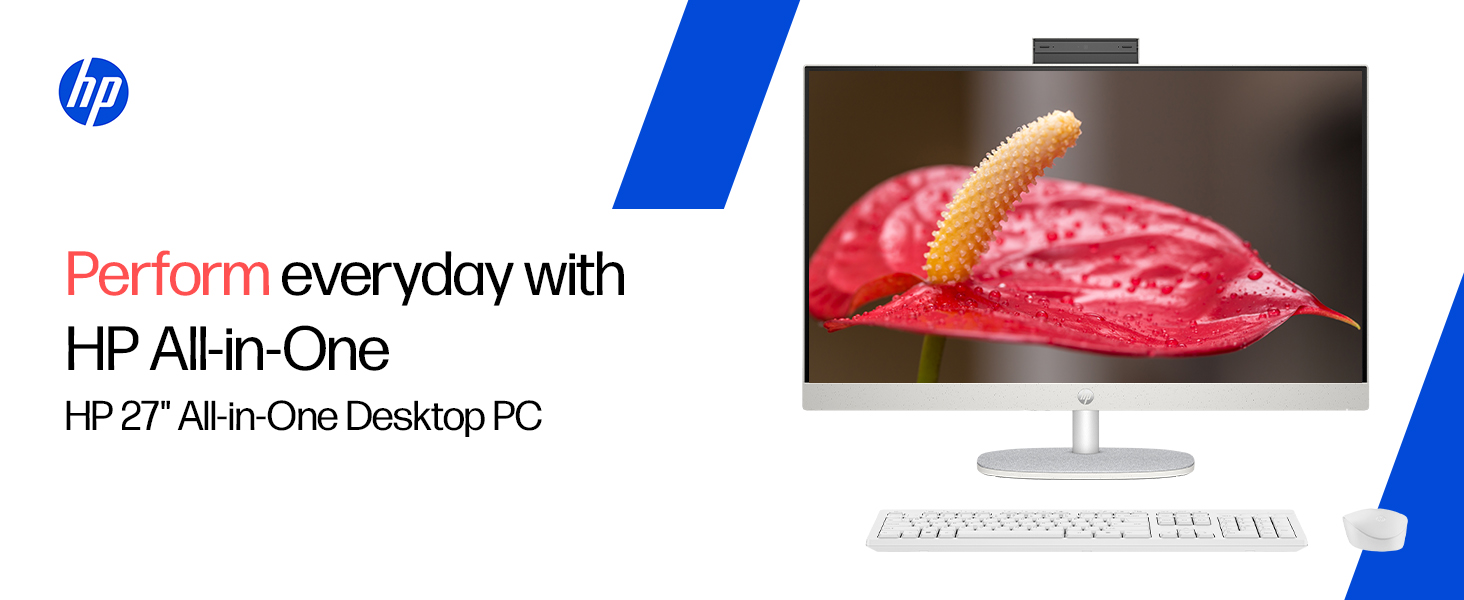
The HP All-in-One PC models 27-cr0902in and 27-cr0906in are designed for everyday computing tasks, offering a blend of performance and display quality. This manual provides essential information for setting up, operating, maintaining, and troubleshooting your device.
Belangrijkste kenmerken
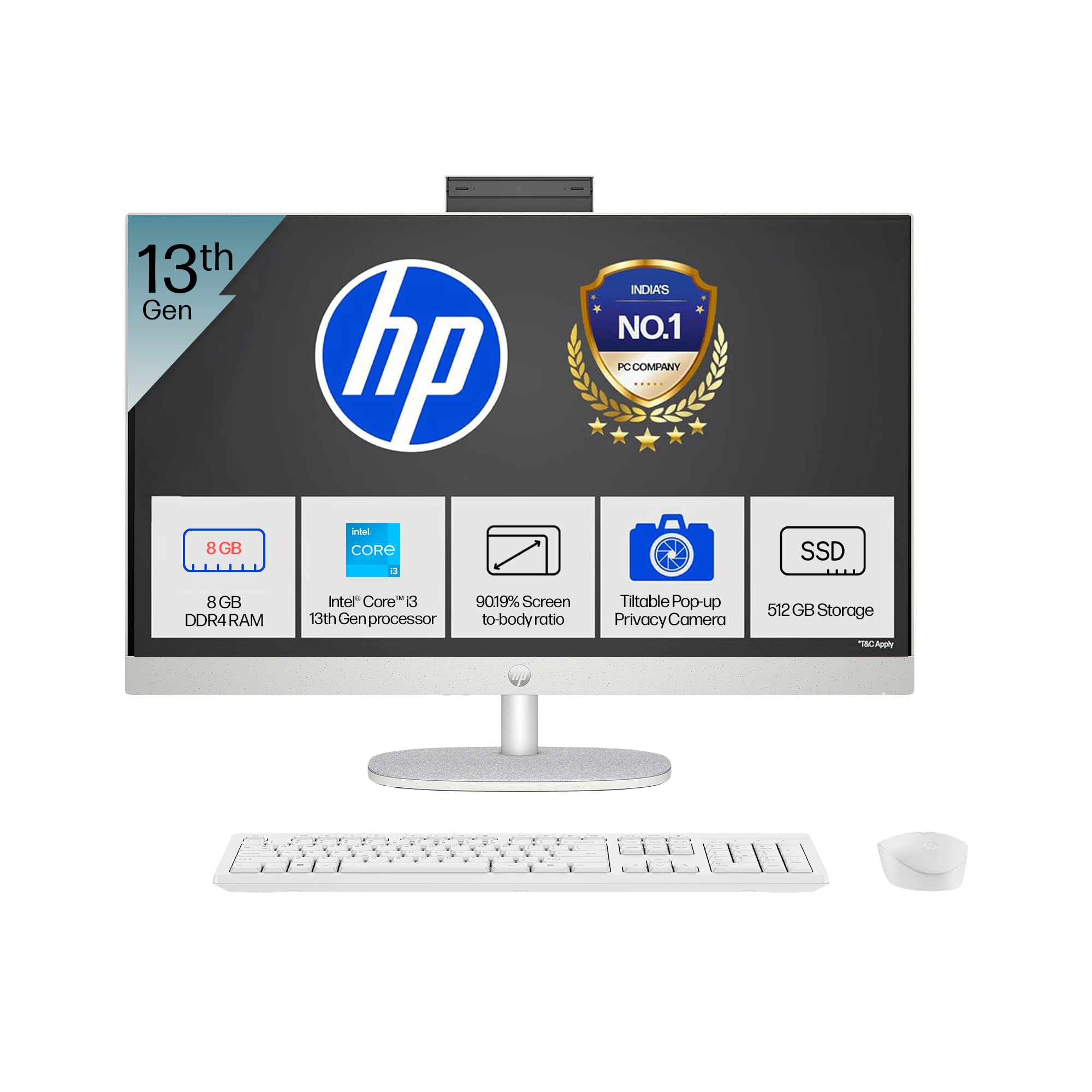
- Verwerker: Intel Core i3-1315U (up to 4.5 GHz with Intel Turbo Boost Technology, 6 cores, 8 threads)
- Geheugen: 8 GB DDR4-3200 MT/s RAM
- Opslag: 512 GB PCIe NVMe M.2 SSD
- Weergave: 27-inch (68.6 cm) diagonal, FHD (1920 x 1080), touch, IPS, three-sided microedge, anti-glare, 300 nits, 99% sRGB
- Grafisch: Geïntegreerde Intel UHD-graphics
- Besturingssysteem: Windows 11 Home enkele taal in S-modus
- Camera: HP True Vision 1080p FHD IR tilt privacy camera with temporal noise reduction and integrated dual array digital microphones
- Connectiviteit: Wi-Fi 6 (2x2), Bluetooth 5.3, 1 USB Type-C 5Gbps, 2 USB Type-A 5Gbps, 2 USB 2.0 Type-A, 1 headphone/microphone combo, 1 RJ-45
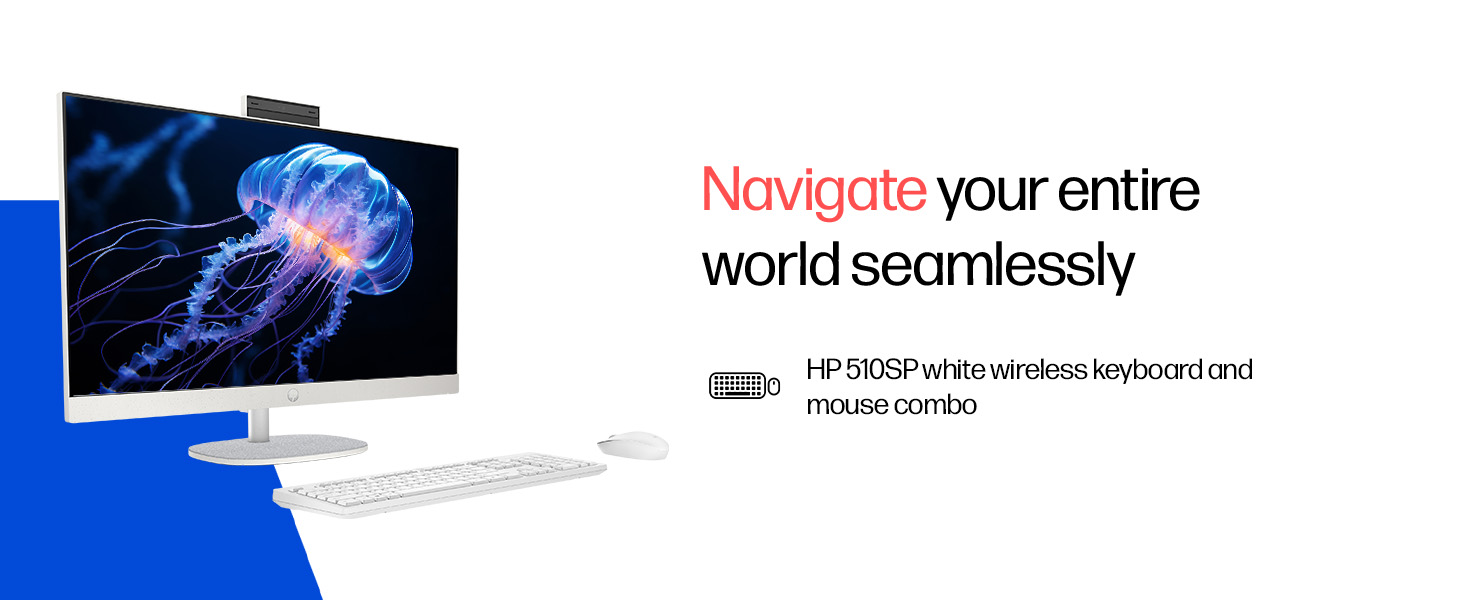
- Meegeleverde randapparatuur: HP 510SP White Wireless Keyboard and Mouse Combo
2. Installatiehandleiding
Follow these steps to set up your HP All-in-One PC.
2.1 De doos uitpakken
Haal alle onderdelen voorzichtig uit de verpakking. Controleer of de volgende onderdelen aanwezig zijn:
- HP All-in-One PC unit
- Stroomadapter en kabel
- HP 510SP White Wireless Keyboard
- HP 510SP White Wireless Mouse
- Documentatie (deze handleiding, garantie-informatie)
2.2 Randapparatuur aansluiten
- Sluit het toetsenbord en de muis aan: Insert the USB receiver for the wireless keyboard and mouse into an available USB port on the back of the All-in-One PC. Ensure batteries are installed in both the keyboard and mouse.
- Sluit stroom aan: Connect the power adapter to the power input port on the back of the All-in-One PC, then plug the power cable into a wall outlet.
- Optionele aansluitingen:
- Externe apparaten: Connect any external USB devices (e.g., external hard drives, printers) to the available USB ports.
- Netwerkkabel: If using a wired network connection, connect an Ethernet cable to the RJ-45 port.

2.3 Eerste inschakeling
Press the power button, usually located on the side or back of the display. The PC will boot up, and you will be guided through the Windows 11 setup process. Follow the on-screen instructions to configure your operating system, network, and user accounts.
3. Gebruiksaanwijzing
3.1 In-/uitschakelen en slaapstand
- Inschakelen: Druk op de aan/uit-knop.
- Uitschakelen: Klik op de Startknop in Windows en selecteer vervolgens Energie > Afsluiten.
- Opnieuw opstarten: Klik op de Startknop in Windows en selecteer vervolgens Aan/uit > Opnieuw opstarten.
- Slaap: Click the Start button in Windows, then select Power > Sleep. You can also configure power settings in Windows to automatically enter sleep mode after a period of inactivity.
3.2 Het touchscreen gebruiken
Your HP All-in-One PC features a touch-enabled display. You can interact with the operating system and applications using touch gestures similar to a tablet or smartphone. Common gestures include tapping, swiping, pinching to zoom, and stretching to zoom out.
3.3 Using the HP True Vision Camera
The integrated HP True Vision 1080p FHD IR tilt privacy camera is suitable for video calls and facial recognition login (Windows Hello). The camera can be tilted for optimal viewing angles and includes a privacy shutter for security. To use the camera, open an application that requires camera access (e.g., Camera app, video conferencing software).
3.4 Audio and Microphones
The PC includes integrated dual 2W speakers and dual array digital microphones with temporal noise reduction for clear audio input during calls or recordings. You can adjust volume settings through the Windows sound controls.
4. Onderhoud
Proper maintenance ensures the longevity and optimal performance of your HP All-in-One PC.
4.1 Het apparaat reinigen
- Weergave: Gebruik een zachte, pluisvrije doek die lichtjes is schoongemaakt.ampSpoel af met water of een schermreinigingsmiddel. Vermijd agressieve chemicaliën of schurende materialen.
- Chassis: Veeg de buitenkant af met een zachte, droge doek.
- Toetsenbord en muis: Use a soft brush or compressed air to remove dust and debris.
- Schakel de pc altijd uit en haal de stekker uit het stopcontact voordat u hem schoonmaakt.
4.2 Software-updates
Regularly check for and install Windows updates and HP driver updates to ensure system stability, security, and performance. You can find Windows updates in the Settings app under "Windows Update." HP drivers can be found on the official HP support webplaats.
4.3 Systeemback-up
Het is raadzaam om regelmatig een back-up te maken van uw belangrijke gegevens op een externe schijf of in de cloud om gegevensverlies te voorkomen.
5. Probleemoplossing
In dit gedeelte worden veelvoorkomende problemen besproken die u kunt tegenkomen met uw HP All-in-One pc.
5.1 Geen stroom / Systeem gaat niet aan
- Zorg ervoor dat de voedingskabel stevig is aangesloten op zowel de pc als het stopcontact.
- Controleer of het stopcontact werkt door er een ander apparaat op aan te sluiten.
- Probeer een ander stopcontact.
5.2 Weergaveproblemen
- Geen beeld op het scherm: Ensure the PC is powered on. If connected to an external monitor, check the input source on the monitor.
- Knipperend of vervormd beeld: Update graphics drivers. If the issue persists, contact support.
- Touch screen not responding: Restart the PC. Ensure there are no obstructions on the screen. Check for driver updates for the touch display.
5.3 System Performance Issues (Slowdown, Hanging)
- Sluit onnodige toepassingen die op de achtergrond draaien.
- Controleer Taakbeheer (Ctrl+Shift+Esc) op processen die veel CPU-, geheugen- of schijfgebruik veroorzaken.
- Zorg ervoor dat uw besturingssysteem en stuurprogramma's up-to-date zijn.
- Run a full system scan for malware or viruses.
- Consider freeing up disk space on your SSD.
5.4 Peripheral Connectivity Problems (Keyboard/Mouse)
- Ensure the USB receiver is securely plugged into a USB port.
- Controleer de batterijen in het draadloze toetsenbord en de muis en vervang ze indien nodig.
- Probeer de USB-ontvanger op een andere USB-poort aan te sluiten.
- Start de pc opnieuw op.
6. Technische specificaties
Detailed specifications for the HP All-in-One PC 27-cr0902in/cr0906in.
| Functie | Detail |
|---|---|
| Merk | HP |
| Modelnummers | 27-cr0902in, 27-cr0906in |
| Verwerker | Intel Core i3-1315U (tot 4.5 GHz, 6 kernen, 8 threads, 10 MB L3-cache) |
| Besturingssysteem | Windows 11 Home enkele taal in S-modus |
| Geheugen (RAM) | 8 GB DDR4-3200 MT/s (1 x 8 GB) |
| Opslag | 512 GB PCIe NVMe M.2 SSD |
| Weergave | 27-inch (68.6 cm) FHD (1920 x 1080) IPS, touch, anti-glare, 300 nits, 99% sRGB |
| Grafisch | Intel UHD Graphics (geïntegreerd) |
| Camera | HP True Vision 1080p FHD IR tilt privacy camera with temporal noise reduction |
| Geluid | Integrated dual array digital microphones, Dual 2W speakers |
| Draadloze connectiviteit | Realtek RTL8852BE Wi-Fi 6 (2x2), Bluetooth 5.3 |
| Havens | 1 USB Type-C 5Gbps, 2 USB Type-A 5Gbps, 2 USB 2.0 Type-A, 1 headphone/microphone combo, 1 RJ-45 |
| Toetsenbord en muis | HP 510SP White Wireless Keyboard and Mouse Combo |
| Afmetingen (B x D x H) | 61.2 x 18.6 x 44.1 cm (24.11 x 7.33 x 17.36 inch) |
| Gewicht | 6.42 kg |
| Kleur | Schelp Wit |
| Milieucertificeringen | EPEAT Gold Registered, ENERGY STAR certified |
7. Garantie en ondersteuning
7.1 Garantie-informatie
Your HP All-in-One PC comes with a 1 jaar fabrieksgarantie on the device from the date of purchase. Please retain your purchase receipt for warranty claims.
7.2 Technische ondersteuning
For any technical or product-related queries, please contact HP customer support:
- Gratis nummers: 1800-258-7170 or 1860-258-3079
- Contactpersoon fabrikant: HP India Sales Pvt. Ltd.
- Contactgegevens importeur: HP India Sales Private Limited, No. 24, Kothari Arena, Hosur Main Road, Adugodi, Bangalore, Karnataka, India, 560030
U kunt ook de officiële HP-ondersteuningspagina bezoeken. website for drivers, documentation, and further assistance.