
Invoering
This manual provides essential information for setting up, operating, maintaining, and troubleshooting your HP 2022 14-inch HD Laptop. Please read this guide thoroughly to ensure proper use and to maximize the performance and longevity of your device.
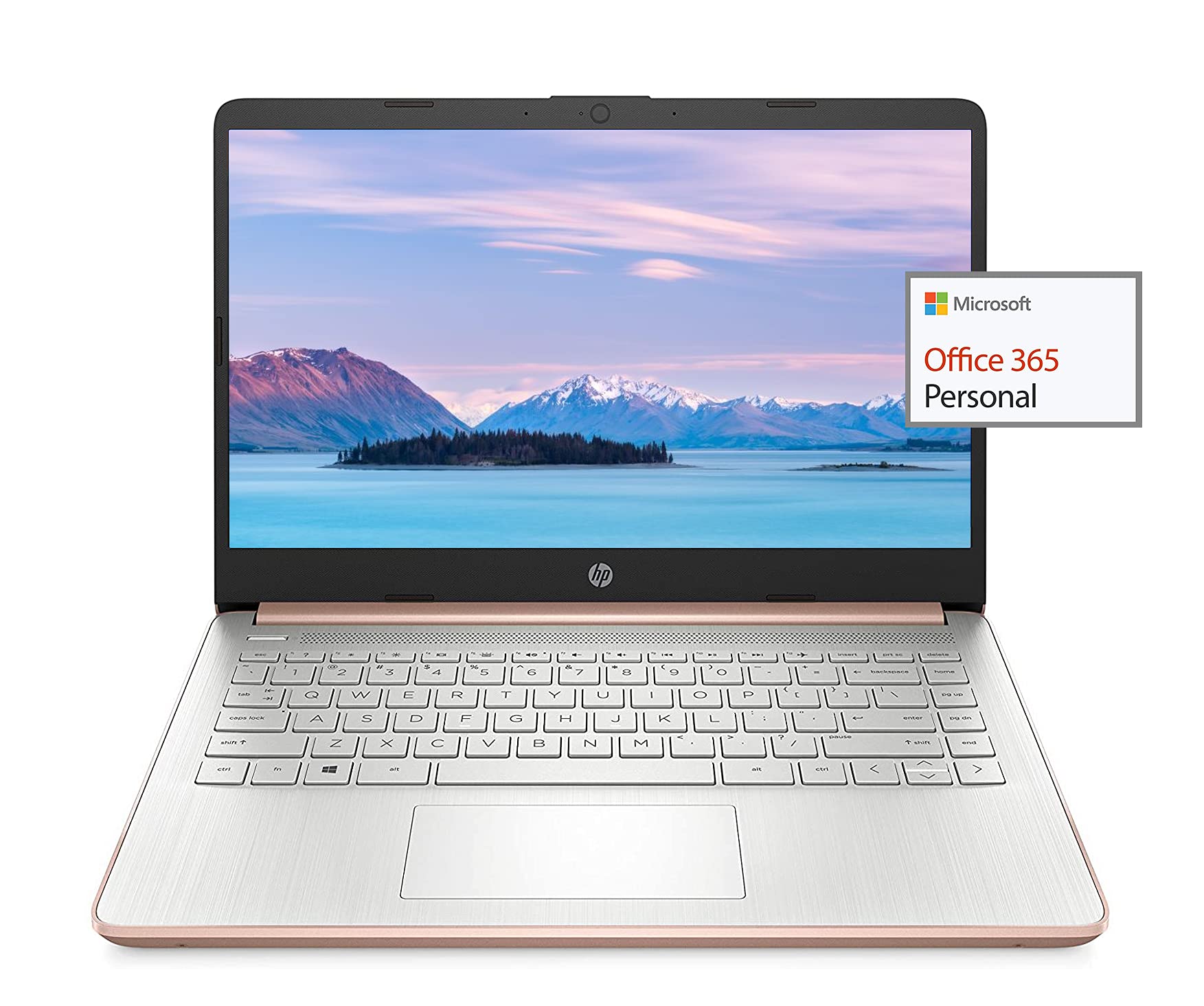
Image: The HP 14-inch HD Laptop, showcasinhet strakke design.
Instellen
1. Eerste keer inschakelen
Connect the power adapter to the laptop and a power outlet. Open the laptop lid. The laptop should power on automatically or by pressing the power button, typically located on the keyboard deck.
2. Besturingssysteem instellen
Follow the on-screen prompts to complete the Windows 10 setup. This includes selecting your region, connecting to a Wi-Fi network, and creating a user account.
3. Activating Microsoft Office 365
Uw laptop wordt geleverd met een abonnement van 1 jaar op Microsoft Office 365. Om te activeren:
- Launch any Office application (e.g., Word, Excel).
- Sign in with your Microsoft account. If you do not have one, create a new account.
- Click "Activate Office" and follow the subsequent prompts.
- Complete steps 1, 2, and 3 as instructed.
- Click "Refresh" once Office is ready.
- Open a document and accept the license agreement to finalize activation.

Image: The HP laptop displaying Microsoft Office 365 applications.
4. Switching Out of Windows 10 S Mode
Windows 10 in S mode is designed for security and performance, exclusively running apps from the Microsoft Store. If you need to install apps from outside the Microsoft Store, you can switch out of S mode. This is a one-way switch and cannot be undone.
- Ga naar Instellingen > Update en beveiliging > Activering.
- Selecteer in het gedeelte 'Overschakelen naar Windows 10 Home' of 'Overschakelen naar Windows 10 Pro' de optie Ga naar de winkel.
- Op de Schakel uit de S-modus (or similar) page that appears in the Microsoft Store, click the Krijgen knop.
- After confirming, you will be able to install apps from outside the Microsoft Store.
5. Randapparatuur aansluiten
Je laptop beschikt over diverse poorten voor het aansluiten van externe apparaten:
- USB Type-A & Type-C: For connecting USB devices like external drives, mice, and keyboards.
- HDMI: Voor aansluiting op externe beeldschermen of projectoren.
- Gecombineerde hoofdtelefoon-/microfoonaansluiting: Voor audio-invoer/uitvoer.
- Kaartlezer voor media: Voor het plaatsen van SD-kaarten.

Afbeelding: Zijkant view of the HP laptop, highlighting the SuperSpeed USB Type-A, USB Type-C, HDMI 1.4b, and headphone/microphone combo ports.

Afbeelding: Tegenoverliggende zijde view of the HP laptop, showing the media card reader slot.
Gebruiksaanwijzing
1. Energiebeheer
- Inschakelen: Druk op de aan/uit-knop.
- Slaapstand: Sluit het deksel of druk kort op de aan/uit-knop.
- Uitschakelen: Ga naar Start > Energie > Uitschakelen.
- Opnieuw opstarten: Ga naar Start > Energie > Opnieuw opstarten.
2. Weergavegebruik
The laptop features a 14-inch HD (1366 x 768) display with a micro-edge bezel design and WLED-backlit BrightView technology. Adjust brightness using the function keys (F2/F3) or through Windows display settings.

Image: The HP laptop display showcasing its micro-edge bezel and HD resolution.
3. Toetsenbord en touchpad
The standard keyboard provides comfortable typing. The integrated touchpad supports multi-touch gestures for navigation. Refer to Windows settings for customizing touchpad sensitivity and gestures.
4. Webcamera en audio
The HP True Vision 720p HD camera with integrated dual array digital microphones is suitable for video calls. The laptop features HP custom-tuned dual speakers for clear audio output.

Image: The HP laptop showing the webcam in use and highlighting the dual speaker setup.
5. Draadloze connectiviteit
- Wi-Fi 5 (1x1): Connect to wireless networks for internet access. Manage Wi-Fi connections via the network icon in the taskbar.
- Bluetooth 5.0: Pair with Bluetooth-enabled devices such as headphones, speakers, or mice. Access Bluetooth settings via Windows Settings > Devices > Bluetooth & other devices.
Onderhoud
1. Batterijverzorging
The laptop's battery provides up to 10.5 hours of video playback and up to 9 hours of wireless streaming. To prolong battery life:
- Vermijd extreme temperaturen.
- Ontlaad de batterij niet te vaak volledig.
- Utilize HP Fast Charge for quick recharging.
- Pas de energie-instellingen in Windows aan om het batterijgebruik te optimaliseren.
2. Opslagbeheer
Your laptop is equipped with 256GB SSD and 64GB eMMC storage. Regularly manage your files to ensure sufficient free space. Use Disk Cleanup and Storage Sense features in Windows to remove unnecessary files.
3. De laptop schoonmaken
- Gebruik een zachte, pluisvrije doek die lichtjes is schoongemaakt.ampMaak het scherm schoon met water of een schermreiniger.
- Gebruik een zachte doek voor het toetsenbord en de behuizing. Vermijd agressieve chemicaliën.
- Zorg ervoor dat de laptop is uitgeschakeld en de stekker uit het stopcontact is gehaald voordat u hem schoonmaakt.
4. Software-updates
Keep your operating system and drivers updated. Windows Update automatically handles system updates. Check the HP support website for driver updates specific to your model.
Probleemoplossing
Veelvoorkomende problemen en oplossingen:
- Laptop start niet op: Zorg ervoor dat de stroomadapter goed is aangesloten en dat de batterij voldoende is opgeladen. Probeer een ander stopcontact.
- Weergaveproblemen: Check display cable connections if using an external monitor. Adjust brightness settings.
- Geen geluid: Verify volume levels, check audio output device settings in Windows, and ensure headphones are properly connected.
- Problemen met wifi-connectiviteit: Herstart je router en laptop. Controleer de wifi-instellingen en zorg ervoor dat de vliegtuigmodus is uitgeschakeld.
- Trage prestaties: Sluit onnodige applicaties. Controleer op achtergrondprocessen. Zorg voor voldoende vrije opslagruimte.
Raadpleeg de HP-ondersteuning voor meer gedetailleerde probleemoplossing of aanhoudende problemen. webof neem contact op met de klantenservice van HP.
Specificaties
| Functie | Specificatie |
|---|---|
| Merk | HP |
| Modelnaam | PK 2022 |
| Schermgrootte | 14 inch |
| Verwerker | AMD 3020e (2 Cores, 4 Threads, 1.2GHz Base, 2.6GHz Max Boost) |
| RAM | 8GB DDR4 |
| Opslag | 256GB SSD + 64GB eMMC (Total 320 GB) |
| Grafisch | Geïntegreerde AMD Radeon-grafische kaart |
| Besturingssysteem | Windows 10 Home in S mode (upgradeable) |
| Connectiviteit | Wi-Fi 5 (1x1), Bluetooth 5.0 |
| Havens | USB Type-A, USB Type-C, HDMI 1.4b, Headphone/Microphone Combo, Media Card Reader |
| Webnokkenas | HP True Vision 720p HD Camera |
| Levensduur batterij (stand-by) | Tot 10.5 uur (videoweergave) |
| Gewicht | 3.24 pond |
| Afmetingen (L x B x D) | 8.86"L x 12.76"B x 0.71"D |

Afbeelding: Overview of the HP 14 laptop's key features including AMD 3020e processor, battery life, Windows 10 S mode, HP Fast Charge, and Wi-Fi 5 & Bluetooth 5.0.
Garantie en ondersteuning
Your HP laptop comes with a standard manufacturer's warranty. Please refer to the warranty documentation included with your purchase for specific terms and conditions. For technical support, driver downloads, and service information, visit the official HP support webof neem rechtstreeks contact op met de klantenservice van HP.
For additional protection, consider purchasing extended protection plans from your retailer.