1. Inleiding
This manual provides detailed instructions for the Plugable USB-C to DisplayPort Bi-Directional Cable (Model USBC-DP). This cable is designed to connect USB-C enabled devices to DisplayPort monitors or DisplayPort enabled devices to USB-C displays, supporting high-resolution video and audio transmission.

Image: The Plugable USB-C to DisplayPort Bi-Directional Cable, showcasing both the USB-C and DisplayPort connectors.
2. Belangrijkste kenmerken
- Bidirectionele connectiviteit: Supports both USB-C to DisplayPort and DisplayPort to USB-C video output, offering flexible connection options.
- Ondersteuning voor hoge resolutie: Enables resolutions up to 4K at 60Hz (3840x2160).
- Plug-en-play: Voor de werking zijn geen stuurprogramma's of software-installatie nodig.
- Duurzaam ontwerp: Features an aluminum shell on both connectors and a nylon braided cable for enhanced durability.
- Brede compatibiliteit: Compatible with systems supporting DisplayPort Alt Mode over USB-C, USB4, or Thunderbolt 3/4, including various MacBooks, iPads, HP, Dell, Lenovo, Microsoft Surface, and LG Gram models.
3. Installatie-instructies
Follow these steps to connect your device using the Plugable USB-C to DisplayPort Bi-Directional Cable:
- Poorten identificeren: Ensure your source device (e.g., laptop, tablet) has a USB-C port that supports DisplayPort Alt Mode, USB4, or Thunderbolt 3/4. Ensure your display device (e.g., monitor, TV) has a DisplayPort input.
- Aansluiten via USB-C: Insert the USB-C connector of the cable into the compatible USB-C port on your source device.
- Aansluiting DisplayPort-uiteinde: Insert the DisplayPort connector of the cable into the DisplayPort input on your display device.
- Apparaten inschakelen: Zorg ervoor dat zowel uw bronapparaat als uw weergaveapparaat zijn ingeschakeld.
- Weergave-instellingen configureren: Your display should automatically detect the connection. If not, you may need to manually select the DisplayPort input on your monitor or adjust display settings on your source device (e.g., extend, mirror, or primary display mode).

Afbeelding: Close-up view of the USB-C and DisplayPort connectors, illustrating the connection process.
4. Gebruiksaanwijzing
Once connected, the cable facilitates video and audio transmission between your devices. Here are common operating modes:
- Spiegelmodus: Hiermee wordt het scherm van uw bronapparaat gedupliceerd op het externe scherm. Dit is handig voor presentaties of het delen van content.
- Modus uitbreiden: Extends your desktop across multiple screens, allowing for increased workspace and multitasking.
- Primary Display Mode: Uses the external display as the sole output, with the source device's screen turned off.
To switch between these modes, access your operating system's display settings:
- Ramen: Right-click on the desktop, select "Display settings," and choose your preferred display option.
- MacOS: Go to "System Settings" (or "System Preferences"), then "Displays," and adjust the arrangement or mirroring options.

Image: A laptop connected to an external monitor, demonstrating both extend and mirror display modes for enhanced productivity.
5. Compatibiliteit
The Plugable USB-C to DisplayPort Bi-Directional Cable is compatible with a wide range of devices and operating systems:
Ondersteunde apparaten:
- M1–M4 MacBooks (base and Pro/Max models)
- Intel Thunderbolt Macs (late 2016 and newer)
- iPhone 15/16 and Pro models
- iPad Pro/Air/mini
- HP ProBook/EliteBook/Spectre x360
- Dell XPS/Latitude/Inspiron
- Lenovo ThinkPad/IdeaPad/Yoga
- Microsoft Surface Pro/Go/Book/Laptop
- LG Gram
- Thousands of other standards-compliant USB-C laptops.
Ondersteunde besturingssystemen:
- Vensters 10/11
- macOS 11+
- Chrome OS 100+
- Linux
Opmerking:
- Requires a system with DisplayPort Alt Mode over USB-C, USB4, or Thunderbolt 3/4.
- Fully compatible with DisplayPort source devices and full-featured USB-C displays.
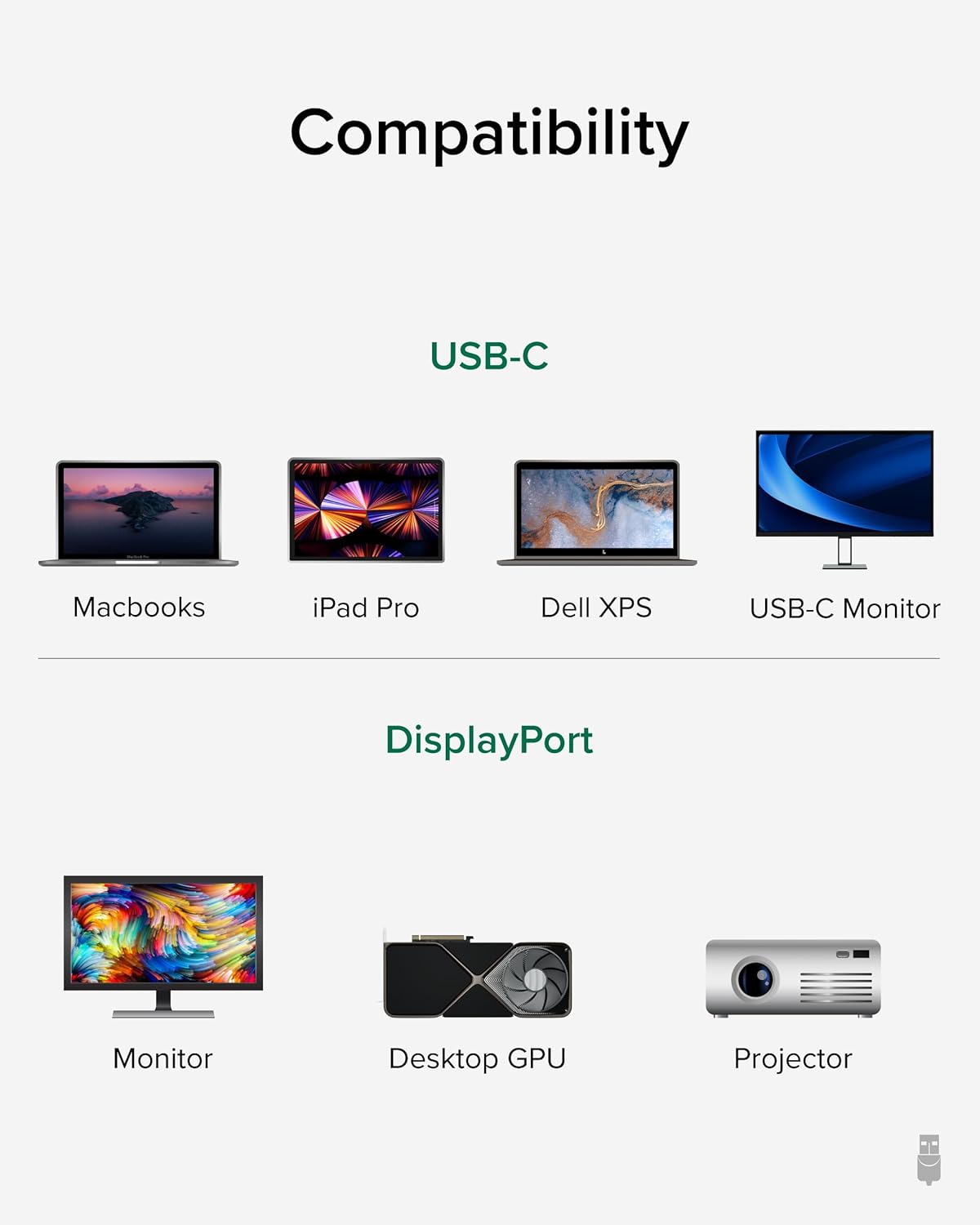
Image: A visual guide illustrating compatibility with various USB-C devices (MacBooks, iPad Pro, Dell XPS, USB-C Monitor) and DisplayPort devices (Monitor, Desktop GPU, Projector).
6. Onderhoud
To ensure the longevity and optimal performance of your Plugable USB-C to DisplayPort Bi-Directional Cable, follow these maintenance guidelines:
- Voorzichtig behandelen: Vermijd overmatig buigen, draaien of trekken aan de kabel, vooral in de buurt van de connectoren.
- Goed bewaren: When not in use, coil the cable loosely and secure it with the included cable tie or a similar fastener. Avoid tight coiling that can stress the internal wires.
- Schoon houden: Veeg de kabel en connectoren regelmatig af met een zachte, droge doek om stof en vuil te verwijderen. Vermijd het gebruik van agressieve chemicaliën of schurende materialen.
- Bescherm connectoren: Ensure connectors are not exposed to liquids or extreme temperatures.
7. Probleemoplossing
If you encounter issues with your Plugable USB-C to DisplayPort Bi-Directional Cable, consider the following troubleshooting steps:
- Geen weergave/signaal:
- Ensure both devices are powered on and the cable is securely connected at both ends.
- Verify that your source device's USB-C port supports DisplayPort Alt Mode, USB4, or Thunderbolt 3/4. Not all USB-C ports support video output.
- Check your display's input source settings and ensure the correct DisplayPort input is selected.
- Test met een andere compatibele kabel of apparaat om het probleem te isoleren.
- Knipperend of onderbroken beeld:
- Zorg ervoor dat de kabel niet beschadigd of geknikt is.
- Reduce the display resolution or refresh rate in your device's display settings to see if stability improves.
- Update your graphics drivers on your source device.
- Geen audio:
- Check your computer's sound settings and ensure the DisplayPort output is selected as the audio device.
- Ensure your monitor has built-in speakers or is connected to external audio.
- Resolution/Refresh Rate Not as Expected:
- Verify that both your source device and display support the desired resolution and refresh rate.
- Ensure your device's display settings are configured for the desired output.
8. Specificaties
| Functie | Detail |
|---|---|
| Merk | Plugbaar |
| Modelnummer | USBC-DP |
| Kabellengte | 6 voet (1.8m) |
| Maximum resolutie | 4K (3840x2160) bij 60Hz |
| Connector 1 | USB-C-mannetje |
| Connector 2 | DisplayPort Mannelijk |
| Verenigbaarheid | DisplayPort Alt Mode over USB-C, USB4, Thunderbolt 3/4 |
| Materiaal | Aluminum connector shells, Nylon braided cable |
| Artikelgewicht | 1.6 ons |
| Productafmetingen | 0.39 x 6 x 6.5 inch |
9. Officiële productvideo
Video: Product Summary: Plugable USB-C to DisplayPort Adapter Cable. This video provides a comprehensive overview of the cable's features, functionality, and benefits.
10. Garantie en ondersteuning
Plugable products are designed for reliability and ease of use. This device includes lifetime support from our North American team of connectivity experts.
For further assistance, please visit the Plugable support website of neem contact op met hun klantenservice.


