
1. Inleiding
This manual provides essential information for the safe and efficient operation of your Sharp Aquos LC42D64U 42-Inch 1080p LCD HDTV. Please read these instructions thoroughly before using your television and retain them for future reference. The Sharp Aquos D64 series offers a slim design, Full HD 1080p resolution, and advanced features for an enhanced viewervaring.
2. Belangrijke veiligheidsinformatie
Volg altijd de basisveiligheidsmaatregelen wanneer u deze televisie gebruikt om het risico op brand, elektrische schokken en letsel te beperken.
- Energiebron: Sluit de tv alleen aan op de stroomvoorziening die op het label staat aangegeven.
- Ventilatie: Zorg voor goede ventilatie. Blokkeer de ventilatieopeningen niet.
- Water en vocht: Stel de tv niet bloot aan regen of vocht. Plaats geen met vloeistof gevulde voorwerpen op de tv.
- Schoonmaak: Haal de stekker van de tv uit het stopcontact voordat u hem schoonmaakt. Gebruik een zachte, droge doek.
- Onderhoud: Probeer dit product niet zelf te onderhouden. Laat al het onderhoud over aan gekwalificeerd onderhoudspersoneel.
- Montage: If wall-mounting, ensure the mount is compatible and installed by qualified personnel.
- Kinderen: Houd toezicht op kinderen en voorkom dat ze op de televisie klimmen of ermee spelen.
3. Wat zit er in de doos?
Controleer of alle componenten aanwezig zijn voordat u met de installatie begint.
- Sharp Aquos LC42D64U 42-Inch LCD HDTV
- Afstandsbediening
- Tafelstandaard
- Stroomkabel
- Gebruikershandleiding (dit document)
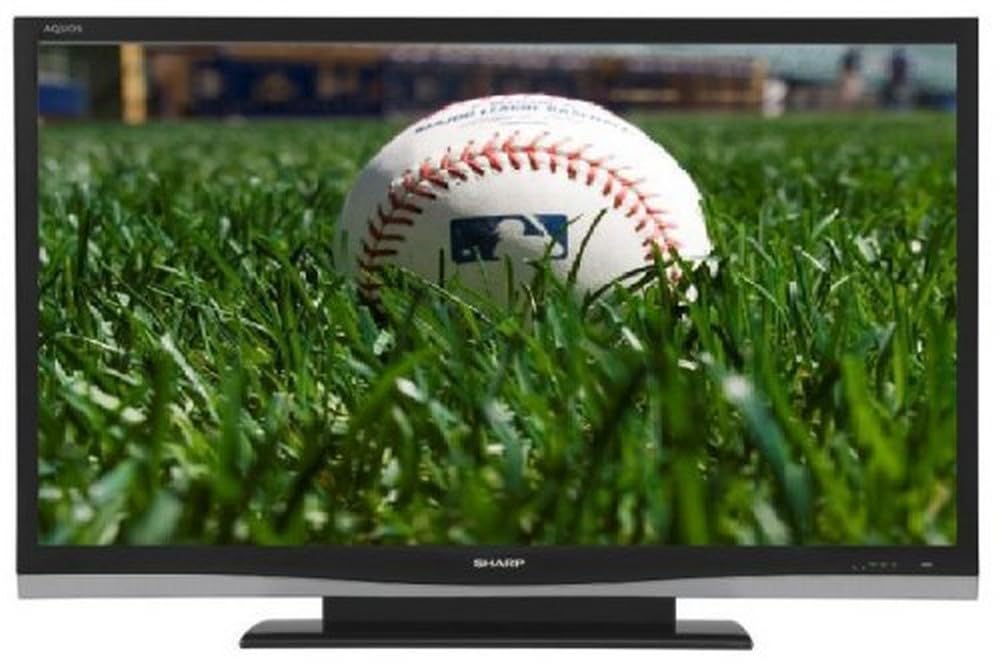
Afbeelding: Voorzijde view of the Sharp Aquos LC42D64U 42-Inch LCD HDTV with its included table stand.
4. Instellen
4.1 De tafelstandaard bevestigen
If you are not wall-mounting the television, attach the included table stand. Refer to the separate assembly guide for detailed instructions on securing the stand to the TV. Ensure all screws are tightened securely.
4.2 Externe apparaten aansluiten
Connect your external devices (e.g., cable box, Blu-ray player, game console) to the appropriate input terminals on the rear or side of the TV.
- HDMI: For high-definition digital video and audio. The TV features three HDMI 1.3 inputs (two rear, one side).
- Component Video (Y, Pb, Pr): For high-definition analog video. Two inputs are available.
- Composite Video (A/V): For standard-definition analog video and audio. One side and one rear input.
- S-video: For standard-definition video. One side and one rear input.
- PC Input (D-Sub 15-pin): Sluit een computer aan om als monitor te gebruiken.
- RF Antenna Inputs: Two inputs for connecting an antenna or cable TV.
- Ethernet-poort: For network connectivity (DLNA).
4.3 Stroomaansluiting
After connecting all desired devices, plug the power cord into the TV's power inlet and then into a wall outlet. The TV will enter standby mode.
5. Gebruiksaanwijzing
5.1 Eerste inschakeling en kanaalconfiguratie
- Druk op de STROOM button on the remote control or the TV to turn it on.
- The first time you power on, the TV will guide you through the initial setup process, including language selection and channel scanning.
- Select your preferred language (English, Spanish, or French).
- Perform an "Easy Setup" or "Channel Setup" scan to detect available digital (ATSC, QAM) and analog (NTSC) channels.
5.2 Basisfuncties van de afstandsbediening
- STROOM: Turns the TV on or off (standby).
- INVOER: Cycles through available input sources (HDMI, Component, PC, etc.).
- CH +/-: Verandert kanalen.
- VOL +/-: Past het volume aan.
- MENU: Accesses the on-screen menu for settings adjustments.
- PIJLKNOPPEN: Navigeer door menu-opties.
- BINNENKOMEN: Bevestigt selecties.
- EXIT/RETURN: Verlaat menu's of keert terug naar het vorige scherm.
5.3 Menunavigatie en instellingen
Druk op de MENU knop om toegang te krijgen tot verschillende instellingencategorieën:
- Afbeelding: Adjust brightness, contrast, color, tint, sharpness, and backlight. The OPC function automatically adjusts brightness based on room conditions.
- Geluid: Control volume, bass, treble, balance, and select audio modes.
- Kanaal: Rescan channels, add/delete channels, and set up favorite channels.
- Instellen: General settings like language, time, sleep timer, and parental controls (V-Chip).
- Geavanceerde functies: Access settings for DLNA, Picture-in-Picture, and AQUOS LINK.
6. Geavanceerde functies
6.1 AQUOS LINK (HDMI-CEC)
AQUOS LINK allows convenient control of compatible Sharp devices connected via HDMI using just your AQUOS TV remote. Ensure connected devices also support HDMI-CEC (Consumer Electronics Control) and are enabled in their respective settings.
6.2 DLNA Compatibility
The TV is DLNA-compatible, enabling interoperability with other DLNA-certified electronics, computers, and mobile devices. Connect the TV to your home network via the Ethernet port to access and share digital content (photos, videos, music) from compatible devices on your network.
6.3 Beeld-in-beeld (PIP)
The Picture-in-Picture function allows simultaneous viewing of a TV program and a video or PC source. Consult the on-screen menu for PIP activation and source selection.
6.4 V-Chip System
The V-Chip system allows you to block TV and movie programs based on their rating, providing parental control over objectionable content. Access V-Chip settings through the TV's setup menu.
7. Onderhoud
7.1 Het scherm schoonmaken
Veeg het scherm voorzichtig af met een zachte, pluisvrije doek. Bij hardnekkige vlekken lichtjes afnemen.ampMaak de doek schoon met water of een speciale schermreiniger. Niet doen Gebruik geen agressieve chemicaliën, schurende reinigingsmiddelen of spuit geen vloeistoffen rechtstreeks op het scherm.
7.2 De kast schoonmaken
Wipe the TV cabinet with a soft, dry cloth. Avoid using solvents or abrasive materials.
7.3 Algemeen onderhoud
- Haal de stekker van de televisie uit het stopcontact tijdens onweer of wanneer u de televisie gedurende langere tijd niet gebruikt.
- Houd de tv uit de buurt van direct zonlicht, warmtebronnen en veel stof.
- Zorg voor voldoende ruimte rondom de tv voor goede ventilatie.
8. Probleemoplossing
Probeer de volgende oplossingen voor veelvoorkomende problemen voordat u contact opneemt met de klantenservice:
| Probleem | Mogelijke oplossing |
|---|---|
| Geen stroom | Controleer of het netsnoer goed in de tv en het stopcontact zit. Zorg ervoor dat er stroom op het stopcontact staat. |
| Geen beeld, maar wel geluid | Controleer of de juiste invoerbron is geselecteerd. Controleer de kabelaansluitingen naar externe apparaten. |
| Geen geluid, maar wel beeld | Check the volume level and mute setting. Ensure audio cables are correctly connected. |
| Afstandsbediening werkt niet | Vervang de batterijen. Zorg ervoor dat er geen obstakels zijn tussen de afstandsbediening en de IR-sensor van de tv. |
| "Hotel Mode" issue (as per customer review) | If the TV is stuck in a limited functionality mode, contact Sharp customer support for assistance in disabling "Hotel Mode." This typically requires a specific service menu sequence. |
9. Specificaties
| Functie | Detail |
|---|---|
| Modelnummer | LC42D64U |
| Schermgrootte | 42 inch |
| Weergavetechnologie | LCD |
| Oplossing | 1080p (Full HD) |
| Contrastverhouding | 10,000:1 Dynamisch |
| Reactietijd | 4 milliseconden |
| HDMI-poorten | 3 (2 achter, 1 zijkant) |
| Component Video-ingangen | 2 |
| Composiet video-ingangen | 3 (1 zijkanten, 2 achterkant) |
| S-Video Inputs | 2 (1 zijkanten, 1 achterkant) |
| PC-invoer | 1 (D-Sub 15-pin) |
| Ethernet-poort | Ja |
| Stemtype | ATSC, QAM, NTSC |
| Ouderlijk toezicht | V-chip |
| Gewicht | 70.2 pond (ongeveer) |
| Modeljaar | 2008 |
10. Garantie en ondersteuning
10.1 Beperkte garantie
This Sharp Aquos LC42D64U television comes with a 1 Year Parts and 1 Year Labor Warranty from the date of original purchase. This warranty covers manufacturing defects in materials and workmanship under normal use. It does not cover damage caused by misuse, accident, modification, or unauthorized repair.
Bewaar uw aankoopbewijs voor garantieclaims.
10.2 Klantenservice
For technical assistance, troubleshooting beyond this manual, or warranty service, please contact Sharp Customer Support. Refer to the contact information provided with your product documentation or visit the official Sharp website voor de meest actuele ondersteuningsgegevens.
When contacting support, please have your model number (LC42D64U) and serial number ready.