1. Introduzzjoni
This manual provides comprehensive instructions for setting up, operating, and maintaining your ATTACK SHARK X11 Ultra-Light Triple Mode Gaming Mouse. Please read this manual carefully before use to ensure optimal performance and longevity of your device.
2. Kontenut tal-Pakkett
Ivverifika li l-oġġetti kollha huma preżenti fil-pakkett tiegħek:
- ATTACK SHARK X11 Gaming Mouse
- Baċir għall-Iċċarġjar manjetiku
- USB-C għal USB-A Cable
- Riċevitur USB 2.4GHz
- Manwal għall-Utent (dan id-dokument)
3. Prodott Aktarview
Familiarize yourself with the components of your X11 gaming mouse.

Image 3.1: The ATTACK SHARK X11 Gaming Mouse with its magnetic charging dock.

Image 3.2: Exploded diagram showing internal components like the lightweight material case, engineering curved keys, PCB, lithium battery, TTC encoder, Huano switches, PAW3311 sensor, and mouse bottom case.
Komponenti tal-Maws:
- Buttuni tal-Ikklikkjar tax-Xellug/tal-Lemin: Equipped with Huano micro switches for tactile feedback.
- Scroll Wheel: For navigation and additional programmable function.
- Side Buttons (x2): Programmable for various functions.
- Buttuna DPI: Located on the underside for adjusting sensitivity.
- Swiċċ tal-Modalità: Located on the underside to select connectivity mode (Wired, 2.4GHz, Bluetooth).
- Port USB-C: Għal konnessjoni bil-fili u ċċarġjar.
- Sensor Ottiku: PAW3311 sensor for precise tracking.
Magnetic Charging Dock:
- Pinnijiet tal-Iċċarġjar Manjetiċi: For effortless wireless charging.
- Dawl RGB: Customizable lighting effects.
- Port USB-A: To store the 2.4GHz USB receiver.
4. Gwida ta' Setup
4.1 Iċċarġjar tal-Maws
The X11 mouse can be charged using the magnetic charging dock or directly via the USB-C cable.
- Using the Magnetic Charging Dock:
- Connect the USB-C cable to the charging dock and then to a power source (e.g., computer USB port, USB wall adapter).
- Place the mouse onto the charging dock. The magnetic connection will secure it, and charging will begin automatically.
- The dock features touch-sensitive RGB lighting control. Tap the dock to cycle through lighting effects or turn them off.
- Direct USB-C Charging:
- Connect the USB-C cable directly to the mouse's USB-C port and then to a power source.
- Il-maws jista' jintuża fil-modalità bil-fili waqt li jkun qed jiċċarġja.

Image 4.1: The X11 mouse charging on its magnetic dock, showcasing the RGB lighting.
A full charge provides approximately 65 hours of usage. Charging time is typically 2-3 hours.
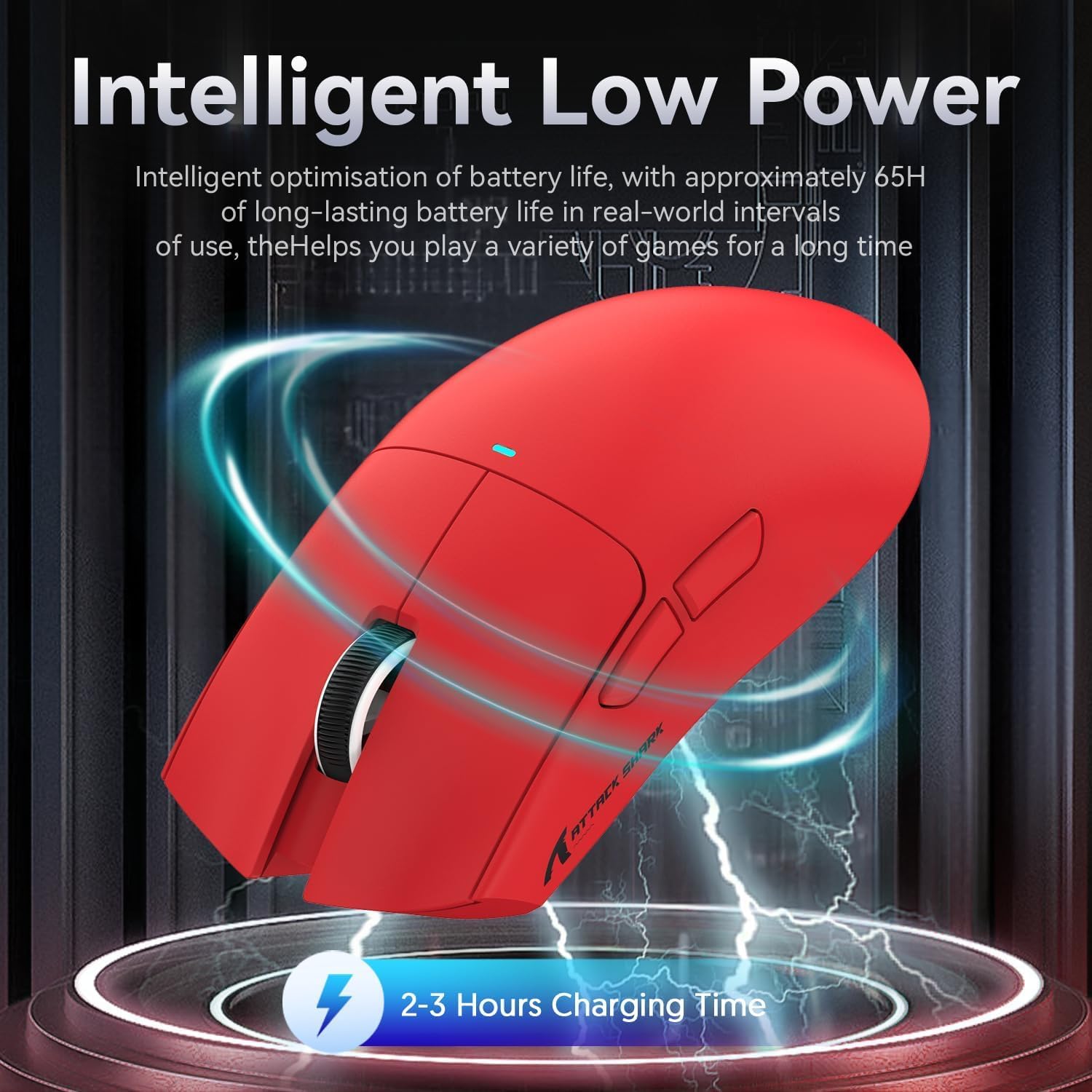
Image 4.2: Visual representation of the X11 mouse's intelligent low power consumption, offering 65 hours of use and a 2-3 hour charging time.
4.2 Connecting the Mouse (Triple Mode Connectivity)
The X11 mouse supports three connection modes: 2.4GHz Wireless, Bluetooth 5.0, and Wired USB-C.

Image 4.3: Illustration of the X11 mouse's triple-mode connectivity options.
- Modalità bla fili 2.4GHz:
- Locate the 2.4GHz USB receiver, typically stored in the magnetic charging dock's USB-A port or in a compartment on the mouse's underside.
- Ipplaggja r-riċevitur USB f'port USB-A disponibbli fuq il-kompjuter tiegħek.
- Switch the mode selector on the underside of the mouse to "2.4G".
- The mouse should connect automatically.
- Modalità Bluetooth 5.0:
- Switch the mode selector on the underside of the mouse to "BT".
- Press and hold the Bluetooth toggle button (usually near the mode switch) for 3 seconds to enter pairing mode. The mouse's indicator light will flash.
- Fuq il-kompjuter jew l-apparat tiegħek, mur fis-settings tal-Bluetooth u fittex apparati ġodda.
- Select "ATTACK SHARK X11" (or similar) from the list to pair.
- The mouse supports up to three Bluetooth channels (BT1/BT2/BT3). Short press the Bluetooth key to switch between channels.
- Modalità USB-C bil-fili:
- Connect the USB-C cable to the mouse's USB-C port and the other end to your computer's USB-A or USB-C port.
- Il-maws awtomatikament jaqleb għall-modalità bil-fili u jibda jiċċarġja.
4.3 Installazzjoni tas-Sewwieq (Mhux obbligatorja)
For advanced customization, including programmable buttons, DPI settings, and macro functions, download the official ATTACK SHARK X11 driver software from the ATTACK SHARK official websit or store page.

Image 4.4: The X11 driver software allows for comprehensive customization of mouse settings.
5. Istruzzjonijiet Operattivi
5.1 Aġġustament DPI
The X11 mouse features a PixArt 3311 sensor with up to 22,000 DPI and 6 adjustable levels. The DPI button is located on the underside of the mouse.
- Press the DPI button to cycle through the preset DPI levels.
- Customize DPI levels and assign them to specific buttons using the driver software.

Image 5.1: Details of the PixArt PAW3311 sensor, highlighting its precision and adjustable DPI.
5.2 Buttuni Programmabbli
The X11 mouse has 5 programmable buttons (left, right, scroll click, and two side buttons). Use the driver software to assign custom functions, macros, or keybinds to these buttons.
5.3 Kontroll tad-Dawl RGB
The magnetic charging dock and the mouse itself feature customizable RGB lighting. Use the driver software to adjust lighting effects, colors, and brightness. The dock's lighting can also be controlled by tapping its surface.
5.4 Angle Snap Feature
The Angle Snap feature helps to smooth out diagonal mouse movements, which can be useful for certain tasks requiring straight lines. This feature can be toggled On or Off via the driver software.
Video 5.1: Demonstration of the Angle Snap feature, showing how it can be toggled on and off in the software to affect mouse movement precision.
6. Manutenzjoni
6.1 Tindif
- Use a soft, dry cloth to wipe the mouse and charging dock.
- Għal ħmieġ iebes, neħħi ftitampLaħlaħ id-drapp bl-ilma jew b'soluzzjoni ħafifa tat-tindif. Evita kimiċi ħarxa.
- Do not immerse the mouse or dock in water.
6.2 Kura tal-Batterija
- Evita li tiċċarġja l-batterija kompletament ta' spiss biex ittawwal il-ħajja tagħha.
- Store the mouse in a cool, dry place if not used for extended periods.
7 Issolvi l-problemi
| Problema | Soluzzjoni |
|---|---|
| Mouse not responding in wireless mode. |
|
| DPI not changing. |
|
| Magnetic charging dock RGB not working. |
|
| Mouse cursor erratic or lagging. |
|
8. Speċifikazzjonijiet
| Karatteristika | Dettall |
|---|---|
| Mudell | X11 |
| Sensor | Sensor Ottiku PixArt PAW3311 |
| DPI | Up to 22,000 DPI (6 adjustable levels) |
| Konnettività | USB-C Wired, 2.4GHz Wireless, Bluetooth 5.0 |
| Piż | 63g (± 3g) |
| Swiċċijiet | Huano Micro Switches (20 million click lifespan) |
| Ħajja tal-batterija | Appross. 65 sigħat |
| Iċċarġjar | Magnetic Charging Dock, USB-C |
| Buttuni programmabbli | 5 |
| Dimensjonijiet | 7.01 x 4.57 x 2.01 pulzieri (Pakkett) |
9. Garanzija u Appoġġ
For warranty information, technical support, or further assistance, please visit the official ATTACK SHARK Store on Amazon jew ikkuntattja lis-servizz tal-konsumatur tagħhom direttament.
Jekk jogħġbok żomm il-prova tax-xiri tiegħek għal pretensjonijiet ta' garanzija.


