1. Pengenalan
The Brother DCP-L2640DW is a compact, high-performance monochrome laser all-in-one printer designed for home offices and small workgroups. This manual provides essential information for setting up, operating, maintaining, and troubleshooting your printer to ensure optimal performance.
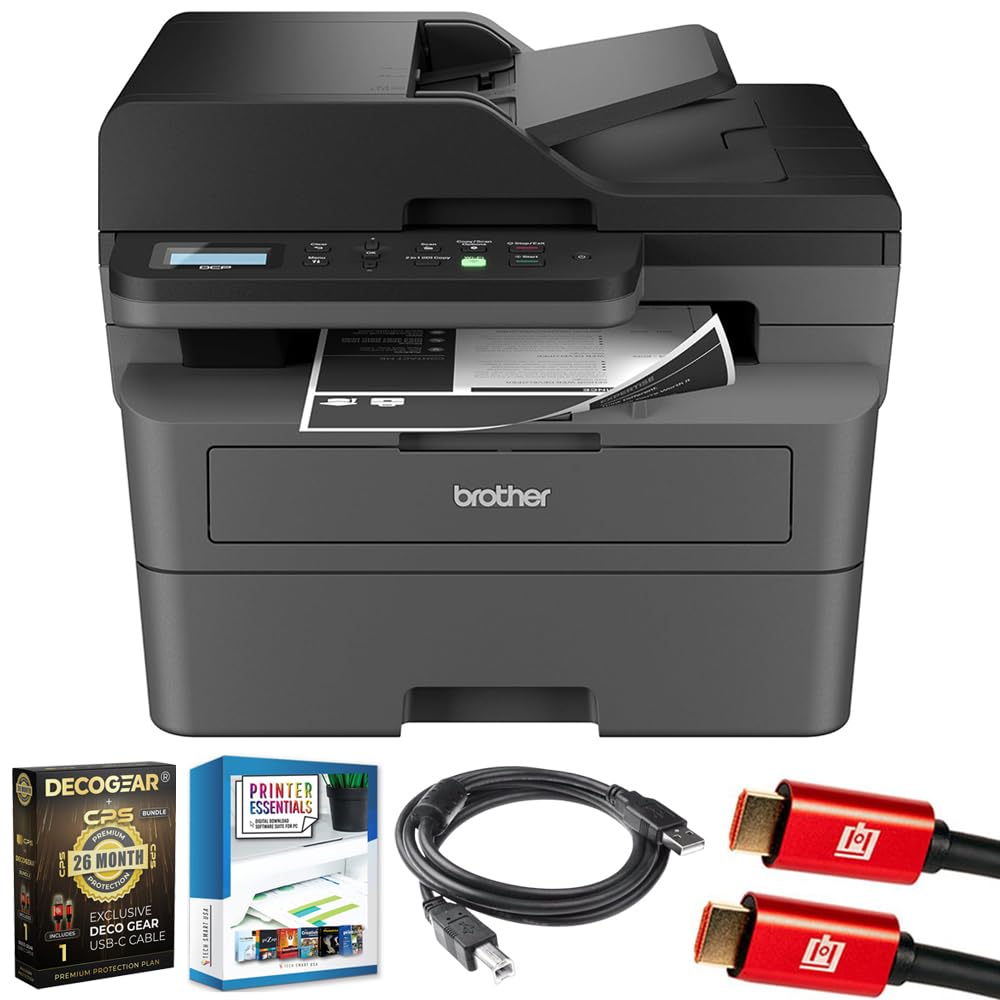
Image 1.1: Brother DCP-L2640DW Compact Monochrome Laser Printer
2. Ciri-ciri Utama
- Fungsi 3-dalam-1: Print, copy, and scan capabilities in a compact design.
- Kelajuan Mencetak Pantas: Delivers up to 36 pages per minute for efficient task completion.
- Pencetakan Dupleks Automatik: Built-in two-sided printing to save time and paper.
- 50-Sheet Automatic Document Feeder (ADF): For efficient multi-page scanning and copying.
- High-Capacity Paper Handling: 250-sheet paper tray plus a manual feed slot for diverse media types.
- Pilihan Kesambungan Fleksibel: Dual-band Wi-Fi, Ethernet, USB, and mobile printing via Brother Mobile Connect, AirPrint, Mopria, and Wi-Fi Direct.
- Advanced Network Security: Features like TLS/SSL, SNMP v3, and IP filtering for secure operation.

Imej 2.1: Selesaiview of the Brother DCP-L2640DW's key features including print speed, connectivity, and compact design.
3. Apa yang ada di dalam Kotak
- Brother DCP-L2640DW Monochrome Laser Printer
- Starter Black Toner Cartridge (approx. 700 pages)
- Brother DR830 Drum Unit (approx. 15,000 pages)
- Kord Kuasa AC
- Documentation (Quick Setup Guide, Product Safety and Protection Information)
4. Persediaan
4.1. Membongkar
- Keluarkan pencetak dengan berhati-hati daripada pembungkusannya.
- Keluarkan semua pita pelindung dan bahan pembungkusan dari bahagian luar dan dalam pencetak.
4.2. Toner Cartridge and Drum Unit Installation
- Buka kulit hadapan pencetak.
- Remove the toner cartridge and drum unit assembly from the printer.
- Unpack the new toner cartridge and drum unit.
- Masukkan kartrij toner dengan kuat ke dalam unit dram sehingga ia terkunci di tempatnya.
- Slide the green tab on the drum unit from left to right several times to clean the corona wire. Return the tab to the home position.
- Reinstall the toner cartridge and drum unit assembly into the printer.
- Tutup penutup hadapan.
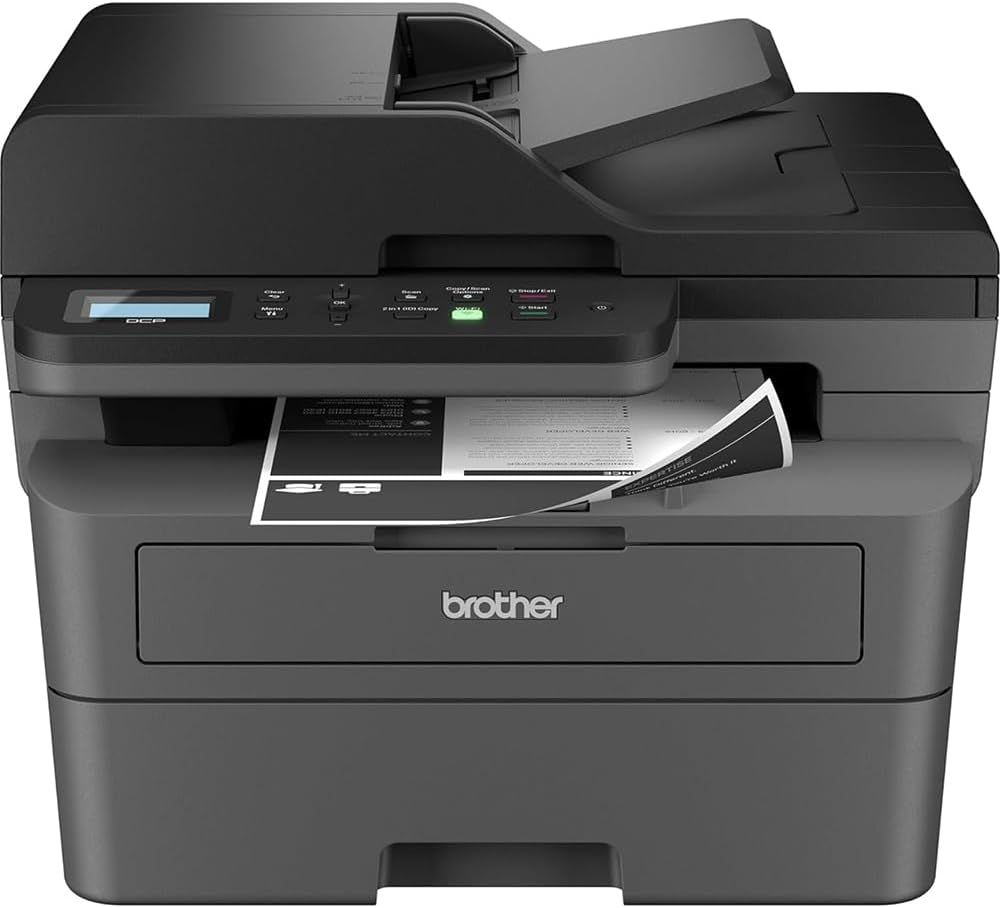
Image 4.1: The Brother DCP-L2640DW printer with the front cover open, showing the toner cartridge and drum unit assembly.
4.3. Sambungan Kuasa
- Connect the AC power cord to the printer's power input.
- Palamkan hujung kord kuasa yang lain ke dalam salur keluar elektrik yang dibumikan.
- Tekan butang kuasa untuk menghidupkan pencetak.
4.4. Initial Setup & Connectivity
Follow the on-screen instructions on the printer's LCD display to complete the initial setup, including language selection and date/time settings.
- Persediaan Tanpa Wayar: Navigate to the network settings on the printer's control panel, select your Wi-Fi network, and enter the password.
- Sambungan Ethernet: Connect an Ethernet cable from your router or network hub to the printer's Ethernet port.
- Sambungan USB: Connect a USB cable from your computer to the printer's USB port.
- Pemasangan Pemandu: Install the printer drivers from the included CD-ROM or download them from the official Brother support webtapak.
Video 4.1: Produk di atasview video demonstrating the Brother DCP-L2640DW printer's features and ease of use.
5. Arahan Operasi
5.1. Mencetak Dokumen
- Load paper into the 250-sheet paper tray or the manual feed slot.
- From your computer or mobile device, open the document you wish to print.
- Select 'Print' from the application's menu.
- Choose your Brother DCP-L2640DW printer.
- Adjust print settings (e.g., number of copies, duplex printing) as needed.
- Klik 'Cetak'.
5.2. Menyalin Dokumen
- Place your document face down on the scanner glass or face up in the Automatic Document Feeder (ADF).
- On the printer's control panel, press the 'Copy' button.
- Use the arrow keys to select the number of copies or adjust other settings.
- Press 'Start' to begin copying.

Image 5.1: The Brother DCP-L2640DW highlighting its Automatic Document Feeder for multi-page tasks.
5.3. Mengimbas Dokumen
- Place your document face down on the scanner glass or face up in the ADF.
- On the printer's control panel, press the 'Scan' button.
- Select your desired scan destination (e.g., PC, email, cloud).
- Adjust scan settings (e.g., resolution, color mode) as needed.
- Press 'Start' to begin scanning.
5.4. Mobile Printing
The Brother DCP-L2640DW supports various mobile printing solutions:
- Aplikasi Brother Mobile Connect: Download the app to manage your printer, print, and scan from your smartphone or tablet.
- Apple AirPrint: Print directly from your Apple iOS device without installing drivers.
- Mopria Print Service: Print from Mopria-certified Android devices.
- Wi-Fi Terus: Print directly from your mobile device to the printer without needing a router.

Image 5.2: The Brother Mobile Connect App interface, showing options for document print, photo print, scan, copy, and toner monitoring.
6. Penyelenggaraan
6.1. Toner Replacement
When the toner is low or empty, the printer's display will indicate that the toner cartridge needs to be replaced. Always use genuine Brother toner cartridges for optimal performance and print quality.
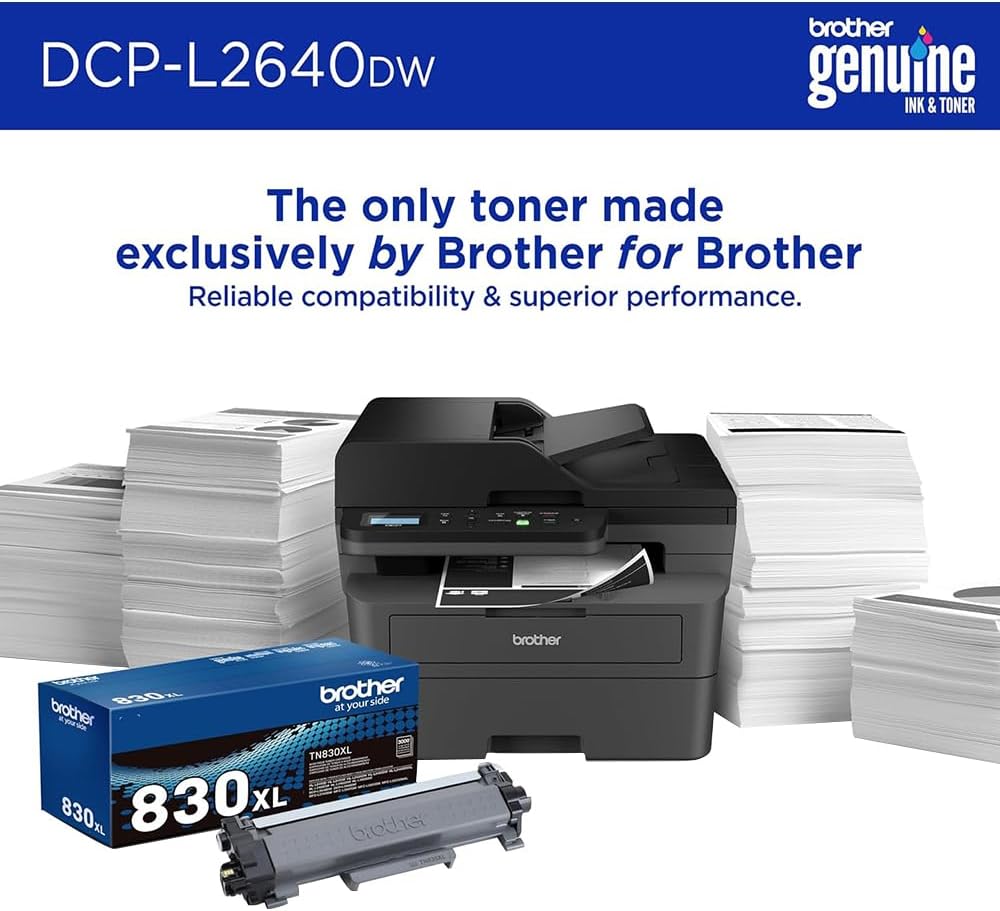
Image 6.1: Brother Genuine Ink & Toner packaging, emphasizing reliable compatibility and superior performance.
6.2. Drum Unit Replacement
The drum unit is a separate consumable that needs to be replaced periodically, typically after approximately 15,000 pages. The printer will notify you when it's time to replace the drum unit.
6.3. Pembersihan
- Luaran: Lap bahagian luar pencetak dengan kain lembut dan tidak berbulu.
- Kaca Pengimbas: Clean the scanner glass with a soft, lint-free cloth moistened with glass cleaner.
- Wayar Korona: Regularly clean the corona wire inside the drum unit by sliding the green tab.
7. Penyelesaian masalah
- Kesesakan Kertas: Follow the on-screen instructions or refer to the printer's documentation to clear paper jams from various access points.
- Isu Ketersambungan: Ensure the printer is connected to the correct network (Wi-Fi or Ethernet) or directly to the computer via USB. Restarting the printer and router can often resolve temporary connection problems.
- Kualiti Cetakan Lemah: Check toner levels, clean the corona wire, and ensure you are using appropriate paper for your print job.
- Mesej Ralat: Refer to the printer's LCD display for specific error codes and consult the online manual or Brother support for solutions.
8. Spesifikasi
| Ciri | Perincian |
|---|---|
| Nombor Model | DCP-L2640DW |
| Teknologi Percetakan | Laser |
| Output Pencetak | Monokrom |
| Monokrom Kelajuan Cetakan Maks | 36 ppm |
| Resolusi Cetakan Hitam dan Putih Maksimum | 1200 x 1200 Dots Per Inch |
| Pencetakan Dupleks Automatik | ya |
| Jenis Pengimbas | Katil rata |
| Kapasiti Helaian Input Maks | 250 helai |
| Kapasiti Pengumpan Dokumen Automatik (ADF) | 50 helai |
| Teknologi Ketersambungan | USB, Ethernet, Dual-band Wi-Fi |
| Kartrij Serasi | TN830, TN830XL |
| Dimensi Produk | 15.7"D x 16.1"W x 12.5"H |
| Berat badan | Not specified in provided data, typically around 20-30 lbs for similar models. |
9. Waranti dan Sokongan
The Brother DCP-L2640DW Monochrome Laser Printer comes with a Limited Warranty. For specific warranty terms and conditions, please refer to the documentation included with your product or visit the official Brother support webtapak.
Untuk sokongan teknikal, muat turun pemacu dan sumber tambahan, sila lawati Sokong Abang Webtapak.