pengenalan
This manual provides essential instructions for setting up, operating, and maintaining your Epson EcoTank L1270 WiFi printer. Please read this guide thoroughly to ensure proper use and to maximize the performance and longevity of your device. The Epson EcoTank L1270 is an inkjet printer designed for efficient printing with a rechargeable ink tank system and Wi-Fi connectivity.
1. Persediaan
1.1 Membongkar Pembungkusan Pencetak
Carefully remove the printer from its packaging. Ensure all protective tapes and materials are removed from the exterior and interior of the printer. Keep the packaging materials for future transport or storage.
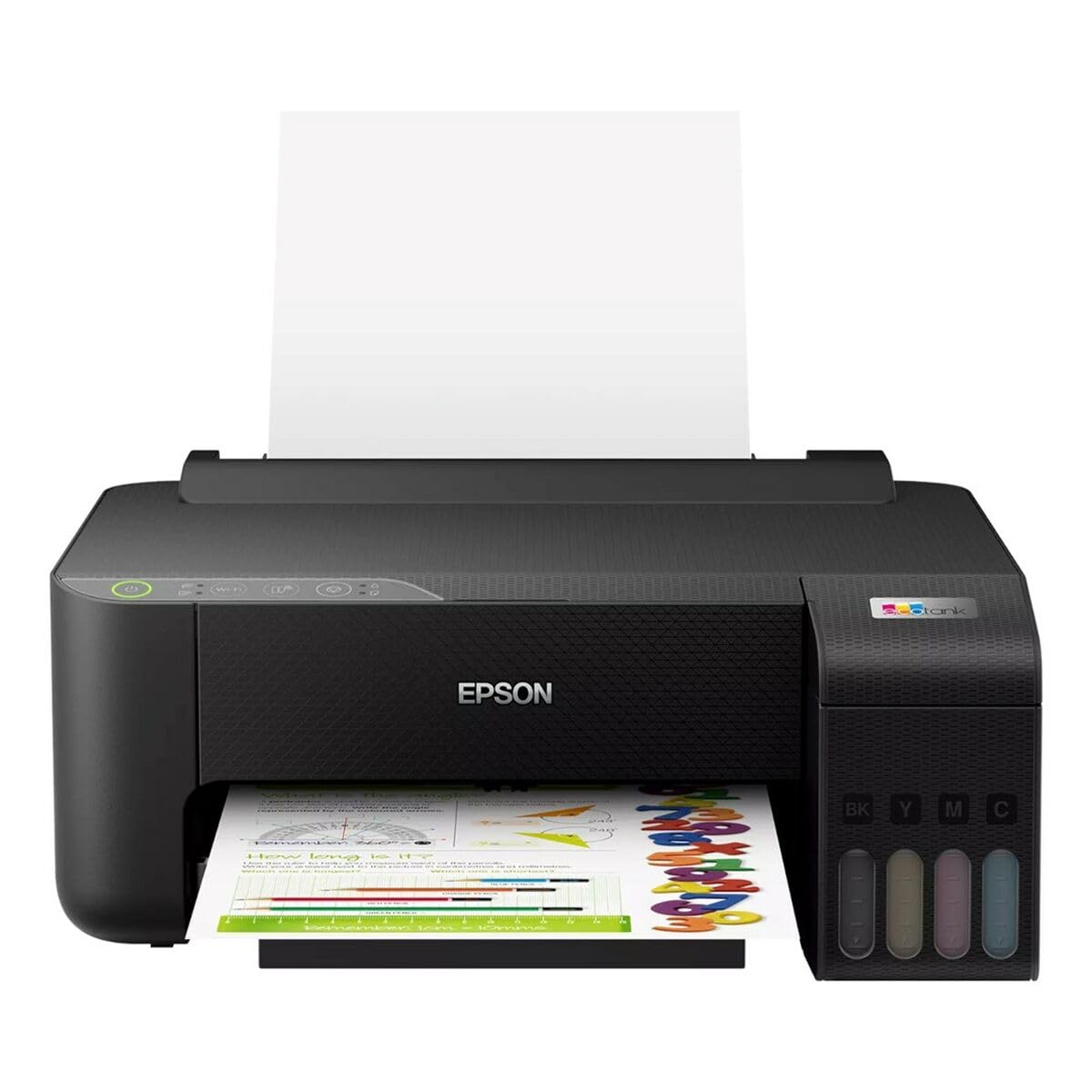
Image 1.1: Epson EcoTank L1270 WiFi Printer. This image shows the printer ready for initial setup after unpacking.
1.2 Mengisi Tangki Dakwat
EcoTank L1270 menggunakan sistem tangki dakwat yang boleh diisi semula. Ikuti langkah-langkah ini untuk mengisi tangki dakwat:
- Open the ink tank unit cover on the printer.
- Uncap the ink bottle for the corresponding color. Each bottle is keyed to fit only the correct tank.
- Insert the ink bottle into the filling port. The ink will automatically start to fill the tank. Do not squeeze the bottle.
- Setelah tangki penuh, keluarkan botol dan tutup semula. Tutup penutup unit tangki dakwat.
- Ulangi untuk semua warna.
Nota: Use only genuine Epson ink bottles to prevent damage and ensure optimal print quality.
1.3 Sambungan Kuasa
Connect the power cord to the printer and then to a wall outlet. Press the power button to turn on the printer. The printer will perform an initial setup process, which may take a few minutes.
1.4 Pemasangan Perisian dan Pemacu
To use your printer, you need to install the necessary drivers and software on your computer. Visit the official Epson support website for the EcoTank L1270 model to download the latest drivers and utilities. Follow the on-screen instructions provided by the installer.
- Pergi ke Sokongan Epson.
- Cari untuk "EcoTank L1270".
- Download and run the recommended driver package.
1.5 Persediaan Wi-Fi
The Epson EcoTank L1270 supports Wi-Fi connectivity. You can connect the printer to your wireless network using one of the following methods:
- Using the Printer's Control Panel: Navigate to the Wi-Fi settings on the printer's control panel, select your network, and enter the password.
- Using EpsonNet Setup: If installed, use the EpsonNet Setup utility on your computer to configure the wireless connection.
- WPS (Persediaan Dilindungi Wi-Fi): If your router supports WPS, press the WPS button on your router, then follow the instructions on the printer's control panel to establish a connection.
2. Mengendalikan Pencetak
2.1 Memuatkan Kertas
Load paper into the rear paper feeder. Ensure the paper guides are adjusted to the width of the paper. The printer supports various paper types and sizes, up to A4.
- Fan the paper stack before loading to prevent misfeeds.
- Do not overload the paper feeder; refer to the maximum capacity (100 sheets for plain paper).
2.2 Mencetak Dokumen
To print a document from your computer:
- Buka dokumen yang ingin anda cetak.
- Pilih "Cetak" daripada menu aplikasi (cth., File > Cetak).
- Choose "Epson EcoTank L1270" as your printer.
- Laraskan tetapan cetakan seperti saiz kertas, kualiti cetakan dan bilangan salinan.
- Klik "Cetak".
2.3 Duplex Printing (Two-Sided Printing)
The EcoTank L1270 supports manual duplex printing. To print on both sides of the paper:
- In your print settings, select the option for "Manual Duplex Printing" or "Print on Both Sides".
- Print the odd-numbered pages first.
- When prompted, reload the printed pages into the paper feeder according to the on-screen instructions to print the even-numbered pages on the reverse side.
3. Penyelenggaraan
3.1 Memeriksa Tahap Dakwat
Visually inspect the ink tanks on the front of the printer to check current ink levels. The tanks are transparent, allowing for easy monitoring. Refill ink when levels are low to avoid running out during a print job.
3.2 Mengisi Semula Tangki Dakwat
When an ink tank is low, purchase genuine Epson replacement ink bottles. Follow the same procedure as described in Section 1.2 "Filling the Ink Tanks".
3.3 Membersihkan Kepala Cetak
If print quality declines (e.g., missing lines, faded colors), perform a print head cleaning. This can be done through the printer's utility software on your computer or via the printer's control panel. Refer to the software's help guide for detailed steps.
3.4 Pembersihan Laluan Kertas
If you experience paper jams or streaks on prints, the paper path may need cleaning. Consult the printer's software utility or the online manual for instructions on how to perform a paper path cleaning.
4. Penyelesaian masalah
Bahagian ini membincangkan isu biasa yang mungkin anda hadapi dengan pencetak Epson EcoTank L1270 anda.
4.1 Printer Not Printing / Blank Pages
- Periksa Tahap Dakwat: Ensure all ink tanks have sufficient ink.
- Print Head Clogged: Perform a print head cleaning (see Section 3.3).
- Paper Loaded Correctly: Verify paper is loaded properly and not jammed.
- Pemasangan Pemandu: Ensure printer drivers are correctly installed and up to date. Reinstall if necessary.
4.2 Isu Sambungan Wi-Fi
- Julat Penghala: Pastikan pencetak berada dalam julat penghala Wi-Fi anda.
- Kata Laluan Rangkaian: Double-check that the correct Wi-Fi password has been entered.
- Mulakan semula Peranti: Try restarting your printer, computer, and Wi-Fi router.
- Reconfigure Wi-Fi: Attempt to set up the Wi-Fi connection again (see Section 1.5).
4.3 Kualiti Cetakan Lemah
- Pembersihan Kepala Cetak: Lakukan pembersihan kepala cetak dan pemeriksaan muncung.
- Jenis Kertas: Ensure you are using the correct paper type for your print settings.
- Ink Quality: Use genuine Epson inks for best results.
For more complex issues, refer to the comprehensive online manual on the Epson support website or contact Epson customer support.
5. Spesifikasi
| Ciri | Perincian |
|---|---|
| Jenama | Epson |
| Nama Model | EcoTank L1270 WiFi |
| Teknologi Percetakan | Inkjet |
| Ketersambungan | Wi-Fi |
| Resolusi Cetakan Maksimum (Warna) | 5760 x 1440 dpi |
| Resolusi Cetakan Maksimum (Hitam & Putih) | 5760 dpi |
| Kelajuan Cetakan Maks (Monokrom) | 15 Pages per minute |
| Kapasiti Kertas Maksimum | 100 sheets (plain paper) |
| Percetakan Dupleks | Ya (Manual) |
| Ciri Khas | Rechargeable Ink Tank |
| Dimensi (L x W x H) | 26P x 42,5l x 46H cm (approx.) |
6. Maklumat Waranti
The Epson EcoTank L1270 WiFi printer comes with a limited warranty. For specific terms, conditions, and duration of your warranty, please refer to the warranty documentation included with your product or visit the official Epson support webtapak. Simpan bukti pembelian anda untuk tuntutan waranti.
7. Sokongan
For further assistance, technical support, or to download the latest drivers and manuals, please visit the official Epson support webtapak:
Epson Official Support Webtapak
You may also find helpful resources and FAQs on their webtapak.


