1. Pengenalan
This manual provides detailed instructions for the setup, operation, and maintenance of your Itari M102 Label Maker Machine. Please read this manual thoroughly before using the device to ensure proper function and longevity.
2. Kandungan Pakej
Sahkan bahawa semua item terdapat dalam pakej anda:
- Itari M102 Label Maker Machine
- 3 Rolls of Thermal Labels (1.57" x 1.18" / 40mm x 30mm)
- Kabel Pengecasan USB Jenis-C
- Manual Pengguna (dokumen ini)

Image 2.1: The Itari M102 Label Maker Machine shown with the included label rolls.
3. Produk Lebihview
Familiarize yourself with the components of your label maker.
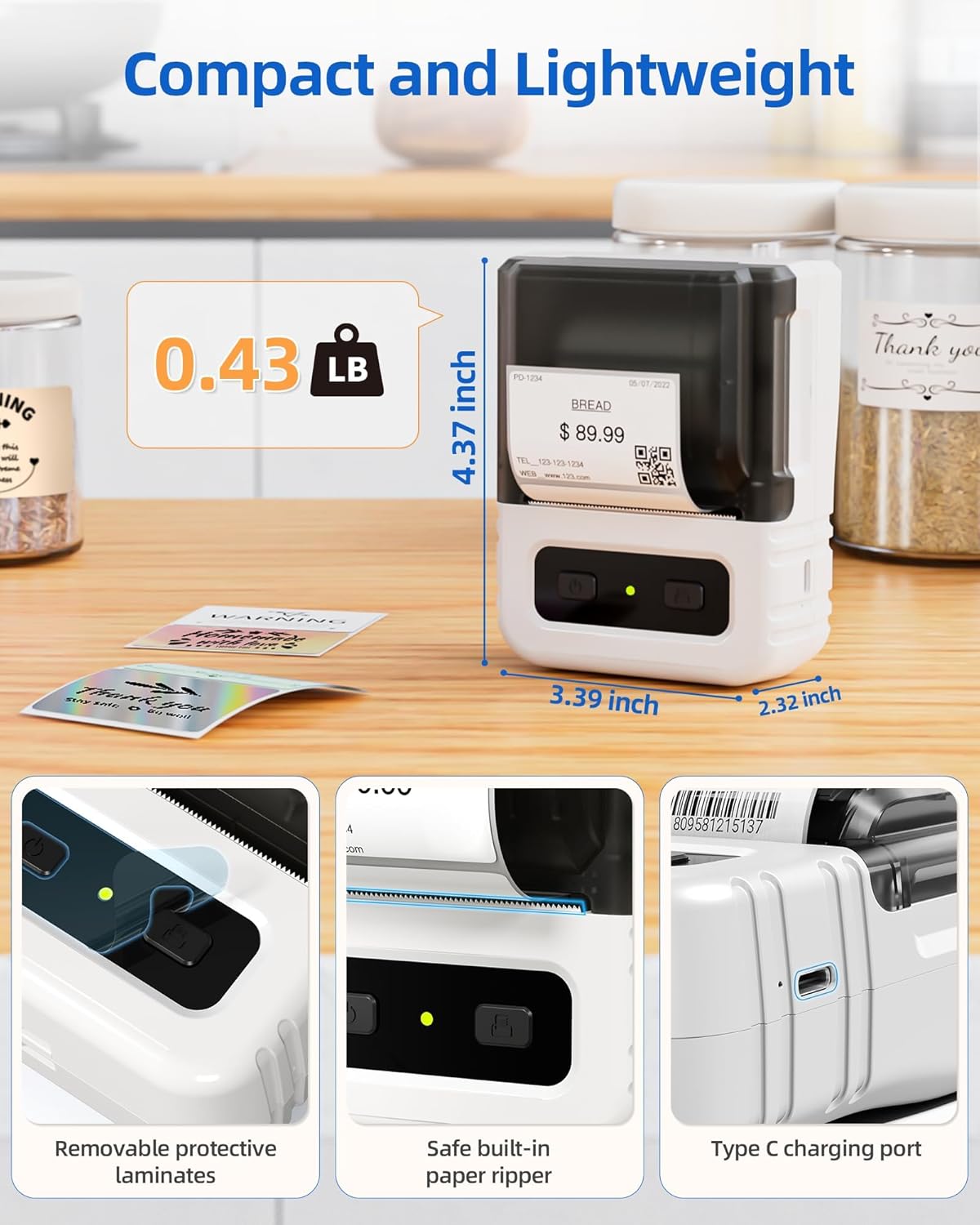
Imej 3.1: Terperinci view highlighting the dimensions, safe built-in paper ripper, removable protective laminates, and Type-C charging port.
Ciri-ciri Utama:
- Butang Kuasa: Digunakan untuk menghidupkan/mematikan peranti.
- Label Compartment: Holds the label roll.
- Adjustable Guide: Ensures proper alignment for various label widths (supports 20-50mm wide labels).
- Slot Keluar Kertas: Tempat label bercetak muncul.
- Built-in Paper Ripper: For cleanly detaching printed labels.
- Port Pengecasan Jenis-C: Untuk mengecas semula bateri dalaman.
4. Persediaan
4.1. Mengecas Peranti
Before first use, fully charge the label maker. Connect the provided USB Type-C cable to the charging port on the device and a compatible USB power adapter (not included). A full charge takes approximately 2 hours and provides up to 1 month of typical usage.
4.2. Memuatkan Label
- Open the label compartment cover.
- Insert a roll of thermal labels into the compartment, ensuring the labels feed from the bottom and the printing side faces upwards.
- Adjust the label guides to fit the width of your label roll snugly. The device supports labels from 20mm to 50mm wide.
- Pull a small portion of the label paper out through the paper exit slot.
- Tutup penutup petak label dengan kemas.

Image 4.1: The label compartment open, illustrating how to insert a label roll and adjust the width guides.
4.3. App Installation and Connectivity
The Itari M102 Label Maker connects wirelessly via Bluetooth to your smartphone or tablet, and via USB to computers. Download the dedicated label editing application from your device's app store (e.g., Apple App Store for iOS, Google Play Store for Android).
- Untuk Sambungan Bluetooth:
- Hidupkan pembuat label.
- Dayakan Bluetooth pada peranti mudah alih anda.
- Open the Itari label app and follow the in-app instructions to search for and pair with your M102 device. Pairing typically takes less than 2 seconds.
- Untuk Sambungan USB:
- Connect the label maker to your computer using the USB Type-C cable.
- Install the necessary drivers or software for your operating system (Windows, macOS, Chrome OS, Linux) as prompted or available on the Itari support webtapak.

Image 4.2: Illustrates wireless Bluetooth connectivity for iOS and Android, and USB connectivity for Chrome OS, Windows, Mac OS, and Linux.
5. Arahan Operasi
5.1. Creating and Customizing Labels
The Itari label app provides extensive customization options:
- templat: Access over 300 free label templates for various uses (address, price, food, clothing, cable, jewelry, folder labels, etc.).
- Fonts & Symbols: Choose from over 100 fonts and 1000 symbols to personalize your labels.
- Imej: Embed images into your label designs.
- Penyuntingan Teks: Adjust text size, style, alignment, and add multiple lines.
- Kod Bar & Kod QR: Generate and print various types of barcodes and QR codes.
5.2. Mencetak Label
- Ensure the label maker is powered on and connected to your device (Bluetooth or USB).
- Open the Itari label app and create or select your desired label design.
- Confirm the label size in the app matches the loaded label roll.
- Tap the 'Print' button in the app.
- The label maker will print the label. Use the built-in paper ripper to cleanly detach the label from the roll.
6. Penyelenggaraan
6.1. Pembersihan
To maintain print quality and device longevity:
- Turn off the label maker before cleaning.
- Gently wipe the print head with a soft, lint-free cloth moistened with isopropyl alcohol. Allow it to dry completely before use.
- Bersihkan bahagian luar peranti dengan kain lembut dan kering. Jangan gunakan bahan kimia yang keras atau pembersih yang kasar.
6.2. Label Storage
Store thermal labels in a cool, dry place away from direct sunlight and heat to prevent premature fading or damage to the thermal coating.
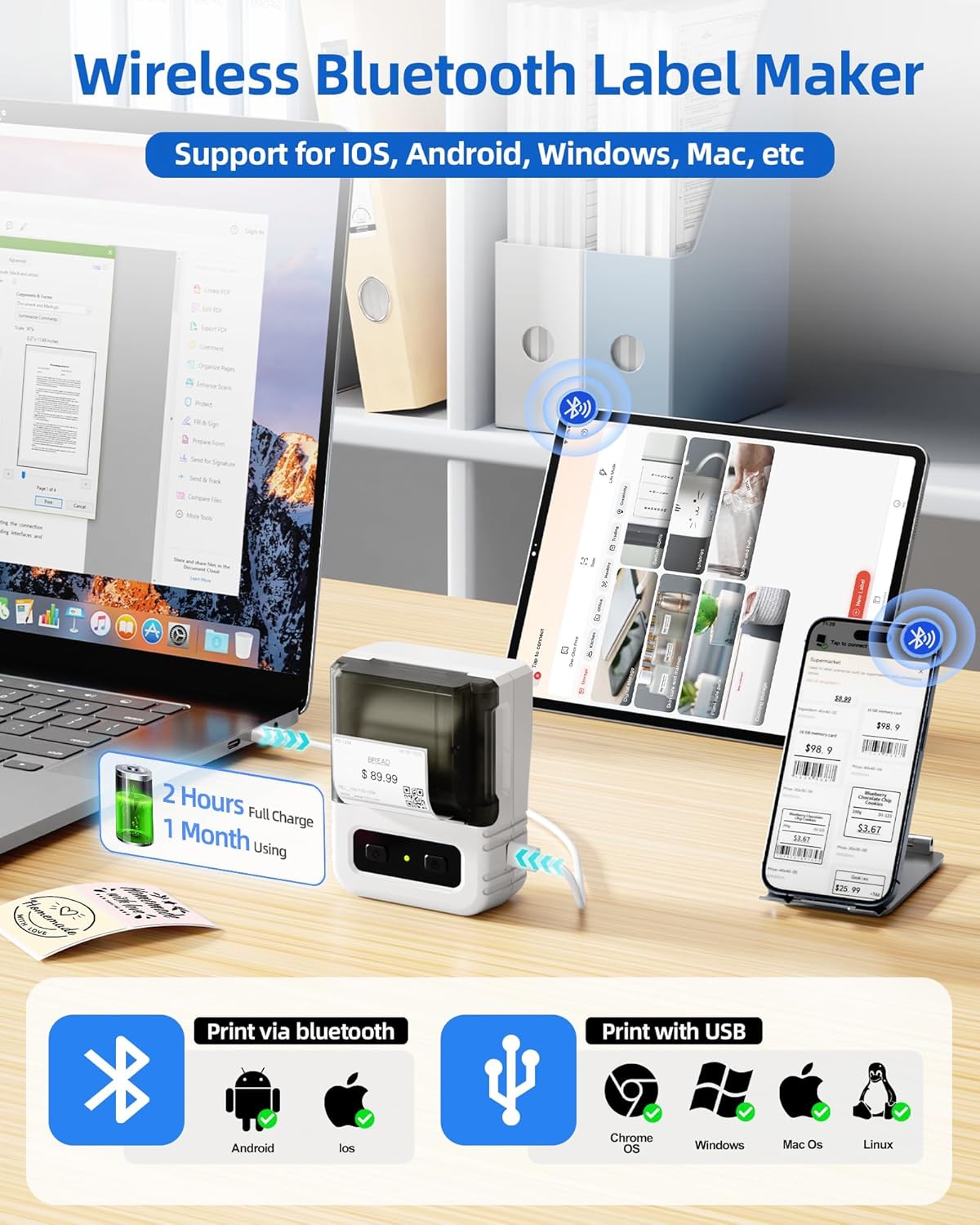
Image 6.1: Itari thermal label rolls, highlighting the 1.57" x 1.18" (40mm x 30mm) size, 230 sheets per roll, and high-quality thermal paper.
7. Penyelesaian masalah
If you encounter issues with your Itari M102 Label Maker, refer to the following common problems and solutions:
| Masalah | Kemungkinan Punca | Penyelesaian |
|---|---|---|
| Peranti tidak dihidupkan | Bateri lemah | Charge the device using the provided USB Type-C cable. |
| No print or faint print |
|
|
| Kegagalan sambungan Bluetooth |
|
|
| Labels jam |
|
|
8. Spesifikasi
- model: M102
- Teknologi Percetakan: Termal (Tanpa Dakwat)
- Supported Label Width: 20mm - 50mm
- Included Label Size: 1.57" x 1.18" (40mm x 30mm)
- Ketersambungan: Bluetooth, USB Jenis-C
- Hayat Bateri: Up to 1 month of typical use (2 hours full charge)
- Dimensi: Lebih kurang 4.37" (T) x 3.39" (L) x 2.32" (D)
- Berat: Kira-kira 0.43 paun (0.195 kg)
9. Waranti dan Sokongan
For warranty information and technical support, please refer to the contact details provided with your purchase or visit the official Itari webtapak. Simpan resit pembelian anda sebagai bukti pembelian untuk tuntutan waranti.


