1. Pengenalan
The Datacolor LightColor Meter is a versatile, Bluetooth-enabled device designed for precise measurement of light and color temperature in various photographic, video, and cinema environments. This compact and portable meter provides real-time data streaming to a mobile application, enabling users to accurately assess and adjust lighting conditions for optimal results. It measures ambient light, flash lighting, lux, chromaticity, color temperature (CCT), and green-magenta balance (DUV).

Imej 1.1: The Datacolor LightColor Meter, shown with its included carrying case and AAA batteries. This image provides an overview of the product and its essential accessories.
2. Apa yang ada di dalam Kotak
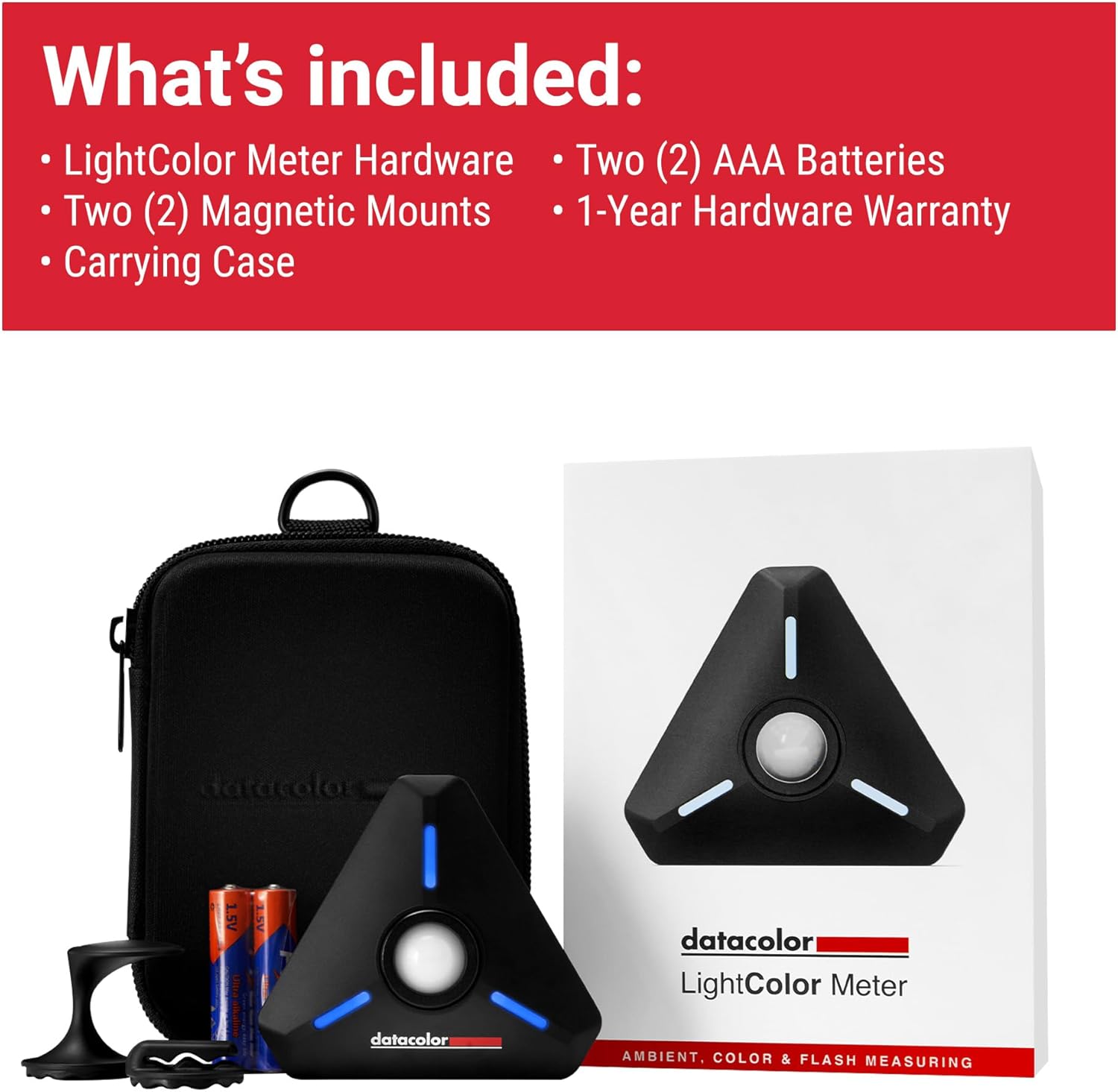
Upon unboxing your Datacolor LightColor Meter, please verify that all the following components are present:
- LightColor Meter Hardware
- Two (2) Magnetic Mounts
- Membawa Sarung
- Dua (2) Bateri AAA
- 1-Year Hardware Warranty Information

Imej 2.1: A visual representation of all items included in the Datacolor LightColor Meter package, ensuring users can confirm they have received all components.
3. Produk Lebihview dan Ciri
The LightColor Meter is designed for ease of use and durability. Familiarize yourself with its key components and functionalities:

Imej 3.1: Detailed diagram highlighting the various features and parts of the LightColor Meter, including the dome, buttons, and mounting options.
- Crush-proof spring-loaded dome: Protects the sensor and can be raised for multi-light source measurements or lowered for single light source measurements.
- Power & measure button: Used to power the device on/off and initiate measurements.
- Rare-earth magnet: Located on the back for secure mounting to metallic surfaces.
- 1/4"-20 mounting hole: Standard tripod mount for versatile positioning.
- Bicu 3.5 mm: For sync cable connection, typically for flash synchronization.
- LED RGB: Indicate connection status and light reading alarms.
- Holes for lanyard and mounting: Provides additional attachment points.
Imej 3.2: The LightColor Meter demonstrating its compact size and hands-free placement capability using its rare-earth magnet, shown attached to a hoodie.
4. Persediaan
4.1. Memasukkan Bateri
The LightColor Meter requires two (2) AAA batteries. The battery compartment is secured by magnets for easy access. Insert the batteries according to the polarity indicators inside the compartment.
4.2. Memuat turun Apl Mudah Alih
The Datacolor LightColor Meter operates in conjunction with the free Datacolor LightColor Meter mobile application. Download the app from your device's respective app store:
- For iOS devices (iPhone, iPod touch): Requires iOS version 12.0 or higher.
- For Android devices: Requires Android™ 6.0 or higher.
4.3. Berpasangan Bluetooth
To connect the meter to your mobile device:
- Pastikan Bluetooth didayakan pada peranti mudah alih anda.
- Press and hold the power button on the LightColor Meter until the RGB LEDs illuminate, indicating it is ready for pairing.
- Open the Datacolor LightColor Meter app. The app will automatically search for and connect to the meter via Bluetooth 4.0 LE.
- Once connected, the app will display real-time light and color data.

Imej 4.1: The LightColor Meter wirelessly connected to the mobile application, demonstrating the seamless data streaming via Bluetooth 4.0 LE.
5. Arahan Operasi
The LightColor Meter offers comprehensive measurement capabilities for various lighting scenarios.
5.1. Mengambil Ukuran
To take a measurement, ensure the meter is connected to the app. Position the meter at the subject's position, facing the light source. Press the power/measure button on the meter, or trigger a measurement directly from the app interface. The app will display the readings instantly.
5.2. Mobile App Interface and Modes
The mobile app provides various modes and settings to tailor your measurements:
- Mod Pendedahan: Allows you to set ISO, Aperture, and Shutter Angle/Speed to determine appropriate exposure settings.
- Simple Color Mode: Displays basic color temperature (CCT) and green-magenta balance (DUV) readings.
- Mod Imbangan Warna: Provides a visual representation of color deviation on a chromaticity diagram.
- Photo/Video/Cine Exposure Modes: Optimize readings for specific media types, including frame rate, shutter angle, and ND filter compensation for video/cine.
- Monitor Flash/Ambient: Toggle between monitoring continuous ambient light or flash light readings.

Imej 5.1: The Datacolor LightColor Meter app interface, showing various measurement parameters and settings for photo and video modes.
5.3. Adjusting the Dome
The meter's dome can be adjusted to suit different measurement needs:
- Raised Dome: For measuring multiple light sources or general ambient light, allowing light from a wider angle to enter.
- Lowered Dome: For measuring a single, specific light source, providing a more focused reading.
6. Multi-Meter Use
The Datacolor LightColor Meter supports connecting multiple meters simultaneously to a single mobile device. This feature is particularly useful for large-scale productions or complex lighting setups, allowing for synchronized measurements from various points up to 80 feet away. This streamlines workflows and ensures consistent lighting across a scene.

Imej 6.1: An illustration of multiple LightColor Meters deployed on a set, demonstrating their capability for simultaneous measurements in mixed lighting situations.
7. Penyelenggaraan
7.1. Penggantian Bateri
When the battery indicator in the app shows low power, or the device's LEDs behave erratically, it's time to replace the AAA batteries. Simply open the magnetic battery compartment and replace the old batteries with new ones, ensuring correct polarity.
7.2. Pembersihan dan Penyimpanan
Untuk memastikan prestasi optimum dan jangka hayat:
- Wipe the meter's exterior with a soft, dry cloth. Avoid abrasive cleaners or solvents.
- Keep the sensor dome clean and free of dust or smudges.
- Store the meter in its provided carrying case when not in use to protect it from dust, moisture, and physical damage.
- Elakkan daripada mendedahkan peranti kepada suhu yang melampau atau cahaya matahari langsung untuk tempoh yang lama.
8. Penyelesaian masalah
If you encounter issues with your Datacolor LightColor Meter, refer to the following common problems and solutions:
| Masalah | Kemungkinan Punca | Penyelesaian |
|---|---|---|
| Meter tidak dihidupkan. | Bateri mati atau salah dimasukkan. | Gantikan bateri dengan bateri AAA baharu, memastikan kekutuban yang betul. |
| Cannot connect to mobile app. | Bluetooth is off; meter is out of range; app issue. | Ensure Bluetooth is on. Move meter closer to device (within 80 ft). Restart app and meter. Check app permissions. |
| Bacaan tidak tepat atau tidak konsisten. | Dirty sensor dome; incorrect dome position; external interference. | Clean the sensor dome. Adjust dome for single/multi-light sources as needed. Minimize strong electromagnetic interference. |
| App is in a different language. | Mobile device's system language setting. | Check your mobile device's system language settings. The app typically defaults to the system language. |
If the issue persists after attempting these solutions, please contact Datacolor customer support.
9. Spesifikasi
Detailed technical specifications for the Datacolor LightColor Meter:

Imej 9.1: A comprehensive list of the LightColor Meter's technical specifications, including measurement ranges and connectivity details.
- Dimensi Produk: 3.15 x 2.76 x 1.38 inci (8 x 7 x 3.5 cm)
- Berat Barang: 1.73 ounces (49 g / 0.05 kg)
- Nombor Model Item: LCM200
- Bateri: 2 bateri AAA diperlukan (termasuk)
- Ketersambungan: Bluetooth 4.0 LE
- Julat Suhu Warna: 1,600K - 20,000K
- Luminance Range: 1.0 - 1,000,000 lux
- Jenis Pengukuran: Incident Metering for Ambient & Flash, Lux, Chromaticity, CCT, and +/- Green (Duv)
- Mod Pendedahan: Photo, Video, Cine (with Frame Rate, Shutter Angle/Speed & ND Filter Compensation)
- Flash Features: HSS Flash & Flash Duration Measurements
- Included Libraries: Gel Filter Libraries from Profoto, LEE, and Rosco
- Multi-Meter Support: Simultaneous Measurements from Multiple Meters Up to 80 ft Away
- Pemasangan: Hands-Free Functionality - incl. Magnet, ¼"-20 Mount
- PC Sync: Cord-in (PC Sync) capability
- Profiles: Custom Exposure Profiles
10. Waranti dan Sokongan
10.1. Waranti Perkakasan
The Datacolor LightColor Meter comes with a 1-Year Hardware Warranty. Waranti ini melindungi kecacatan pada bahan dan mutu kerja di bawah penggunaan biasa. Sila simpan bukti pembelian anda untuk tuntutan waranti.
10.2. Sokongan Pelanggan
For technical assistance, warranty inquiries, or further information, please visit the official Datacolor support website or contact their customer service department. Refer to the packaging or the Datacolor webtapak untuk maklumat hubungan terkini.


