1. Pengenalan
This manual provides essential information for setting up, operating, and maintaining your Sony 77-inch Class BRAVIA 8 OLED 4K UHD Smart Google TV (Model K77XR80). This television delivers pure black OLED contrast with over 8 million self-lit pixels for high brightness and billions of accurate real-world colors via XR Triluminos Pro. The powerful XR Processor enhances every scene in real-time, boosting color, contrast, and clarity.
Access all your favorite streaming apps, including Netflix, Prime Video, Disney+, YouTube, and the Apple TV app, through Google TV. Utilize Google Assistant for voice commands. The TV supports AirPlay 2 and Chromecast built-in for effortless streaming. Enjoy high-bitrate 4K UHD movies with the SONY PICTURES CORE app, and experience studio-calibrated picture modes for optimal viewing.
For an immersive cinematic experience, the TV supports Dolby Vision and Atmos, IMAX Enhanced, and DTS:X. XR Clear Image upscales HD content, and XR OLED Motion ensures blur-free action. Acoustic Surface Audio+ provides immersive sound directly from the screen, with Voice Zoom 3 for clear dialogue.
2. Persediaan
2.1 Unpacking and Stand Installation
Carefully remove the TV from its packaging. It is recommended to have at least two people for safe handling due to the size and weight of the unit. Follow the included setup guide for installing the TV stand. Ensure all screws are securely fastened.

Figure 1: Bottom left view of the Sony BRAVIA 8 TV with its stand.
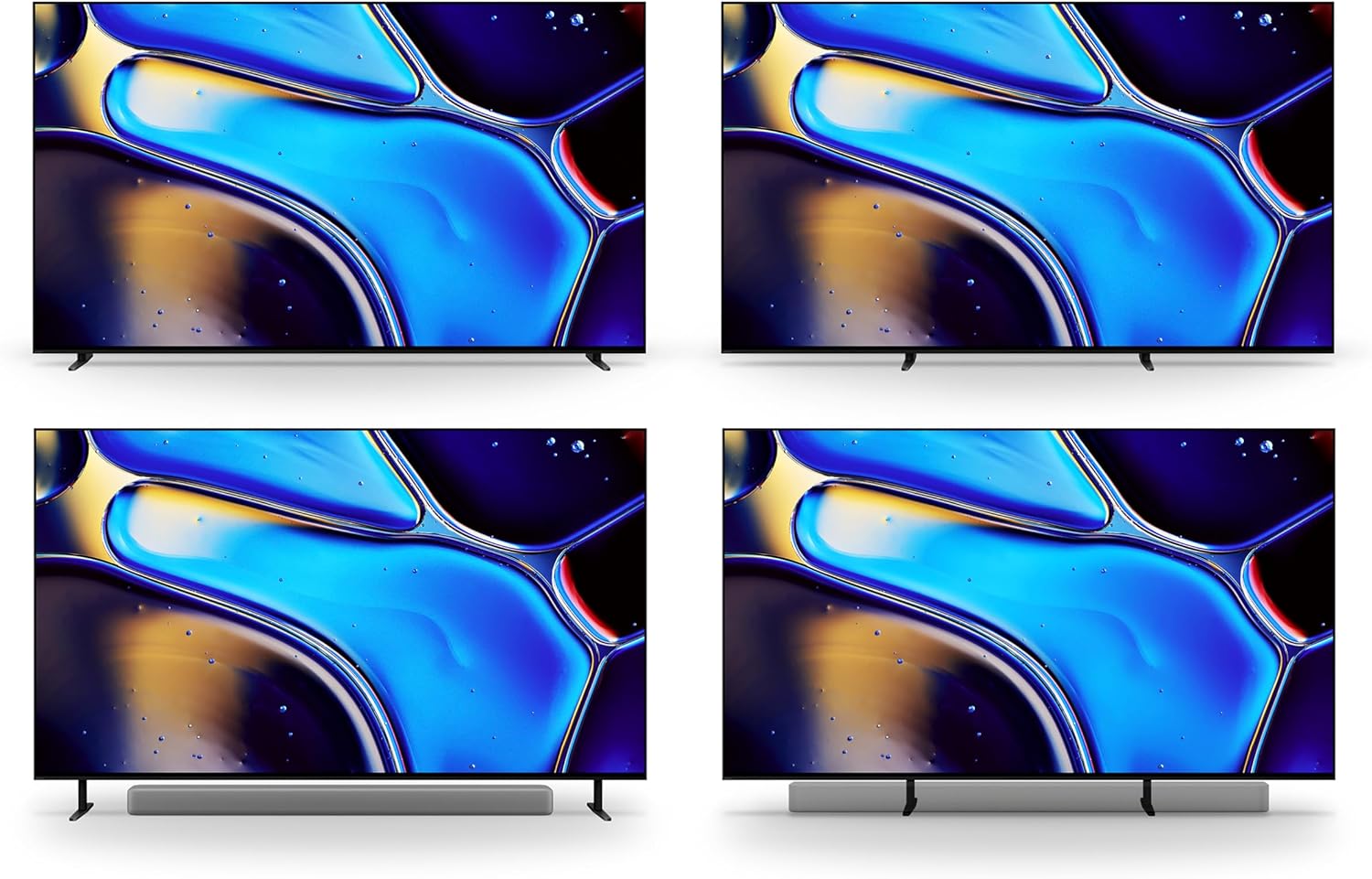
Figure 2: Various stand configurations for the Sony BRAVIA 8 TV, offering flexibility for placement.
2.2 Menyambung Peranti
Connect your external devices (e.g., cable box, gaming console, sound system) to the appropriate HDMI ports on the back of the TV. For optimal performance with gaming consoles and other high-bandwidth devices, use the HDMI 2.1 ports. Ensure all cables are securely connected.

Rajah 3: Belakang view of the Sony BRAVIA 8 TV, highlighting the arrangement of HDMI, USB, and other connectivity ports.
2.3 Penghidupan Awal dan Persediaan Rangkaian
Plug the power cable into the TV and a wall outlet. Press the power button on the remote control. Follow the on-screen instructions to complete the initial setup, including connecting to your Wi-Fi network and logging into your Google account.
3. Mengendalikan TV Anda
3.1 Fungsi Kawalan Jauh
The included remote control provides easy access to all TV functions. Use the directional pad to navigate menus, and the dedicated buttons for quick access to streaming services like Netflix, Prime Video, Disney+, YouTube, and Sony Pictures Core. The remote also features a microphone for Google Assistant voice commands.

Figure 4: The remote control for the Sony BRAVIA 8 TV, featuring buttons for power, volume, channel, navigation, and direct access to popular streaming applications.
3.2 Antara Muka Google TV
Google TV organizes your favorite content from various streaming services into a single, easy-to-navigate interface. Explore personalized recommendations, browse live TV, and manage your apps. Use the Google Assistant button on your remote to search for content, control smart home devices, and get information using your voice.
3.3 Acoustic Surface Audio+
The BRAVIA 8 TV utilizes Acoustic Surface Audio+, where the screen itself acts as a speaker. This technology delivers sound that precisely matches the action on screen, creating a highly immersive audio experience. Voice Zoom 3 further enhances dialogue clarity, even in dynamic scenes.
4. Penyelenggaraan
To ensure the longevity and optimal performance of your Sony BRAVIA 8 TV, regularly clean the screen with a soft, dry cloth. Avoid using harsh chemicals or abrasive materials. Keep ventilation openings clear to prevent overheating. For detailed cleaning instructions, refer to the full user manual.
5. Penyelesaian masalah
If you encounter any issues with your TV, try the following basic troubleshooting steps:
- Tiada Kuasa: Pastikan kabel kuasa disambungkan dengan selamat pada kedua-dua TV dan salur keluar kuasa yang berfungsi. Cuba outlet lain.
- Tiada Gambar/Bunyi: Periksa semua sambungan kabel (HDMI, audio). Pastikan sumber input yang betul dipilih pada TV.
- Kualiti Gambar Lemah: Verify your content source is high-resolution. Adjust picture settings (brightness, contrast, color) in the TV menu.
- Jauh Tidak Menjawab: Check the remote control batteries. Ensure there are no obstructions between the remote and the TV.
- Isu Ketersambungan Rangkaian: Restart your Wi-Fi router. Reconnect the TV to your Wi-Fi network through the settings menu.
For more comprehensive troubleshooting, consult the full digital manual available through the Google TV interface or Sony's support webtapak.
6. Spesifikasi
| Ciri | Spesifikasi |
|---|---|
| Jenama | Sony |
| Nombor Model | K77XR80 |
| Saiz Skrin | 76.7 Inci (Kelas 77 inci) |
| Teknologi Paparan | OLED |
| Resolusi | 4K UHD |
| Kadar Segar Semula | 120 Hz |
| Dimensi Produk | 16"D x 67.5"W x 39.88"H |
| Berat Barang | 1 Pounds (Note: This is likely packaging weight, actual TV weight will be higher) |
| Teknologi Ketersambungan | Bluetooth, WiFi |
| Ciri Khas | Acoustic Surface Audio+, AirPlay 2, Chromecast Built-in, Google TV, Google Assistant, XR Triluminos Pro, XR Processor, XR Clear Image, XR OLED Motion, HDR10, HLG, Dolby Vision Compatible |

Figure 5: Sony BRAVIA 8 TV with key dimensions indicated for planning placement.
7. Apa yang ada di dalam Kotak
Your Sony BRAVIA 8 OLED TV package includes the following items:
- Kabel Kuasa
- Alat Kawalan Jauh
- Komponen berdiri
- Manuals (including this instruction manual)
8. Waranti dan Sokongan
This Certified Refurbished product is manufacturer refurbished, shows limited or no wear, and includes all original accessories plus a 90-day limited hardware warranty. For technical support, warranty claims, or additional assistance, please refer to the contact information provided in your full user manual or visit the official Sony support webtapak.
9. Video Produk
Video 1: Tayangan video produk rasmicasing the Sony XR80 Series TV features and design.