1. Pengenalan
Terima kasih kerana membeliasing the Yifeng Wireless Keyboard. This keyboard offers versatile connectivity options, supporting both 2.4 GHz USB wireless and Bluetooth connections. It is designed for multi-device use, allowing simultaneous pairing with up to four devices and quick switching between them. Featuring a comfortable scissor-switch mechanism and an integrated stand, it enhances productivity across various platforms including Windows, iOS, and Android devices.
2. Maklumat Keselamatan
- Jangan dedahkan papan kekunci kepada cecair atau suhu yang melampau.
- Elakkan daripada membuka atau cuba membaiki peranti ini sendiri.
- Jauhkan daripada kanak-kanak.
- Gunakan hanya kabel USB yang disediakan untuk mengecas.
3. Kandungan Pakej
Sila pastikan semua item ada:
- Yifeng Wireless Keyboard
- Kabel Pengecas USB
- 2.4 GHz USB Receiver (may be stored in the keyboard's battery compartment)
- Manual Pengguna (dokumen ini)
4. Persediaan
4.1. 2.4 GHz USB Wireless Connection
- Locate the 2.4 GHz USB receiver. It is often stored in a dedicated slot on the keyboard.
- Palamkan penerima USB ke dalam port USB yang tersedia pada komputer atau peranti anda.
- Hidupkan papan kekunci menggunakan suis kuasa (biasanya terletak di sisi atau belakang).
- The keyboard should automatically connect to your device. If not, press the dedicated 2.4GHz connection key (often labeled with a '4' or '2.4G' icon) to activate pairing mode.
4.2. Sambungan Bluetooth
- Pastikan papan kekunci dicas dan dihidupkan.
- Press and hold one of the Bluetooth channel keys (e.g., Bluetooth 1, Bluetooth 2, atau Bluetooth 3) for 3-5 seconds until the indicator light flashes, indicating pairing mode.
- Pada peranti anda (tablet, telefon pintar, PC), pergi ke tetapan Bluetooth dan dayakan Bluetooth.
- Cari untuk available devices. The keyboard should appear as "Yifeng Keyboard" or similar.
- Pilih papan kekunci untuk dipasangkan. Ikuti sebarang gesaan pada skrin, seperti memasukkan kod pasangan.
- Once paired, the indicator light will stop flashing and remain solid for a few seconds.
4.3. Multi-Device Pairing
This keyboard supports connecting up to 4 devices simultaneously: one via 2.4 GHz USB and three via Bluetooth. Follow the steps above to pair each device to a different channel (2.4GHz, Bluetooth 1, Bluetooth 2, Bluetooth 3).
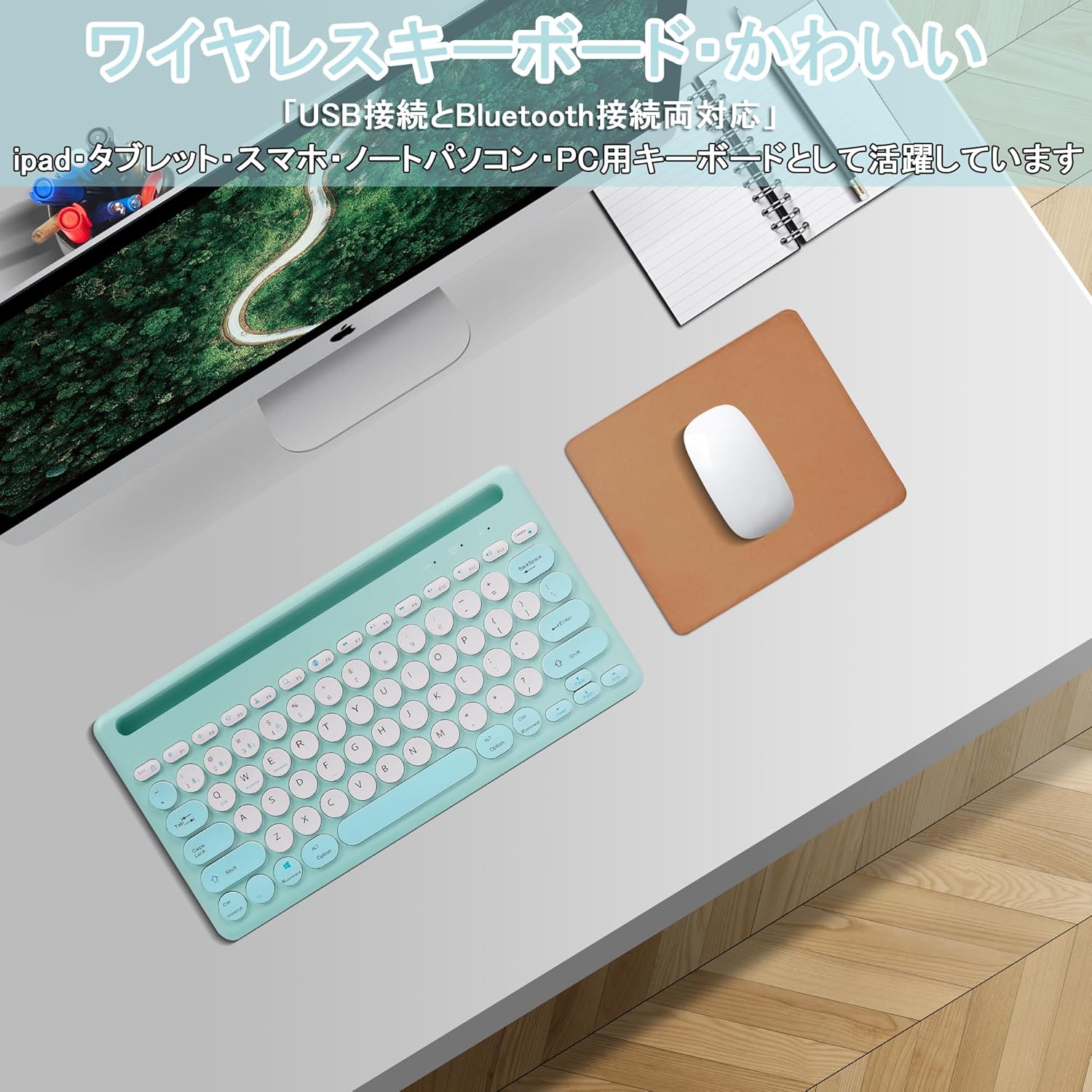
Image: The Yifeng Wireless Keyboard connected to a tablet, smartphone, and laptop, demonstrating its multi-device pairing capability.
5. Arahan Operasi
5.1. Bertukar Antara Peranti Bersambung
To switch between your paired devices, simply press the corresponding connection key:
- Tekan Bluetooth 1 to switch to the first Bluetooth device.
- Tekan Bluetooth 2 to switch to the second Bluetooth device.
- Tekan Bluetooth 3 to switch to the third Bluetooth device.
- Tekan ke 2.4GHz key (often labeled with a '4' or '2.4G' icon) to switch to the USB wireless device.
5.2. System Compatibility Switching
The keyboard supports Windows, iOS, and Android operating systems. Use the dedicated system keys to optimize key functions for your current device:
- Tekan Fn + Q untuk iOS.
- Tekan Fn + W untuk Android.
- Tekan Fn + E untuk Windows.
5.3. Mengecas Papan Kekunci
The keyboard features a built-in rechargeable lithium-ion battery. A single full charge provides approximately 30 days of continuous use.
- Connect the included USB charging cable to the charging port on the keyboard.
- Pasangkan hujung kabel USB yang satu lagi ke sumber kuasa USB (cth., port USB komputer, penyesuai dinding USB).
- Lampu penunjuk pengecasan akan menyala semasa pengecasan dan padam apabila dicas sepenuhnya.

Image: The Yifeng Wireless Keyboard connected to a power strip via its USB charging cable, indicating the rechargeable feature.
5.4. Using the Integrated Stand
The keyboard includes an integrated stand slot at the top, designed to hold your tablet or smartphone upright. This allows for comfortable viewing and typing, making it ideal for document creation, chatting, or watching media while commenting.
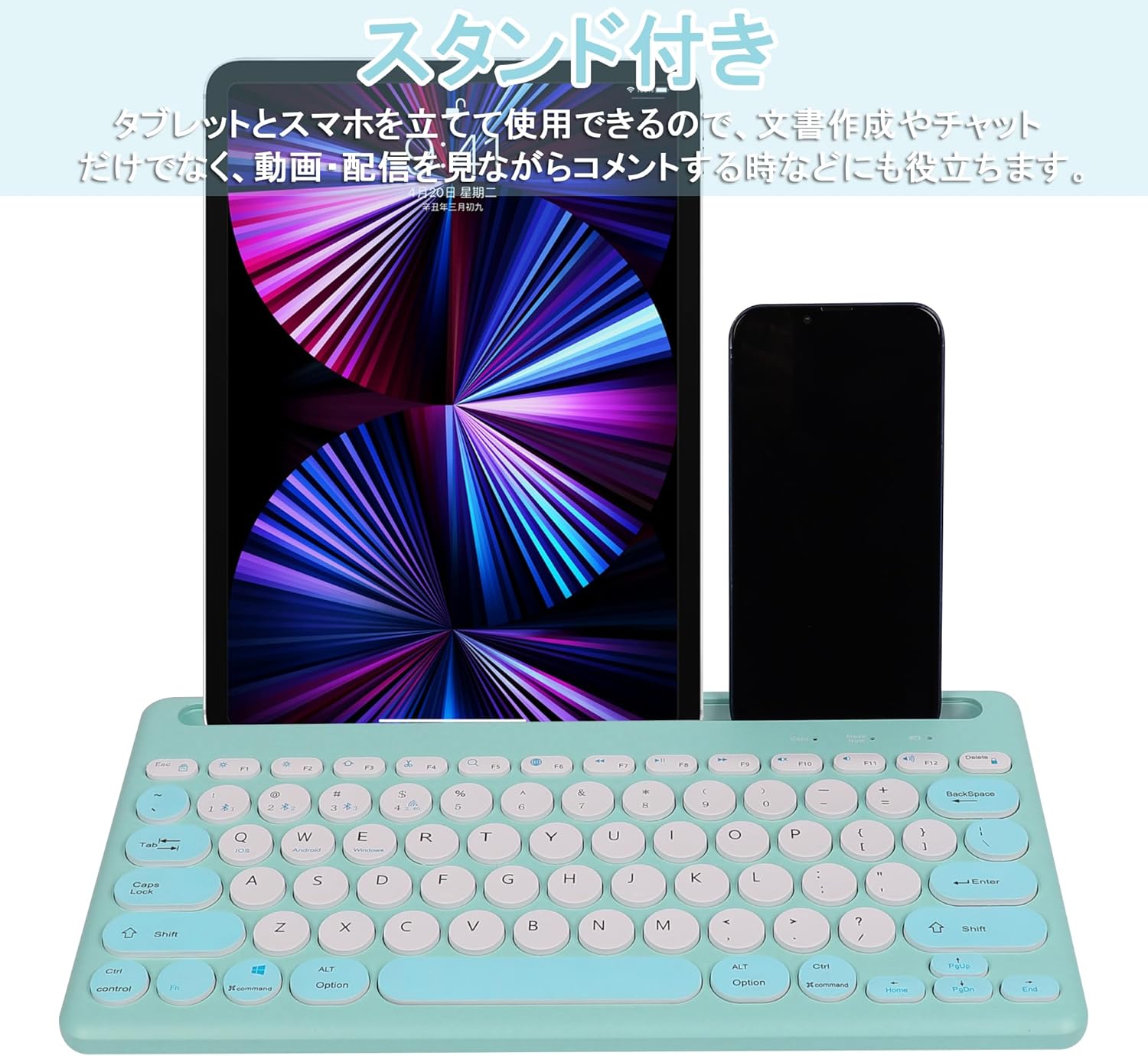
Image: The Yifeng Wireless Keyboard with a tablet and smartphone securely positioned in its integrated stand, demonstrating its utility for multi-device setups.
6. Penyelenggaraan
- Bersihkan papan kekunci secara berkala menggunakan kain lembut dan kering. Untuk kotoran degil, gunakan sedikit kainamp kain boleh digunakan, memastikan tiada kelembapan memasuki papan kekunci.
- Elakkan menggunakan bahan kimia yang keras atau pembersih yang kasar.
- Simpan papan kekunci di tempat yang sejuk dan kering apabila tidak digunakan.
- The keyboard features anti-slip pads on the back for stable use. Ensure these pads are clean and intact for optimal stability.

Image: The underside of the Yifeng Wireless Keyboard, highlighting the four anti-slip pads designed for stable placement on various surfaces.
7. Penyelesaian masalah
7.1. Papan Kekunci Tidak Bersambung
- Semak Kuasa: Pastikan papan kekunci dihidupkan dan mempunyai cas bateri yang mencukupi.
- pasangan semula: For Bluetooth, delete the keyboard from your device's Bluetooth list and attempt to pair again. For 2.4 GHz USB, try plugging the receiver into a different USB port.
- Tukar Saluran: Ensure you have selected the correct channel (Bluetooth 1/2/3 or 2.4GHz) for your device.
- Bluetooth peranti: Verify that Bluetooth is enabled on your device and that it is discoverable.
7.2. Kekunci Tidak Memberi Respons
- Tahap Bateri: Recharge the keyboard if the battery is low.
- Mod Sistem: Ensure the keyboard is set to the correct operating system mode (Windows, iOS, Android) using Fn + Q/W/E.
- Gangguan: Alihkan papan kekunci lebih dekat ke peranti anda dan jauhkan daripada peranti wayarles lain yang mungkin menyebabkan gangguan.
7.3. Isu Pengecasan
- Pemeriksaan Kabel: Ensure the USB charging cable is securely connected to both the keyboard and the power source.
- Sumber Kuasa: Cuba port USB atau penyesuai dinding yang lain.
- Lampu Penunjuk: If the charging indicator light does not turn on, the cable or power source may be faulty.
8. Spesifikasi
| Jenama | Yifeng |
| Nombor Model | AMWS0584A-L |
| Teknologi Ketersambungan | Bluetooth, 2.4 GHz Wireless (USB) |
| Peranti Serasi | Tablets, Smartphones, PCs, Laptops (Windows, iOS, Android) |
| Susun atur papan kekunci | QWERTY (US Layout) |
| Mekanisme Utama | Suis Gunting |
| Ciri Khas | Rechargeable, Integrated Stand, Multi-Pairing (4 devices) |
| Jenis Bateri | 1 Bateri Litium Ion (termasuk) |
| Hayat Bateri | Approx. 30 days (per charge) |
| Dimensi | 33.7 x 16.7 x 2.9 cm |
| Berat badan | 820 g |
| Komponen yang Disertakan | Kabel USB |
9. Waranti dan Sokongan
Produk ini disertakan dengan a Waranti kualiti 1 tahun from the date of purchase. In case of initial defects or malfunctions occurring within the warranty period, we offer return or exchange services.
Should you encounter any issues or require assistance, please contact us directly through your purchase platform:
- Pergi ke anda Sejarah Pesanan.
- Select the order for this product.
- klik pada Hubungi Penjual.
Our support team will be happy to assist you.


