pengenalan
This manual provides essential information for the Dell Latitude 5421 Laptop. It covers initial setup, operational guidelines, maintenance procedures, troubleshooting tips, and detailed product specifications. Please read this manual thoroughly to ensure optimal performance and longevity of your device.
Persediaan
1. Membongkar dan Pemeriksaan Awal
Carefully remove the laptop and all accessories from the packaging. Inspect for any signs of damage. Ensure all components are present: laptop, power adapter, and documentation.
2. Menyambungkan Penyesuai Kuasa
Connect the power adapter to the power connector on the laptop and then plug the power cable into a wall outlet. The battery will begin charging automatically.
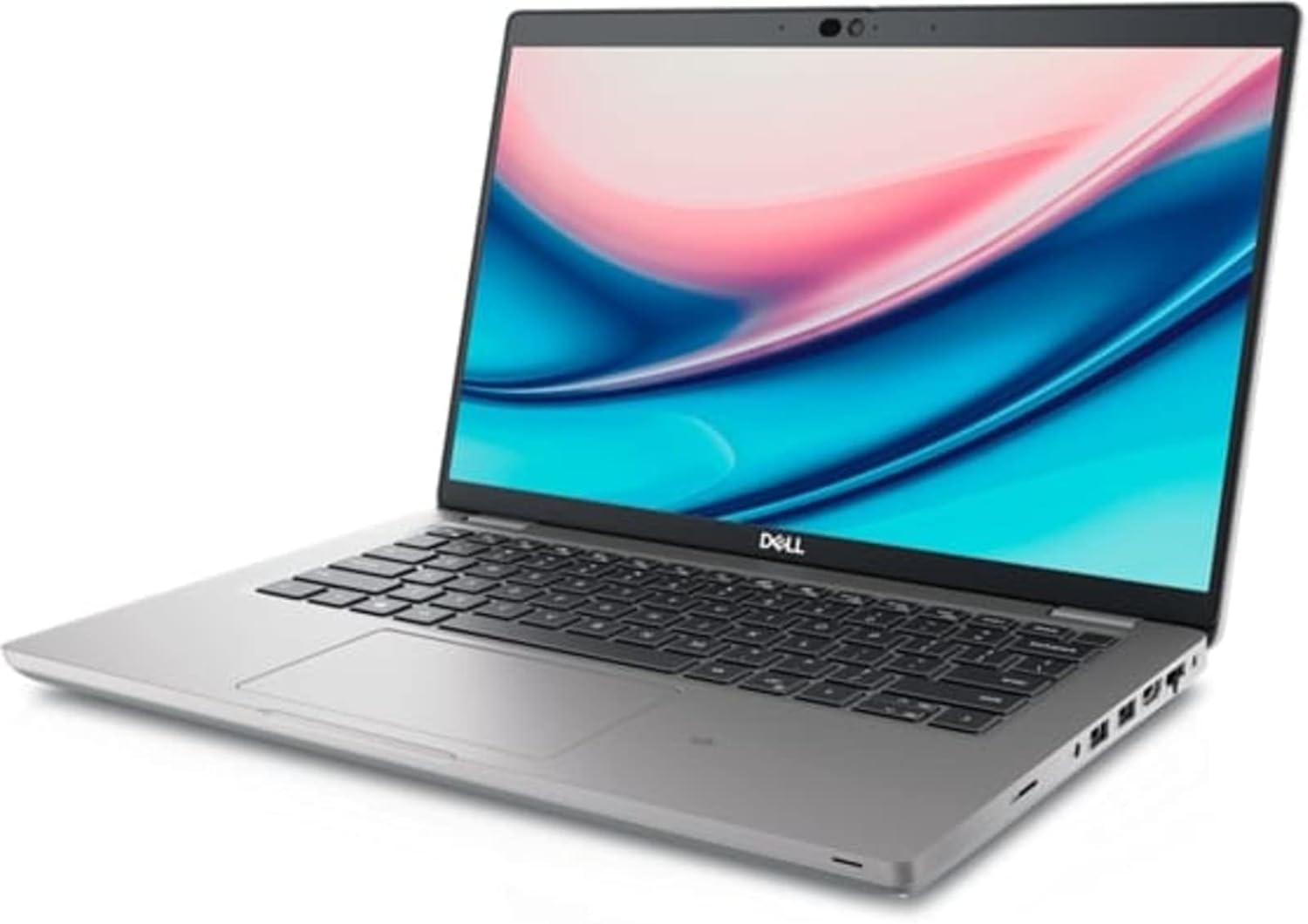
Image: Left side of the Dell Latitude 5421 Laptop, showing the power input, USB ports, HDMI port, and Ethernet port.
3. Hidupkan Awal dan Persediaan Sistem Pengendalian
Open the laptop lid and press the power button. Follow the on-screen instructions to complete the Windows 11 Pro setup. This includes selecting your region, connecting to a network, and creating a user account.
4. Menyambung Peranti
Connect external devices such as a mouse, keyboard, or external monitor to the available ports. The Dell Latitude 5421 features various ports for connectivity:
- Port Sebelah Kiri: SD card reader, Headset jack, USB 3.2 Gen 1 port, USB 3.2 Gen 1 port with PowerShare, HDMI 2.0 port, RJ45 Ethernet port.
- Port Sebelah Kanan: Wedge-shaped lock slot, USB 3.2 Gen 1 port, USB 3.2 Gen 2 Type-C Thunderbolt 4 port with Power Delivery and DisplayPort, Smart card reader (optional).
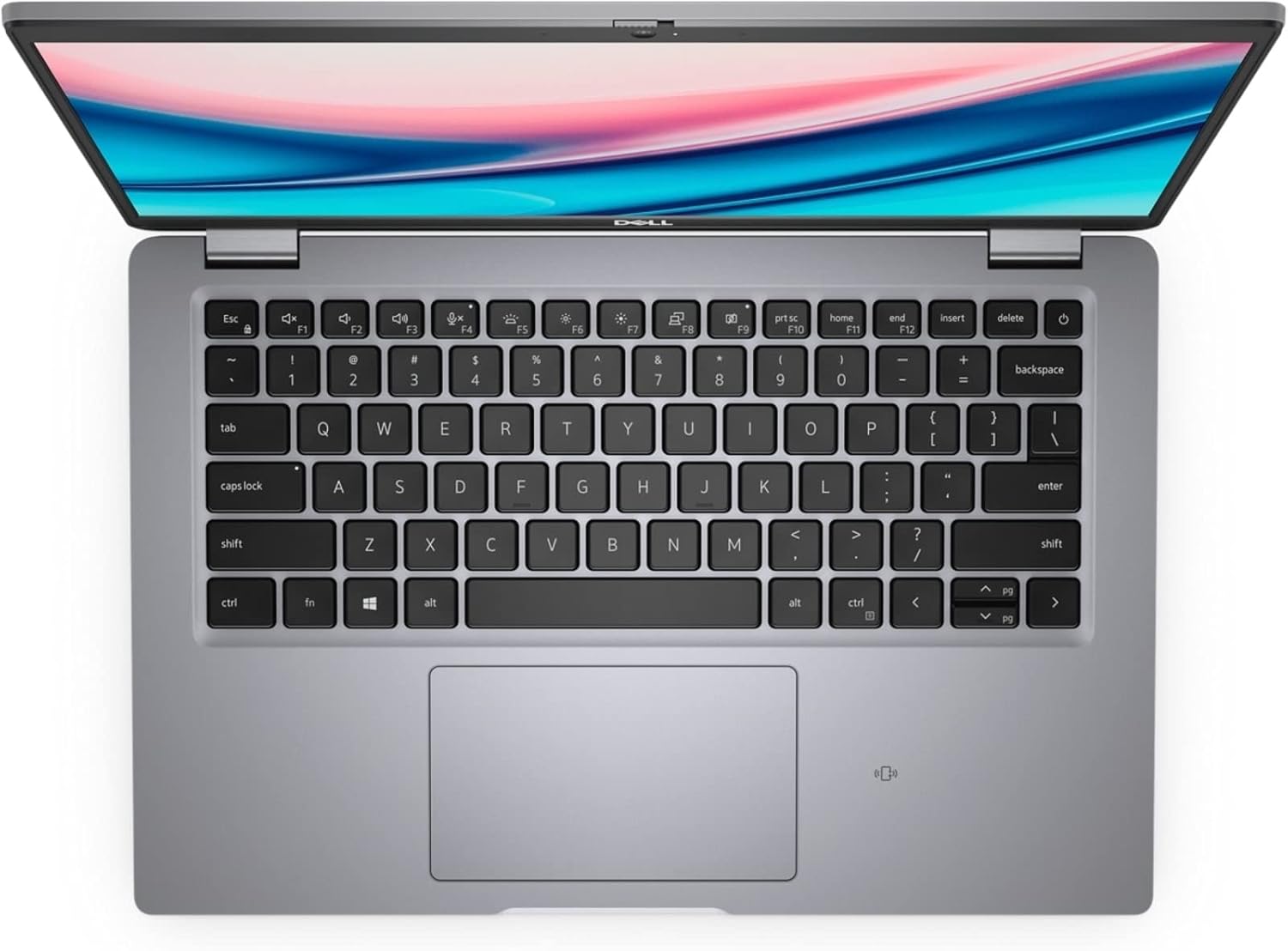
Image: Right side of the Dell Latitude 5421 Laptop, showing the USB-C Thunderbolt 4 port, USB-A port, and lock slot.
Mengendalikan Komputer Riba Anda
1. Penggunaan Papan Kekunci dan Pad Sentuh
Komputer riba ini mempunyai papan kekunci bersaiz penuh dan pad sentuh jitu. Gunakan pad sentuh untuk navigasi dan gerak isyarat. Rujuk tetapan Windows 11 untuk menyesuaikan kepekaan dan gerak isyarat pad sentuh.

Imej: Atas ke bawah view of the Dell Latitude 5421 Laptop keyboard and touchpad.
2. Kesambungan Wayarles
- Wi-Fi: Untuk bersambung ke rangkaian tanpa wayar, klik ikon Wi-Fi dalam bar tugas, pilih rangkaian yang anda inginkan dan masukkan kata laluan jika digesa.
- Bluetooth: Untuk memasangkan peranti Bluetooth, pergi ke Settings > Bluetooth & devices, turn on Bluetooth, and select "Add device."
3. Display and External Monitors
The laptop features a 14-inch Full HD (1920x1080) display. You can connect an external monitor using the HDMI port or the USB-C Thunderbolt 4 port (with a compatible adapter) for extended or mirrored display modes.

Imej: Depan view of the Dell Latitude 5421 Laptop with the screen displaying content.
Penyelenggaraan
1. Membersihkan Komputer Riba Anda
- Gunakan kain yang lembut dan tidak berbulu dampdiisi dengan air atau pembersih skrin untuk paparan.
- Untuk papan kekunci dan casis, gunakan kain lembut. Elakkan bahan kimia yang keras.
- Gunakan udara termampat untuk membersihkan habuk dari bolong dan celah papan kekunci.
2. Kemas Kini Perisian
Regularly check for and install Windows updates via Tetapan > Kemas Kini Windows. Also, ensure Dell drivers and firmware are up-to-date using the Dell SupportAssist application or Dell's official webtapak.
3. Penjagaan Bateri
To prolong battery life, avoid extreme temperatures. For long-term storage, charge the battery to about 50% and store the laptop in a cool, dry place.
4. Pengurusan Storan
Bersihkan secara berkala yang tidak perlu files and applications to maintain optimal performance of the 512GB SSD. Use Windows built-in tools like Disk Cleanup or Storage Sense.
Menyelesaikan masalah
1. Komputer Riba Tidak Dapat Dihidupkan
- Pastikan penyesuai kuasa disambungkan dengan selamat pada kedua-dua komputer riba dan salur keluar kuasa yang berfungsi.
- Sahkan alur keluar kuasa berfungsi dengan memasang peranti lain.
- Cuba tahan butang kuasa selama 15-20 saat untuk melakukan tetapan semula keras.
2. Isu Paparan
- Jika skrin kosong, cuba sambungkan monitor luaran untuk memeriksa sama ada isunya adalah dengan paparan komputer riba.
- Adjust screen brightness using the function keys (Fn + F11/F12).
- Kemas kini pemacu grafik.
3. Wi-Fi or Bluetooth Connectivity Problems
- Pastikan Wi-Fi/Bluetooth diaktifkan dalam tetapan Windows.
- Mulakan semula penghala/modem anda untuk masalah Wi-Fi.
- Jalankan Penyelesai Masalah Rangkaian Windows.
- Update wireless drivers.
4. Prestasi Perlahan
- Tutup aplikasi yang tidak perlu berjalan di latar belakang.
- Check for malware or viruses using antivirus software.
- Pastikan ruang kosong yang mencukupi pada SSD.
- Lakukan permulaan semula sistem.
Spesifikasi
Below are the detailed technical specifications for the Dell Latitude 5421 Laptop:
| Ciri | Spesifikasi |
|---|---|
| Nama Model | Latihan 5421 Latitud |
| Pemproses | Intel Core i7-11850H (8 Cores, 2.5 GHz base, up to 4.8 GHz Turbo) |
| RAM | 64 GB DDR4 |
| Penyimpanan | 512 GB SSD |
| Paparan | 14-inch FHD (1920 x 1080) Non-Touch |
| Grafik | Grafik Bersepadu Intel |
| Sistem Operasi | Windows 11 Pro |
| Kesambungan Wayarles | Wi-Fi, Bluetooth |
| Pelabuhan | USB 3.2 Gen 1, USB 3.2 Gen 1 with PowerShare, USB 3.2 Gen 2 Type-C Thunderbolt 4, HDMI 2.0, RJ45 Ethernet, Headset jack, SD card reader, Wedge-shaped lock slot |
| Dimensi (LxWxH) | 8.35 x 12.65 x 0.82 inci |
| warna | Hitam |
Waranti dan Sokongan
This Dell Latitude 5421 Laptop is a renewed product. Please refer to the specific warranty terms provided by the seller at the time of purchase. For technical assistance, driver downloads, or further support, visit the official Dell Support website or contact your seller directly.
Sokongan Dell Webtapak: www.dell.com/support


