pengenalan
The Microsoft Modern USB-C Headphones are designed to provide high-quality audio for calls, meetings, and general use, particularly optimized for Microsoft Teams. They offer clear sound, a noise-reducing microphone, and intuitive controls for enhanced productivity and communication.
Kandungan Pakej
- Microsoft Modern USB-C Headset
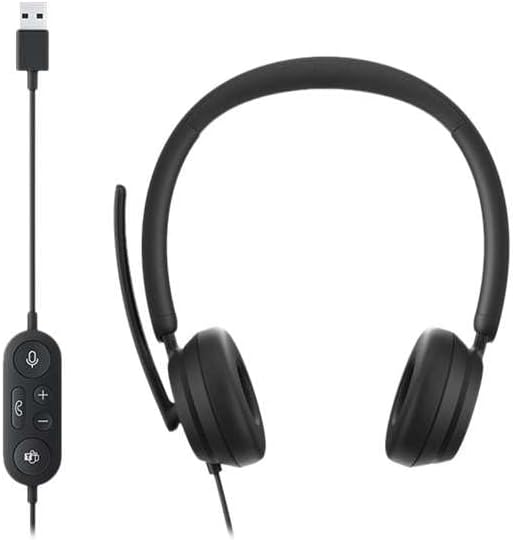
Image: The Microsoft Modern USB-C Headphones, featuring the headset with its attached USB-C cable and inline control unit. The control unit has buttons for mute, volume up/down, call answer/end, and a Microsoft Teams button.
Persediaan
Menyambungkan Alat dengar
- Locate an available USB-C port on your computer or compatible device.
- Plug the USB-C connector of the headset into the USB-C port.
- Your operating system (Windows 11/10/8.1/8 or Mac OS 11.0/10.15) should automatically detect and install the necessary drivers.
Pelarasan Mikrofon
- The microphone boom is flexible. Position it approximately one inch from your mouth for optimal voice pickup.
- The microphone features noise reduction to minimize background distractions during calls.

Imej: Dari dekat view of the earcups and the adjustable microphone boom of the Microsoft Modern USB-C Headphones.
Mengendalikan Alat dengar
Kawalan Sebaris
Unit kawalan sebaris menyediakan akses mudah kepada fungsi penting:
- Butang Bisukan: Press to mute or unmute your microphone. An indicator light on the control unit may show mute status.
- Butang Kelantangan / Turun Kelantangan: Laraskan kelantangan mendengar.
- Butang panggilan: Tekan untuk menjawab atau menamatkan panggilan.
- Butang Microsoft Teams: Quickly launch or bring Microsoft Teams to the foreground.

Imej: A terperinci view of the inline control unit, showing the microphone mute, volume up/down, call, and Microsoft Teams buttons.
Keselesaan dan Reka Bentuk
The headset features padded and lightweight earcups designed for extended wear, ensuring comfort during long calls or work sessions.

Image: A close-up showing the soft, padded earcup of the Microsoft Modern USB-C Headphones, highlighting its comfortable design.
Penyelenggaraan
- Pembersihan: Gunakan kain lembut dan kering untuk membersihkan set kepala. Elakkan menggunakan bahan kimia yang keras atau bahan yang melelas.
- Storan: Simpan set kepala di tempat yang sejuk dan kering apabila tidak digunakan. Elakkan suhu yang melampau.
- Penjagaan Kabel: Do not excessively bend or pull the USB-C cable to prevent damage.
Menyelesaikan masalah
| Masalah | Penyelesaian |
|---|---|
| Tiada bunyi dari set kepala |
|
| Mikrofon tidak berfungsi |
|
| Headset not recognized by computer |
|
Spesifikasi
| Jenama | Microsoft |
| Nama Model | I6N-00009 |
| Nombor Model Item | 2026 |
| Teknologi Ketersambungan | Berwayar (USB-C) |
| Penempatan Telinga | Atas Telinga |
| Faktor Bentuk | Di Telinga |
| bahan | Kulit Tiruan |
| Jenis Kawalan | Kawalan Panggilan |
| Peranti Serasi | Peranti serasi USB-C |
| Keserasian Sistem Pengendalian | Windows 11 / 10 / 8.1 / 8, Mac OS 11.0/10.15 |
| Dimensi Produk | 16 x 3.99 x 24.99 cm |
| Berat Barang | 390 g |
| Tahap Ketahanan Air | Tahan Air |
Waranti dan Sokongan
Untuk maklumat jaminan dan sokongan teknikal, sila rujuk sokongan rasmi Microsoft website or contact Microsoft customer service. Details regarding specific warranty periods and terms are typically provided with your purchase documentation or available online.
You can find support resources at the official Microsoft support page: support.microsoft.com


