1. Pengenalan
Terima kasih kerana membeliasing the AUKEY PC-LM3 Webcam. This manual provides detailed instructions for setting up, operating, and maintaining your webcam. Please read this manual thoroughly before use and retain it for future reference.
2. Maklumat Keselamatan
- Simpan webcam away from water, moisture, and extreme temperatures.
- Jangan cuba membuka atau membaiki peranti ini sendiri. Rujuk semua servis kepada kakitangan yang berkelayakan.
- Elakkan menjatuhkan atau mendedahkan webcam to strong impacts.
- Clean the lens with a soft, dry cloth. Do not use liquid cleaners.
3. Kandungan Pakej
Sila pastikan semua item ada dalam pakej anda:
- AUKEY PC-LM3 Webcam
- Manual Pengguna
- Kabel USB (bersepadu)
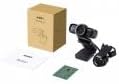
Image 1: Contents of the AUKEY PC-LM3 Webcam package, showing the webcam, manual, and packaging.
4. Produk Lebihview
The AUKEY PC-LM3 is a 1080p USB 2.0 webcam designed for high-quality video communication and recording. It features a CMOS sensor and 5x optical zoom capability, providing clear and detailed visuals.
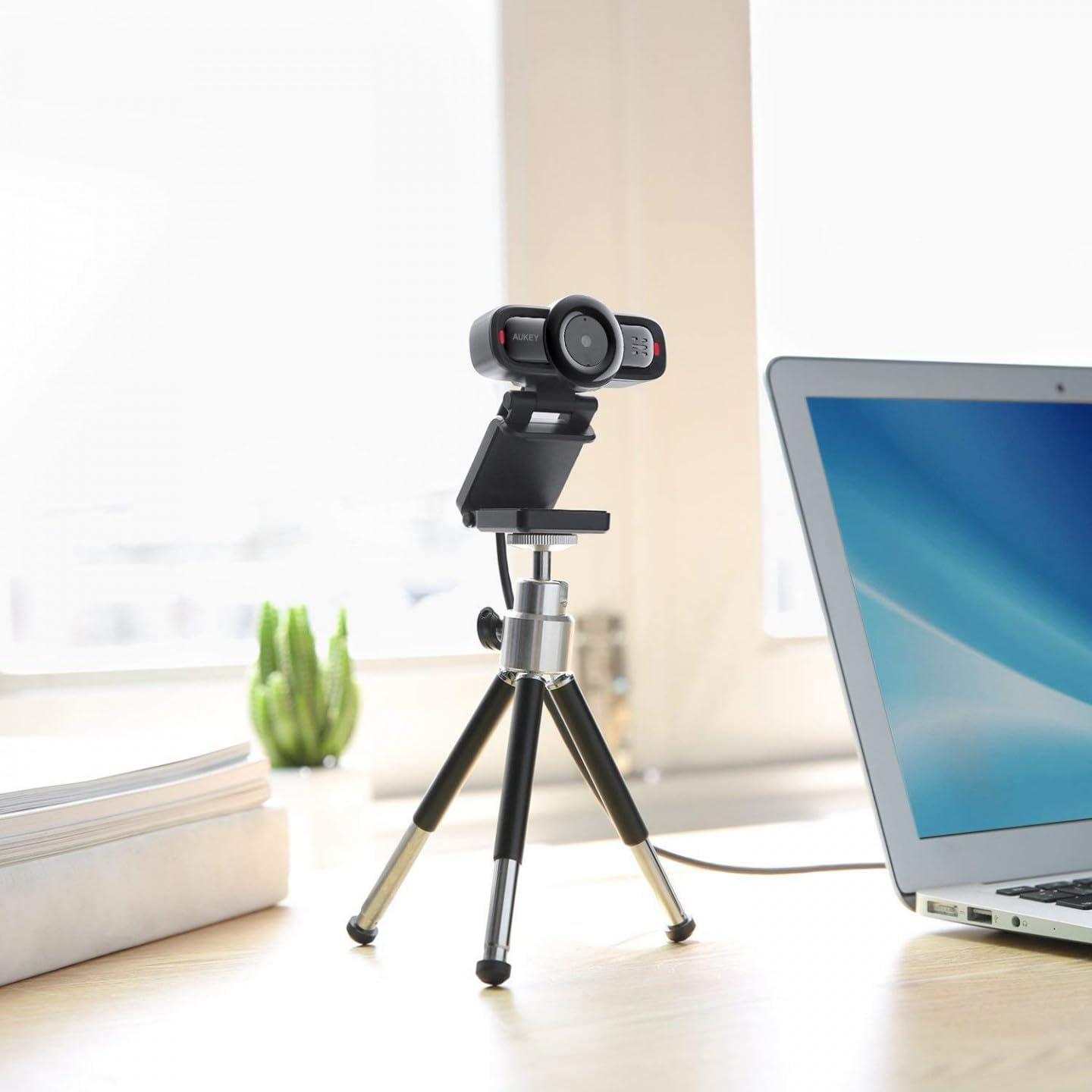
Image 2: AUKEY PC-LM3 Webcam in use, demonstrating its compact design and mounting flexibility on a tripod.
Ciri-ciri Utama:
- Full HD 1080p video recording
- CMOS sensor for clear images
- USB 2.0 connectivity for universal compatibility
- 5x optical zoom for detailed framing
- Integrated microphone for audio capture
- Adjustable clip for versatile mounting options
5. Persediaan
5.1 Placing the Webcam
- Pada Monitor: Unfold the clip and place the webcam on top of your monitor or laptop screen. Adjust the clip to secure it firmly.
- Pada Tripod: The webcam features a standard tripod thread. Mount it onto a compatible tripod for more flexible positioning.
- Pada Permukaan Rata: Fold the clip to form a stable stand and place the webcam on a desk or other flat surface.
5.2 Menyambung ke Komputer Anda
- Palamkan penyambung USB pada webcam into an available USB 2.0 or 3.0 port on your computer.
- Komputer anda sepatutnya mengesan dan memasang pemacu yang diperlukan secara automatik. Proses ini mungkin mengambil masa beberapa saat.
- Setelah dipasang, webcam will be ready for use with video conferencing software or recording applications.
Nota: No additional software or drivers are typically required for Windows, macOS, or Linux operating systems.
6. Mengendalikan Webcam
6.1 Using with Video Conferencing Software
To use the AUKEY PC-LM3 webcam with applications like Zoom, Skype, Microsoft Teams, or Google Meet:
- Buka aplikasi persidangan video pilihan anda.
- Navigate to the application's settings or preferences (usually found under "Audio & Video" or "Devices").
- Select "AUKEY PC-LM3" as your video input device.
- Select "AUKEY PC-LM3 Microphone" (or similar) as your audio input device, if applicable.
- Adjust any video settings such as resolution or brightness within the application if available.
6.2 Merakam Video
To record video using the webcam, use your computer's built-in camera application (e.g., Camera app on Windows, Photo Booth on macOS) or third-party recording software. Ensure the AUKEY PC-LM3 is selected as the video source.
6.3 Optical Zoom
The webcam features 5x optical zoom. This function is typically controlled via software. Check your video conferencing or recording application for zoom controls. If not available, third-party webcam control software may offer this functionality.
7. Penyelenggaraan
7.1 Membersihkan Webcam
- Memastikan webcam is disconnected from your computer before cleaning.
- Use a soft, lint-free cloth to gently wipe the lens and body of the webcam.
- For stubborn smudges on the lens, slightly dampen the cloth with water or a lens cleaning solution, then wipe gently. Avoid excessive moisture.
- Jangan gunakan bahan kimia yang keras, pembersih yang kasar atau pelarut.
7.2 Penyimpanan
Apabila tidak digunakan, simpan webcam in a cool, dry place, away from direct sunlight and dust. Consider using a privacy cover (if included or purchased separately) to protect the lens and ensure privacy.
8. Penyelesaian masalah
| Masalah | Penyelesaian |
|---|---|
| Webcam tidak dikesan oleh komputer. |
|
| Tiada output video. |
|
| Kualiti video yang teruk. |
|
9. Spesifikasi
| Ciri | Perincian |
|---|---|
| Model | PC-LM3 |
| Resolusi Video | 1920 x 1080 piksel (1080p) |
| Teknologi Sensor | CMOS |
| Ketersambungan | USB 2.0 |
| Zum Optik | 5x |
| Format Tangkapan Video | MP4, AVI |
| Format Audio yang Disokong | AAC, MP3 |
| Dimensi (L x W x H) | 7.7 x 7.2 x 4.6 cm |
| Berat badan | 130 gram |
| warna | Hitam |
10. Waranti dan Sokongan Pelanggan
AUKEY products are covered by a limited warranty from the date of purchase. For specific warranty terms and conditions, please refer to the warranty card included with your product or visit the official AUKEY webtapak.
If you encounter any issues or have questions regarding your AUKEY PC-LM3 Webcam, please contact AUKEY customer support for assistance. Contact information can typically be found on the official AUKEY webtapak atau pada kad jaminan.


