1. Pengenalan
This manual provides essential information for the proper installation, configuration, and operation of your GIGABYTE B550 AORUS ELITE AX motherboard. This motherboard is designed to support 3rd Gen AMD Ryzen Processors and offers advanced features for high-performance computing.

Imej 1.1: Selesaiview of the GIGABYTE B550 AORUS ELITE AX Motherboard. This image displays the full motherboard with its various components, including the CPU socket, RAM slots, PCIe slots, and heatsinks.
Key features include a True 12+2 Phases Digital VRM Solution, advanced thermal design with enlarged surface heatsinks, an Ultra Durable PCIe 4.0 x16 Slot, dual ultra-fast NVMe PCIe 4.0/3.0 x4 M.2 slots with dual thermal guards, and integrated Intel WiFi 6 802.11ax with Bluetooth 5.
2. Persediaan dan Pemasangan
Sebelum memulakan pemasangan, pastikan sistem anda dimatikan dan dicabut dari salur keluar dinding. Sentiasa pegang papan induk di tepinya untuk mengelakkan nyahcas statik.
2.1. Pengenalan Komponen
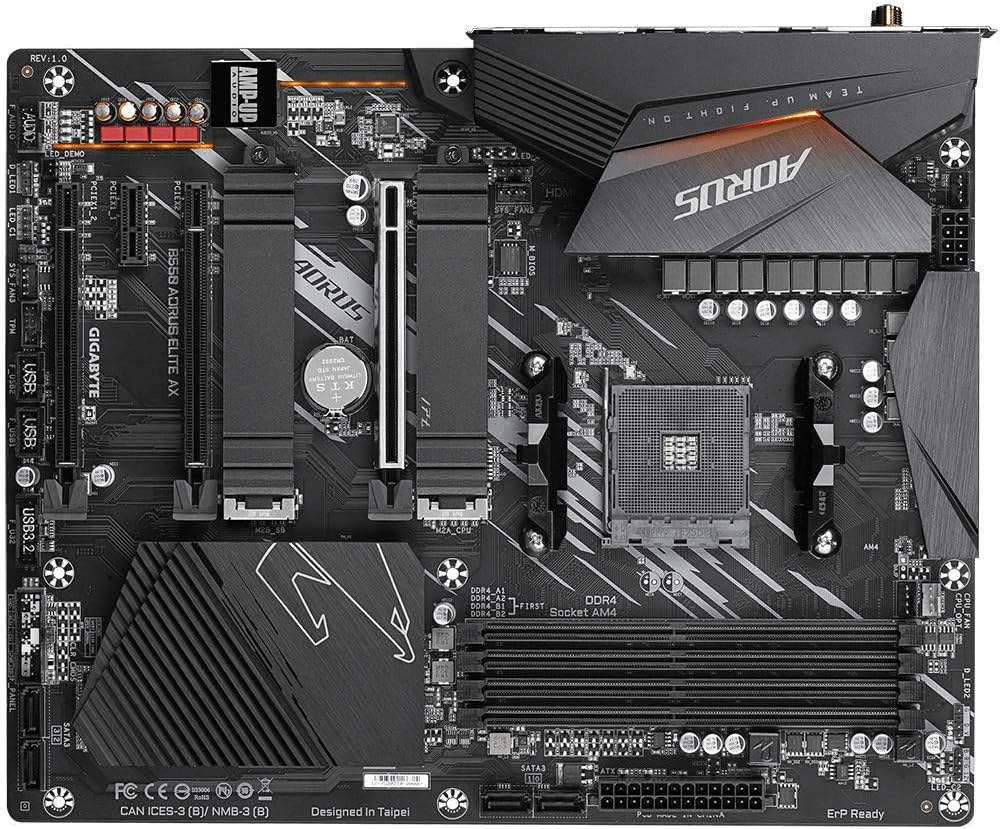
Imej 2.1: Atas-bawah view of the GIGABYTE B550 AORUS ELITE AX Motherboard. This image highlights the layout of the CPU socket, four DDR4 DIMM slots, multiple PCIe slots, and two M.2 slots with their thermal guards.
2.2. Pemasangan CPU
- Locate the AM4 CPU socket. Lift the load lever to open the socket.
- Carefully align the triangular mark on the CPU with the mark on the socket. Gently place the CPU into the socket without forcing it.
- Lower the load lever back into place to secure the CPU.
2.3. Pemasangan RAM
This motherboard supports Dual Channel ECC/Non-ECC Unbuffered DDR4 memory across 4 DIMM slots.
- Buka klip di kedua-dua hujung slot DIMM.
- Sejajarkan takik pada modul memori DDR4 dengan kunci pada slot DIMM.
- Tekan ke bawah dengan kuat pada kedua-dua hujung modul memori sehingga klip terpasang pada tempatnya.
2.4. Pemasangan SSD M.2
The motherboard features dual ultra-fast NVMe PCIe 4.0/3.0 x4 M.2 slots with dual thermal guards.
- Unscrew and remove the M.2 thermal guard from the desired slot.
- Masukkan SSD M.2 ke dalam slot pada sudut.
- Tekan SSD ke bawah dengan lembut dan pasangkannya dengan skru yang disediakan.
- Reattach the M.2 thermal guard to ensure optimal cooling.
2.5. Pemasangan Kad PCIe
Install graphics cards or other expansion cards into the PCIe slots. The top slot is an Ultra Durable PCIe 4.0 x16 slot.
- Align the PCIe card with the chosen slot.
- Press down firmly until the card is fully seated and the retention clip engages.
2.6. Sambungan Kuasa
Sambungkan penyambung kuasa utama ATX 24-pin dan penyambung kuasa CPU 8-pin daripada bekalan kuasa anda ke papan induk.
2.7. Penyambung Panel Depan
Connect the power button, reset button, HDD LED, and USB/audio headers from your PC case to the corresponding pins on the motherboard. Refer to the motherboard diagram for exact pin locations.
2.8. Panel I/O Belakang

Image 2.2: Rear I/O Panel of the GIGABYTE B550 AORUS ELITE AX Motherboard. This image shows the various ports available, including USB 3.2 Gen 1, USB 3.2 Gen 2, DisplayPort, HDMI, 2.5GbE LAN, Wi-Fi antenna connectors, and audio jacks. The pre-installed I/O shield is visible.
The motherboard features a pre-installed I/O shield for easy and quick installation. Connect your peripherals such as monitor, keyboard, mouse, and network cable to the appropriate ports on the rear I/O panel.
3. Arahan Operasi
3.1. But Pertama
After assembling all components and connecting power, press the power button on your PC case. The system should power on and display the GIGABYTE splash screen.
3.2. Accessing BIOS/UEFI
Untuk memasuki utiliti persediaan BIOS/UEFI, tekan butang DEL key repeatedly during the initial boot process when the GIGABYTE logo appears. The BIOS allows you to configure system settings, boot order, and enable features like XMP for memory profiles.
3.3. Pemasangan Pemandu
After installing your operating system, install the necessary drivers for the motherboard's components. These include chipset drivers, LAN drivers, Wi-Fi/Bluetooth drivers, and audio drivers. Drivers can typically be found on the GIGABYTE official webtapak untuk model papan induk khusus anda.
4. Penyelenggaraan
4.1. Pembersihan Sistem
Regularly clean your computer's interior to prevent dust buildup, which can lead to overheating and reduced performance. Use compressed air to remove dust from fans, heatsinks, and other components. Ensure the system is powered off and unplugged before cleaning.
4.2. Kemas Kini BIOS
GIGABYTE provides BIOS updates to improve system stability, add support for new hardware, and fix bugs. The B550 AORUS ELITE AX supports Q-Flash Plus, allowing you to update the BIOS without installing the CPU, memory, or graphics card. Refer to the GIGABYTE website for detailed instructions on using Q-Flash Plus and for the latest BIOS versions.
5. Penyelesaian masalah
Bahagian ini menangani isu biasa yang mungkin anda hadapi.
5.1. Tiada Kuasa / Tiada But
- Verify all power cables (24-pin ATX, 8-pin CPU) are securely connected to the motherboard and power supply.
- Pastikan suis bekalan kuasa berada dalam kedudukan 'ON'.
- Check that the front panel power button connector is correctly attached to the motherboard.
- Uji dengan bekalan kuasa yang berbeza jika boleh.
5.2. Tiada Output Paparan
- Ensure your monitor is connected to the graphics card (if installed) or the motherboard's HDMI/DisplayPort (if using an APU with integrated graphics).
- Letakkan semula kad grafik dan modul memori.
- Cuba boot dengan hanya satu RAM yang dipasang.
5.3. Bluetooth / Wi-Fi Connectivity Issues
- Ensure the external Wi-Fi antenna is securely connected to the rear I/O panel.
- Update your Wi-Fi and Bluetooth drivers to the latest version from the GIGABYTE webtapak.
- If Bluetooth devices disconnect after sleep mode, try disabling USB selective suspend settings in Windows Power Options or updating the BIOS to the latest version, as this has resolved similar issues in some cases.
5.4. Tetapan Semula BIOS
If you encounter issues after changing BIOS settings, you may need to reset the BIOS to default settings. This motherboard does not feature a dedicated BIOS reset button. To clear CMOS (BIOS settings), power off your system, unplug it, and remove the small circular battery (CMOS battery) from the motherboard for a few minutes. Reinsert the battery and power on the system.
6. Spesifikasi
Below are the key technical specifications for the GIGABYTE B550 AORUS ELITE AX Motherboard:
| Ciri | Spesifikasi |
|---|---|
| Jenama | GIGABYTE |
| Nama Model | B550 AORUS ELITE AX |
| Soket CPU | Soket AM4 |
| Pemproses yang Serasi | AMD Ryzen Generasi Ketiga |
| Jenis Chipset | AMD B550 |
| Teknologi Memori RAM | DDR4 |
| Kelajuan Memori | 2133 MHz (Base), up to 4733MHz (OC) |
| Kapasiti Penyimpanan Memori | 128 GB (Maks) |
| Jenis Wayarles | 802.11ax (Intel WiFi 6) |
| LAN | 2.5 Gigabit Ethernet |
| Slot PCIe | 1x PCIe 4.0 x16, 2x PCIe 3.0 x16 (x4 mode), 1x PCIe 3.0 x1 |
| Slot M.2 | 2x NVMe PCIe 4.0/3.0 x4 with Thermal Guards |
| Port USB 2.0 | 2 (Belakang) |
| Port USB 3.2 Gen 1 | 4 (Belakang) |
| Port USB 3.2 Gen 2 | 2 (Rear, Type-A) |
| Output Video | HDMI, DisplayPort |
| Audio | Realtek ALC1200 Codec, AMP-UP Audio |
| Faktor Bentuk | ATX |
| Berat Barang | 4.07 paun |
| Dimensi Produk | 13.18 x 10.62 x 3.14 inci |
7. Maklumat Waranti
GIGABYTE products are covered by a limited warranty. The specific terms and duration of the warranty may vary by region and product type. Please retain your proof of purchase for warranty claims. For detailed warranty information, including coverage, limitations, and the claims process, please visit the official GIGABYTE webtapak atau hubungi peruncit tempatan anda.
8. Sokongan Teknikal
If you encounter issues that cannot be resolved using this manual or require further assistance, please contact GIGABYTE technical support. You can find support resources, FAQs, driver downloads, and contact information on the official GIGABYTE webtapak:
When contacting support, please have your motherboard model (B550 AORUS ELITE AX) and a detailed description of your issue ready.