1. Pengenalan
Welcome to the user manual for the Intermec CK71 Mobile Computer. This document provides essential information for the safe and efficient operation of your device. Please read this manual thoroughly before using the product to ensure proper functionality and to prevent damage.
2. Produk Lebihview
The Intermec CK71 is a rugged mobile computer designed for demanding environments, featuring an integrated 2D imager for scanning, Bluetooth and wireless (WLAN) connectivity, and a full alphanumeric keypad. It operates on the Windows Embedded Handheld 6.5 operating system, making it suitable for various industrial and enterprise applications.
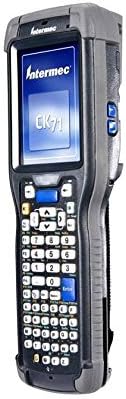
This image shows the Intermec CK71 Mobile Computer, a rugged handheld device. It features a display screen at the top, an alphanumeric keypad below the screen, and function buttons on the sides. The device is designed for industrial use, indicated by its robust casing.
3. Persediaan
3.1 Membongkar
Carefully remove all components from the packaging. Verify that all items listed in the packing slip are present and undamaged. Retain the packaging for future storage or shipping.
3.2 Pemasangan dan Pengecasan Bateri
- Cari petak bateri di bahagian belakang peranti.
- Insert the battery, ensuring proper alignment of the electrical contacts.
- Tutup penutup petak bateri dengan selamat sehingga ia berbunyi klik pada tempatnya.
- Connect the device to the charging cradle or power adapter. The charging indicator will illuminate to confirm charging.
- Allow the battery to fully charge before initial use. A full charge typically takes several hours.
3.3 Kuasa Awal Hidup
Press and hold the power button (usually located on the side or top of the device) until the device powers on and the operating system loads. Follow any on-screen prompts for initial setup, such as language selection, date/time configuration, and screen calibration.
4. Arahan Operasi
4.1 Menavigasi Antara Muka
The CK71 operates on Windows Embedded Handheld 6.5. You can interact with the operating system and applications using the resistive touchscreen with a stylus or finger, or by utilizing the navigation keys on the alphanumeric keypad.
4.2 Using the 2D Imager Scanner
- Ensure the scanning application is active.
- Point the scanner window (located at the top of the device) at the barcode or 2D code you wish to scan.
- Press the designated scan button (typically located on the side or front of the device).
- A successful scan is usually indicated by an audible beep, a green LED illumination, or a visual confirmation on the screen.
4.3 Wireless Connectivity (Bluetooth and Wi-Fi)
To enable or configure Bluetooth and Wi-Fi, access the wireless settings through the operating system's control panel or dedicated wireless manager. Follow standard procedures for connecting to available Wi-Fi networks or pairing with Bluetooth devices. Ensure wireless radios are enabled for connectivity.
4.4 Alphanumeric Keypad Usage
The alphanumeric keypad allows for efficient data entry. Refer to the key legends for character input and function keys. Special characters or functions may require pressing a modifier key (e.g., Shift, Fn) in combination with another key. The keypad may also feature programmable function keys for custom shortcuts.
5. Penyelenggaraan
5.1 Membersihkan Peranti
Gunakan kain yang lembut dan tidak berbulu dampened with a mild, non-abrasive cleaning solution (e.g., isopropyl alcohol) to clean the exterior of the device and the display. Do not spray liquids directly onto the device or immerse it in water. Avoid using harsh chemicals or abrasive materials.
5.2 Penjagaan Bateri
To maximize battery life and performance, avoid exposing the device to extreme temperatures. Fully discharge and recharge the battery periodically. Replace the battery when its operational time significantly decreases, indicating the end of its useful life.
5.3 Kemas Kini Perisian
Regularly check for and install software updates, patches, and firmware upgrades provided by Intermec. These updates often include performance enhancements, bug fixes, and security improvements crucial for optimal device operation.
6. Penyelesaian masalah
| Masalah | Kemungkinan Punca | Penyelesaian |
|---|---|---|
| Peranti tidak dihidupkan | Low or depleted battery; battery not properly installed | Charge the battery. Ensure it is correctly seated in the compartment. |
| Scanner not reading barcodes | Barcode damaged or obscured; improper scanning technique; scanner disabled in software | Ensure barcode is clear and flat. Hold device steady and at the correct distance. Check scanner settings in the application. |
| Tiada sambungan Wi-Fi | Out of range of access point; incorrect network settings; Wi-Fi radio disabled | Move closer to the Wi-Fi access point. Verify network credentials (SSID, password). Enable Wi-Fi in the device's wireless settings. |
| Skrin sentuh tidak bertindak balas | Screen calibration issue; software freeze; physical damage | Attempt a soft reset. Recalibrate the touchscreen if possible. If unresponsive, contact support. |
For further assistance, refer to the official Intermec support resources or contact your authorized service provider.
7. Spesifikasi
- model: CK71 (CK71AA6EN00W1400 variant)
- Jenama: Intermec
- Jenis Pengimbas: 2D Imager (Extended Range)
- Sistem pengendalian: Windows Embedded Handheld 6.5
- Pemproses: 1GHz
- Ingatan: 512MB RAM / 1GB Flash
- Ketersambungan: Bluetooth, Wireless LAN (WLAN)
- Pad kekunci: Alphanumerik
- Resolusi Paparan: 132 dpi
- Dimensi Produk: 1.97"D x 3.15"W x 1.97"H
- UPC: 039517577767
Catatan: Spesifikasi boleh berubah tanpa notis.
8. Sokongan dan Jaminan
For technical support, warranty information, or service inquiries regarding your Intermec CK71 Mobile Computer, please visit the official Intermec website or contact their customer service department. It is recommended to keep your purchase receipt and the product's serial number handy for faster service.
Sumber Dalam Talian: www.intermec.com


