TP-Link TL-MR3420 Wireless N300 3G/4G Router User Manual
Model: TL-MR3420
1. Pengenalan
The TP-Link TL-MR3420 Wireless N300 3G/4G Router is designed to share a 3G/4G mobile broadband connection wirelessly. By connecting a compatible UMTS/HSPA/EVDO USB modem to the router, a Wi-Fi hotspot is instantly established, allowing multiple devices to access the internet. This router also features a 3G/WAN connection backup strategy, ensuring a continuous internet connection by switching between 3G/4G and WAN (Ethernet) connections as needed. It supports wireless N speeds of up to 300Mbps, suitable for various online activities.
2. Kandungan Pakej
- TP-Link TL-MR3420 Wireless N300 3G/4G Router
- Penyesuai Kuasa
- Kabel Ethernet
- Panduan Pemasangan Pantas
3. Perkakasan Terlaluview
3.1 Front Panel and LEDs
The front panel of the router features LED indicators that provide information about the device's status, including power, system, WLAN, WAN, LAN, and 3G/4G connection status.

Imej: Depan view of the TL-MR3420 router, showing the TP-Link logo and status LEDs.
3.2 Side Panel (USB Port)
The side panel includes a USB 2.0 port, primarily used for connecting a compatible 3G/4G USB modem.
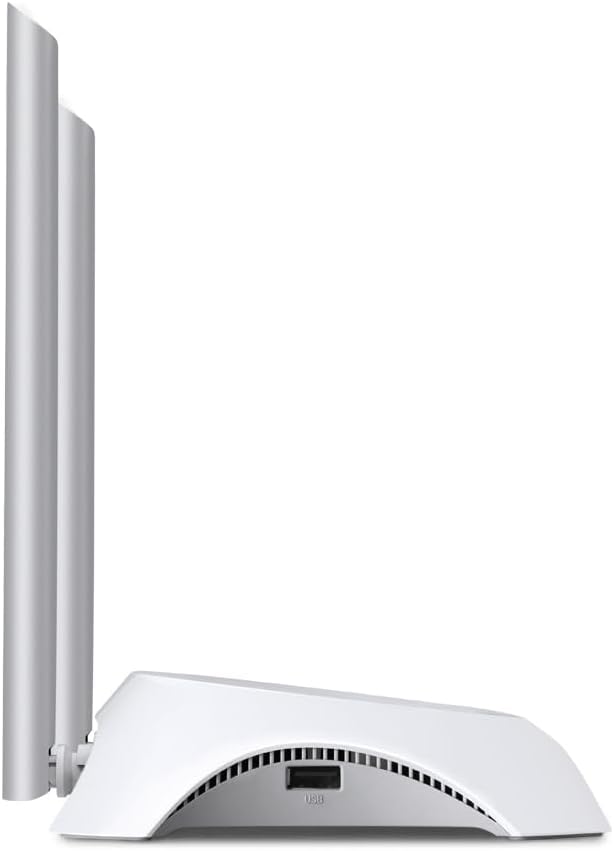
Imej: Sisi view of the TL-MR3420 router, highlighting the USB port for modem connection.
3.3 Rear Panel (Ports and Buttons)
The rear panel provides various ports and buttons for connectivity and control.
- Pelabuhan Kuasa: Menyambung kepada penyesuai kuasa.
- Butang Hidup / Mati: Menghidupkan atau mematikan penghala.
- Pelabuhan WAN (Biru): Connects to a DSL/Cable modem for traditional internet access.
- Port LAN (Kuning): Four ports for connecting wired devices like computers or switches.
- Butang WPS/Set Semula: Tekan untuk fungsi WPS; tekan dan tahan untuk tetapan semula kilang.
- Penyambung Antena: For attaching the two external antennas.

Imej: Belakang view of the TL-MR3420 router, displaying the power port, WAN port, LAN ports, WPS/Reset button, and antenna connectors.
4. Panduan Persediaan
4.1 Sambungan Fizikal
- Pasang Antena: Screw the two detachable antennas firmly into their connectors on the rear panel.
- Connect 3G/4G USB Modem: Insert your compatible 3G/4G USB modem into the USB port on the side of the router.
- Hidupkan kuasa: Sambungkan penyesuai kuasa ke port kuasa penghala dan pasangkannya ke soket dinding. Tekan butang Hidup/Mati Kuasa jika perlu.
- (Optional) Connect to WAN: If using a wired internet connection as a backup or primary, connect an Ethernet cable from your DSL/Cable modem to the blue WAN port on the router.
- (Optional) Connect Wired Devices: Connect your computer or other wired devices to the yellow LAN ports using Ethernet cables.

Image: The TL-MR3420 router with a 3G USB modem connected to its side USB port.
4.2 Konfigurasi Awal (Web Antara muka)
- Sambung ke Penghala: Connect your computer to the router either via an Ethernet cable to a LAN port or wirelessly using the default Wi-Fi SSID printed on the router's label (e.g., TP-Link_XXXX).
- Akses Web pelayar: Buka a web pelayar (cth., Chrome, Firefox) dan taip
http://tplinkwifi.netorhttp://192.168.0.1(atauhttp://192.168.1.1) into the address bar. Press Enter. - log masuk: Masukkan nama pengguna dan kata laluan lalai, yang biasanya
adminfor both. If these do not work, check the label on the bottom of your router. - Jalankan Persediaan Pantas: Ikuti Wizard Persediaan Pantas pada skrin untuk mengkonfigurasi sambungan internet dan tetapan wayarles anda.
4.3 3G/4G Connection Setup
During the Quick Setup, select Penghala 3G/4G mode. The router will automatically detect your USB modem. You may need to select your region and ISP, and enter APN (Access Point Name) details if prompted. Ensure your 3G/4G USB modem is compatible with the TL-MR3420.
4.4 WAN Connection Setup (Optional)
If you are using a wired internet connection, configure the WAN settings. This can be done via Dynamic IP, Static IP, or PPPoE, depending on your Internet Service Provider (ISP) requirements. The TL-MR3420 supports a 3G/WAN failover strategy, allowing you to set a preferred connection (3G/4G or WAN) and use the other as a backup.
4.5 Persediaan Rangkaian Tanpa Wayar
Set your desired Wireless Network Name (SSID) and a strong password (WPA/WPA2 Personal recommended) for your Wi-Fi network. This will secure your wireless connection.
5. Mengendalikan Penghala
5.1 Memahami Penunjuk LED
| LED | Status | Petunjuk |
|---|---|---|
| kuasa | On | Router is powered on. |
| Sistem | Berkelip | Penghala berfungsi seperti biasa. |
| WLAN | Hidup/Berkelip | Wireless function is enabled/data is being transmitted. |
| WAN | Hidup/Berkelip | WAN port is connected/data is being transmitted. |
| LAN (1-4) | Hidup/Berkelip | Corresponding LAN port is connected/data is being transmitted. |
| 3G/4G | Hidup/Berkelip | 3G/4G modem is connected and working/data is being transmitted. |
5.2 Menyambung Peranti
- Peranti Wayarles: Cari untuk your Wi-Fi network (SSID) on your device and enter the password you configured.
- Peranti Berwayar: Connect an Ethernet cable from your device to any of the yellow LAN ports on the router.
5.3 Kegagalan 3G/WAN
The router can be configured to use either 3G/4G or WAN as the primary internet connection, with the other serving as a backup. If the primary connection fails, the router will automatically switch to the backup, ensuring continuous internet access. This setting can be managed in the router's web interface under Network > WAN Backup.
6. Penyelenggaraan
6.1 Peningkatan Firmware
Regularly check for and install firmware updates from the TP-Link official website. Firmware updates can improve performance, add new features, and fix bugs. Download the correct firmware for your model and follow the instructions provided on the TP-Link support page for upgrading via the web interface (System Tools > Firmware Upgrade).
6.2 Konfigurasi Sandaran dan Pemulihan
You can back up your router's configuration settings to a file on your computer. This allows you to restore your settings quickly after a factory reset or if you need to revert to a previous configuration (System Tools > Backup & Restore).
6.3 But semula Sistem
If the router is experiencing issues, a simple reboot can often resolve them. You can reboot the router from the web interface (System Tools > Reboot) or by unplugging and replugging the power adapter.
6.4 Tetapan Semula Kilang
A factory reset will revert all settings to their default values. This can be done by pressing and holding the WPS/Reset button on the rear panel for approximately 5-10 seconds until the System LED flashes rapidly, or via the web interface (System Tools > Factory Defaults).
7. Penyelesaian masalah
- Tidak dapat mengakses internet:
- Check LED indicators: Ensure Power, System, WLAN, and 3G/4G (or WAN) LEDs are on or flashing correctly.
- Verify physical connections: Ensure all cables are securely connected.
- Check 3G/4G modem: Ensure it is properly inserted and recognized by the router.
- Confirm ISP settings: Verify that your 3G/4G or WAN settings (APN, connection type) are correct in the router's web antara muka.
- Reboot the router and modem.
- Isu sambungan wayarles:
- Ensure WLAN LED is on/flashing.
- Verify correct Wi-Fi SSID and password.
- Bergerak lebih dekat ke penghala untuk memeriksa kekuatan isyarat.
- Change wireless channel in router settings to avoid interference.
- Kelajuan internet perlahan:
- Check your 3G/4G signal strength or WAN connection speed.
- Ensure no other devices are heavily using bandwidth.
- Kemas kini perisian tegar penghala.
8. Spesifikasi
| Ciri | Perincian |
|---|---|
| Nama Model | TL-MR3420 |
| Standard Tanpa Wayar | IEEE 802.11n, 802.11g, 802.11b |
| Kelajuan Tanpa Wayar | Sehingga 300Mbps |
| Jalur Kekerapan | 2.4 GHz |
| Jenis Antena | 2x 5dBi Detachable Omni Directional Antennas |
| Antara muka | 1x 10/100Mbps WAN Port, 4x 10/100Mbps LAN Ports, 1x USB 2.0 Port |
| Butang | WPS/Reset Button, Power On/Off Button |
| Dimensi (W x D x H) | 11.34 x 8.9 x 2.8 inci (Saiz Produk) |
| Berat Barang | 9.5 auns |
| Bekalan Kuasa | 12VDC / 1A (External Power Adapter) |
| Keselamatan Tanpa Wayar | 64/128-bit WEP, WPA/WPA2, WPA-PSK/WPA2-PSK encryption |
| Peranti Serasi | Personal Computer, UMTS/HSPA/EVDO USB Modems |
9. Waranti dan Sokongan
9.1 Waranti Produk
The TP-Link TL-MR3420 Wireless N300 3G/4G Router typically comes with a 2-year limited warranty. Please refer to the warranty card included in your package or visit the official TP-Link webtapak untuk terma dan syarat waranti terperinci khusus untuk wilayah anda.
9.2 Sokongan Teknikal
Untuk bantuan teknikal, penyelesaian masalah atau pertanyaan lanjut, sila lawati sokongan rasmi TP-Link. weblaman web. Anda boleh menemui Soalan Lazim, kemas kini perisian tegar dan maklumat hubungan untuk sokongan pelanggan.
- Sokongan TP-Link Webtapak: www.tp-link.com/support/