
1. ആമുഖം
Thank you for choosing the Sanpyl Triple Car Camera Dash Cam. This device is designed to provide comprehensive surveillance of your vehicle's surroundings and interior, enhancing driving safety and providing crucial evidence in case of incidents. This manual will guide you through the installation, operation, and maintenance of your dash cam to ensure optimal performance.
2. ഉൽപ്പന്നം കഴിഞ്ഞുview
The Sanpyl Triple Car Camera Dash Cam features a three-channel recording system, capturing video from the front, interior, and rear of your vehicle. Key features include:
- Triple Camera Coverage: Front camera (1920x1080), interior camera (1280x720), and rear camera (640x480) for complete vehicle monitoring.
- Wide Angle Front Lens: A 140 to 170-degree high-definition front lens captures a broad field of view.
- 2 Inch LCD Display: A user-friendly screen for convenient recording review and management directly on the device.
- Enhanced Rear Camera Features: Provides reversing assistance and records rear-end collisions.
- വൈഫൈ കണക്റ്റിവിറ്റി: Supports wireless connections for real-time viewing, foo ഡൗൺലോഡ് ചെയ്യുന്നുtage to smartphones or tablets via a dedicated app.
- ലൂപ്പ് റെക്കോർഡിംഗ്: പഴയത് സ്വയമേവ തിരുത്തിയെഴുതുന്നു fileമെമ്മറി കാർഡ് നിറയുമ്പോൾ, തുടർച്ചയായ റെക്കോർഡിംഗ് ഉറപ്പാക്കുന്നു.
- Built-in G-Sensor: Detects sudden impacts or collisions and automatically locks the current video footage to prevent it from being overwritten.

Image: Illustration of the dash cam's 360-degree surveillance capability, showing front, cabin, and rear camera coverage.

Image: Split screen showing simultaneous views from the front (road), interior (cabin), and rear cameras.
3. പാക്കേജ് ഉള്ളടക്കം
പാക്കേജിൽ ഇനിപ്പറയുന്ന ഇനങ്ങൾ ഉണ്ടോ എന്ന് പരിശോധിക്കുക:
- Sanpyl Triple Car Camera Dash Cam Unit
- കേബിളോടുകൂടിയ പിൻ ക്യാമറ
- കാർ ചാർജർ
- Mounting Bracket (with adhesive pad)
- USB കേബിൾ
- ഉപയോക്തൃ മാനുവൽ (ഈ പ്രമാണം)
- 32GB മൈക്രോ SD കാർഡ് (മുൻകൂട്ടി ഇൻസ്റ്റാൾ ചെയ്തതോ പ്രത്യേകം ഉൾപ്പെടുത്തിയതോ)

Image: The dash cam unit, rear camera, car charger, mounting bracket, and cables included in the package.
4. സജ്ജീകരണം
4.1 മൈക്രോ എസ്ഡി കാർഡ് ചേർക്കുന്നു
- ഡാഷ് കാം ഓഫ് ചെയ്തിട്ടുണ്ടെന്ന് ഉറപ്പാക്കുക.
- Locate the Micro SD card slot on the side of the dash cam.
- Insert the Micro SD card with the gold contacts facing the back of the dash cam until it clicks into place.
- നീക്കം ചെയ്യാൻ, കാർഡ് ക്ലിക്ക് ആകുന്നതുവരെ സൌമ്യമായി ഉള്ളിലേക്ക് തള്ളുക, തുടർന്ന് വിടുക.
കുറിപ്പ്: A Class 10 or higher Micro SD card (up to 128GB) is recommended for reliable recording. Format the card regularly to maintain performance.
4.2 ഡാഷ് കാം മൌണ്ട് ചെയ്യുന്നു
- Clean the windshield area where you intend to mount the dash cam. Ensure it does not obstruct your driving view.
- Attach the adhesive mounting bracket to the dash cam.
- Remove the protective film from the adhesive pad on the bracket.
- Firmly press the dash cam onto the chosen spot on the windshield for at least 30 seconds.
- Adjust the lens angle to ensure the front camera captures the road ahead clearly.

Image: The dash cam unit mounted on the car's windshield, showing its position relative to the driver's view.
4.3 പിൻ ക്യാമറ ഇൻസ്റ്റാൾ ചെയ്യുന്നു
- Mount the rear camera on the rear windshield or license plate area using its adhesive or screws.
- Route the rear camera cable to the main dash cam unit, ensuring it does not interfere with vehicle operations.
- പ്രധാന ഡാഷ് ക്യാം യൂണിറ്റിലെ നിയുക്ത പോർട്ടിലേക്ക് പിൻ ക്യാമറ കേബിൾ ബന്ധിപ്പിക്കുക.
4.4 പവർ കണക്ഷൻ
- ഡാഷ് കാമിന്റെ പവർ ഇൻപുട്ട് പോർട്ടിലേക്ക് കാർ ചാർജർ ബന്ധിപ്പിക്കുക.
- കാർ ചാർജറിന്റെ മറ്റേ അറ്റം നിങ്ങളുടെ വാഹനത്തിന്റെ 12V പവർ ഔട്ട്ലെറ്റിലേക്ക് (സിഗരറ്റ് ലൈറ്റർ സോക്കറ്റ്) പ്ലഗ് ചെയ്യുക.
- വാഹനത്തിന്റെ ഇഗ്നിഷൻ ഓണാക്കുമ്പോൾ ഡാഷ്ക്യാം യാന്ത്രികമായി ഓണാകുകയും റെക്കോർഡിംഗ് ആരംഭിക്കുകയും ചെയ്യും.
5. പ്രവർത്തന നിർദ്ദേശങ്ങൾ
5.1 അടിസ്ഥാന റെക്കോർഡിംഗ്
Once powered on, the dash cam will automatically start recording in a continuous loop. Video files are saved in segments (e.g., 1, 3, or 5 minutes) to the Micro SD card. When the card is full, the oldest unlocked files will be overwritten by new recordings.
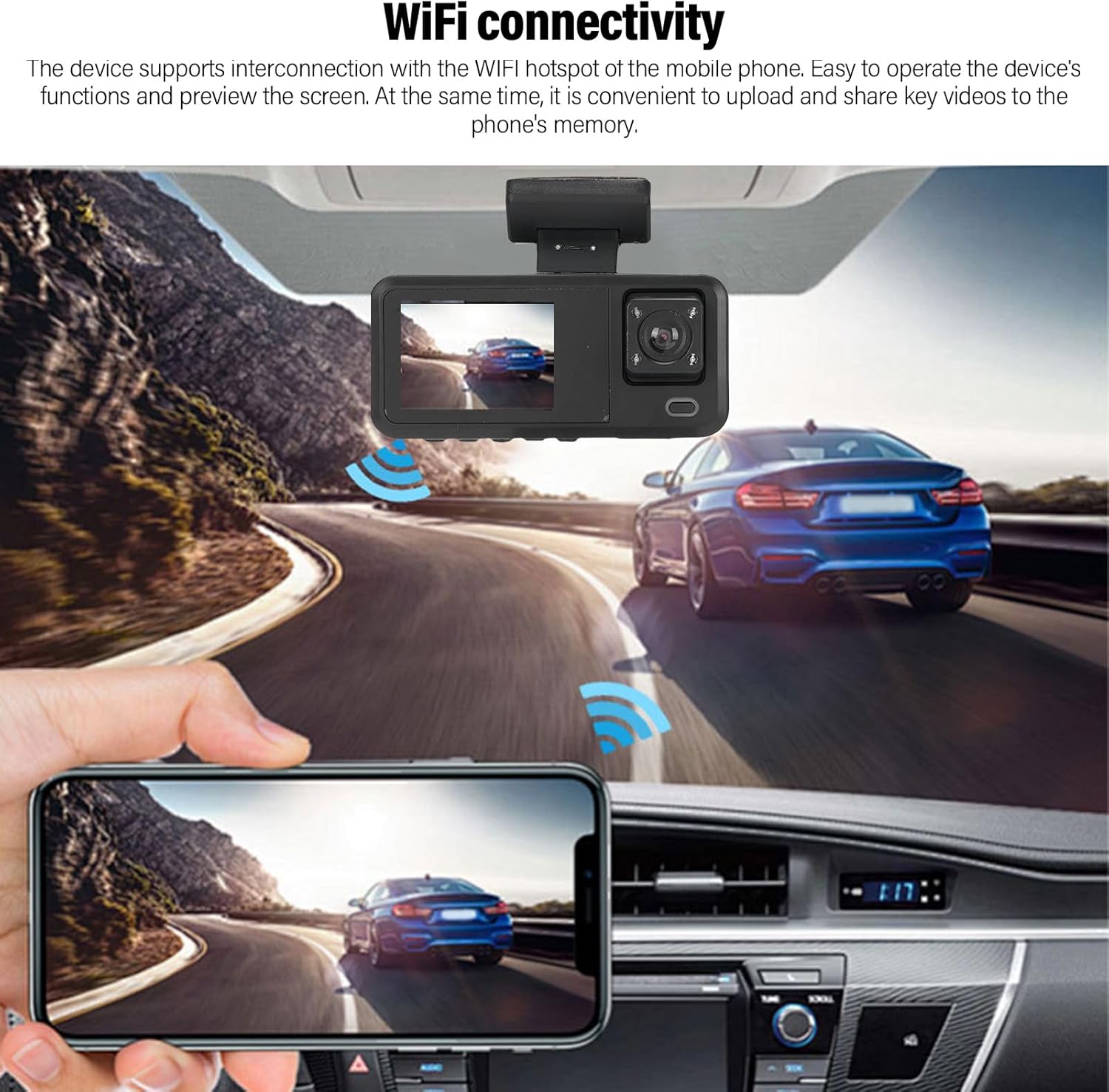
Image: A circular diagram showing how loop recording continuously records and overwrites older footagമെമ്മറി കാർഡ് നിറയുമ്പോൾ ഇ.
5.2 ജി-സെൻസർ (എമർജൻസി റെക്കോർഡിംഗ്)
The built-in G-sensor detects sudden acceleration, braking, or collisions. When triggered, the current video segment is automatically locked and saved to a protected folder on the Micro SD card, preventing it from being overwritten by loop recording. This ensures critical incident footagഇ സംരക്ഷിക്കപ്പെട്ടിരിക്കുന്നു.
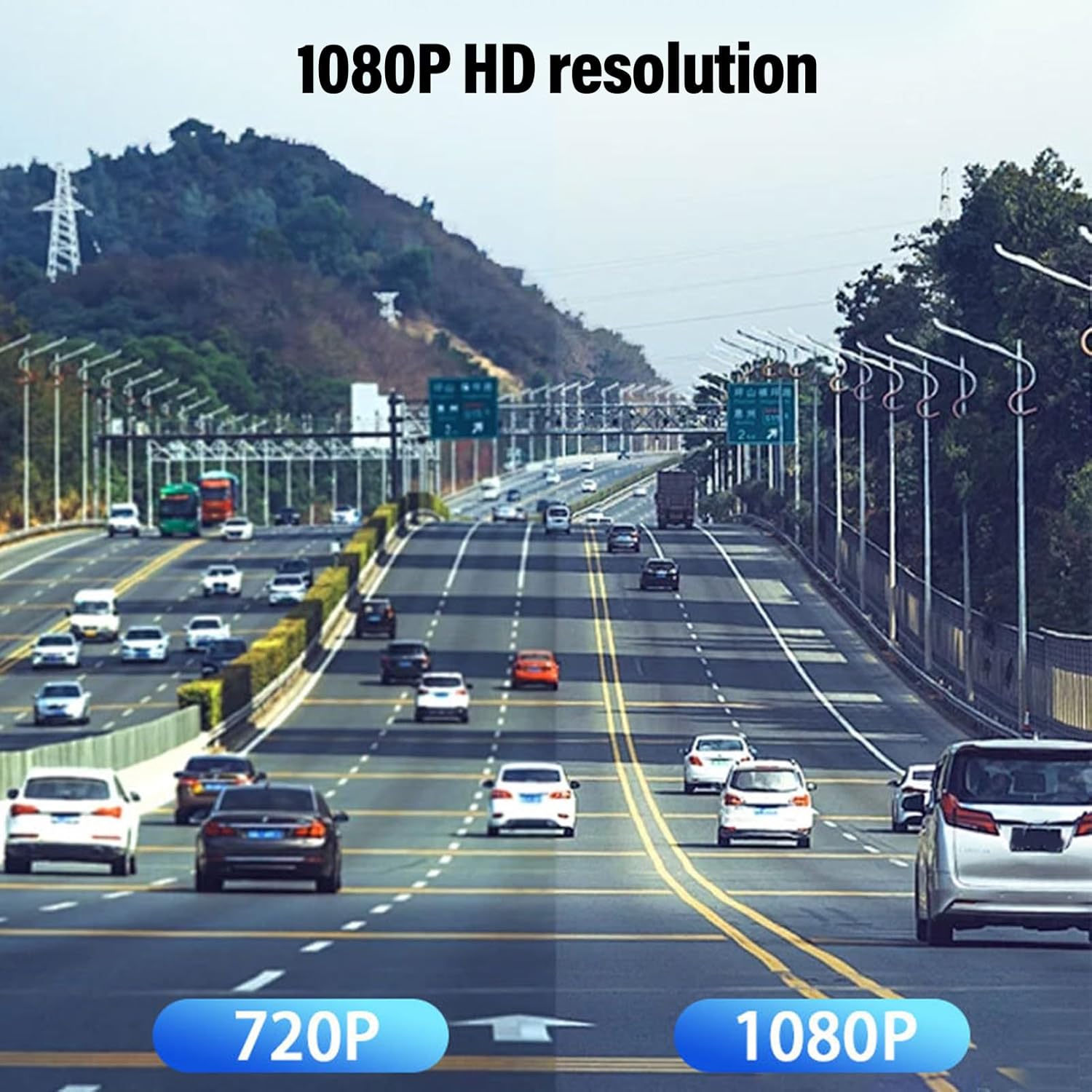
Image: Two individuals inspecting car damage, with an overlay indicating the G-sensor automatically locking video footage during an emergency.
5.3 Parking Assistance (Rear Camera)
When the vehicle is put into reverse gear (and the rear camera is correctly wired to the reverse light trigger), the dash cam display will automatically switch to the rear camera view, often with parking guidelines, to assist with parking maneuvers.

Image: The dash cam screen displaying the rear camera feed with visual parking assistance guidelines, showing a car backing into a parking spot.
5.4 WiFi Connectivity and App Usage
The dash cam supports WiFi connectivity, allowing you to connect your smartphone or tablet to the device for real-time viewറെക്കോർഡിംഗുകൾ ഡൗൺലോഡ് ചെയ്യുക, ഡൗൺലോഡ് ചെയ്യുക, കൈകാര്യം ചെയ്യുക.
- Download the dedicated dash cam app from your device's app store (refer to the dash cam's on-screen instructions or packaging for the app name).
- On the dash cam, enable WiFi mode (usually via the menu settings). The dash cam will broadcast a WiFi network.
- On your smartphone/tablet, go to WiFi settings and connect to the dash cam's WiFi network (SSID and password will be displayed on the dash cam screen).
- ഇതിനായി ആപ്പ് തുറക്കുക view തത്സമയംtage, browse recorded videos, download files to your phone, and adjust settings.
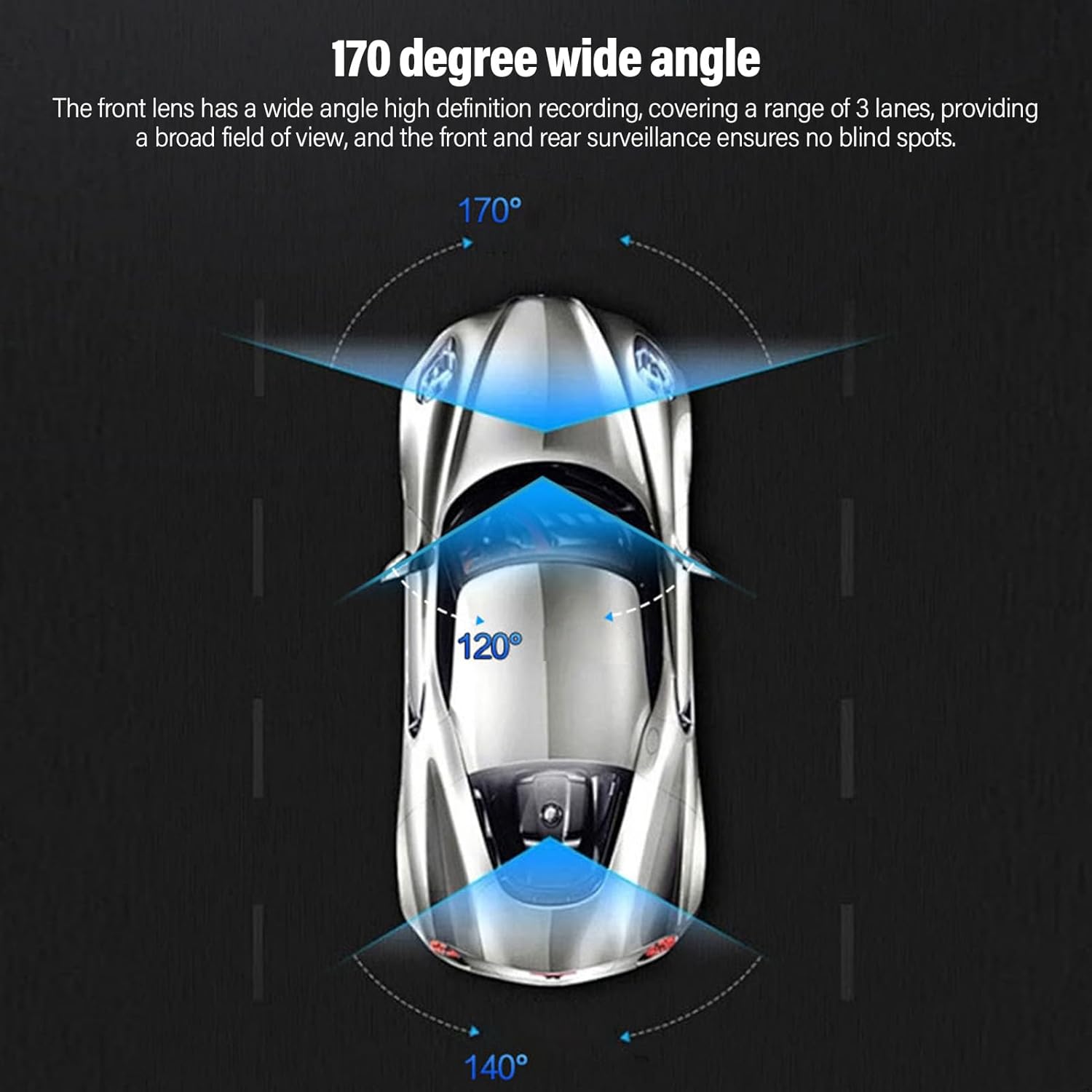
Image: A smartphone screen showing live video feed from the dash cam, demonstrating WiFi connectivity for remote viewing.
6. പരിപാലനം
6.1 Formatting the Micro SD Card
It is recommended to format the Micro SD card once a month to prevent data corruption and ensure optimal recording performance. This can usually be done through the dash cam's menu settings.
6.2 Cleaning the Lenses and Screen
Use a soft, lint-free cloth to gently wipe the camera lenses and the LCD screen. Avoid using abrasive cleaners or solvents, as they may damage the surfaces.
6.3 പരിസ്ഥിതി പരിഗണനകൾ
Avoid exposing the dash cam to extreme temperatures for prolonged periods. If the vehicle is parked in direct sunlight during hot weather, consider removing the dash cam or using a sunshade to protect it.
7. പ്രശ്നപരിഹാരം
7.1 Dash Cam Not Powering On
- Check if the car charger is securely plugged into both the dash cam and the vehicle's 12V outlet.
- Ensure the vehicle's 12V outlet is receiving power (test with another device if possible).
- ലഭ്യമെങ്കിൽ മറ്റൊരു കാർ ചാർജറോ യുഎസ്ബി കേബിളോ പരീക്ഷിച്ചുനോക്കൂ.
7.2 Recording Stops or Freezes
- ഡാഷ് കാമിന്റെ ക്രമീകരണങ്ങളിലൂടെ മൈക്രോ എസ്ഡി കാർഡ് ഫോർമാറ്റ് ചെയ്യുക.
- Ensure you are using a high-speed (Class 10 or higher) Micro SD card.
- Try a different Micro SD card to rule out card issues.
- Check for firmware updates (if applicable, refer to manufacturer's webസൈറ്റ്).
7.3 മോശം വീഡിയോ നിലവാരം
- ക്യാമറ ലെൻസുകൾ മൃദുവായ തുണി ഉപയോഗിച്ച് വൃത്തിയാക്കുക.
- ലെൻസുകളിൽ നിന്ന് സംരക്ഷണ ഫിലിം നീക്കം ചെയ്തിട്ടുണ്ടെന്ന് ഉറപ്പാക്കുക.
- Check video resolution settings in the dash cam menu; ensure it's set to 1080P for the front camera.

Image: A visual comparison demonstrating the difference in clarity between 720P and 1080P video resolutions for dash cam footage.
7.4 വൈഫൈ കണക്ഷൻ പ്രശ്നങ്ങൾ
- ഡാഷ്കാമിലും നിങ്ങളുടെ സ്മാർട്ട്ഫോണിലും വൈഫൈ പ്രവർത്തനക്ഷമമാക്കിയിട്ടുണ്ടെന്ന് ഉറപ്പാക്കുക.
- Verify you are connecting to the correct WiFi network broadcast by the dash cam.
- ഡാഷ്കാമും നിങ്ങളുടെ സ്മാർട്ട്ഫോണും പുനരാരംഭിക്കുക.
- Ensure the dash cam app is up to date.
8 സ്പെസിഫിക്കേഷനുകൾ
| ബ്രാൻഡ് | സാൻപിൽ |
| മോഡൽ നമ്പർ | Sanpylskbofg43at |
| ഫ്രണ്ട് ക്യാമറ റെസല്യൂഷൻ | 1920x1080P |
| ഇന്റീരിയർ ക്യാമറ റെസല്യൂഷൻ | 1280x720P |
| പിൻ ക്യാമറ റെസല്യൂഷൻ | 640x480P |
| ഫ്രണ്ട് ക്യാമറ ആംഗിൾ | 140-170 ഡിഗ്രി |
| പ്രദർശിപ്പിക്കുക | 2.0 ഇഞ്ച് എൽസിഡി |
| കണക്റ്റിവിറ്റി ടെക്നോളജി | വൈഫൈ |
| സംഭരണം | മൈക്രോ എസ്ഡി കാർഡ് (128 ജിബി വരെ, ക്ലാസ് 10 ശുപാർശ ചെയ്യുന്നു) |
| പ്രത്യേക സവിശേഷതകൾ | Loop Recording, G-Sensor, Parking Assistance, Adjustable |
| ഉൽപ്പന്ന അളവുകൾ | 5.91"D x 4.33"W x 2.76"H (150mm x 110mm x 70mm) |

Image: Technical drawing illustrating the physical dimensions of the dash cam unit.
9. വാറൻ്റിയും പിന്തുണയും
9.1 വാറൻ്റി വിവരങ്ങൾ
This Sanpyl product is covered by a manufacturer's warranty for 90 days from the date of purchase. This warranty covers defects in materials and workmanship under normal use. It does not cover damage caused by misuse, accidents, unauthorized modifications, or improper installation.
9.2 ഉപഭോക്തൃ പിന്തുണ
For technical assistance, troubleshooting, or warranty claims, please contact Sanpyl customer support. Refer to the contact information provided on the product packaging or the official Sanpyl webസൈറ്റ്.