
1. ആമുഖം
This manual provides detailed instructions for the setup, operation, maintenance, and troubleshooting of your Jectse WiFi 6 4G/5G CPE LTE Router. Please read this manual carefully before using the device to ensure optimal performance and safety.
പ്രധാന സവിശേഷതകൾ:
- ഉയർന്ന പ്രകടനം: Connects up to 32 devices simultaneously, covering an area of approximately 300 square meters. Ideal for home or small office environments.
- Comprehensive 4G LTE Support: Compatible with a wide range of 4G LTE bands including FDD (B1, 3, 5, 7, 8, 20), TDD (B38, 40, 41), and WCDMA (B1, 5, 8), ensuring stable connectivity across various network providers.
- 6 Antenna Design: Equipped with six antennas for enhanced signal coverage and faster network speeds, providing a stable and consistent internet experience.
- Fast Internet Speeds: Achieves 4G download speeds up to 150 Mbps, upload speeds up to 50 Mbps, and wireless transfer rates up to 300 Mbps for smooth streaming, gaming, and browsing.
- എളുപ്പമുള്ള സജ്ജീകരണം: Simply insert a standard SIM card to convert 4G LTE into a WiFi hotspot, allowing multiple devices to connect without complex installations.
2. പാക്കേജ് ഉള്ളടക്കം
പാക്കേജിൽ ഇനിപ്പറയുന്ന ഇനങ്ങൾ ഉണ്ടോ എന്ന് പരിശോധിക്കുക:
- Jectse WiFi 6 4G/5G CPE LTE Router
- പവർ അഡാപ്റ്റർ
- ഇഥർനെറ്റ് കേബിൾ
- ഉപയോക്തൃ മാനുവൽ (ഈ പ്രമാണം)

Image: Package contents including the router, power adapter, and Ethernet cable.
3. ഉൽപ്പന്നം കഴിഞ്ഞുview
മുന്നിലും മുകളിലും View:
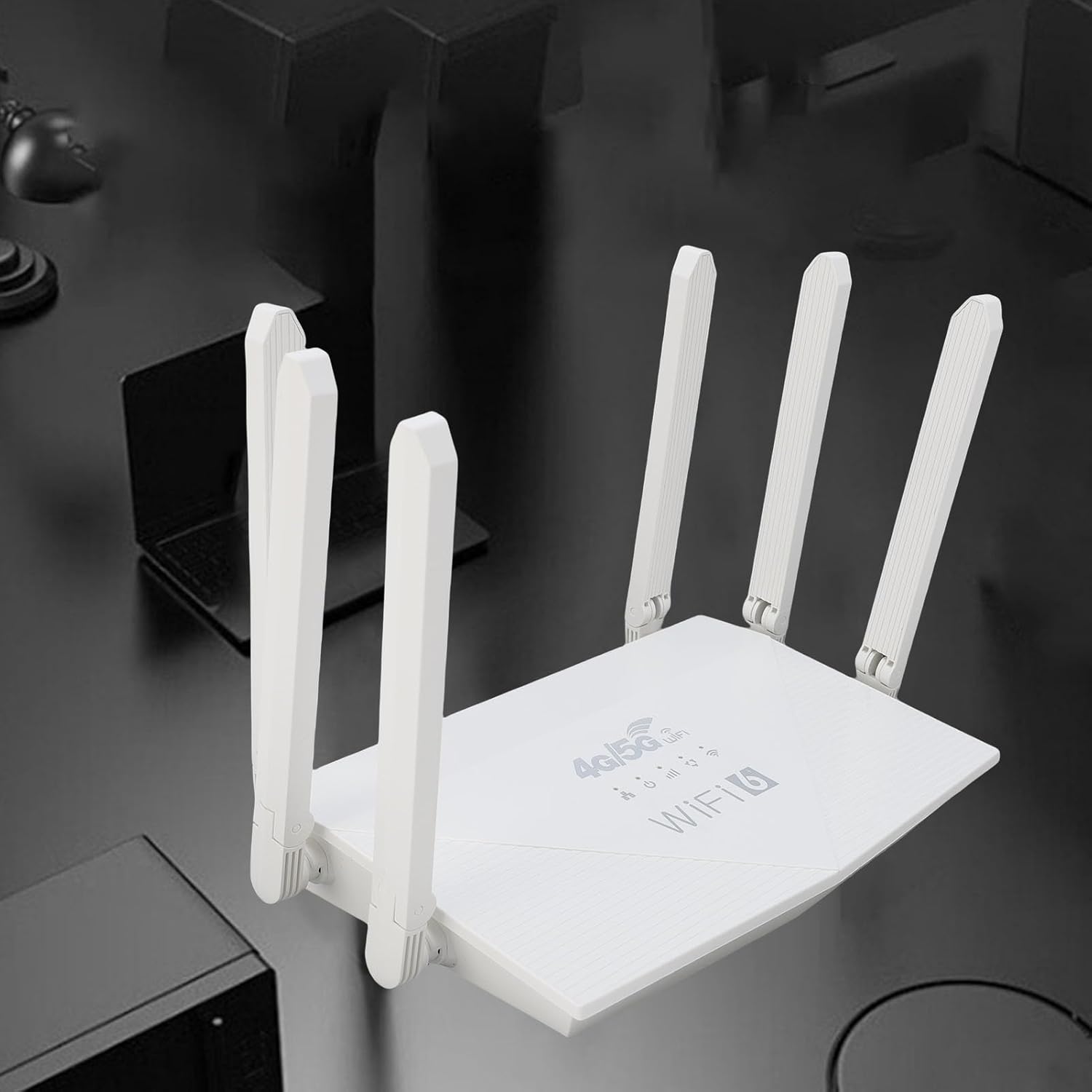
ചിത്രം: മുകളിൽ view of the router, showing the '4G/5G LTE WiFi 6' branding and six external antennas.
Rear Panel and Ports:

ചിത്രം: പിൻഭാഗം view of the router, displaying the various ports and antenna connections.
- റീസെറ്റ് ബട്ടൺ: ഫാക്ടറി ക്രമീകരണങ്ങൾ പുനഃസ്ഥാപിക്കാൻ ഉപയോഗിക്കുന്നു.
- ടൈപ്പ്-സി പോർട്ട്: For power input (if applicable, check power adapter type).
- പവർ പോർട്ട്: ഡിസി പവർ ഇൻപുട്ട്.
- സിം കാർഡ് സ്ലോട്ട്: For inserting a standard 4G/5G SIM card.
- ETH1-ETH4 Ports: Four Ethernet LAN ports for wired connections.

Image: Close-up of the reset button, Type-C port, power port, and SIM card slot.

Image: Close-up of the four Ethernet LAN ports (ETH1, ETH2, ETH3, ETH4).
Bottom Label:
The bottom label contains important information such as the default WiFi name, WiFi key, IP address, and login credentials.

Image: Bottom label of the router with essential network details.
4. സജ്ജീകരണ നിർദ്ദേശങ്ങൾ
- സിം കാർഡ് ചേർക്കുക: Locate the SIM card slot on the rear panel. Gently insert a standard-sized 4G/5G SIM card until it clicks into place. Ensure the SIM card is correctly oriented.
- പവർ ബന്ധിപ്പിക്കുക: Connect the provided power adapter to the router's power port and then plug the adapter into a power outlet.
- പവർ ഓൺ: The router will automatically power on. Wait for the indicator lights to stabilize, which typically takes a few minutes.
- ഉപകരണങ്ങൾ ബന്ധിപ്പിക്കുക:
- വയർലെസ് കണക്ഷൻ: On your device (smartphone, tablet, laptop), search for available Wi-Fi networks. Select the network name (SSID) found on the router's bottom label. Enter the default Wi-Fi key (password) also found on the label.
- വയർഡ് കണക്ഷൻ: Connect one end of the Ethernet cable to any of the ETH1-ETH4 ports on the router and the other end to the Ethernet port on your computer or other wired device.
- പ്രവേശനം Web Interface (Optional): എ തുറക്കുക web browser and enter the default IP address (e.g., 192.168.0.1) found on the bottom label. Use the default username and password (e.g., admin/admin) to log in and configure advanced settings.
5. പ്രവർത്തന നിർദ്ദേശങ്ങൾ
നെറ്റ്വർക്കിലേക്ക് ബന്ധിപ്പിക്കുന്നു:
Once the router is powered on and the SIM card is active, your devices can connect to the internet:
- വൈഫൈ: Use the SSID and password printed on the router's bottom label to connect your wireless devices.
- ഇഥർനെറ്റ്: Connect devices directly to the ETH ports for a stable wired connection.
Managing Router Settings:
To customize your network, such as changing the Wi-Fi name or password, or configuring advanced features:
- Ensure your device is connected to the router (via Wi-Fi or Ethernet).
- എ തുറക്കുക web browser and enter the router's IP address (e.g., 192.168.0.1).
- Log in using the username and password from the bottom label.
- Navigate through the interface to adjust settings as needed.
6. പരിപാലനം
- വൃത്തിയാക്കൽ: റൂട്ടർ വൃത്തിയായും പൊടി രഹിതമായും സൂക്ഷിക്കുക. മൃദുവായതും ഉണങ്ങിയതുമായ തുണി ഉപയോഗിക്കുക. ലിക്വിഡ് ക്ലീനറുകൾ ഉപയോഗിക്കരുത്.
- വെൻ്റിലേഷൻ: റൂട്ടർ അമിതമായി ചൂടാകുന്നത് തടയാൻ നന്നായി വായുസഞ്ചാരമുള്ള സ്ഥലത്ത് സ്ഥാപിച്ചിട്ടുണ്ടെന്ന് ഉറപ്പാക്കുക. വെന്റിലേഷൻ ദ്വാരങ്ങൾ മൂടരുത്.
- ഫേംവെയർ അപ്ഡേറ്റുകൾ: നിർമ്മാതാവിന്റെ website for firmware updates. Keeping your router's firmware up-to-date can improve performance and security.
- പുനരാരംഭിക്കുന്നു: If you experience network issues, try restarting the router by unplugging the power adapter, waiting 10 seconds, and then plugging it back in.
7. പ്രശ്നപരിഹാരം
ഇൻ്റർനെറ്റ് കണക്ഷൻ ഇല്ല:
- സിം കാർഡ് ശരിയായി ചേർത്തിട്ടുണ്ടോ എന്നും സജീവമാണോ എന്നും പരിശോധിക്കുക.
- Verify that the router's indicator lights are stable.
- റൂട്ടറും നിങ്ങളുടെ ബന്ധിപ്പിച്ച ഉപകരണവും പുനരാരംഭിക്കുക.
- നിങ്ങളുടെ സിം കാർഡിൽ ഒരു സജീവ ഡാറ്റ പ്ലാൻ ഉണ്ടെന്ന് ഉറപ്പാക്കുക.
- റൂട്ടറിലേക്ക് പ്രവേശിക്കുക web interface to check the network status and APN settings.
കുറഞ്ഞ ഇന്റർനെറ്റ് വേഗത:
- Ensure the router is placed in an open area, away from obstructions and interference sources.
- കണക്റ്റുചെയ്ത ഉപകരണങ്ങളുടെ എണ്ണം കുറയ്ക്കുക അല്ലെങ്കിൽ ബാൻഡ്വിഡ്ത്ത്-ഇന്റൻസീവ് പ്രവർത്തനങ്ങൾ കുറയ്ക്കുക.
- Check your 4G/5G signal strength in the router's web ഇൻ്റർഫേസ്.
- Contact your mobile network provider to inquire about network congestion or data plan limits.
റൂട്ടർ ക്രമീകരണങ്ങൾ ആക്സസ് ചെയ്യാൻ കഴിയില്ല:
- നിങ്ങളുടെ ഉപകരണം റൂട്ടറിന്റെ നെറ്റ്വർക്കിലേക്ക് കണക്റ്റുചെയ്തിട്ടുണ്ടെന്ന് ഉറപ്പാക്കുക.
- Verify you are entering the correct IP address (e.g., 192.168.0.1) in your browser.
- Confirm the username and password are correct (check the bottom label).
- മറ്റൊന്ന് പരീക്ഷിക്കുക web ബ്രൗസർ ചെയ്യുക അല്ലെങ്കിൽ നിങ്ങളുടെ ബ്രൗസറിന്റെ കാഷെ മായ്ക്കുക.
- If all else fails, perform a factory reset by pressing the reset button for 5-10 seconds (note: this will erase all custom settings).
8 സ്പെസിഫിക്കേഷനുകൾ
| ഫീച്ചർ | വിവരണം |
|---|---|
| ബ്രാൻഡ് | ജെക്സെ |
| മോഡൽ നമ്പർ | Jectse7yitc28aer |
| നിറം | വെള്ള |
| ഓപ്പറേറ്റിംഗ് സിസ്റ്റം | റൂട്ടർഒഎസ് |
| കണക്റ്റിവിറ്റി ടെക്നോളജി | എൽടിഇ, വൈ-ഫൈ |
| പ്രത്യേക സവിശേഷതകൾ | Integrated firewall, full 4G LTE support, fast internet speeds |
| അനുയോജ്യമായ ഉപകരണങ്ങൾ | Smartphone, tablet, computer |
| ഫ്രീക്വൻസി ബാൻഡ് ക്ലാസ് | സിംഗിൾ-ബാൻഡ് |
| വയർലെസ് കമ്മ്യൂണിക്കേഷൻ സ്റ്റാൻഡേർഡ് | 802.11ബി, 802.11ഗ്രാം, 802.11എൻ |
| ശുപാർശ ചെയ്യുന്ന ഉപയോഗങ്ങൾ | Home, Professional |
| 4G ഡൗൺലോഡ് വേഗത | 150 Mbps വരെ |
| 4G അപ്ലോഡ് വേഗത | 50 Mbps വരെ |
| Wireless Transfer Rate | 300 Mbps വരെ |
| പരമാവധി ബന്ധിപ്പിച്ച ഉപകരണങ്ങൾ | 32 |
| കവറേജ് ഏരിയ | 300㎡ |
| പിന്തുണയ്ക്കുന്ന എൽടിഇ ബാൻഡുകൾ | FDD (B1, 3, 5, 7, 8, 20), TDD (B38, 40, 41), WCDMA (B1, 5, 8) |
| ആൻ്റിനകൾ | 6 ബാഹ്യ ആൻ്റിനകൾ |
9. വാറൻ്റിയും പിന്തുണയും
വാറൻ്റി വിവരങ്ങൾ:
This Jectse router comes with a 2 വർഷത്തെ നിർമ്മാതാവിന്റെ വാറന്റി. വാറന്റി ക്ലെയിമുകൾക്കായി നിങ്ങളുടെ വാങ്ങലിന്റെ തെളിവ് സൂക്ഷിക്കുക. സാധാരണ ഉപയോഗത്തിൽ മെറ്റീരിയലുകളിലും വർക്ക്മാൻഷിപ്പിലുമുള്ള വൈകല്യങ്ങൾ വാറന്റി ഉൾക്കൊള്ളുന്നു.
ഉപഭോക്തൃ പിന്തുണ:
If you encounter any issues or have questions not covered in this manual, please contact Jectse customer support or your retailer for assistance. You may find contact information on the product packaging or the official Jectse webസൈറ്റ്.