
ആമുഖം
This manual provides essential information for setting up, operating, maintaining, and troubleshooting your HP 14-cf2733wm laptop. Please read this manual thoroughly before using your device to ensure proper function and longevity.
The HP 14-cf2733wm is a 14-inch laptop designed for portability and everyday productivity. It features an Intel Celeron N4120 processor, 4GB of RAM, and 64GB eMMC storage, running on Windows 11 Home in S mode.
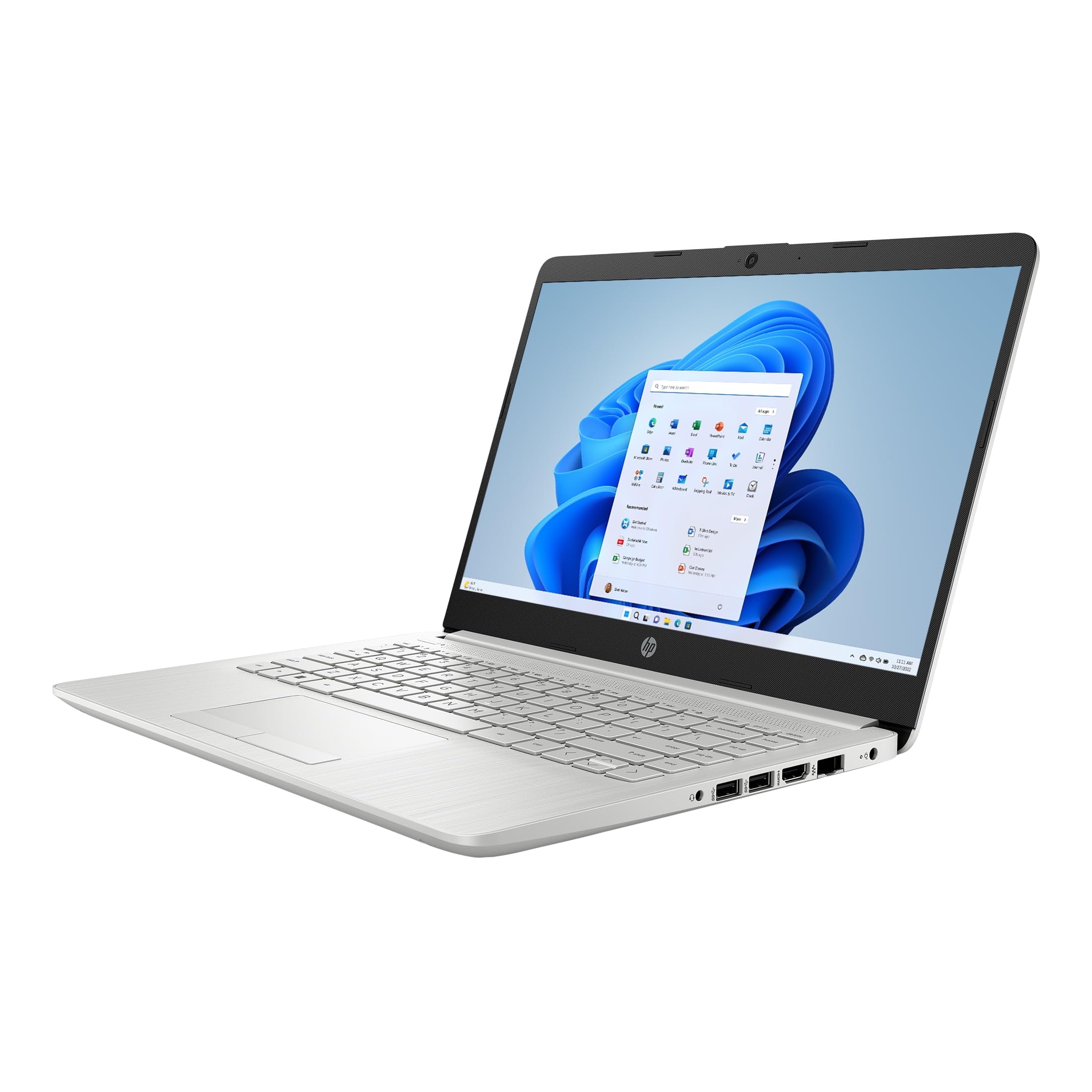
Figure 1: HP 14-cf2733wm Laptop. This image shows the silver HP laptop in a closed position, highlighting its slim design.
1. സജ്ജീകരണം
1.1 ലാപ്ടോപ്പ് അൺപാക്ക് ചെയ്യുന്നു
പാക്കേജിംഗിൽ നിന്ന് എല്ലാ ഘടകങ്ങളും ശ്രദ്ധാപൂർവ്വം നീക്കം ചെയ്യുക. ഇനിപ്പറയുന്ന ഇനങ്ങൾ ഉണ്ടെന്ന് ഉറപ്പാക്കുക:
- HP 14-cf2733wm Laptop
- പവർ അഡാപ്റ്ററും കേബിളും
- ഡോക്യുമെന്റേഷൻ (ക്വിക്ക് സ്റ്റാർട്ട് ഗൈഡ്, സുരക്ഷാ വിവരങ്ങൾ)
1.2 പവർ അഡാപ്റ്റർ ബന്ധിപ്പിക്കുന്നു
- പവർ അഡാപ്റ്ററിലേക്ക് പവർ കേബിൾ ബന്ധിപ്പിക്കുക.
- ഒരു മതിൽ ഔട്ട്ലെറ്റിലേക്ക് പവർ അഡാപ്റ്റർ പ്ലഗ് ചെയ്യുക.
- Insert the adapter's connector into the power port on the side of your HP laptop.
പ്രാരംഭ ഉപയോഗത്തിന് മുമ്പ് ലാപ്ടോപ്പ് പൂർണ്ണമായും ചാർജ് ചെയ്യാൻ ശുപാർശ ചെയ്യുന്നു.
1.3 പ്രാരംഭ പവർ ഓണും വിൻഡോസ് സജ്ജീകരണവും
- ലാപ്ടോപ്പ് ലിഡ് തുറക്കുക.
- സാധാരണയായി കീബോർഡ് ഡെക്കിൽ സ്ഥിതി ചെയ്യുന്ന പവർ ബട്ടൺ അമർത്തുക.
- Follow the on-screen instructions to complete the Windows 11 Home in S mode setup. This includes selecting your region, language, connecting to a Wi-Fi network, and creating a user account.
- Activate the included 12-month Microsoft 365 Personal subscription as prompted during setup or later via the Microsoft Store.
2. ലാപ്ടോപ്പ് പ്രവർത്തിപ്പിക്കൽ
2.1 ടച്ച്പാഡ് ഉപയോഗം
The precision touchpad supports multi-touch gestures for navigation. Common gestures include:
- ടാപ്പ് ചെയ്യുക: Single tap to click, double tap to open.
- രണ്ട് വിരൽ സ്ക്രോൾ: സ്ക്രോൾ ചെയ്യാൻ രണ്ട് വിരലുകൾ മുകളിലേക്കോ താഴേക്കോ വലിച്ചിടുക.
- പിഞ്ച്-ടു-സൂം: സൂം ഇൻ അല്ലെങ്കിൽ സൂം ഔട്ട് ചെയ്യുന്നതിന് രണ്ട് വിരലുകൾ ഒരുമിച്ച് പിഞ്ച് ചെയ്യുക അല്ലെങ്കിൽ അവയെ വേർപെടുത്തുക.
- രണ്ട് വിരലുകൾ കൊണ്ട് ടാപ്പ്: Acts as a right-click.
2.2 ബാഹ്യ ഉപകരണങ്ങൾ ബന്ധിപ്പിക്കുന്നു
Your laptop features various ports for connecting peripherals:
- USB പോർട്ടുകൾ: Connect USB drives, external mice, keyboards, or other compatible USB devices.
- എച്ച്ഡിഎംഐ പോർട്ട്: Connect an external monitor or TV for extended display.
- ഓഡിയോ ജാക്ക്: ഹെഡ്ഫോണുകളോ ബാഹ്യ സ്പീക്കറുകളോ ബന്ധിപ്പിക്കുക.
2.3 വൈ-ഫൈ, ബ്ലൂടൂത്ത് കണക്റ്റിവിറ്റി
ഒരു Wi-Fi നെറ്റ്വർക്കിലേക്ക് കണക്റ്റുചെയ്യാൻ:
- ടാസ്ക്ബാറിലെ വൈഫൈ ഐക്കണിൽ ക്ലിക്കുചെയ്യുക.
- ലിസ്റ്റിൽ നിന്ന് നിങ്ങൾക്ക് ആവശ്യമുള്ള നെറ്റ്വർക്ക് തിരഞ്ഞെടുക്കുക.
- Enter the network password if prompted and click "Connect".
To enable or disable Bluetooth:
- പോകുക ക്രമീകരണങ്ങൾ > ബ്ലൂടൂത്തും ഉപകരണങ്ങളും.
- Toggle the Bluetooth switch On or Off.
2.4 Windows 11 Home in S mode
Windows 11 Home in S mode is a version of Windows optimized for security and performance. It exclusively runs apps from the Microsoft Store and uses Microsoft Edge for safe browsing. If you need to install apps outside the Microsoft Store, you can switch out of S mode. This is a one-way switch.
To switch out of S mode:
- S മോഡിൽ Windows 11 പ്രവർത്തിക്കുന്ന നിങ്ങളുടെ പിസിയിൽ, തുറക്കുക ക്രമീകരണങ്ങൾ > സിസ്റ്റം > സജീവമാക്കൽ.
- In the "Switch to Windows 11 Home" section, select സ്റ്റോറിലേക്ക് പോകുക.
- മൈക്രോസോഫ്റ്റ് സ്റ്റോറിൽ ദൃശ്യമാകുന്ന "S മോഡിൽ നിന്ന് മാറുക" (അല്ലെങ്കിൽ സമാനമായത്) പേജിൽ, ക്ലിക്കുചെയ്യുക നേടുക ബട്ടൺ.
- After you see a confirmation message on the page, you'll be able to install apps from outside the Microsoft Store.
3. പരിപാലനം
3.1 ലാപ്ടോപ്പ് വൃത്തിയാക്കൽ
- സ്ക്രീൻ: നനവില്ലാത്തതും ലിനില്ലാത്തതുമായ തുണി ചെറുതായി ഉപയോഗിക്കുകampവെള്ളമോ സ്ക്രീൻ ക്ലീനറോ ഉപയോഗിച്ച് നനയ്ക്കുക. കഠിനമായ രാസവസ്തുക്കൾ ഒഴിവാക്കുക.
- കീബോർഡും ചേസിസും: മൃദുവായതും ഉണങ്ങിയതുമായ തുണി ഉപയോഗിക്കുക. കഠിനമായ അഴുക്കിന്, അല്പം ഡി.amp cloth can be used. Avoid getting moisture into openings.
- തുറമുഖങ്ങൾ: പോർട്ടുകളിൽ നിന്ന് പൊടി സൌമ്യമായി നീക്കം ചെയ്യാൻ കംപ്രസ് ചെയ്ത വായു ഉപയോഗിക്കുക.
വൃത്തിയാക്കുന്നതിനുമുമ്പ് എല്ലായ്പ്പോഴും ലാപ്ടോപ്പ് ഓഫ് ചെയ്ത് അൺപ്ലഗ് ചെയ്യുക.
3.2 ബാറ്ററി കെയർ
- തീവ്രമായ താപനില ഒഴിവാക്കുക.
- ബാറ്ററി പതിവായി പൂർണ്ണമായും ഡിസ്ചാർജ് ചെയ്യരുത്.
- ലാപ്ടോപ്പ് ദീർഘനേരം സൂക്ഷിക്കുകയാണെങ്കിൽ, ബാറ്ററി ഏകദേശം 50-70% വരെ ചാർജ് ചെയ്യുക.
3.3 സോഫ്റ്റ്വെയർ അപ്ഡേറ്റുകൾ
സിസ്റ്റം സ്ഥിരത, സുരക്ഷ, പ്രകടനം എന്നിവ ഉറപ്പാക്കാൻ വിൻഡോസ് അപ്ഡേറ്റുകൾ പതിവായി പരിശോധിച്ച് ഇൻസ്റ്റാൾ ചെയ്യുക. പോകുക ക്രമീകരണങ്ങൾ > വിൻഡോസ് അപ്ഡേറ്റ്.
4. പ്രശ്നപരിഹാരം
4.1 ലാപ്ടോപ്പ് ഓണാകുന്നില്ല
- Ensure the power adapter is securely connected to both the laptop and a working wall outlet.
- മറ്റൊരു ഉപകരണം പ്ലഗ് ഇൻ ചെയ്ത് വാൾ ഔട്ട്ലെറ്റ് പ്രവർത്തനക്ഷമമാണെന്ന് ഉറപ്പാക്കുക.
- ഹാർഡ് റീസെറ്റ് നടത്താൻ പവർ ബട്ടൺ 15-20 സെക്കൻഡ് അമർത്തിപ്പിടിക്കാൻ ശ്രമിക്കുക.
4.2 മന്ദഗതിയിലുള്ള പ്രകടനം
- പശ്ചാത്തലത്തിൽ പ്രവർത്തിക്കുന്ന അനാവശ്യ ആപ്ലിക്കേഷനുകൾ അടയ്ക്കുക.
- ശേഷിക്കുന്ന ഏതെങ്കിലും വിൻഡോസ് അപ്ഡേറ്റുകൾ പരിശോധിച്ച് ഇൻസ്റ്റാൾ ചെയ്യുക.
- Ensure you have sufficient free storage space on the 64GB eMMC drive.
- ക്ഷുദ്രവെയറുകൾക്കോ വൈറസുകൾക്കോ വേണ്ടി ഒരു സിസ്റ്റം സ്കാൻ പ്രവർത്തിപ്പിക്കുക.
4.3 വൈ-ഫൈ കണക്റ്റിവിറ്റി പ്രശ്നങ്ങൾ
- നിങ്ങളുടെ ലാപ്ടോപ്പും വൈഫൈ റൂട്ടറും പുനരാരംഭിക്കുക.
- വിൻഡോസ് ക്രമീകരണങ്ങളിൽ വൈഫൈ പ്രവർത്തനക്ഷമമാക്കിയിട്ടുണ്ടെന്ന് ഉറപ്പാക്കുക.
- നെറ്റ്വർക്ക് മറന്ന് വീണ്ടും കണക്റ്റുചെയ്യുക, വീണ്ടും പാസ്വേഡ് നൽകുക.
- മറ്റ് ഉപകരണങ്ങൾക്ക് ഒരേ വൈഫൈ നെറ്റ്വർക്കിലേക്ക് കണക്റ്റ് ചെയ്യാൻ കഴിയുമോ എന്ന് പരിശോധിക്കുക.
5 സ്പെസിഫിക്കേഷനുകൾ
| ഫീച്ചർ | വിശദാംശങ്ങൾ |
|---|---|
| മോഡലിൻ്റെ പേര് | HP 14-cf2733wm |
| പ്രോസസ്സർ | Intel Celeron N4120 (up to 2.6 GHz burst frequency) |
| ഓപ്പറേറ്റിംഗ് സിസ്റ്റം | വിൻഡോസ് 11 ഹോം എസ് മോഡിൽ |
| പ്രദർശിപ്പിക്കുക | 14-inch HD (1366 x 768) micro-edge anti-glare LED display |
| ഗ്രാഫിക്സ് | ഇൻ്റഗ്രേറ്റഡ് ഇൻ്റൽ UHD ഗ്രാഫിക്സ് 600 |
| റാം | 4 GB DDR4 |
| സംഭരണം | 64 ജിബി ഇഎംഎംസി |
| വയർലെസ് കണക്റ്റിവിറ്റി | 802.11n Wi-Fi, Bluetooth |
| തുറമുഖങ്ങൾ | 2x USB, 1x HDMI, 1x Headphone/Microphone combo |
| ബാറ്ററി | Lithium Ion, 45 Watt Hours |
| അളവുകൾ (L x W x H) | 12.82" x 8.42" x 0.65" (32.56 x 21.39 x 1.65 സെ.മീ) |
| ഭാരം | 3.5 പൗണ്ട് (1.59 കി.ഗ്രാം) |
| നിറം | വെള്ളി |
| Webക്യാമറ | സംയോജിപ്പിച്ചത് Webക്യാമറ |
6. വാറൻ്റിയും പിന്തുണയും
6.1 ലിമിറ്റഡ് വാറൻ്റി
Your HP 14-cf2733wm laptop comes with a 1-year limited hardware warranty. This warranty covers defects in materials and workmanship under normal use. For full terms and conditions, please refer to the warranty documentation included with your product or visit the official HP support webസൈറ്റ്.
The warranty does not cover damage caused by accidents, misuse, unauthorized modifications, or external causes such as power fluctuations.
6.2 സാങ്കേതിക പിന്തുണ
സാങ്കേതിക സഹായം, ഡ്രൈവർ ഡൗൺലോഡുകൾ, അല്ലെങ്കിൽ കൂടുതൽ പിന്തുണയ്ക്ക്, ദയവായി ഔദ്യോഗിക HP പിന്തുണ സന്ദർശിക്കുക. website. You will need your product's model number (14-cf2733wm) and serial number (found on the product label) when contacting support.
HP പിന്തുണ Webസൈറ്റ്: https://support.hp.com