
1. ആമുഖം
This manual provides comprehensive instructions for the Kruger & Matz KM1100 FRAMEO Wi-Fi 10.1-inch Digital Photo Frame. Please read this manual carefully before using the device to ensure proper operation and to maximize its features. This digital photo frame allows you to display photos and videos, share memories with family and friends via the Frameo app, and enjoy additional functionalities like weather information and a sleep timer.

Image: The Kruger & Matz KM1100 Digital Photo Frame showing a family picture on its screen.
2. പാക്കേജ് ഉള്ളടക്കം
താഴെ ലിസ്റ്റ് ചെയ്തിരിക്കുന്ന എല്ലാ ഇനങ്ങളും നിങ്ങളുടെ ഉൽപ്പന്ന പാക്കേജിൽ ഉൾപ്പെടുത്തിയിട്ടുണ്ടെന്ന് ഉറപ്പാക്കുക:
- Kruger & Matz KM1100 Digital Photo Frame
- നിൽക്കുക
- Power Supply (DC 5V/2A)
- ഉപയോക്തൃ മാനുവൽ

Image: The included power adapter for the digital photo frame.
3. ഉൽപ്പന്നം കഴിഞ്ഞുview
Familiarize yourself with the physical components and connection ports of your digital photo frame.
3.1 ഫ്രണ്ട് View
The front of the device features a 10.1-inch TFT touch display with a resolution of 1280 x 800 pixels and a 16:10 aspect ratio. The 5-point touch panel allows for intuitive navigation.
3.2 പിൻഭാഗം View തുറമുഖങ്ങളും
The rear of the frame includes the power button, speaker, and various connection ports.

Image: The back of the digital photo frame, showing the power button, speaker grille, and product information label.

ചിത്രം: വിശദമായ ഒരു ചിത്രം view of the connectivity ports on the digital photo frame: MicroSD card slot, MicroUSB port, and DC power input.
ലഭ്യമായ തുറമുഖങ്ങൾ:
- MicroUSB Slot: For connecting to a computer or other devices.
- മൈക്രോ എസ്ഡി കാർഡ് സ്ലോട്ട്: For expanding storage up to 32 GB and displaying content directly from a memory card.
- തുറമുഖത്ത് ഡിസി: പവർ അഡാപ്റ്റർ ബന്ധിപ്പിക്കുന്നതിന്.
4. സജ്ജീകരണം
Follow these steps to set up your digital photo frame for the first time.
4.1 പവർ ചെയ്യുന്നു
- ഫ്രെയിമിന്റെ പിൻഭാഗത്തുള്ള DC IN പോർട്ടിലേക്ക് പവർ അഡാപ്റ്റർ ബന്ധിപ്പിക്കുക.
- ഒരു മതിൽ ഔട്ട്ലെറ്റിലേക്ക് പവർ അഡാപ്റ്റർ പ്ലഗ് ചെയ്യുക.
- The frame will automatically power on or you may need to press and hold the power button on the back.
4.2 പ്രാരംഭ കോൺഫിഗറേഷൻ
Upon first startup, you will be guided through an initial setup wizard. This includes selecting your language, time zone, and connecting to a Wi-Fi network.
4.3 Wi-Fi-ലേക്ക് ബന്ധിപ്പിക്കുന്നു
- പ്രധാന മെനുവിൽ നിന്ന്, ഇതിലേക്ക് നാവിഗേറ്റ് ചെയ്യുക ക്രമീകരണങ്ങൾ.
- തിരഞ്ഞെടുക്കുക വൈഫൈ അത് ഓണാക്കുക.
- ലിസ്റ്റിൽ നിന്ന് നിങ്ങൾക്ക് ആവശ്യമുള്ള വൈഫൈ നെറ്റ്വർക്ക് തിരഞ്ഞെടുക്കുക.
- ആവശ്യപ്പെടുകയാണെങ്കിൽ നെറ്റ്വർക്ക് പാസ്വേഡ് നൽകി ടാപ്പ് ചെയ്യുക ബന്ധിപ്പിക്കുക.
4.4 Frameo App Setup
The Frameo app is essential for transferring photos and videos from your smartphone to the digital photo frame.
- Download the Frameo app from the Google Play Store (for Android) or the Apple App Store (for iOS) on your smartphone.
- Frameo ആപ്പ് തുറന്ന് ഒരു അക്കൗണ്ട് സൃഷ്ടിക്കുക അല്ലെങ്കിൽ ലോഗിൻ ചെയ്യുക.
- On your digital photo frame, follow the on-screen instructions to generate a unique code.
- In the Frameo app on your smartphone, enter this code to pair your device with the photo frame.
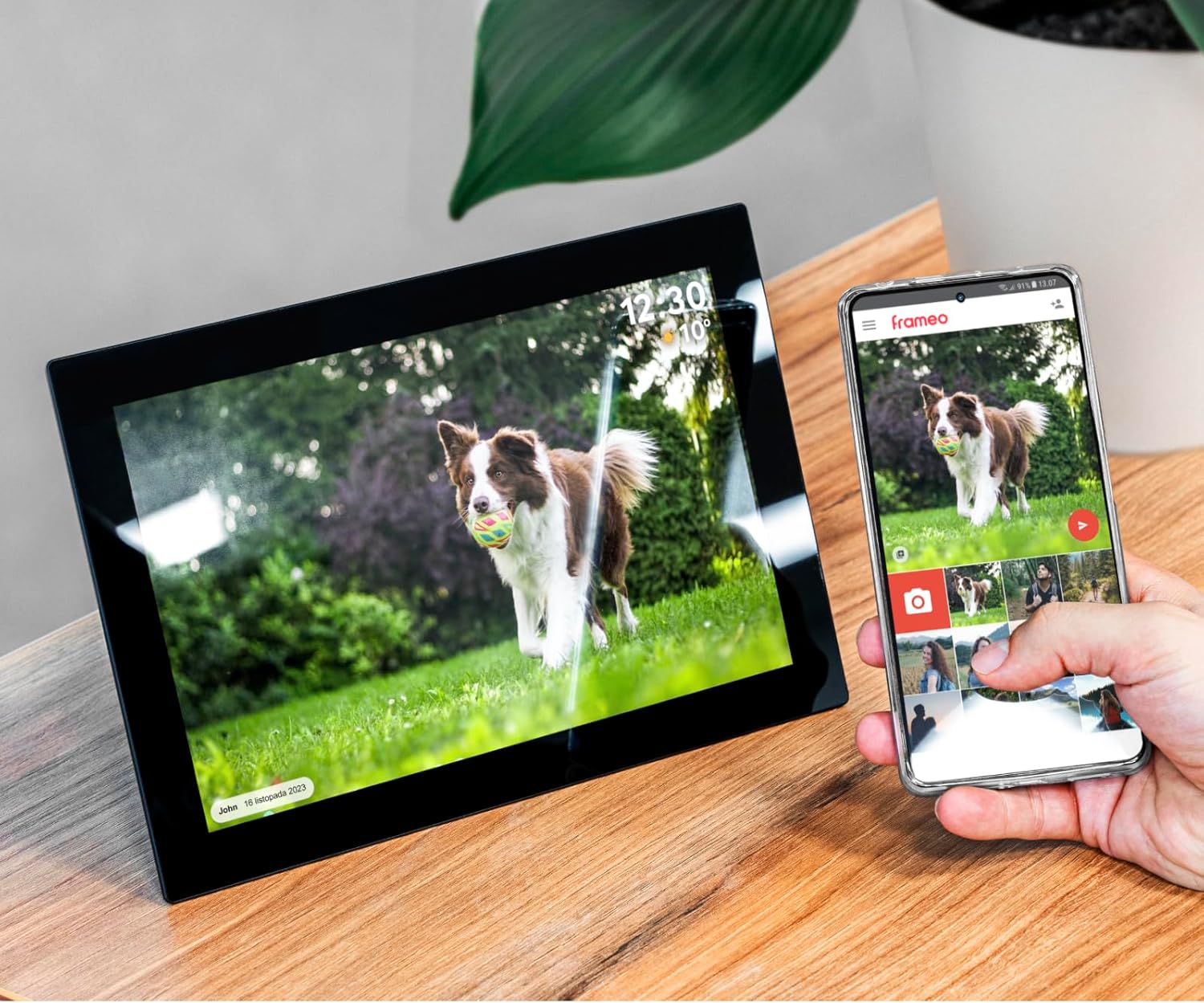
Image: The digital photo frame shown alongside a smartphone, illustrating the Frameo app for photo transfer.
5. പ്രവർത്തന നിർദ്ദേശങ്ങൾ
Learn how to use the various features of your Kruger & Matz KM1100 digital photo frame.
5.1 ഫോട്ടോകളും വീഡിയോകളും കൈമാറൽ
Use the Frameo app on your smartphone to send photos and short videos directly to your digital photo frame.
- നിങ്ങളുടെ ജോടിയാക്കിയ സ്മാർട്ട്ഫോണിൽ ഫ്രെയിമോ ആപ്പ് തുറക്കുക.
- നിങ്ങൾ അയയ്ക്കാൻ ആഗ്രഹിക്കുന്ന ഫോട്ടോകളോ വീഡിയോകളോ തിരഞ്ഞെടുക്കുക.
- Choose your digital photo frame as the recipient.
- The selected media will be transferred and appear on your frame.
5.2 വീഡിയോ പ്ലേബാക്ക്
The frame supports video playback. Videos sent via the Frameo app or loaded from a microSD card will play automatically within the slideshow or can be selected manually.

Image: A digital photo frame in vertical orientation, showing a video playing with a visible play button icon.
5.3 Adding Descriptions and Reactions
You can add descriptions and interactive reactions (emoticons) to your photos directly from the Frameo app or on the frame itself.

Image: The digital photo frame displaying an overlay menu for selecting emoticons to react to a photo.
5.4 Random Image Display
Configure the frame to display images in a random order for varied viewing experience. This setting can typically be found in the frame's display settings.
5.5 Displaying Images from MicroSD Card
Insert a compatible microSD card (up to 32 GB) into the MicroSD card slot. The frame will automatically detect the card and allow you to view its contents or integrate them into your slideshow.
5.6 Timer and Sleep Function
Utilize the built-in timer and sleep functions to conserve energy or schedule when the frame is active. These settings can be adjusted in the system settings menu.
5.7 Weather Information
When connected to Wi-Fi, the frame can display current weather information, often shown alongside the time on the screen.
6. പരിപാലനം
Proper care and maintenance will extend the lifespan of your digital photo frame.
- സ്ക്രീൻ വൃത്തിയാക്കൽ: സ്ക്രീൻ മൃദുവായി തുടയ്ക്കാൻ മൃദുവായ, ലിന്റ് രഹിത തുണി ഉപയോഗിക്കുക. കഠിനമായ കറകൾക്ക്, ചെറുതായി dampതുണിയിൽ വെള്ളം അല്ലെങ്കിൽ സ്ക്രീൻ ക്ലീനിംഗ് ലായനി ഉപയോഗിക്കുക. കഠിനമായ രാസവസ്തുക്കൾ ഒഴിവാക്കുക.
- ഫ്രെയിം വൃത്തിയാക്കൽ: ഫ്രെയിമിന്റെ പുറംഭാഗം ഉണങ്ങിയതും മൃദുവായതുമായ തുണി ഉപയോഗിച്ച് തുടയ്ക്കുക.
- ഉപയോഗത്തിലില്ലാത്തപ്പോൾ പവർ ഓഫ്: If storing the frame for an extended period, disconnect it from the power source.
- തീവ്രമായ അവസ്ഥകൾ ഒഴിവാക്കുക: Do not expose the frame to extreme temperatures, direct sunlight for prolonged periods, or high humidity.
7. പ്രശ്നപരിഹാരം
If you encounter issues with your digital photo frame, refer to the following common solutions.
- Frame does not turn on: പവർ അഡാപ്റ്റർ ഫ്രെയിമിലേക്കും പ്രവർത്തിക്കുന്ന ഒരു പവർ ഔട്ട്ലെറ്റിലേക്കും സുരക്ഷിതമായി ബന്ധിപ്പിച്ചിട്ടുണ്ടെന്ന് ഉറപ്പാക്കുക. മറ്റൊരു ഔട്ട്ലെറ്റ് പരീക്ഷിക്കുക.
- Wi-Fi-ലേക്ക് കണക്റ്റുചെയ്യാൻ കഴിയില്ല: Verify your Wi-Fi password is correct. Ensure the frame is within range of your Wi-Fi router. Restart your router and the photo frame.
- Photos are not transferring: Check if both your smartphone and the photo frame are connected to the internet. Ensure the Frameo app is updated to the latest version. Verify the frame code is correctly entered in the app.
- സ്ക്രീൻ പ്രതികരിക്കുന്നില്ല: Try restarting the frame by disconnecting and reconnecting the power. If the issue persists, perform a factory reset (refer to system settings, note this will erase all data).
- MicroSD card not detected: Ensure the card is inserted correctly. Try a different microSD card to rule out card malfunction. Check if the card is formatted to a compatible file system (e.g., FAT32).
8 സ്പെസിഫിക്കേഷനുകൾ
Detailed technical specifications for the Kruger & Matz KM1100 Digital Photo Frame.
| മോഡൽ | KM1100 |
| ഡിസ്പ്ലേ വലിപ്പം | 10.1 ഇഞ്ച് |
| ഡിസ്പ്ലേ തരം | ടി.എഫ്.ടി |
| റെസലൂഷൻ | 1280 x 800 പിക്സലുകൾ |
| വീക്ഷണാനുപാതം | 16:10 |
| ടച്ച് പാനൽ | 5-പോയിൻ്റ് ടച്ച് |
| ഓപ്പറേറ്റിംഗ് സിസ്റ്റം | ആൻഡ്രോയിഡ് 6.1 |
| സിപിയു | Rockchip RK3126 Quad-Core |
| റാം | 1 ജിബി |
| ആന്തരിക മെമ്മറി | 16 ജിബി |
| Max. Memory Card Capacity | 32 GB (MicroSD) |
| കണക്റ്റിവിറ്റി | Wi-Fi 802.11 b/g/n (2.4 GHz) |
| തുറമുഖങ്ങൾ | MicroUSB, MicroSD slot, DC IN |
| ഓഡിയോ | മോണോ സ്പീക്കർ |
| വൈദ്യുതി വിതരണം | DC 5 V / 2 A. |
| എസി ഇൻപുട്ട് | 100 - 240 V AC; 50/60 Hz |
| അളവുകൾ (W x H x D) | 255 x 172 x 18 മിമി (17.5 x 25.5 x 2.51 സെ.മീ) |
| ഭാരം | 530 ഗ്രാം (500 ഗ്രാം) |
| പിന്തുണയ്ക്കുന്ന ഇമേജ് ഫോർമാറ്റുകൾ | JPEG, PNG |
| പിന്തുണയ്ക്കുന്ന വീഡിയോ ഫോർമാറ്റുകൾ | MPEG-1, MPEG-2, MPEG-4, H.263, H.264, VC1, RV |

Image: Visual representation of the 16 GB internal memory, expandable with a MicroSD card.
9. വാറൻ്റിയും പിന്തുണയും
For warranty information and technical support, please refer to the documentation provided with your purchase or visit the official Kruger & Matz webസൈറ്റ്. വാറന്റി ക്ലെയിമുകൾക്കായി നിങ്ങളുടെ വാങ്ങലിന്റെ തെളിവ് സൂക്ഷിക്കുക.