
സുരക്ഷാ വിവരങ്ങൾ
The ATOMSTACK S20 Pro is a Class 4 laser product. Always wear appropriate laser safety goggles when operating the machine. Never look directly into the laser beam. Ensure the work area is well-ventilated to dissipate fumes. Keep children and pets away from the operating machine.
- Always wear laser safety goggles.
- ജോലിസ്ഥലത്ത് ശരിയായ വായുസഞ്ചാരം ഉറപ്പാക്കുക.
- Keep clear of the laser path during operation.
- പ്രവർത്തിപ്പിക്കുമ്പോൾ മെഷീൻ ശ്രദ്ധിക്കാതെ വിടരുത്.
- Familiarize yourself with the emergency stop button.
ബോക്സിൽ എന്താണുള്ളത്
- ATOMSTACK S20 Pro Laser Engraver Unit
- F30 Pro Air Assist Kit (with dual built-in pumps)
- പവർ അഡാപ്റ്റർ
- USB കേബിൾ
- സുരക്ഷാ കണ്ണടകൾ
- One-step Installation Tools
- ഉപയോക്തൃ മാനുവൽ
- Test Materials (e.g., wood, metal sampലെസ്)
സജ്ജീകരണ ഗൈഡ്
Follow these steps to assemble and prepare your ATOMSTACK S20 Pro Laser Engraver for first use.
1. അൺപാക്കിംഗും അസംബ്ലിയും
Carefully remove all components from the packaging. Refer to the included "One-step Installation Tools" for assembly.

Image: All components of the ATOMSTACK S20 Pro Laser Engraver laid out on a table, including the main frame, laser module, air assist pump, control panel, and accessories.
2. Connecting the Air Assist Pump
The F30 Pro Air Assist Kit is designed to improve cutting performance and reduce charring. Connect the air assist tube to the laser module and the pump unit.

Image: A close-up of the ATOMSTACK F30 Pro Air Assist Pump connected to the laser engraver, showing the tube interface and power input.
3. പവർ കണക്ഷൻ
Connect the power adapter to the control unit and plug it into a suitable power outlet.
4. Laser Module Installation and Focusing
Install the laser module onto the gantry. Use the provided focusing tool or adjustable knob to set the correct focal length (typically 4.5mm from the material surface).
ചിത്രം: വിശദമായ ഒരു ചിത്രം view of the ATOMSTACK S20 Pro laser module, highlighting the adjustable knob used for precise focusing.
ഇൻസ്റ്റലേഷൻ വീഡിയോ ട്യൂട്ടോറിയൽ
Video: A step-by-step guide demonstrating the installation process for the ATOMSTACK S20 Pro Laser Engraving Machine.
പ്രവർത്തന നിർദ്ദേശങ്ങൾ
The ATOMSTACK S20 Pro offers multiple operating methods for your convenience.
1. പ്രവർത്തന രീതികൾ
- Computer USB: Connect the engraver to your computer via USB. Compatible with LightBurn and LaserGRBL software.
- ടച്ച് സ്ക്രീൻ: Utilize the built-in offline control touchscreen for direct operation by inserting a TF card with engraved patterns.
- Mobile Phone APP: Use the ATOMSTACK APP (available for Android and Apple) to connect and control the engraver via WiFi.

Image: An illustration showing the three primary connection and control methods for the ATOMSTACK S20 Pro: via Computer USB, directly through the Touch Screen, or wirelessly using a Mobile Phone APP.
2. Offline Engraving via Touchscreen
To perform offline engraving, ensure your TF card contains the desired engraving patterns. Insert the TF card into the control unit. Select "Carve" from the touchscreen menu, choose your file, and initiate the engraving process.
Video: A demonstration of how to achieve offline engraving using the touchscreen interface of the ATOMSTACK S20 Pro.
3. Mobile Phone APP Connection
Download the ATOMSTACK APP from your phone's app store. Connect your mobile phone to the engraver's WiFi network (default password: 12345678). Open the APP, select your engraver, and you can now control it wirelessly.
Video: A guide on connecting the ATOMSTACK S20 Pro to a mobile phone via WiFi and using the dedicated application for control.
4. Engraving and Cutting Materials
The S20 Pro is capable of engraving and cutting a wide variety of materials.

ചിത്രം: ഒരു കൊളാഷ് ഷോasing various materials that can be engraved or cut by the ATOMSTACK S20 Pro, including wood, metal, acrylic, leather, and more.
5. High Precision Engraving
The 0.08 * 0.1mm laser spot area and 256-bit grayscale ensure high contrast and delicate patterns, especially on metal.

ചിത്രം: ഒരു മുറിച്ചെടുത്ത ഭാഗം view of the laser module, illustrating the 4x6W laser coupling technology that achieves 20W output power and a fine 0.08x0.1mm compressed spot for high-precision engraving.
6. Deep and Fast Cutting
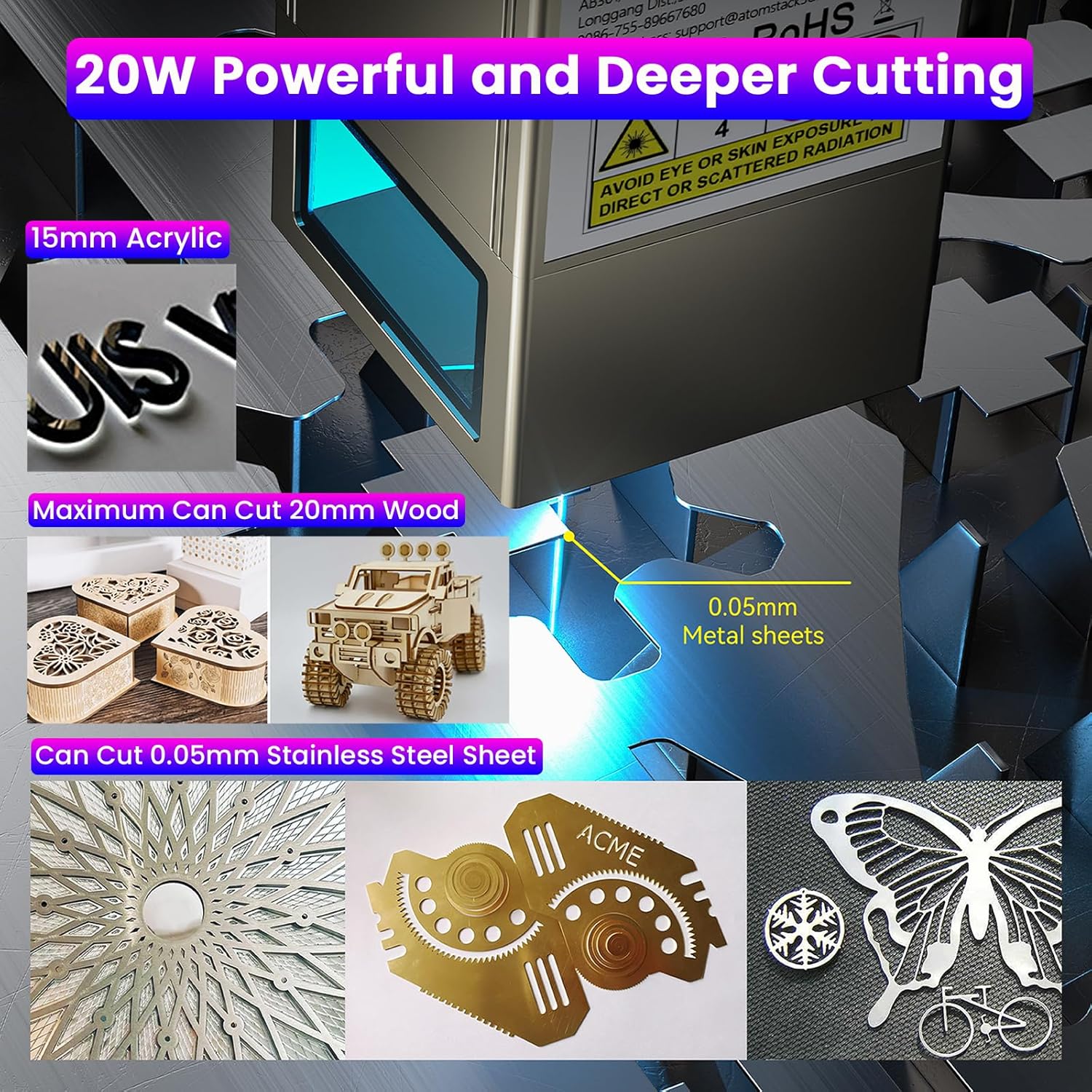
With 20000mW output, the S20 Pro can cut 15-20mm thick tung wood and 8-10mm thick black acrylic in one pass. It can also cut 0.05mm stainless steel. The air assist kit significantly enhances cutting speed and edge cleanliness.
Image: The ATOMSTACK S20 Pro demonstrating its powerful cutting capabilities on various materials, including 15mm acrylic, 20mm wood, and 0.05mm metal sheets.
മെയിൻ്റനൻസ്
1. Cleaning the Laser Lens
Regularly clean the laser lens with a soft, lint-free cloth and isopropyl alcohol to ensure optimal performance and prevent residue buildup.
2. Gantry and Rail Lubrication
Periodically lubricate the gantry and rails with a small amount of machine oil to ensure smooth movement of the laser module.
3. Air Assist System Check
Inspect the air assist tube and pump for any blockages or damage. Ensure the air filter (if applicable) is clean.

Image: A comparison showing the effect of the air assist pump on cutting quality, with a smooth, clean edge on the left (with air assist) and a burnt, rough edge on the right (no air assist).
ട്രബിൾഷൂട്ടിംഗ്
1. Laser Not Firing
- പവർ കേബിൾ സുരക്ഷിതമായി ബന്ധിപ്പിച്ചിട്ടുണ്ടോയെന്ന് പരിശോധിക്കുക.
- അടിയന്തര സ്റ്റോപ്പ് ബട്ടൺ ഓണാക്കിയിട്ടില്ലെന്ന് ഉറപ്പാക്കുക.
- Verify the laser module is correctly installed and connected.
- Confirm the software settings (power, speed) are appropriate for the material.
2. മോശം കൊത്തുപണി/മുറിക്കൽ നിലവാരം
- Adjust the focal length of the laser. Incorrect focus is a common cause of poor quality.
- ലേസർ ലെൻസ് വൃത്തിയാക്കുക.
- Increase laser power or decrease engraving/cutting speed.
- Ensure the material is flat and securely placed.
- Check the air assist system for proper function.
3. Connection Issues (WiFi/USB)
- For WiFi, ensure your device is connected to the engraver's network and the password is correct.
- For USB, ensure the cable is securely connected to both the engraver and the computer. Install necessary drivers if prompted.
- Restart both the engraver and the controlling device.
Customer Testimonial Video
Video: A customer's real-world testing and review of the ATOMSTACK S20 Pro, demonstrating its performance and capabilities.
സ്പെസിഫിക്കേഷനുകൾ
| ഫീച്ചർ | വിശദാംശങ്ങൾ |
|---|---|
| മോഡൽ നമ്പർ | എസ് 20 പ്രോ |
| Optical Laser Power | 20000 മെഗാവാട്ട് (20 വാട്ട്) |
| മെഷീൻ പവർ | 130W |
| ലേസർ സ്പോട്ട് ഏരിയ | 0.08 * 0.1 മി.മീ |
| മദർബോർഡ് | 32-ബിറ്റ് |
| ഗ്രേസ്കെയിൽ | 256-ബിറ്റ് |
| എയർ അസിസ്റ്റ് കിറ്റ് | F30 Pro (Dual built-in pumps) |
| Max Wood Cutting Thickness | 15-20mm (Tung wood, single pass) |
| Max Acrylic Cutting Thickness | 8-10mm (Black acrylic, single pass) |
| Max Stainless Steel Cutting Thickness | 0.05 മി.മീ |
| ഉൽപ്പന്ന അളവുകൾ | 25.98 x 22.36 x 9.33 ഇഞ്ച് |
| ഇനത്തിൻ്റെ ഭാരം | 20 പൗണ്ട് |
വാറൻ്റിയും പിന്തുണയും
For warranty information, technical support, or further assistance, please refer to the official ATOMSTACK webസൈറ്റ് അല്ലെങ്കിൽ ഉപഭോക്തൃ സേവനവുമായി നേരിട്ട് ബന്ധപ്പെടുക.
The manufacturer is ATOMSTACK, Co, Ltd.
For additional resources and support, visit the ATOMSTACK ഔദ്യോഗിക സ്റ്റോർ.