
ആമുഖം
The Hyper Drive GEN2 12-in-1 USB-C Docking Station is designed to expand the connectivity of your USB-C enabled laptop or tablet. This docking station provides a comprehensive solution for connecting multiple peripherals, external displays, and power delivery through a single USB-C port. It supports high-speed data transfer, multiple 4K video outputs, and efficient power charging for enhanced productivity.
ഉൽപ്പന്ന സവിശേഷതകൾ
The Hyper Drive GEN2 12-in-1 USB-C Docking Station offers a wide array of ports and capabilities:
- Dual HDMI 4K60Hz HDR: Connect up to two external displays with stunning 4K resolution at 60Hz, supporting High Dynamic Range (HDR) for vibrant visuals.
- DisplayPort 4K60Hz: Connect an additional external display via DisplayPort, also supporting 4K resolution at 60Hz.
- USB-C Power Delivery (PD) 100W: Charge your host laptop or tablet with up to 100W of power through the dedicated USB-C PD port.
- 2x USB-A 10Gbps (USB 3.1 Gen 2): Experience ultra-fast data transfer speeds for compatible USB-A devices.
- 2x USB-A 2.0: Connect standard USB peripherals such as keyboards, mice, or printers.
- ഗിഗാബൈറ്റ് ഇഥർനെറ്റ്: Enjoy stable and high-speed wired network connectivity.
- MicroSD UHS-II (300MB/s): Fast data transfer for MicroSD cards, ideal for photographers and videographers.
- SD UHS-II (300MB/s): Fast data transfer for standard SD cards.
- 3.5mm ഓഡിയോ ജാക്ക്: ഓഡിയോ ഔട്ട്പുട്ടിനായി ഹെഡ്ഫോണുകളോ സ്പീക്കറുകളോ ബന്ധിപ്പിക്കുക.

ചിത്രം 1: മുൻഭാഗം view of the Hyper Drive GEN2 12-in-1 USB-C Hub, highlighting MicroSD, SD, 3.5mm Audio, and two USB-A 10Gbps ports.
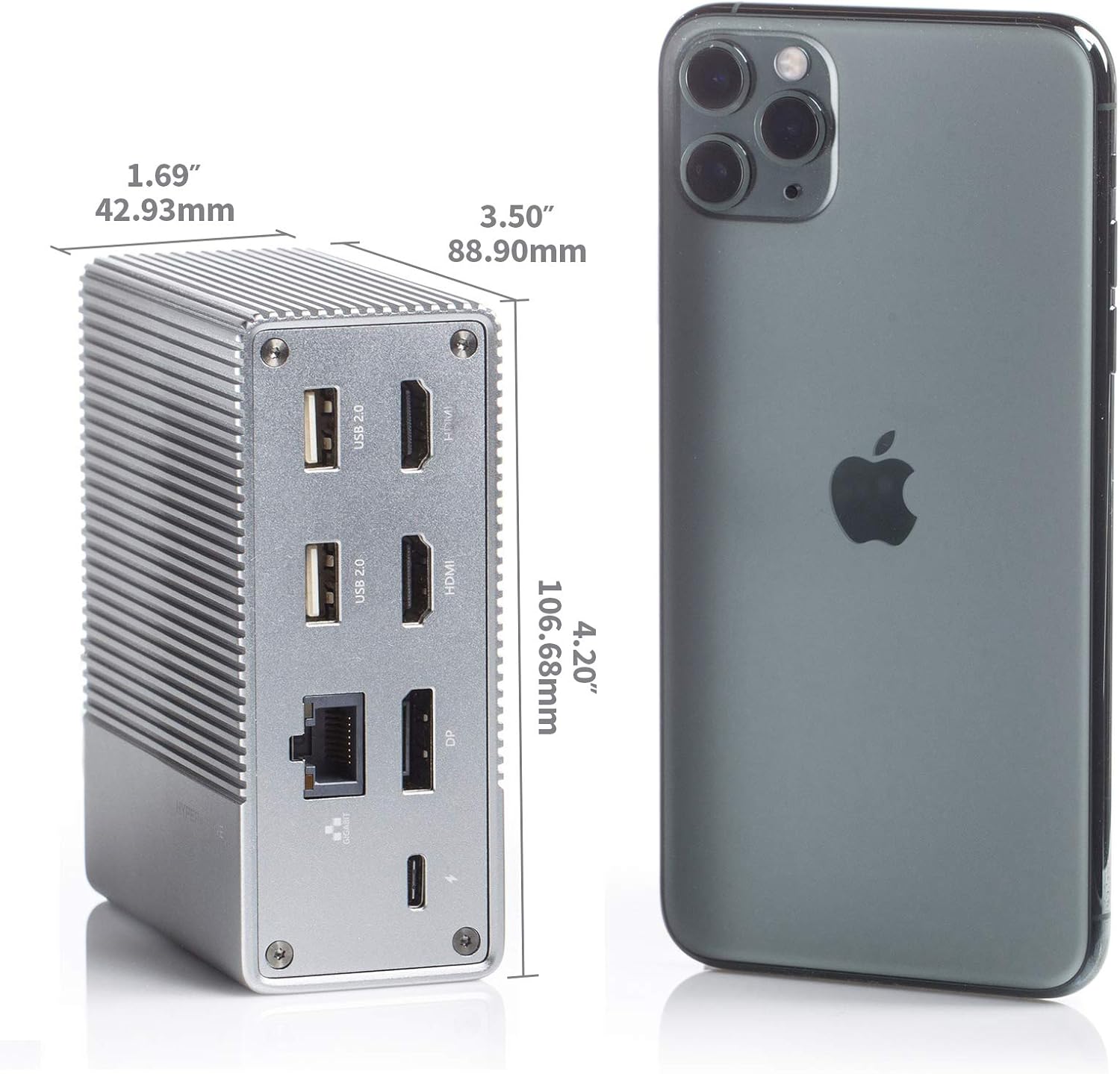
ചിത്രം 2: പിൻഭാഗം view of the Hyper Drive GEN2 12-in-1 USB-C Hub, highlighting USB-C Power Delivery, Gigabit Ethernet, DisplayPort, two HDMI, and two USB-A 2.0 ports.
സജ്ജീകരണ ഗൈഡ്
- ഹോസ്റ്റ് ഉപകരണത്തിലേക്ക് കണക്റ്റുചെയ്യുക: Plug the integrated USB-C cable from the docking station into an available USB-C port on your laptop or tablet. Ensure the USB-C port on your host device supports DisplayPort Alternate Mode (Alt Mode) and Power Delivery for full functionality.
- പവർ കണക്ഷൻ (ഓപ്ഷണൽ എന്നാൽ ശുപാർശ ചെയ്യുന്നത്): For optimal performance and to charge your host device, connect your laptop's USB-C power adapter to the USB-C PD port on the docking station. The docking station supports up to 100W power delivery.
- ബാഹ്യ ഡിസ്പ്ലേകൾ ബന്ധിപ്പിക്കുക:
- Connect your HDMI monitors to the HDMI ports on the docking station.
- Connect your DisplayPort monitor to the DisplayPort on the docking station.
കുറിപ്പ്: For macOS, only one extended display is supported with the same image on all external displays at 4K60Hz. Windows/Chrome OS supports Multi-Stream Transport (MST) for up to three extended displays.
- പെരിഫറലുകൾ ബന്ധിപ്പിക്കുക: Plug your USB devices (keyboard, mouse, external drives), Ethernet cable, and audio devices into the corresponding ports on the docking station.
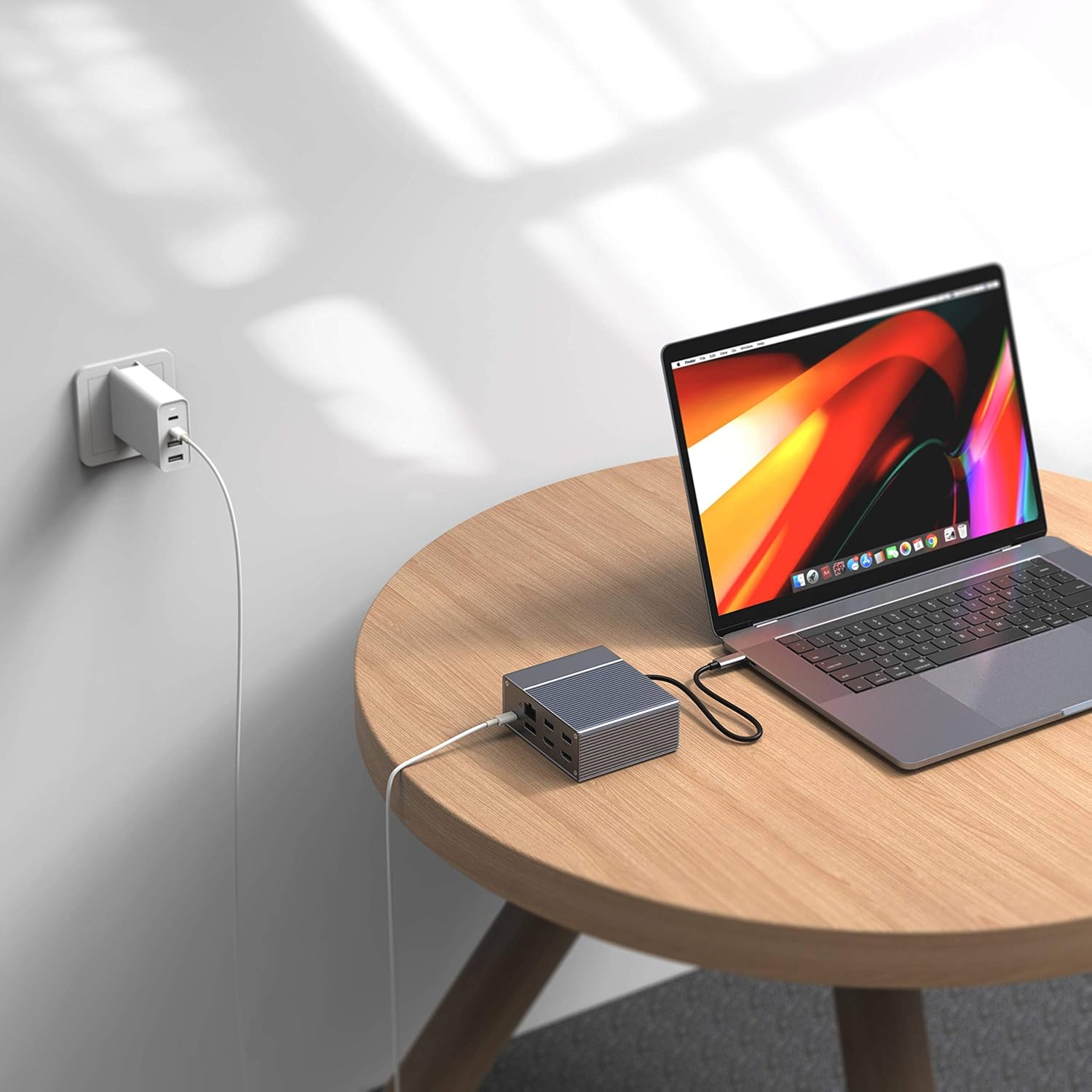
Figure 3: Laptop connected to the docking station and a power adapter for charging.
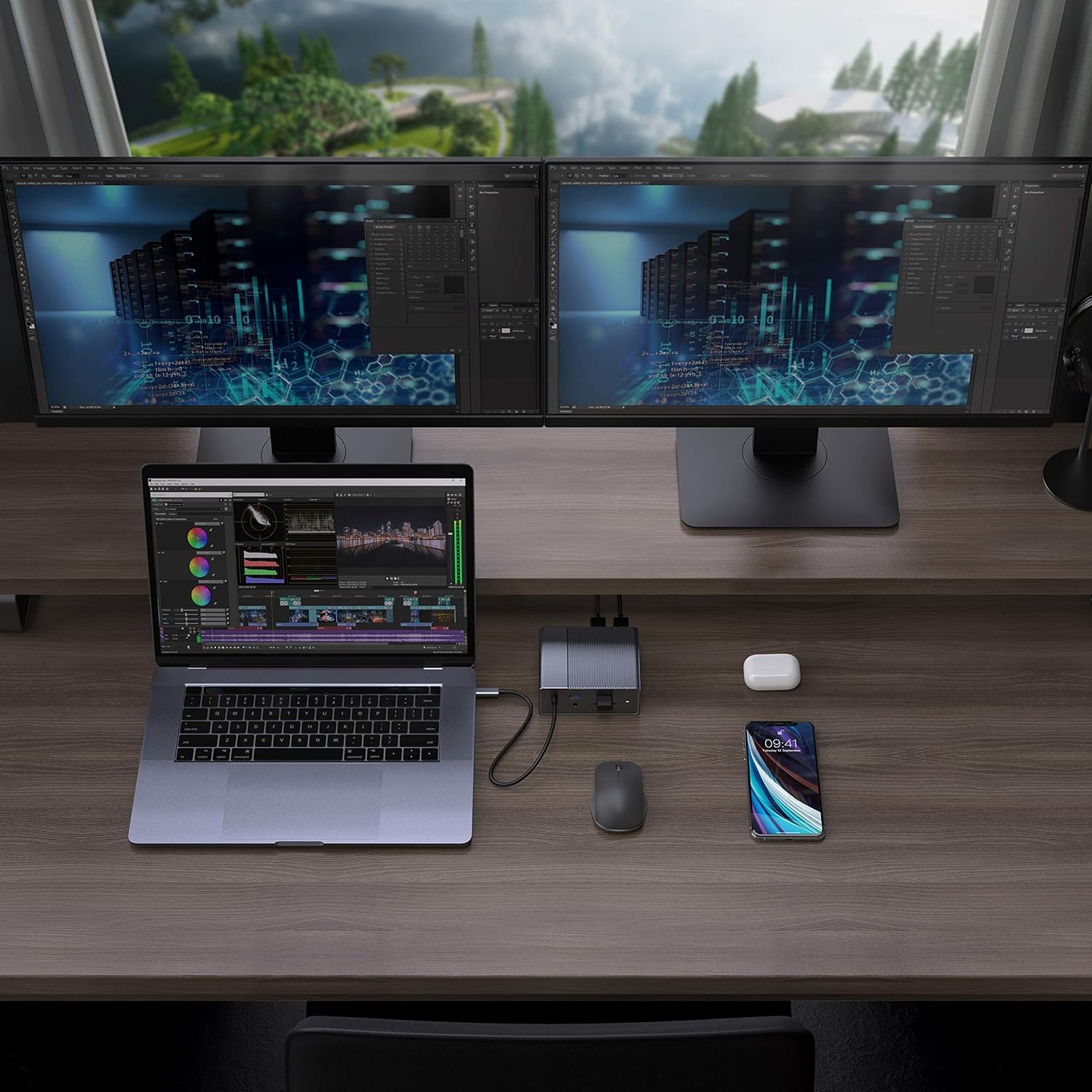
Figure 4: A typical setup showing a laptop connected to the docking station with multiple peripherals and external displays.
പ്രവർത്തന നിർദ്ദേശങ്ങൾ
ഡിസ്പ്ലേ മോഡുകൾ
നിങ്ങളുടെ ഓപ്പറേറ്റിംഗ് സിസ്റ്റത്തെ ആശ്രയിച്ച് ഡോക്കിംഗ് സ്റ്റേഷൻ വിവിധ ഡിസ്പ്ലേ കോൺഫിഗറേഷനുകളെ പിന്തുണയ്ക്കുന്നു:
- മാകോസ്: Supports one extended display with the same image mirrored across all external displays at 4K60Hz. macOS does not support Multi-Stream Transport (MST) for independent extended displays.
- Windows/Chrome OS: Supports Multi-Stream Transport (MST), allowing for up to three extended displays with independent content at 4K60Hz.

Figure 5: Illustration of display modes for macOS (mirror mode) and Windows (mirror and extended modes) using the docking station.
Data Transfer and Power Delivery
- USB-A 10Gbps പോർട്ടുകൾ: Use these ports for high-speed data transfer with compatible external hard drives, SSDs, or other USB 3.1 Gen 2 devices.
- USB-A 2.0 പോർട്ടുകൾ: Ideal for connecting standard peripherals like keyboards, mice, or USB flash drives where high-speed data transfer is not critical.
- SD/MicroSD കാർഡ് സ്ലോട്ടുകൾ: Insert your memory cards for quick access and transfer of photos and videos at up to 300MB/s (UHS-II speeds).
- USB-C PD പോർട്ട്: Connect your laptop's power adapter to this port to charge your laptop while using the docking station. This port also supports data transfer.
വീഡിയോ 1: ഔദ്യോഗികമായി അവസാനിച്ചുview of the HyperDrive GEN2 USB-C Hub, demonstrating its speed, power, and various port functionalities.
മെയിൻ്റനൻസ്
- Keep the docking station in a clean, dry environment.
- തീവ്രമായ താപനിലയിലോ നേരിട്ടുള്ള സൂര്യപ്രകാശത്തിലോ ഉപകരണം തുറന്നുകാട്ടുന്നത് ഒഴിവാക്കുക.
- മൃദുവായതും ഉണങ്ങിയതുമായ തുണി ഉപയോഗിച്ച് പുറംഭാഗം വൃത്തിയാക്കുക. ലിക്വിഡ് ക്ലീനറുകളോ എയറോസോളുകളോ ഉപയോഗിക്കരുത്.
- അമിതമായി ചൂടാക്കുന്നത് തടയാൻ ഉപകരണത്തിന് ചുറ്റും ശരിയായ വായുസഞ്ചാരം ഉറപ്പാക്കുക.
ട്രബിൾഷൂട്ടിംഗ്
- No display output or flickering screen:
- നിങ്ങളുടെ ഹോസ്റ്റ് ഉപകരണത്തിന്റെ USB-C പോർട്ട് DisplayPort Alt മോഡിനെ പിന്തുണയ്ക്കുന്നുണ്ടെന്ന് ഉറപ്പാക്കുക.
- Check all cable connections (USB-C to host, HDMI/DP to monitors).
- Try a different HDMI or DisplayPort cable.
- Verify your monitor input settings are correct.
- For macOS, remember that only one extended display is supported, with other external displays mirroring the extended one.
- USB ഉപകരണങ്ങൾ തിരിച്ചറിഞ്ഞിട്ടില്ല:
- Reconnect the USB device to the docking station.
- Try a different USB port on the docking station.
- Ensure the docking station is properly connected to your host device.
- If using high-power USB devices, ensure the docking station is connected to a power source via its USB-C PD port.
- Laptop not charging:
- Ensure your laptop's original USB-C power adapter is connected to the USB-C PD port on the docking station.
- നിങ്ങളുടെ ലാപ്ടോപ്പ് USB-C പവർ ഡെലിവറിയെ പിന്തുണയ്ക്കുന്നുണ്ടെന്ന് ഉറപ്പാക്കുക.
- പവർ അഡാപ്റ്ററിനും കേബിളിനും എന്തെങ്കിലും കേടുപാടുകൾ സംഭവിച്ചിട്ടുണ്ടോ എന്ന് പരിശോധിക്കുക.
സ്പെസിഫിക്കേഷനുകൾ
| ഫീച്ചർ | സ്പെസിഫിക്കേഷൻ |
|---|---|
| മോഡൽ | GEN2 12-in-1 USB-C Hub |
| ബ്രാൻഡ് | ഹൈപ്പർ |
| HDMI പോർട്ടുകൾ | 2x HDMI 4K60Hz HDR |
| ഡിസ്പ്ലേ പോർട്ട് | 1x DisplayPort 4K60Hz |
| USB-C PD പോർട്ട് | 1x USB-C പവർ ഡെലിവറി 100W |
| USB-A ഡാറ്റ പോർട്ടുകൾ | 2x USB-A 10Gbps (USB 3.1 Gen 2), 2x USB-A 2.0 |
| ഇഥർനെറ്റ് | 1x ജിഗാബൈറ്റ് ഇഥർനെറ്റ് |
| കാർഡ് റീഡറുകൾ | 1x MicroSD UHS-II (300MB/s), 1x SD UHS-II (300MB/s) |
| ഓഡിയോ ജാക്ക് | 1x 3.5mm ഓഡിയോ ജാക്ക് |
| അനുയോജ്യമായ OS | macOS, Windows, Chrome OS |
| ഇനത്തിൻ്റെ ഭാരം | 480.8 ഗ്രാം |
| യു.പി.സി | 817110014519 |
വാറൻ്റിയും പിന്തുണയും
For warranty information and technical support, please refer to the official Hyper webസൈറ്റിൽ ബന്ധപ്പെടുക അല്ലെങ്കിൽ അവരുടെ ഉപഭോക്തൃ സേവനവുമായി ബന്ധപ്പെടുക. വാറന്റി ക്ലെയിമുകൾക്കായി നിങ്ങളുടെ വാങ്ങൽ രസീത് സൂക്ഷിക്കുക.
ഓൺലൈൻ പിന്തുണ: www.hyper.com/support