
സിറോക്സ് വർക്ക് സെന്റർ 5890
Xerox WorkCentre 5890 Multifunction Copier User Manual
സജ്ജീകരണം, പ്രവർത്തനം, പരിപാലനം എന്നിവയ്ക്കുള്ള സമഗ്ര ഗൈഡ്
1. ആമുഖം
This manual provides detailed instructions for the setup, operation, and maintenance of your Xerox WorkCentre 5890 Tabloid-Size Mono Laser Multifunction Copier. Please read this manual thoroughly before using the device to ensure proper functionality and to prevent damage.
The Xerox WorkCentre 5890 is a high-performance monochrome multifunction device designed for efficient copying, printing, and scanning tasks in a professional environment. It supports tabloid-size documents and offers high-speed output.

ചിത്രം 1.1: ഫ്രണ്ട് view of the Xerox WorkCentre 5890. This image shows the main control panel, the document feeder on top, and the multiple paper trays at the bottom.
2. സജ്ജീകരണം
2.1 അൺപാക്കിംഗും പ്ലേസ്മെന്റും
- Carefully remove the copier from its packaging. Retain all packaging materials for future transport or storage.
- Place the copier on a sturdy, level surface capable of supporting its weight. Ensure adequate ventilation around the device.
- Ensure the power outlet is easily accessible and meets the electrical requirements specified on the device's rating label.
2.2 Connecting the Copier
- പവർ കണക്ഷൻ: Connect the power cord to the copier and then to a grounded electrical outlet.
- നെറ്റ്വർക്ക് കണക്ഷൻ (ഇഥർനെറ്റ്): For network printing and scanning, connect an Ethernet cable from the copier's LAN port to your network router or switch.
- യുഎസ്ബി കണക്ഷൻ (ഓപ്ഷണൽ): For direct connection to a computer, connect a USB 2.0 cable from the copier's USB port to your computer.

ചിത്രം 2.1: വശം view of the Xerox WorkCentre 5890, highlighting the various connectivity ports such as Ethernet and USB, typically located at the rear or side of the device.
2.3 Initial Power On and Driver Installation
- Press the power button to turn on the copier. Allow it to complete its startup sequence.
- Insert the driver CD (if provided) into your computer's CD-ROM drive, or download the latest drivers from the official Xerox support webസൈറ്റ് (www.xerox.com/support).
- Follow the on-screen instructions to install the printer and scanner drivers on your computer.
3. പ്രവർത്തന നിർദ്ദേശങ്ങൾ
3.1 പേപ്പർ ലോഡ് ചെയ്യുന്നു
- Open the desired paper tray. The WorkCentre 5890 features multiple trays, including a high-capacity tandem tray.
- Fan the paper stack to prevent misfeeds.
- Load the paper with the print side facing up (or as indicated by the tray diagram). Adjust the paper guides to fit the paper size snugly.
- Close the paper tray. The control panel may prompt you to confirm the paper size and type.
3.2 പ്രമാണങ്ങൾ പകർത്തൽ
- Place your document face-up in the automatic document feeder (ADF) or face-down on the scanner glass.
- നിയന്ത്രണ പാനലിൽ, "പകർത്തുക" ഫംഗ്ഷൻ തിരഞ്ഞെടുക്കുക.
- Adjust settings such as number of copies, reduction/enlargement, duplex (two-sided) copying, and darkness.
- പകർത്തൽ ആരംഭിക്കാൻ "ആരംഭിക്കുക" ബട്ടൺ അമർത്തുക.
3.3 ഒരു കമ്പ്യൂട്ടറിൽ നിന്നുള്ള പ്രിന്റിംഗ്
- നിങ്ങളുടെ കമ്പ്യൂട്ടറിൽ പ്രിന്റ് ചെയ്യാൻ ആഗ്രഹിക്കുന്ന പ്രമാണം തുറക്കുക.
- ആപ്ലിക്കേഷന്റെ മെനുവിൽ നിന്ന് "പ്രിന്റ്" തിരഞ്ഞെടുക്കുക (ഉദാ. File > പ്രിന്റ് ചെയ്യുക).
- Choose the "Xerox WorkCentre 5890" from the list of available printers.
- Adjust print settings as needed (e.g., paper size, orientation, duplex printing, print quality).
- "പ്രിന്റ്" ക്ലിക്ക് ചെയ്യുക.
3.4 പ്രമാണങ്ങൾ സ്കാൻ ചെയ്യുന്നു
- നിങ്ങളുടെ ഡോക്യുമെന്റ് സ്കാനർ ഗ്ലാസിലോ ADF-ലോ വയ്ക്കുക.
- On the control panel, select the "Scan" function, or initiate scanning from your computer using the installed scanner software.
- Choose scan destination (e.g., Scan to Email, Scan to Folder, Scan to USB).
- റെസല്യൂഷൻ, കളർ മോഡ്, തുടങ്ങിയ സ്കാൻ ക്രമീകരണങ്ങൾ കോൺഫിഗർ ചെയ്യുക file ഫോർമാറ്റ്.
- Press the "Start" button on the copier or the "Scan" button in the software.
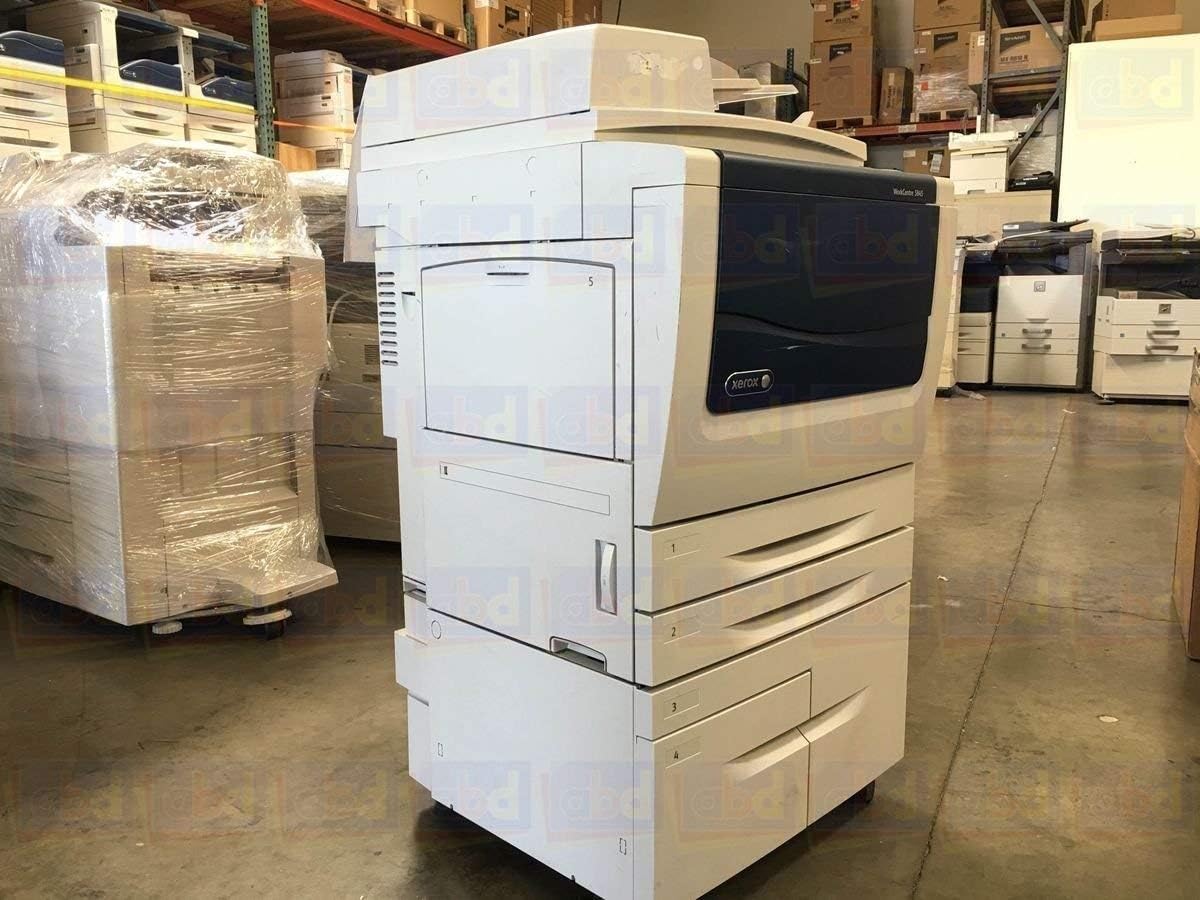
ചിത്രം 3.1: പിൻഭാഗം view of the Xerox WorkCentre 5890, illustrating the paper output tray and the configuration of additional paper input options.
4. പരിപാലനം
Regular maintenance ensures optimal performance and extends the lifespan of your Xerox WorkCentre 5890.
4.1 കോപ്പിയർ വൃത്തിയാക്കൽ
- പുറം: ഒരു മൃദുവായ, ഡി ഉപയോഗിച്ച് ബാഹ്യ പ്രതലങ്ങൾ തുടയ്ക്കുകamp, ലിന്റ് രഹിത തുണി. അബ്രാസീവ് ക്ലീനറുകളോ ലായകങ്ങളോ ഉപയോഗിക്കരുത്.
- സ്കാനർ ഗ്ലാസ്: Clean the scanner glass and the ADF glass strip with a glass cleaner applied to a cloth (not directly to the glass).
- ADF റോളറുകൾ: ഇടയ്ക്കിടെ പരസ്യം ഉപയോഗിച്ച് ADF റോളറുകൾ വൃത്തിയാക്കുക.amp cloth to prevent paper jams.
4.2 ഉപഭോഗവസ്തുക്കൾ മാറ്റിസ്ഥാപിക്കൽ
- ടോണർ കാട്രിഡ്ജ്: The control panel will display a warning when the toner level is low. Follow the on-screen instructions or refer to the quick guide on the device for replacement. Use only genuine Xerox toner cartridges.
- ഡ്രം യൂണിറ്റ്: The drum unit has a finite lifespan. Replace it when prompted by the device.
4.3 ഫേംവെയർ അപ്ഡേറ്റുകൾ
Periodically check the Xerox support website for firmware updates. Keeping the firmware updated can improve performance and add new features.
5. പ്രശ്നപരിഹാരം
This section provides solutions to common issues you may encounter with your WorkCentre 5890.
| പ്രശ്നം | സാധ്യമായ കാരണം | പരിഹാരം |
|---|---|---|
| പേപ്പർ ജാം | തെറ്റായി ലോഡ് ചെയ്ത പേപ്പർ, കടലാസ് പാതയിൽ അന്യവസ്തു, തേഞ്ഞ റോളറുകൾ. | Open all access covers and carefully remove jammed paper. Ensure paper is loaded correctly. Clean rollers if necessary. |
| മോശം പ്രിന്റ് ക്വാളിറ്റി | Low toner, dirty drum unit, fuser issue, incorrect print settings. | Check toner level and replace if low. Clean or replace drum unit. Verify print settings (e.g., resolution, paper type). |
| ഉപകരണം പ്രതികരിക്കുന്നില്ല | Power issue, network connectivity problem, driver issue. | Check power connections. Verify network cable connection and IP address. Reinstall printer drivers. Restart the device and computer. |
| സ്കാനർ പ്രവർത്തിക്കുന്നില്ല | Scanner driver issue, network connectivity, incorrect scan settings. | Ensure scanner drivers are installed. Check network connection. Verify scan destination and settings. |
If the problem persists, contact Xerox customer support or a qualified service technician.
6 സ്പെസിഫിക്കേഷനുകൾ
Key technical specifications for the Xerox WorkCentre 5890:
- സ്റ്റാൻഡേർഡ് പ്രവർത്തനങ്ങൾ: Copy, Print, Scan, Internet Fax
- പ്രിൻ്റ് വേഗത: 90 പിപിഎം വരെ (മിനിറ്റിൽ പേജുകൾ)
- പരമാവധി പേപ്പർ വലിപ്പം: 11 x 17 inches (Tabloid) or A3
- Paper Input Capacity (Standard/Maximum): 4,700 sheets / 8,700 sheets (with options)
- പ്രിൻ്റിംഗ് ടെക്നോളജി: ലേസർ (മോണോക്രോം)
- കണക്റ്റിവിറ്റി: Ethernet, USB 2.0, Wireless (Optional/Configurable)
- പ്രത്യേക സവിശേഷത: Auto-Duplex (Automatic Two-Sided Printing)
- ASIN: B08429TSFZ
- UPC: 683193510022
- നിർമ്മാതാവ്: സെറോക്സ്
7. വാറൻ്റിയും പിന്തുണയും
7.1 വാറൻ്റി വിവരങ്ങൾ
This renewed Xerox WorkCentre 5890 typically comes with a 90 ദിവസത്തെ പരിമിത വാറൻ്റി. Please refer to your purchase documentation or contact your reseller for specific warranty terms and conditions. The warranty covers defects in materials and workmanship under normal use.
7.2 ഉപഭോക്തൃ പിന്തുണ
For technical assistance, service requests, or further information, please contact Xerox customer support or your authorized service provider. You can find contact details and additional resources on the official Xerox webസൈറ്റ്:
- സിറോക്സ് പിന്തുണ Webസൈറ്റ്: www.xerox.com/support
- ഓൺലൈൻ ഉറവിടങ്ങൾ: FAQs, driver downloads, and troubleshooting guides are available online.
Ask a question about this manual
Ask about setup, troubleshooting, compatibility, parts, safety, or missing instructions. Manuals+ will review the question and use this page’s manual context to help answer it.