Apple Magic Mouse 2 (MLA02LL/A) Instruction Manual
Model: MLA02LL/A
ഉൽപ്പന്നം കഴിഞ്ഞുview
The Apple Magic Mouse 2 is a wireless, rechargeable mouse designed for seamless integration with Mac OS X. It features a multi-touch surface for intuitive gestures and an ambidextrous design for comfortable use by both left and right-handed users. Its optimized foot design allows for smooth gliding across surfaces, enhancing precision and ease of use.
പ്രധാന സവിശേഷതകൾ
വയർലെസ് കണക്റ്റിവിറ്റി: Connects wirelessly via Bluetooth for convenient, clutter-free use.
Multi-Touch Surface: Supports intuitive gestures like swiping and scrolling directly on the mouse surface.
റീചാർജ് ചെയ്യാവുന്ന ബാറ്ററി: Features a built-in rechargeable battery, eliminating the need for disposable batteries.
അംബിഡെക്സ്ട്രസ് ഡിസൈൻ: Ergonomically designed for comfortable use in either hand.
Optimized Foot Design: Ensures smooth and effortless gliding across your desk.
സജ്ജമാക്കുക
Pairing Your Magic Mouse 2
The Magic Mouse 2 pairs automatically with your Mac when connected via the included USB-C to Lightning cable. For initial setup or re-pairing:
Ensure your Mac's Bluetooth is turned on. Go to System Settings > Bluetooth.
Connect your Magic Mouse 2 to your Mac using the USB-C to Lightning cable. This will automatically pair the mouse and begin charging it.
Once paired, you can disconnect the cable for wireless use. The mouse will remain connected via Bluetooth.
If the mouse does not appear in the Bluetooth settings, ensure it is charged and the power switch on the bottom of the mouse is in the 'On' position.
ബാറ്ററി ചാർജ് ചെയ്യുന്നു
The Magic Mouse 2 features a built-in rechargeable lithium-ion battery. To charge:
Connect the Lightning port on the bottom of the Magic Mouse 2 to a USB-C port on your Mac or a USB power adapter using the provided USB-C to Lightning cable.
A full charge typically takes about 2 hours. A quick 2-minute charge can provide approximately 9 hours of use.
You can check the battery level in the Bluetooth menu on your Mac's menu bar.
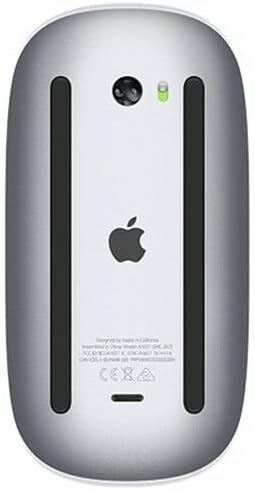
താഴെ view of the Apple Magic Mouse 2, highlighting the Lightning charging port and power switch. The green indicator light shows the mouse is powered on.
Operating Your Magic Mouse 2
മൾട്ടി-ടച്ച് സവിശേഷതകൾ
The Magic Mouse 2's smooth, seamless Multi-Touch surface allows for simple gestures to navigate your Mac:
സ്ക്രോൾ: Swipe one finger up or down to scroll through documents and web പേജുകൾ.
സൂം: Hold down the Control key and scroll with one finger to zoom in or out.
പേജുകൾക്കിടയിൽ സ്വൈപ്പ് ചെയ്യുക: Swipe one finger left or right to navigate between pages in Safari or other applications.
പൂർണ്ണ സ്ക്രീൻ ആപ്പുകൾക്കിടയിൽ സ്വൈപ്പ് ചെയ്യുക: Swipe two fingers left or right to switch between full-screen applications.
ദൗത്യ നിയന്ത്രണം: മിഷൻ കൺട്രോൾ തുറക്കാൻ രണ്ട് വിരലുകൾ ഉപയോഗിച്ച് രണ്ടുതവണ ടാപ്പ് ചെയ്യുക.
മുകളിൽ view of the Apple Magic Mouse 2, illustrating its minimalist design and multi-touch surface for gesture control.
മൗസ് ക്രമീകരണങ്ങൾ ഇഷ്ടാനുസൃതമാക്കുന്നു
You can customize the tracking speed, scrolling speed, and gesture settings for your Magic Mouse 2:
പോകുക System Settings > Mouse നിങ്ങളുടെ Mac-ൽ.
ക്രമീകരിക്കുക ട്രാക്കിംഗ് വേഗത ഒപ്പം സ്ക്രോളിംഗ് വേഗത sliders to your preference.
ൽ കൂടുതൽ ആംഗ്യങ്ങൾ tab, you can enable or disable specific Multi-Touch gestures and view demonstrations of how to perform them.
മെയിൻ്റനൻസ്
Cleaning Your Magic Mouse 2
To keep your Magic Mouse 2 clean and functioning optimally:
Turn off the mouse using the switch on the bottom.
മൃദുവായ, ലിൻ്റ് രഹിത തുണി ഉപയോഗിക്കുകampപുറം പ്രതലങ്ങൾ തുടയ്ക്കാൻ വെള്ളം ഉപയോഗിച്ച് നനച്ചു.
Avoid getting moisture in any openings. Do not use window cleaners, household cleaners, aerosol sprays, solvents, alcohol, ammonia, or abrasives to clean your mouse.
ബാറ്ററി കെയർ
To maximize the lifespan of your Magic Mouse 2's rechargeable battery:
ബാറ്ററി ഇടയ്ക്കിടെ പൂർണ്ണമായും ഡിസ്ചാർജ് ചെയ്യുന്നത് ഒഴിവാക്കുക.
ദീർഘനേരം ഉപയോഗിക്കാത്തപ്പോൾ മൗസ് മുറിയിലെ താപനിലയിൽ സൂക്ഷിക്കുക.
If storing for a long time, charge the battery to about 50% before turning it off.
ട്രബിൾഷൂട്ടിംഗ്
പൊതുവായ പ്രശ്നങ്ങളും പരിഹാരങ്ങളും
മൗസ് കണക്റ്റ് ചെയ്യുന്നില്ല: - Ensure the mouse is charged and powered on. - Check your Mac's Bluetooth settings to confirm it's enabled and the mouse is listed. If not, try re-pairing by connecting the mouse with a cable. - Restart your Mac and the mouse.
ക്രമരഹിതമായ കഴ്സർ ചലനം: - Clean the bottom sensor of the mouse with a soft, lint-free cloth. - Ensure you are using the mouse on a clean, non-reflective surface.
Gestures not working: - Verify that the gestures are enabled in System Settings > Mouse > More Gestures. - Ensure your fingers are making proper contact with the Multi-Touch surface.
ബാറ്ററി വേഗത്തിൽ തീർന്നു: - Check for any background applications that might be excessively using the mouse. - Ensure the mouse is turned off when not in use for extended periods.
സ്പെസിഫിക്കേഷനുകൾ
ഫീച്ചർ
വിശദാംശങ്ങൾ
ഉൽപ്പന്ന അളവുകൾ
2 x 2 x 2 ഇഞ്ച്
ഇനത്തിൻ്റെ ഭാരം
12.3 ഔൺസ്
ASIN
B074T2NWVL
ബാറ്ററികൾ
Rechargeable (built-in)
ബ്രാൻഡ്
ആപ്പിൾ
നിറം
വെള്ളി
കണക്റ്റിവിറ്റി ടെക്നോളജി
വയർലെസ് (ബ്ലൂടൂത്ത്)
ബട്ടണുകളുടെ എണ്ണം
3 (virtual, via Multi-Touch)
വാറൻ്റിയും പിന്തുണയും
ഉൽപ്പന്ന വാറൻ്റി
Apple products typically come with a one-year limited warranty against defects in materials and workmanship. For detailed warranty information, please refer to the official Apple warranty documentation included with your product or visit the Apple Support webസൈറ്റ്.
ഉപഭോക്തൃ പിന്തുണ
കൂടുതൽ സഹായം, സാങ്കേതിക പിന്തുണ അല്ലെങ്കിൽ സേവന അന്വേഷണങ്ങൾ എന്നിവയ്ക്ക്, ദയവായി ഔദ്യോഗിക ആപ്പിൾ പിന്തുണ സന്ദർശിക്കുക. website or contact Apple Customer Service:
ഫോൺ പിന്തുണ: Refer to your region's Apple webപ്രാദേശിക കോൺടാക്റ്റ് നമ്പറുകൾക്കായുള്ള സൈറ്റ്.
Ask a question about this manual
Ask about setup, troubleshooting, compatibility, parts, safety, or missing instructions. Manuals+ will review the question and use this page’s manual context to help answer it.