
1. ആമുഖം
This user manual provides comprehensive instructions for the setup, operation, and maintenance of your Xerox AltaLink C8070/H2 Color Multifunction Printer. Designed for office environments, this device offers high-speed color and monochrome printing, copying, and scanning capabilities, along with advanced features to enhance productivity.
Please read this manual thoroughly before using the printer to ensure safe and efficient operation and to maximize the lifespan of your device.
2. സജ്ജീകരണം
2.1 അൺപാക്കിംഗും പ്ലേസ്മെന്റും
Carefully remove the printer from its packaging. The unit weighs approximately 349 pounds, so ensure adequate assistance for moving and placement. The dimensions are 28.9"D x 25.2"W x 45.2"H. Place the printer on a stable, level surface with sufficient space for ventilation and access to all trays and compartments.
Ensure the printer is placed near a power outlet and a network connection point (Ethernet).
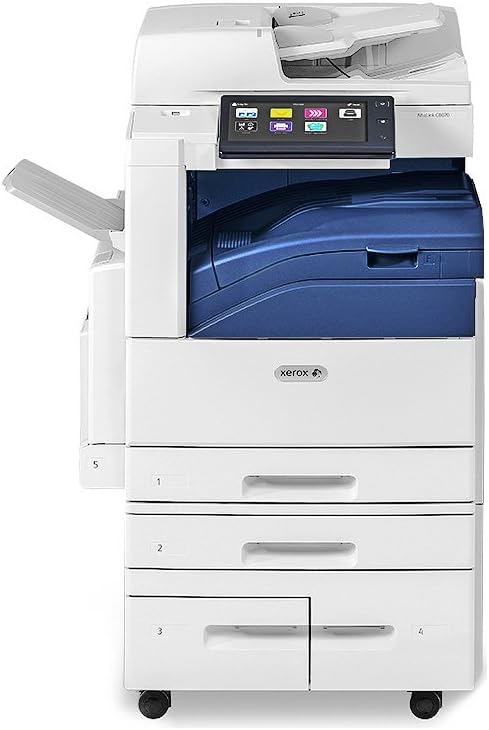
ചിത്രം 2.1: മുൻഭാഗം view of the Xerox AltaLink C8070/H2 Multifunction Printer, showing the main unit with multiple paper trays and the control panel.
2.2 വൈദ്യുതിയും നെറ്റ്വർക്കും ബന്ധിപ്പിക്കുന്നു
- പവർ കോർഡ് പ്രിന്ററുമായി ബന്ധിപ്പിക്കുക, തുടർന്ന് ഗ്രൗണ്ടഡ് ഇലക്ട്രിക്കൽ ഔട്ട്ലെറ്റുമായി ബന്ധിപ്പിക്കുക.
- Connect an Ethernet cable from your network router or switch to the Ethernet port on the printer.
- The printer also supports NFC connectivity for certain functions.
2.3 Initializing the Printer
Upon first power-on, the printer will perform an initialization sequence. Follow any on-screen prompts on the control panel. The control panel is a touch-screen interface that allows for easy navigation and configuration.

ചിത്രം 2.2: മുകളിൽ നിന്ന് താഴേക്ക് view of the Xerox AltaLink C8070/H2 Multifunction Printer with the automatic document feeder (ADF) open, revealing the scanner glass and paper guides.
2.4 പേപ്പർ ലോഡ് ചെയ്യുന്നു
The printer comes with 2-520 sheet trays, a 2,000-sheet high-capacity tandem tray, and a 100-sheet bypass tray. It supports plain paper up to Super B/A3 size.
- Pull out the desired paper tray.
- പേപ്പർ വലുപ്പത്തിന് അനുയോജ്യമായ രീതിയിൽ പേപ്പർ ഗൈഡുകൾ ക്രമീകരിക്കുക.
- Load the paper stack, ensuring it is not overfilled.
- Gently push the tray back into the printer.
3. പ്രവർത്തന നിർദ്ദേശങ്ങൾ
The Xerox AltaLink C8070/H2 is an all-in-one multifunction device capable of printing, copying, and scanning.
3.1 അച്ചടി
The printer supports color and monochrome PC/Network printing at up to 70 pages per minute (ppm). Maximum color print resolution is 1200 x 2400 dpi, and maximum black and white print resolution is 600 dpi.
- Ensure the printer is connected to your network and drivers are installed on your computer.
- നിങ്ങളുടെ കമ്പ്യൂട്ടറിൽ നിന്ന്, നിങ്ങൾ പ്രിന്റ് ചെയ്യാൻ ആഗ്രഹിക്കുന്ന പ്രമാണം തുറക്കുക.
- ആപ്ലിക്കേഷന്റെ മെനുവിൽ നിന്ന് "പ്രിന്റ്" തിരഞ്ഞെടുക്കുക.
- Choose the Xerox AltaLink C8070/H2 from the list of available printers.
- Adjust print settings (e.g., color/mono, duplex, paper source) as needed.
- "പ്രിന്റ്" ക്ലിക്ക് ചെയ്യുക.
3.2 പകർത്തൽ
The maximum copy speed for both black & white and color is 70 ppm, with a resolution of 600 x 600 dpi. The printer supports automatic duplex copying.
- നിങ്ങളുടെ യഥാർത്ഥ ഡോക്യുമെന്റ് ഓട്ടോമാറ്റിക് ഡോക്യുമെന്റ് ഫീഡറിൽ (ADF) മുഖം മുകളിലേക്ക് വയ്ക്കുക അല്ലെങ്കിൽ സ്കാനർ ഗ്ലാസിൽ മുഖം താഴേക്ക് വയ്ക്കുക.
- പ്രിന്ററിന്റെ നിയന്ത്രണ പാനലിൽ, "പകർത്തുക" ഫംഗ്ഷൻ തിരഞ്ഞെടുക്കുക.
- Adjust settings such as number of copies, color/mono, duplex, and reduction/enlargement.
- പകർത്തൽ ആരംഭിക്കാൻ "ആരംഭിക്കുക" ബട്ടൺ അമർത്തുക.
3.3 സ്കാനിംഗ്
The integrated Automatic Document Feeder (ADF) allows for efficient scanning of multiple pages.
- നിങ്ങളുടെ യഥാർത്ഥ രേഖ(കൾ) ADF-ലോ സ്കാനർ ഗ്ലാസിലോ വയ്ക്കുക.
- On the printer's control panel, select the "Scan" function.
- നിങ്ങൾക്ക് ആവശ്യമുള്ള സ്കാൻ ലക്ഷ്യസ്ഥാനം തിരഞ്ഞെടുക്കുക (ഉദാ: ഇമെയിൽ, നെറ്റ്വർക്ക് ഫോൾഡർ, യുഎസ്ബി).
- റെസല്യൂഷൻ പോലുള്ള സ്കാൻ ക്രമീകരണങ്ങൾ കോൺഫിഗർ ചെയ്യുക, file ഫോർമാറ്റ്, കളർ മോഡ്.
- സ്കാനിംഗ് ആരംഭിക്കാൻ "ആരംഭിക്കുക" ബട്ടൺ അമർത്തുക.

ചിത്രം 3.1: വശം view of the Xerox AltaLink C8070/H2 Multifunction Printer, highlighting the output tray and the overall compact design.
4. പരിപാലനം
Regular maintenance ensures optimal performance and extends the life of your Xerox AltaLink C8070/H2 printer.
4.1 ടോണർ കാട്രിഡ്ജുകൾ മാറ്റിസ്ഥാപിക്കൽ
The printer uses CMYK (Cyan, Magenta, Yellow, Black) toner cartridges. The control panel will display alerts when toner levels are low.
- പ്രിന്ററിന്റെ മുൻ കവർ തുറക്കുക.
- ഒഴിഞ്ഞ ടോണർ കാട്രിഡ്ജ് തിരിച്ചറിയുക.
- Grasp the handle of the cartridge and pull it out.
- പുതിയ ടോണർ കാട്രിഡ്ജ് അൺപാക്ക് ചെയ്ത് ടോണർ വിതരണം ചെയ്യുന്നതിനായി സൌമ്യമായി കുലുക്കുക.
- പുതിയ കാട്രിഡ്ജ് അതിന്റെ സ്ഥാനത്ത് ക്ലിക്കു ചെയ്യുന്നത് വരെ ദൃഢമായി തിരുകുക.
- മുൻ കവർ അടയ്ക്കുക.
4.2 Cleaning the Scanner Glass and ADF
Dust and smudges on the scanner glass or ADF can affect scan quality.
- പ്രിന്റർ ഓഫ് ചെയ്യുക.
- ഡോക്യുമെൻ്റ് ഫീഡർ കവർ തുറക്കുക.
- Wipe the scanner glass and the white strip on the underside of the ADF cover with a soft, lint-free cloth dampened with a mild, non-abrasive glass cleaner.
- Allow surfaces to dry completely before closing the covers and powering on the printer.
5. പ്രശ്നപരിഹാരം
നിങ്ങളുടെ പ്രിന്ററിൽ നിങ്ങൾ നേരിട്ടേക്കാവുന്ന സാധാരണ പ്രശ്നങ്ങൾ ഈ വിഭാഗം അഭിസംബോധന ചെയ്യുന്നു.
5.1 പേപ്പർ ജാം
If a paper jam occurs, the control panel will display an error message indicating the location of the jam. Follow the on-screen instructions or the steps below:
- സൂചിപ്പിച്ചിരിക്കുന്ന കവറുകൾ അല്ലെങ്കിൽ ട്രേകൾ തുറക്കുക.
- കടലാസ് കുടുങ്ങിപ്പോയാൽ ശ്രദ്ധാപൂർവ്വം നീക്കം ചെയ്യുക, കടലാസ് പാതയുടെ ദിശയിലേക്ക് വലിക്കുക, അങ്ങനെ കടലാസ് കീറുന്നത് ഒഴിവാക്കുക.
- എല്ലാ പേപ്പർ കഷണങ്ങളും നീക്കം ചെയ്തിട്ടുണ്ടെന്ന് ഉറപ്പാക്കുക.
- എല്ലാ കവറുകളും ട്രേകളും സുരക്ഷിതമായി അടയ്ക്കുക.
5.2 പ്രിന്റ് ഗുണനിലവാര പ്രശ്നങ്ങൾ
പ്രിന്റുകൾ മങ്ങിയതോ, വരകളുള്ളതോ, അല്ലെങ്കിൽ തെറ്റായ നിറങ്ങളുള്ളതോ ആണെങ്കിൽ:
- ടോണർ ലെവലുകൾ പരിശോധിച്ച് കുറഞ്ഞ കാട്രിഡ്ജുകൾ മാറ്റിസ്ഥാപിക്കുക.
- Perform a print head cleaning or calibration from the printer's control panel settings.
- നിങ്ങളുടെ പ്രിന്റ് ജോലിക്ക് ഉചിതമായ പേപ്പർ ഉപയോഗിക്കുന്നുണ്ടെന്ന് ഉറപ്പാക്കുക.
5.3 നെറ്റ്വർക്ക് കണക്റ്റിവിറ്റി പ്രശ്നങ്ങൾ
If the printer is not accessible on the network:
- Verify the Ethernet cable is securely connected to both the printer and the network device.
- Check the network status on the printer's control panel.
- Restart the printer and your network router/switch.
- Ensure the printer has a valid IP address.
6 സ്പെസിഫിക്കേഷനുകൾ
| ഫീച്ചർ | വിശദാംശങ്ങൾ |
|---|---|
| ഉൽപ്പന്ന അളവുകൾ | 28.9"D x 25.2"W x 45.2"H |
| ഇനത്തിൻ്റെ ഭാരം | 349 പൗണ്ട് |
| പ്രിൻ്റിംഗ് ടെക്നോളജി | ലേസർ |
| പ്രിൻ്റർ ഔട്ട്പുട്ട് | നിറം |
| പരമാവധി പ്രിന്റ് വേഗത (നിറം/മോണോ) | 70 പി.പി.എം |
| പരമാവധി കളർ പ്രിന്റ് റെസല്യൂഷൻ | 1200 x 2400 dpi |
| Max B&W Print Resolution | 600 ഡിപിഐ |
| Max Copy Speed (Color/Mono) | 70 പി.പി.എം |
| പരമാവധി പകർപ്പ് റെസല്യൂഷൻ | 600 x 600 dpi |
| സ്കാനർ തരം | ഓട്ടോമാറ്റിക് ഡോക്യുമെൻ്റ് ഫീഡർ (ADF) |
| Duplex Printing/Copying | ഓട്ടോമാറ്റിക് |
| പേപ്പർ വിതരണം | 2-520 Sheet Trays, 2,000-Sheet High Capacity Tandem Tray, 100-Sheet Bypass |
| പരമാവധി ഇൻപുട്ട് ഷീറ്റ് ശേഷി | 2000 |
| പരമാവധി മീഡിയ വലുപ്പം | സൂപ്പർ ബി/എ3 |
| മെമ്മറി സ്റ്റോറേജ് കപ്പാസിറ്റി | 8 ജിബി |
| ഹാർഡ്വെയർ ഇന്റർഫേസ് | ഇഥർനെറ്റ് |
| കണക്റ്റിവിറ്റി ടെക്നോളജി | എൻഎഫ്സി |
| ഉൾപ്പെടുത്തിയ ഘടകങ്ങൾ | Printer, Paper Trays, NFC Tag |
7. വാറൻ്റിയും പിന്തുണയും
The Xerox AltaLink C8070/H2 comes with a limited warranty. For specific terms and conditions, please refer to the warranty documentation included with your product or visit the official Xerox webസൈറ്റ്.
For technical support, service requests, or further assistance, please contact Xerox Customer Support. You can find contact information on the Xerox website or through the documentation provided with your printer.
നിർമ്മാതാവ്: സെറോക്സ് കോർപ്പറേഷൻ
മോഡൽ നമ്പർ: C8070/H2
ASIN: B073XWD8G2
UPC: 095205880212