
1. ആമുഖം
The ASUS K31CD-DS71 VivoPC Desktop is a powerful and versatile computer designed for various computing needs. This manual provides essential information to help you get started, operate, and maintain your system effectively.
This desktop features an Intel Core i7 3.6GHz Processor, 16GB DDR4 Memory, and a 2TB 7200RPM HDD, running on Windows 10 Home. It offers extensive connectivity options for peripherals and network access.
2. ബോക്സിൽ എന്താണുള്ളത്?
Before proceeding with the setup, please ensure all the following items are present in your package:
- ASUS K31CD-DS71 VivoPC Desktop Unit
- USB കീബോർഡ്
- യുഎസ്ബി മൗസ്
- പവർ കോർഡ്
- ദ്രുത മാനുവൽ
- വാറൻ്റി കാർഡ്
3. സജ്ജീകരണ ഗൈഡ്
3.1 പെരിഫറലുകൾ ബന്ധിപ്പിക്കുന്നു
Follow these steps to connect your essential peripherals:
- മോണിറ്റർ ബന്ധിപ്പിക്കുക: Connect your monitor to the desktop using an HDMI or VGA cable. Ensure the cable is securely fastened at both ends.
- കീബോർഡും മൗസും ബന്ധിപ്പിക്കുക: Plug the USB keyboard and USB mouse into any available USB ports on the rear or front of the desktop.
- നെറ്റ്വർക്കിലേക്ക് കണക്റ്റുചെയ്യുക (ഓപ്ഷണൽ): For a wired internet connection, connect an Ethernet cable from your router or modem to the RJ45 LAN port on the rear of the desktop. For wireless connectivity, ensure your Wi-Fi network is available during initial setup.
- പവർ ബന്ധിപ്പിക്കുക: Plug the power cord into the power input on the rear of the desktop, then plug the other end into a grounded electrical outlet.
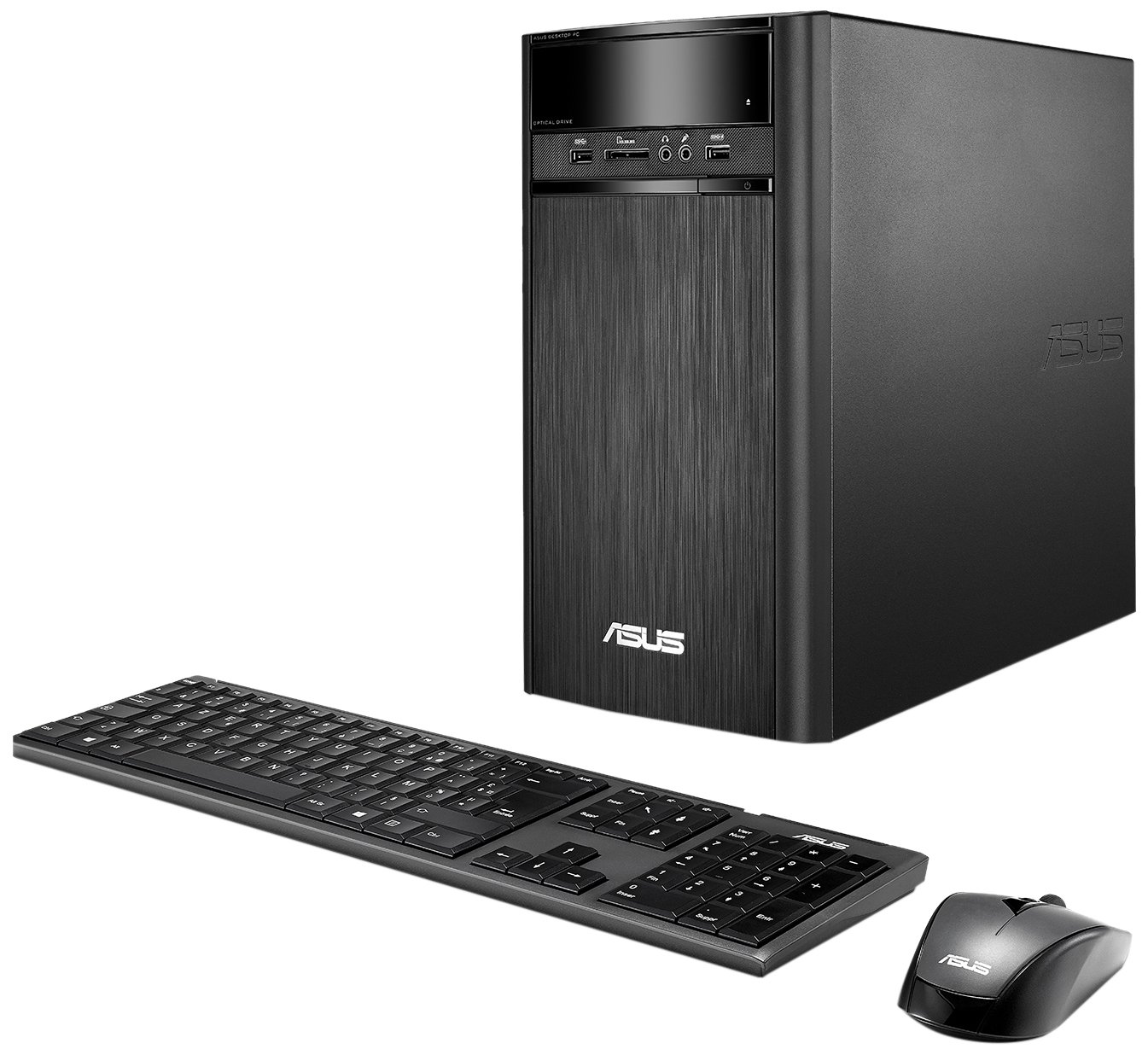
Figure 3.1: ASUS K31CD-DS71 VivoPC Desktop connected to a monitor.
3.2 പ്രാരംഭ പവർ ഓണും വിൻഡോസ് സജ്ജീകരണവും
After connecting all peripherals:
- പവർ ഓൺ: Press the power button located on the front of the desktop. The system will boot up.
- വിൻഡോസ് 10 ഹോം സജ്ജീകരണം: Follow the on-screen instructions to complete the initial Windows 10 Home setup. This includes selecting your region, language, accepting terms, and creating a user account.
- ഡ്രൈവർ ഇൻസ്റ്റാളേഷൻ: The system comes with pre-installed drivers. Windows Update will automatically download and install any necessary updates or additional drivers after connecting to the internet.
4. പ്രവർത്തന നിർദ്ദേശങ്ങൾ
4.1 ഫ്രണ്ട് പാനൽ സവിശേഷതകൾ
The front panel provides convenient access to frequently used ports and the optical drive.

Figure 4.1: Front panel of the desktop.
- Optical Drive (DVD-ROM): Insert CDs or DVDs for data access or media playback.
- Card Reader (6-in-1): വിവിധ മെമ്മറി കാർഡ് ഫോർമാറ്റുകൾ വായിക്കുന്നതിന്.
- ഹെഡ്ഫോൺ ജാക്ക്: Connect headphones for private audio.
- മൈക്രോഫോൺ ജാക്ക്: ഓഡിയോ ഇൻപുട്ടിനായി ഒരു മൈക്രോഫോൺ ബന്ധിപ്പിക്കുക.
- USB 3.0 പോർട്ടുകൾ: Two ports for high-speed data transfer with compatible devices.
4.2 പിൻ പാനൽ കണക്റ്റിവിറ്റി
The rear panel houses various ports for connecting monitors, network cables, and other peripherals.

Figure 4.2: Rear panel connectivity ports.
- USB 3.1 പോർട്ടുകൾ: രണ്ട് അതിവേഗ യുഎസ്ബി പോർട്ടുകൾ.
- USB 3.0 പോർട്ടുകൾ: Two additional high-speed USB ports.
- USB 2.0 പോർട്ടുകൾ: Two standard USB ports.
- HDMI-Out Port: Connect to a monitor or TV for digital video and audio output.
- VGA പോർട്ട്: Connect to a monitor for analog video output.
- RJ45 LAN പോർട്ട്: വയർഡ് നെറ്റ്വർക്ക് കണക്ഷനായി.
- 8-channel Audio I/O: Multiple audio jacks for surround sound systems.
4.3 വയർലെസ് കണക്റ്റിവിറ്റി
The desktop supports fast 802.11ac Wi-Fi for wireless internet access.
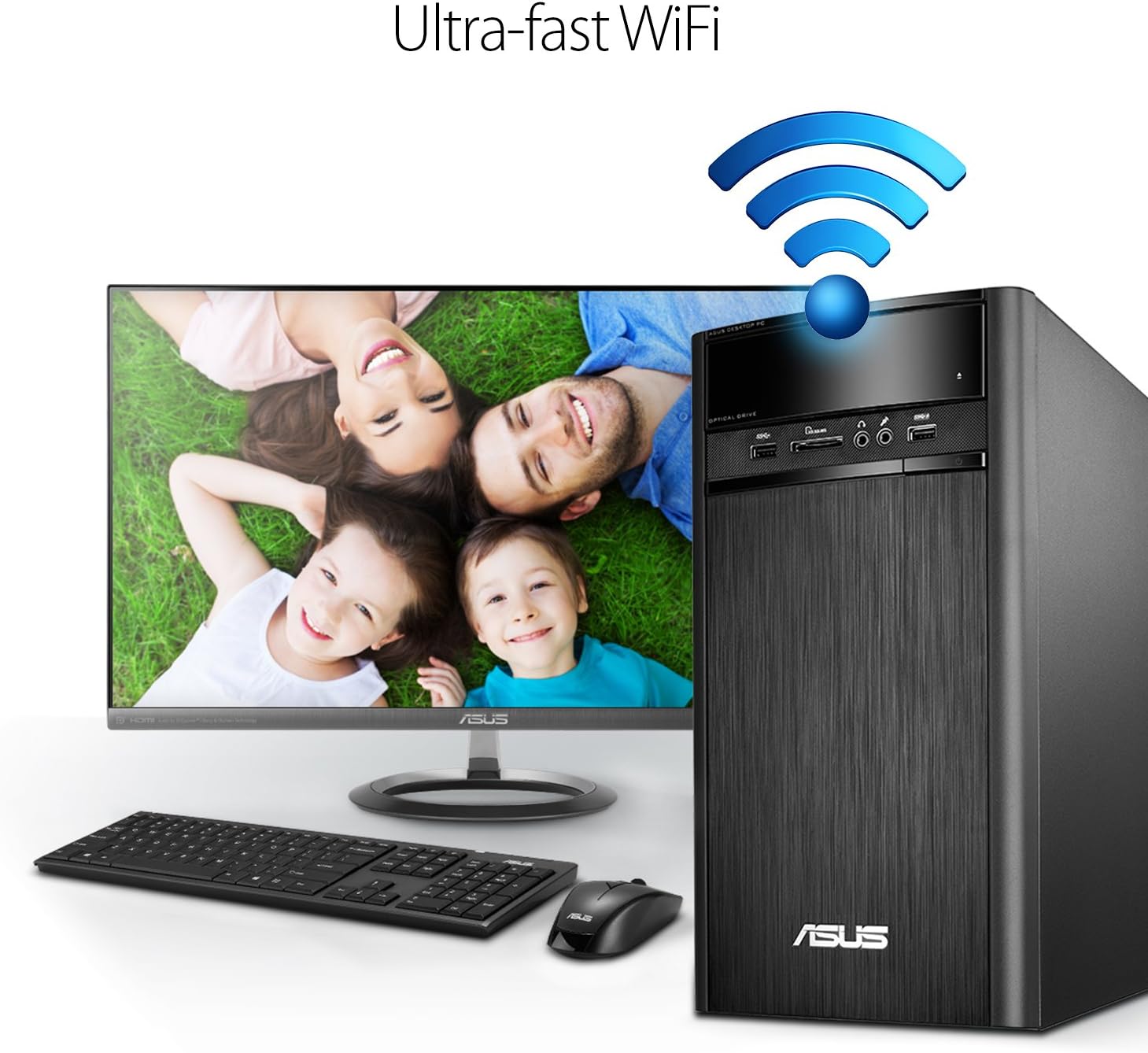
Figure 4.3: Wireless connectivity for the desktop.
To connect to a Wi-Fi network, navigate to the network settings in Windows 10, select your desired network, and enter the password if prompted.
4.4 ഓഡിയോ സവിശേഷതകൾ
The ASUS K31CD-DS71 incorporates SonicMaster Audio technology, which combines hardware, software, and tuning to deliver enhanced audio quality for various applications, including music, movies, and games.
5. പരിപാലനം
5.1 പൊതു പരിചരണം
- അമിതമായി ചൂടാകുന്നത് തടയാൻ ഡെസ്ക്ടോപ്പ് നന്നായി വായുസഞ്ചാരമുള്ള സ്ഥലത്ത് സൂക്ഷിക്കുക.
- Avoid placing liquids or heavy objects on top of the unit.
- മൃദുവായതും ഉണങ്ങിയതുമായ തുണി ഉപയോഗിച്ച് പുറംഭാഗം വൃത്തിയാക്കുക. കഠിനമായ രാസവസ്തുക്കൾ ഉപയോഗിക്കരുത്.
- Regularly clean dust from the vents using compressed air to maintain optimal airflow.
5.2 സോഫ്റ്റ്വെയർ അപ്ഡേറ്റുകൾ
Ensure your Windows 10 Home operating system is kept up-to-date. Windows Update automatically downloads and installs critical updates, security patches, and driver updates. You can manually check for updates by going to ക്രമീകരണങ്ങൾ > അപ്ഡേറ്റ് & സുരക്ഷ > വിൻഡോസ് അപ്ഡേറ്റ്.
5.3 ഡ്രൈവർ അപ്ഡേറ്റുകൾ
While Windows Update handles most driver updates, you may occasionally need to update specific drivers (e.g., graphics or chipset) from the ASUS support website for optimal performance or to resolve compatibility issues. Always download drivers from the official ASUS support page for your specific model.
6. പ്രശ്നപരിഹാരം
This section addresses common issues you might encounter with your ASUS K31CD-DS71 VivoPC Desktop.
6.1 പവർ, ബൂട്ട് പ്രശ്നങ്ങൾ
- ശക്തിയില്ല: Ensure the power cord is securely connected to both the desktop and the electrical outlet. Verify the outlet is functional.
- സിസ്റ്റം ബൂട്ട് ചെയ്യുന്നില്ല: If the system powers on but does not display anything on the screen, check the monitor's power and cable connections. Try restarting the computer. If the issue persists, it may indicate a hardware problem.
- ഓപ്പറേറ്റിംഗ് സിസ്റ്റം ലോഡ് ചെയ്യുന്നില്ല: If Windows 10 fails to load, try accessing the Windows Recovery Environment (usually by interrupting the boot process a few times) to perform startup repair or system restore.
6.2 കണക്റ്റിവിറ്റി പ്രശ്നങ്ങൾ
- ഇന്റർനെറ്റ് കണക്ഷൻ ഇല്ല (വയർഡ്): Check if the Ethernet cable is properly connected. Verify your router/modem is working correctly.
- ഇന്റർനെറ്റ് കണക്ഷൻ ഇല്ല (വയർലെസ്): Ensure Wi-Fi is enabled in Windows settings. Check if your Wi-Fi network is visible and you are entering the correct password. Restart your router/modem.
- പെരിഫറൽ കണ്ടെത്തിയില്ല: If a USB device is not recognized, try plugging it into a different USB port. Ensure the device's drivers are installed.
6.3 ഓഡിയോ പ്രശ്നങ്ങൾ
- ശബ്ദമില്ല: Check volume levels in Windows and on your speakers/headphones. Ensure audio cables are correctly plugged into the appropriate jacks. Verify audio drivers are installed and up-to-date in Device Manager.
For persistent issues, refer to the ASUS support webസൈറ്റ് അല്ലെങ്കിൽ ഉപഭോക്തൃ സേവനവുമായി ബന്ധപ്പെടുക.
7 സ്പെസിഫിക്കേഷനുകൾ
Below are the detailed specifications for the ASUS K31CD-DS71 VivoPC Desktop:
| ഘടകം | സ്പെസിഫിക്കേഷൻ |
|---|---|
| ബ്രാൻഡ് | ASUS |
| മോഡൽ നമ്പർ | K31CD-DS71 |
| ഓപ്പറേറ്റിംഗ് സിസ്റ്റം | വിൻഡോസ് 10 ഹോം |
| സിപിയു മോഡൽ | ഇൻ്റൽ കോർ i7-7700 |
| സിപിയു വേഗത | 3.6 GHz |
| റാം മെമ്മറി ഇൻസ്റ്റാൾ ചെയ്തു | 16 GB DDR4 |
| ഹാർഡ് ഡിസ്ക് വിവരണം | 2TB (7200 RPM) HDD |
| Optical Storage Device | DVD-RW |
| ഗ്രാഫിക്സ് കോപ്രൊസസർ | ഇന്റൽ എച്ച്ഡി ഗ്രാഫിക്സ് 630 (ഇന്റഗ്രേറ്റഡ്) |
| കണക്റ്റിവിറ്റി ടെക്നോളജി | HDMI, VGA, LAN, USB, Wi-Fi (802.11ac) |
| USB പോർട്ടുകൾ | 2x USB 3.1, 4x USB 3.0, 2x USB 2.0 |
| ഓഡിയോ I/O | 1x Headphone, 1x Microphone, 1x 8-channel Audio I/O |
| കാർഡ് റീഡർ | 6-ഇൻ-1 |
| ഇനത്തിന്റെ അളവുകൾ (LxWxH) | 15.4 x 7.1 x 13.8 ഇഞ്ച് |
| ഇനത്തിൻ്റെ ഭാരം | 13.7 പൗണ്ട് |
| നിറം | കറുപ്പ് |
8. വാറൻ്റിയും പിന്തുണയും
8.1 വാറൻ്റി വിവരങ്ങൾ
The ASUS K31CD-DS71 VivoPC Desktop comes with a 1-Year Domestic Warranty, which includes 1-way free shipping for service. Please refer to the included Warranty Card for detailed terms and conditions, including coverage, limitations, and how to initiate a warranty claim.
8.2 ഉപഭോക്തൃ പിന്തുണ
For technical assistance, troubleshooting beyond this manual, or warranty service, please contact ASUS customer support. You can find contact information and additional resources on the official ASUS support website. Have your product model number (K31CD-DS71) and serial number ready when contacting support.