Kupu Whakataki
This manual provides essential information for setting up, operating, maintaining, and troubleshooting your Samsung Galaxy A07 4G smartphone (Model SM-A075/DS). Please read this manual thoroughly to ensure proper use and to maximize the device's features.
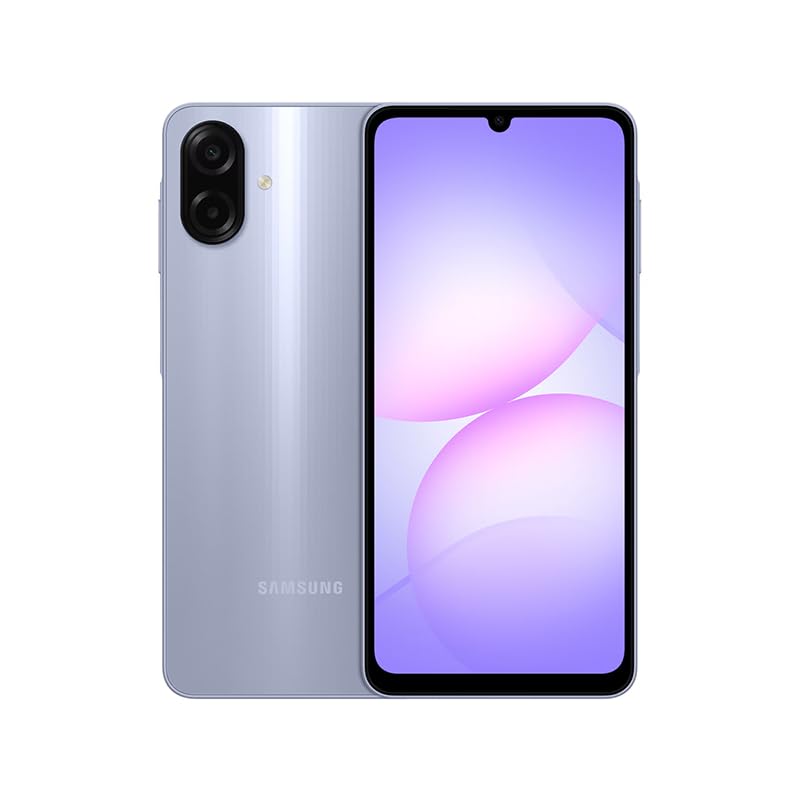
Figure 1: Samsung Galaxy A07 4G Front View
1. Tatūnga
1.1 Te Whakakore me te Tirotiro Tuatahi
Carefully remove all items from the packaging. Verify that all components are present. The box should contain the Samsung Galaxy A07 4G smartphone and a USB Cable. A charger is not included.

Figure 2: Device in packaging
1.2 Te whakauru i nga Kaari SIM me te Kaari MicroSD
- Kimihia te paepae SIM i te taha o te taputapu.
- Use the provided SIM ejector tool (if included, otherwise a small paperclip) to open the SIM tray.
- Carefully place your SIM card(s) and/or MicroSD card into the designated slots on the tray. This device supports Dual SIM and MicroSD up to 1TB.
- Gently push the SIM tray back into the device until it is flush.

Whakaahua 3: Taha view with SIM tray location
1.3 Hiko Tuatahi me te Whirihoranga
- Patohia me te pupuri i te paatene Power (kei te taha) kia puta ra ano te tohu Samsung.
- Whaia nga tohu o runga-mata hei whakaoti i te tatūnga tuatahi, tae atu ki te kowhiringa reo, te hononga Wi-Fi, te tatūnga pūkete Google, me nga tautuhinga haumarutanga.
2. Nga Tohutohu Whakahaere
2.1 Whakaatu me te Whakaterenga
The Samsung Galaxy A07 features a 6.7-inch PLS LCD display with a 90 Hz refresh rate for smooth visuals.
- Nga Tohu Pa: Patohia ki te kowhiri, swipe ki te panuku, whakawiri ki te topa.
- Mata Kāinga: Whakaritea me nga widget me nga pokatata taupānga.
- Paepae Whakamōhiotanga: Swipe ki raro i te tihi o te mata ki te uru ki nga tautuhinga tere me nga whakamohiotanga.
2.2 Whakamahinga Kaamera
The device is equipped with a 50 MP Pro-Grade main camera and an 8 MP front camera.
- Whakatuwheratia te tono Kaamera mai i to mata o te kaainga, i to pouaka pouaka ranei.
- Tīpakohia te aratau e hiahiatia ana e koe (Whakaahua, Ataata, Poutū, me ētahi atu).
- Patohia te patene maru hei hopu whakaahua, ka tiimata/whakamutua te rekoata ataata.
- Whakamahia nga mana topa i runga i te mata hei whakatika i te whakanui.
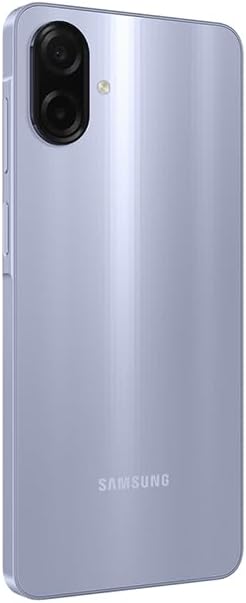
Figure 4: Rear Camera System
2.3 Hononga
- Wi-Fi: Connect to wireless networks via Settings > Connections > Wi-Fi. Supports 802.11a/b/g/n/ac 2.4GHz+5GHz.
- Nihokikorangi: Pair with other Bluetooth devices via Settings > Connections > Bluetooth.
- Raraunga Pukoro: Ensure your SIM card is active for 4G LTE connectivity. Compatible with T-Mobile, Mint, Tello, and Global GSM networks.
- GPS: Location services are supported via GPS, Glonass, Beidou, Galileo, QZSS.
3. Tiaki
3.1 Whakahōu Pūmanawa
Regularly check for and install software updates to ensure optimal performance, security, and access to new features. Your device is designed to receive 6 major OS upgrades and 6 years of security updates.
- Go to Settings > Software update > Download and install.
3.2 Te horoi i to taputapu
To clean your device, use a soft, lint-free cloth. Avoid abrasive materials or harsh chemicals. The device has an IP54 rating, providing protection against dust and water splashes.
- Wipe the screen and back panel gently.
- Kaua e rukuhia te taputapu ki te wai.
3.3 Tiaki Pūhiko
Kei te taputapu te pākahiko 5000 mAh. Hei whakaroa i te ora o te pākahiko:
- A ape i te wera nui.
- Whakamahia te taura USB kua whakaratohia mo te utu.
- Kaua e tukua te pākahiko kia mimiti i nga wa katoa.
4. Te Raru
4.1 Kaore te Pūrere i te hiko
- Kia tino utua te pākahiko. Honoa te taputapu ki te rihi mō te iti rawa 10 meneti.
- Patohia me te pupuri i te paatene Hiko mo te 10-15 hēkona hei mahi i te whakaara ano.
4.2 Nga Take Hononga Whatunga
- Tirohia mena kua whakauruhia to kaari SIM.
- Verify that mobile data is enabled in Settings > Connections > Data usage.
- Tīmataria anō te pūrere.
- Ensure your device is compatible with your carrier's network (T-Mobile, Mint, Tello, Global GSM).
4.3 Taupānga Ka takataka, Whakatio ranei
- Katia ka whakatuwheratia ano te taupānga.
- Clear the app's cache (Settings > Apps > [App Name] > Storage > Clear cache).
- Me whakarite kei te hōu tonu te pūmanawa o tō pūrere.
5. Whakatakotoranga
| Āhuahira | Taipitopito |
|---|---|
| Ingoa Tauira | Samsung Galaxy A07 4G (SM-A075/DS) |
| Whakaatu | 6.7 inches PLS LCD, 720 x 1600 (HD+), 90 Hz Refresh Rate |
| Tukatuka | Waea-matua (2x2.2 GHz Cortex-A76 & 6x2.0 GHz Cortex-A55) |
| RAM | 4 GB |
| Rokiroki | 64 GB (expandable via MicroSD up to 1TB) |
| Kāmera Whakamuri | 50 MP (wide, PDAF), 2 MP (depth) |
| Kāmera Mua | 8 MP (whanui) |
| Pūhiko | 5000 mah |
| Pūnaha Mahi | Android |
| Hononga | 4G LTE, Wi-Fi 802.11a/b/g/n/ac (2.4GHz+5GHz), Bluetooth, GPS, Glonass, Beidou, Galileo, QZSS |
| Tauranga | USB Type-C, 3.5mm Stereo Earjack |
| Ahu | Approx. 2 x 2 x 2 inches (Product Dimensions), 7.6 mm thickness |
| Taumaha | 9.2 hekere |
| Te mauroa | IP54 Puehu me te Tiaki Wai |
| Kei roto i te Pouaka | USB Cable (Charger NOT Included) |
6. Raihana me te Tautoko
6.1 Nga Korero Whakaputanga
This Samsung Galaxy A07 4G (Model SM-A075/DS) is a Latin American Version and comes with a 1-Tau Pūtāhui valid in South, Central, Latin America, and the Caribbean. Please ensure your device model is SM-A075/DS for local warranty coverage in Latin America.
For warranty claims or service, please contact Samsung customer support in your region. Proof of purchase may be required.
6.2 Tautoko Kiritaki
For further assistance, technical support, or to find service centers, please visit the official Samsung support website for your region or refer to the contact information provided in your product packaging.


