1. Kupu Whakataki me Nekeview
The KuWFi 5G01 is a portable 5G WiFi 6 mobile hotspot designed to provide high-speed internet connectivity on the go. It converts 5G cellular signals into ultra-fast dual-band Wi-Fi 6, supporting speeds up to 3000Mbps. Equipped with a 6000mAh battery, it offers extended usage and can connect up to 32 devices simultaneously. This device supports both eSIM and physical SIM cards, offering flexible connectivity options across various carriers.

Whakaahua: Mua view of the KuWFi 5G01 Mobile Hotspot, showcasing its compact design and 5G/eSIM support.
Ataata: Kua mutuview of the KuWFi Unlocked 5G Mobile WiFi Hotspot, highlighting its key features and portability.
2. He aha kei roto i te Pouaka
The KuWFi 5G01 package includes the following components:
- KuWFi 5G01 Mobile Hotspot Router
- Uira Whakatau (Momo-C)
- Pukapuka Kaiwhakamahi (tenei tuhinga)
- 1 Lithium Ion battery (included and pre-installed)
3. Tatūnga
3.1. Physical Setup (SIM/eSIM & Battery)
The device supports both physical Nano SIM cards and eSIM functionality. The 6000mAh Lithium Ion battery is included and typically pre-installed.
- Kōkuhu Kāri Sim: Locate the Nano SIM slot on the side of the device. Gently insert your compatible Nano SIM card into the slot. Ensure the card is correctly oriented.
- Tāuta Pūhiko: The battery is usually pre-installed. If not, open the back cover, insert the battery, and then replace the cover.
- Whakahohe eSIM: For eSIM activation, connect to the device's Wi-Fi network with your phone and enter the management page (usually via a web browser at 192.168.100.1 with default password 'admin'). Select eSIM on the SIM settings page under Mobile Network Setting-eSIM setting-eSIM. Alternatively, connect the router with Bluetooth to the eSIM management app, click 'Bluetooth Connection', and scan the eSIM QR code. Wait for activation to complete and check the status.

Image: A user inserting a Nano SIM card into the dedicated slot on the KuWFi 5G01 device.

Image: Visual instructions detailing the process of activating the eSIM feature on the KuWFi 5G01.
3.2. Te Hia-Ai Tuatahi
Press and hold the power button located on the device until the screen illuminates. The device will initiate its startup sequence.
3.3. Te hono ki Wi-Fi
Once powered on, the device will broadcast its Wi-Fi network (SSID) and display the default password on its screen. Locate the Wi-Fi network on your device (phone, laptop, tablet) and enter the password to connect.

Image: The KuWFi 5G01 Mobile Hotspot connected to a laptop, illustrating its capability to share internet with multiple devices.
4. Nga Tohutohu Whakahaere
4.1. Nga waahanga matua me te mahinga
- 5G & WiFi 6 Speed: Experience download speeds up to 3000Mbps (3.6 Gbps) with Wi-Fi 6 (802.11ax) dual-band (2.4GHz/5GHz) connectivity.
- Pūhiko Roa-roa: The integrated 6000mAh battery provides extended usage, ideal for travel and outdoor activities.
- Tautoko Pūrere: Connect up to 32 devices simultaneously, providing a secure and private Wi-Fi network.
- Hototahi Kua Wetekina: Supports major US carriers including AT&T and T-Mobile SIM cards.
- Tauranga Itarangi Gigabit: Includes an Ethernet port for connecting wired devices.

Image: Illustration of the KuWFi 5G01 converting 5G cellular signal into high-speed Dual-Band WiFi 6.
4.2. Whakaatuhia nga korero
The 2.2-inch color touch LCD screen provides real-time information, including:
- Te aroturuki i te whakamahinga raraunga
- Mobile signal strength
- Router power/battery level
- Nga taputapu hono
4.3. Nga Tauari Whakamahi
The 5G01 is designed for various situations where reliable internet is crucial:
- Haerenga: Ideal for RV trips, camping, and international travel, ensuring connectivity in diverse locations.
- Mahi Mamao: Provides a secure and private Wi-Fi network for laptops, tablets, and phones at airports, hotels, or remote job sites.
- Home Internet Backup: Can serve as a reliable backup internet solution.
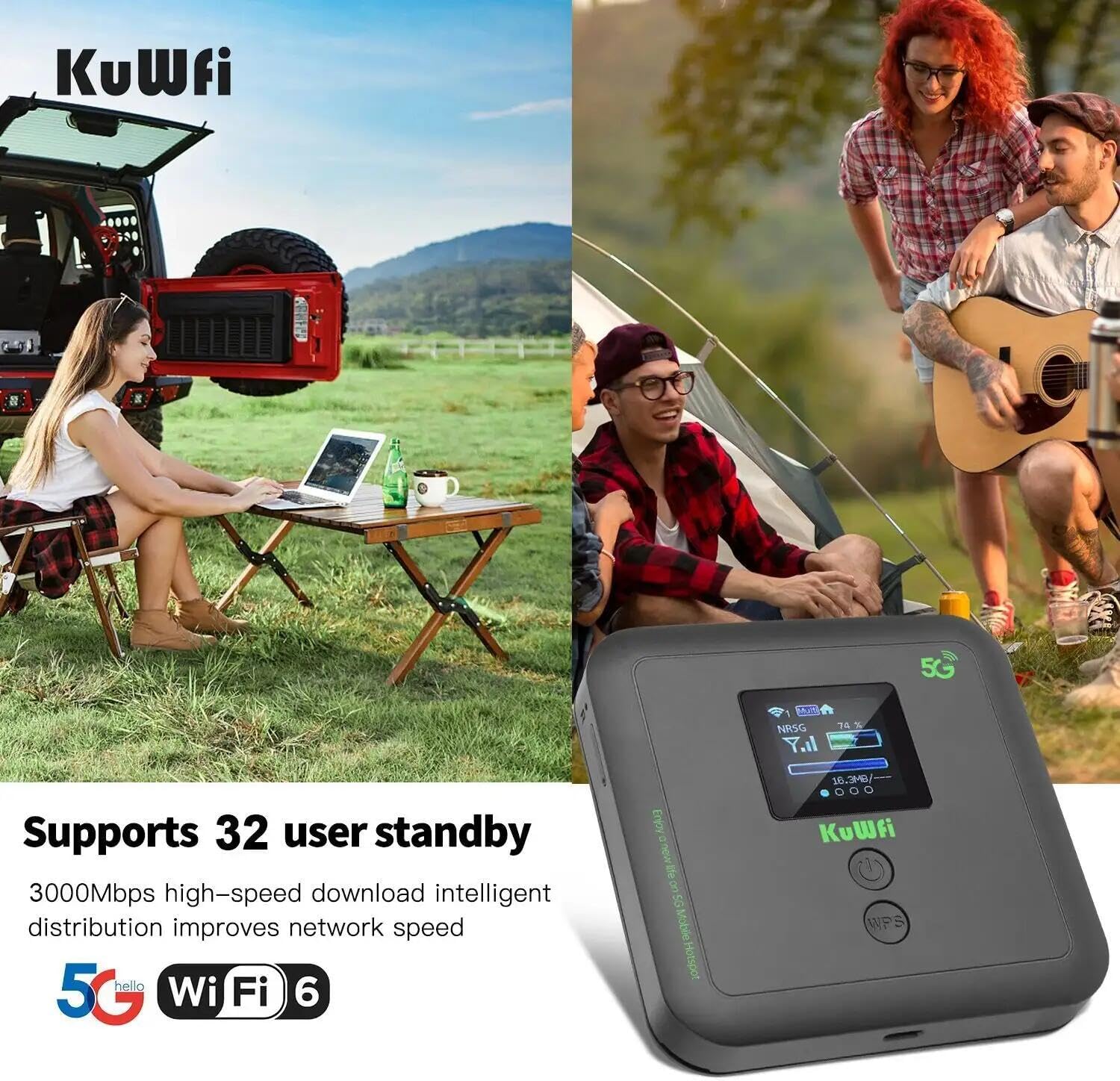
Image: The KuWFi 5G01 Mobile Hotspot providing internet in an RV and campte taiao.

Image: A person working on a laptop while traveling, connected via the KuWFi 5G01 Mobile Hotspot.
5. Tiaki
5.1. Te utu
Connect the provided Type-C charging cable to the device's Type-C port and plug the other end into a compatible USB power adapter or a computer USB port. The screen will indicate charging status.
5.2. Tiaki Pūhiko
To prolong battery life, avoid extreme temperatures and fully discharging the device regularly. Store the device in a cool, dry place when not in use for extended periods.
5.3. Tautuhi ano i te Pūrere
A reset button is available on the device. Use a pin or a similar thin object to press and hold the reset button for approximately 10 seconds to restore factory settings. This may resolve certain connectivity or performance issues.
6. Te Raru
- Kaore he Hononga Ipurangi: Ensure your SIM card is properly inserted and activated. Check your data plan status with your carrier. Verify that the device has a cellular signal.
- Ngā Tere Pōturi: Check the signal strength displayed on the device. Move to an area with better cellular reception. Ensure you are within the Wi-Fi range of the hotspot.
- Kaore te Pūrere i te hiko: Ensure the battery is charged. Connect the device to a power source using the charging cable.
- Kāore e taea te Tūhono ki Wi-Fi: Double-check the Wi-Fi password. Try restarting both the hotspot and your connecting device.
7. Whakatakotoranga
| Āhuahira | Taipitopito |
|---|---|
| Ingoa Tauira | 5G01 (KF-5G01) |
| Ahu mōkihi | 4 x 3 x 2 inihi |
| Taumaha Tūemi | 14.1 hekere |
| Pūhiko | 1 pākahiko Lithium Ion (kei roto) |
| Āhuahira Motuhake | Haumarutanga Ipurangi |
| Karaehe Band Auautanga | Single-Band (Dual-Band 2.4GHz/5GHz Wi-Fi 6) |
| Paerewa Whakawhitinga Korerokore | 802.11ax (Wi-Fi 6) |
| Hangarau Hononga | Wi-Fi, 5G Cellular, Ethernet |
| Pūrere Hototahi | Smartphone, Laptop, Tablet, etc. (up to 32 devices) |

Whakaahua: Taipitopito view of the KuWFi 5G01 device, highlighting its various ports and buttons.

Image: The compact and portable design of the KuWFi 5G01, emphasizing its suitability for travel.
8. Pūtāhui me te Tautoko
The KuWFi 5G01 Mobile Hotspot is backed by a 30-day money-back guarantee, a month of free replacement, and a 1-year manufacturer warranty. Professional technical support is available for any assistance needed.
For support, please contact KuWFi customer service directly.


