1. Kupu Whakataki
The Cudy M1300 AC1200 Gigabit Whole Home Mesh WiFi System is designed to eliminate Wi-Fi dead zones and provide seamless, high-speed internet coverage throughout your home or office. This advanced system delivers reliable dual-band Wi-Fi speeds and supports a large number of connected devices, ensuring smooth streaming, gaming, and browsing.

Image: Cudy M1300 Mesh WiFi System units, highlighting dead zone elimination.
2. He aha kei roto i te Pouaka
Verify that all components are present in your Cudy M1300 package:
- M1300 Mesh Units (2-Pack)
- Nga Waahanga Mana
- Tauira Itarangi
- Aratohu Tāuta

Image: The Cudy M1300 2-Pack Mesh WiFi System, as seen in its packaging.
Ataata Wetewete pouaka
Video: An unboxing and introduction to the Cudy M1300 Mesh WiFi System, demonstrating the contents and initial appearance of the product.
3. Hua Neke Atuview
The Cudy M1300 units feature a sleek, cylindrical design. Each unit is equipped with essential ports for connectivity and indicators for status monitoring.
Tauranga me nga Tohu
Each M1300 unit includes:
- 2 Tauranga Itarangi Gigabit: For high-speed wired connections. One port typically serves as WAN/LAN, and the other as LAN.
- Tauranga Hiko: Mo te hono i te urutau hiko.
- Tohu LED: Displays the status of the mesh unit (e.g., solid blue for connected, pulsing blue for setup mode, red for no internet).

Whakaahua: Rear view of a Cudy M1300 unit, detailing the Gigabit LAN/WAN ports and power input.
4. Aratohu Tatūnga
Follow these steps to set up your Cudy M1300 Mesh WiFi System:
- Whakaritehia to Pouwhanga: Disconnect the power from your existing modem/router. If you have an old router, disconnect it.
- Connect the Main Mesh Unit: Connect one of the M1300 units to your modem using the provided Ethernet cable. Plug one end into any Ethernet port on the M1300 unit and the other end into your modem's LAN port.
- Whakahiko: Plug in the power adapter to the main M1300 unit and then plug your modem back into power. Wait for both devices to fully boot up. The LED on the M1300 unit should pulse blue, indicating it's ready for setup.
- Download the Cudy App: Download the Cudy app from your smartphone's app store (iOS or Android).
- A pee i nga Tohutohu-A-taupānga: Open the Cudy app and follow the on-screen instructions to configure your new mesh network. You will create a new Wi-Fi network name (SSID) and password.
- Add Additional Units: Once the first unit is set up, place the other M1300 unit(s) in desired locations within your home. Plug them into power. The app will guide you through adding these units to your existing mesh network. They will automatically connect and extend your Wi-Fi coverage.

Image: Seamless Wi-Fi coverage throughout the home with a Cudy mesh unit.
5. Te Whakahaere i tō Pūnaha Mata
The Cudy M1300 system is designed for optimal performance and ease of use.
Hurorirori kau
The mesh technology ensures seamless roaming, meaning your devices automatically switch to the strongest Wi-Fi signal as you move around your home, without interruptions or drops in connection.
Dual-Band AC1200 Wi-Fi
The system operates on dual bands (2.4GHz and 5GHz) with AC1200 speeds (up to 300 Mbps on 2.4GHz and 867 Mbps on 5GHz), providing fast and stable connections for all your devices.

Image: Visual representation of the dual-band AC1200 Wi-Fi speeds.
Extensive Coverage and Device Capacity
The 2-pack M1300 system can cover up to 3200 square feet and connect up to 100 devices, making it suitable for large homes and numerous smart devices.

Image: Scalable whole-home coverage options for the Cudy M1300 system.
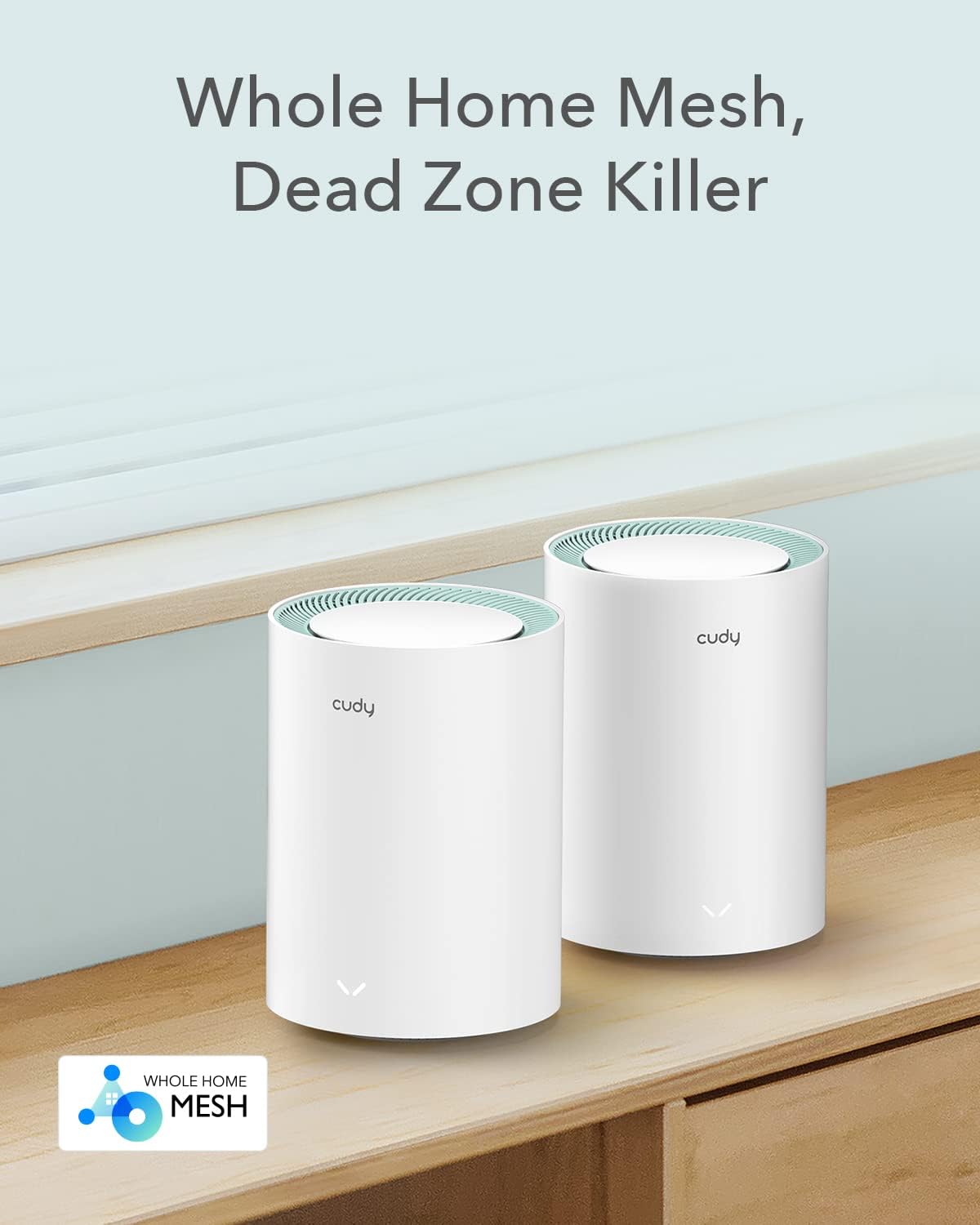
Image: The Cudy M1300 system supporting up to 100 devices simultaneously.
6. Āhuatanga Arā
The Cudy M1300 offers several advanced features for enhanced security and network management.
VPN Haumarutanga
Utilize built-in VPN protocols such as OpenVPN, WireGuard, PPTP, L2TP, and ZeroTier to establish secure and reliable connections, protecting your network traffic.
DNS Encryption
Enhance your online privacy and security with DNS encryption over Cloudflare or NextDNS.
Nga Mana Matua me te QoS
Manage internet access for family members with parental controls, including URL blacklisting and time scheduling. Quality of Service (QoS) allows you to prioritize network traffic for specific applications or devices.

Whakaahua: Ka mutuview of advanced security and privacy features, including VPN and DNS encryption.

Image: Parental control features for managing network access.
7. Te Raru
If you encounter issues with your Cudy M1300 Mesh WiFi System, try the following steps:
- Tirohia nga Tohu LED: Refer to the LED status on your M1300 units. A solid blue light typically indicates a healthy connection, while other colors or patterns may signal an issue. Consult the Cudy app for detailed explanations of LED statuses.
- Manatoko Hononga: Ensure all Ethernet cables are securely plugged into the correct ports on both your modem and the M1300 units.
- Hurihanga Hiko: Disconnect the power from your modem and all M1300 units. Wait for 30 seconds, then reconnect power to your modem first, followed by the main M1300 unit, and then any additional units. Allow each device to fully boot up.
- Relocate Units: If you experience weak signals in certain areas, try repositioning your mesh units closer to each other or to the center of your coverage area. Avoid placing units near large metal objects or appliances that may cause interference.
- Cudy App Diagnostics: Use the Cudy app's diagnostic tools to identify and resolve common network problems.
8. Whakatakotoranga
| Āhuahira | Taipitopito |
|---|---|
| Hunga Hua | 19.69 x 19.69 x 11.02 inihi |
| Taumaha Tūemi | 2.42 pauna |
| Tauira Tuemi | M1300 |
| Waitohu | Cudy |
| Ingoa Tauira | M1300 2-Pack |
| Nga waahanga motuhake | Access Point Mode, Beamforming, Parental Control, QoS, Remote Access |
| Karaehe Band Auautanga | Pee-rua |
| Paerewa Whakawhitinga Korerokore | 802.11ac |
| Pūrere Hototahi | Rorohiko Whaiaro, Kāmera Haumarutanga, Pouaka Whakaata Atamai, Waea Atamai, Papaaho |
| Nga Whakamahinga Manakohia | Business, Home, Indoor |
| Hangarau Hononga | Itarangi |
| Momo Antenna | Roto |
9. Tautoko me te Whaimana
For technical support, warranty information, or further assistance with your Cudy M1300 Mesh WiFi System, please refer to the official Cudy website or contact Cudy customer support directly. Details regarding product warranty and service terms are typically provided with your purchase or available online.


