1. Hua Neke Atuview
The HUAWEI WiFi AX2 is a high-performance wireless router designed to provide fast and reliable internet connectivity throughout your home. It supports Wi-Fi 6 technology, offering speeds up to 1500 Mbps, with a 5GHz band supporting up to 1201 Mbps and a 2.4GHz band supporting up to 300 Mbps. This router features HarmonyOS Mesh+ for seamless multi-router setups, comprehensive parental controls, and an advanced antenna design for stable connections.
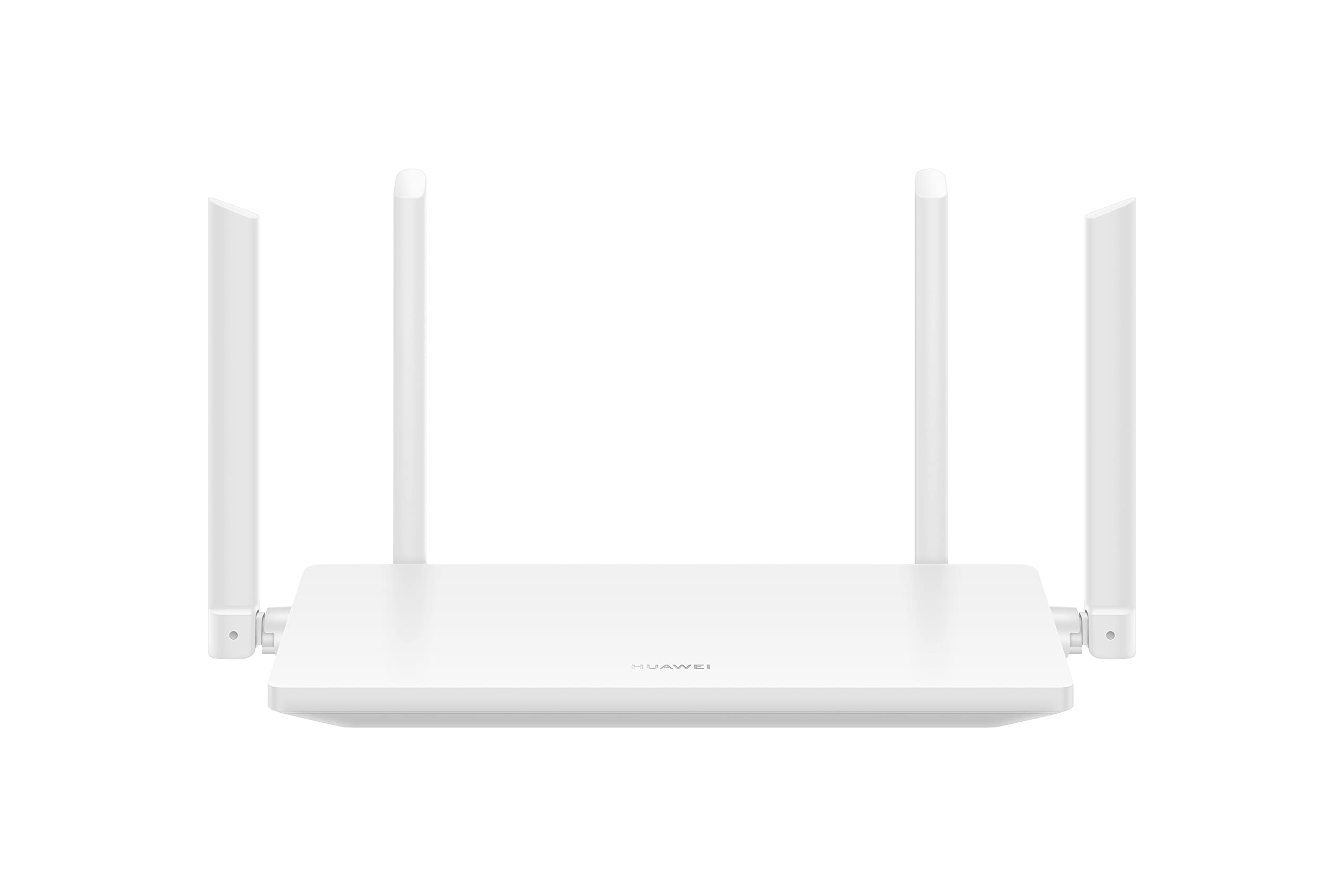
Whakaahua 1.1: Mua view of the HUAWEI WiFi AX2 Wireless Router, showing its sleek white design and four external antennas.
2. Ihirangi mokete
I mua i te haere ki te tatūnga, me whakarite kei te noho nga taonga katoa i roto i te kete:
- HUAWEI WiFi AX2 Wireless Router (WS7001-20)
- Pūurutau Hiko
- Tauira Itarangi
- Aratohu Timata Tere
- Kaari Raati
3. Tohutohu Tatūnga
Follow these steps to set up your HUAWEI WiFi AX2 Router:
- Tūhonohia te Pūurutau Hiko: Monohia te urutau hiko ki te putanga hiko o te pouara, kātahi ki te putanga pakitara. Me kā te rama tohu hiko o te pouara.
- Hono ki te Ipurangi: Connect one end of the Ethernet cable to the WAN port (usually labeled 'WAN' or a globe icon) on your router and the other end to your modem's LAN port.
- Tūhono ō Pūrere:
- Hononga Waea: Connect your computer or other network devices to any of the LAN ports (labeled 1, 2, 3) on the router using an Ethernet cable.
- Hononga Ahokore: On your Wi-Fi enabled device (smartphone, tablet, laptop), search for the Wi-Fi network name (SSID) printed on the label at the bottom of your router. Select it and enter the Wi-Fi password (also on the label).
- Uru ki te Web-based Management Page: Tuwhera a web pūtirotiro i runga i te taputapu hono ka tomo 192.168.3.1 in the address bar. Follow the on-screen instructions to complete the initial setup, including setting up your Wi-Fi name and password.
- Download the HUAWEI AI Life App: For easier management and advanced features, download the HUAWEI AI Life app from your device's app store. Use the app to configure settings, manage connected devices, and utilize parental controls.

Whakaahua 3.1: Whakamuri view of the HUAWEI WiFi AX2 Router, showing the power port, three LAN/WAN ports, and the WPS/Reset button.
4. Nga Tohutohu Whakahaere
4.1 Dual-Band Automatic Switching
The HUAWEI WiFi AX2 operates on both 2.4GHz and 5GHz bands simultaneously. It intelligently switches your devices between these bands to ensure optimal connection quality and speed at all times. This means you don't need to manually select between 2.4GHz and 5GHz networks.
4.2 HarmonyOS Mesh+
If you have multiple HUAWEI routers that support HarmonyOS Mesh+, you can group them under a single Wi-Fi name. This creates a unified mesh network, allowing your devices to automatically switch between routers as you move around your home, ensuring continuous and strong Wi-Fi coverage.
4.3 Comprehensive Parental Control
Manage your family's internet usage with the built-in parental control features. Through the HUAWEI AI Life app, you can:
- Āraia te urunga ki ngā mea kāore i te tika webpae.
- Limit internet access time for specific devices.
- View internet usage statistics for connected devices.
5. Tiaki
Hei whakarite i te mahi tino pai me te roa o te ora o tō pouara, whakaarohia ēnei tohutohu tiaki e whai ake nei:
- Turanga: Place the router in a central location, away from obstructions, large metal objects, and other electronic devices that may cause interference. Ensure adequate ventilation around the router.
- Whakahōu Firmware: Tirohia me te tāuta i ngā whakahōutanga pūmanawa i ia wā mā te taupānga HUAWEI AI Life, mā te web-based management page. Updates often include performance improvements and security patches.
- Kei te whakaara ano: Mena ka pa ki a koe nga raru o te whatunga, ngana ki te whakaara ano i te pouara ma te wetewete i te urutau hiko mo te 10 hēkona katahi ka mono mai ano.
- Te horoi: Puritia te pouara kia ma, kia kore hoki he puehu. Whakamahia he kakahu ngohengohe, maroke hei muru i te taha o waho. Kaua e whakamahi i ngā wai horoi.

Whakaahua 5.1: Taha view of the HUAWEI WiFi AX2 Router, highlighting the ventilation slots for proper heat dissipation.
6. Te Raru
If you encounter issues with your HUAWEI WiFi AX2 Router, refer to the following common problems and solutions:
| Raruraru | Take pea | Rongoā |
|---|---|---|
| Kaore he Urunga Ipurangi | Incorrect cable connection, modem issue, or incorrect router settings. | Check that the Ethernet cable is securely connected to the WAN port and your modem. Reboot both the modem and the router. Verify internet settings via the web-based management page or AI Life app. |
| Tere Pūngoi o te Wi-Fi | Interference, too many connected devices, outdated firmware, or poor router placement. | Ensure the router is placed optimally (see Maintenance section). Reduce the number of active devices. Update router firmware. Consider if your internet service provider (ISP) speed is the bottleneck. |
| Wi-Fi Disconnects Frequently | Signal interference, distance from router, or channel congestion. | Move closer to the router. Check for sources of interference (e.g., microwaves, cordless phones). Use the AI Life app to analyze Wi-Fi channels and switch to a less congested one. |
| Cannot Access Router Settings Page | Incorrect IP address, device not connected to router, or browser issue. | Ensure your device is connected to the router's Wi-Fi or via an Ethernet cable. Verify you are entering 192.168.3.1 correctly. Try a different web pūtirotiro. |
If the problem persists, perform a factory reset by pressing and holding the WPS/Reset button on the back of the router for approximately 10 seconds until the indicator light flashes. Note that a factory reset will erase all your custom settings.
7. Whakatakotoranga
| Āhuahira | Taipitopito |
|---|---|
| Waitohu | HUAWEI |
| Ingoa Tauira | WS7001-20 |
| Tauira Tuemi | WS7001-20 |
| Hunga Hua | 25.76 x 16.35 x 2.9 cm |
| Taumaha Tūemi | 580 g |
| Momo Ahokore | 802.11ax (Wi-Fi 6) |
| Karaehe Band Auautanga | Rōpū-rua (2.4GHz & 5GHz) |
| Hangarau Hononga | Wi-Fi |
| Pūnaha Mahi | RouterOS |
| Te maha o nga Tauranga | 3 (LAN/WAN auto-sensing) |
| Nga waahanga motuhake | Aratau Pito Whakauru |
| Pūrere Hototahi | Waea atamai, Papa |
| Whakamahinga Manakohia mo te Hua | Kainga |
| Kei roto nga pākahiko | Kao |
| Te Ra Tuatahi Wātea | Mahuru 7, 2023 |
8. Pūtāhui me te Tautoko
8.1 Nga Korero Whakaputanga
For detailed warranty information, please refer to the warranty card included in your product package or visit the official HUAWEI webpae. Ka rereke pea nga tikanga me nga tikanga mo ia rohe me nga kaihoko.
8.2 Tautoko Hangarau
If you require further assistance or have technical questions not covered in this manual, please contact HUAWEI customer support. You can find contact details on the official HUAWEI website or through the HUAWEI AI Life app.


