1. Kupu Whakataki
Welcome to the user manual for your Logitech M705 Marathon Wireless Mouse. This document provides essential information for setting up, operating, and maintaining your device, ensuring optimal performance and longevity. The M705 mouse is designed for comfort and efficiency, featuring a long battery life and customizable controls for enhanced productivity.
2. Hua Neke Atuview
Nga waahanga matua
- Roa te Ora Pūhiko: Enjoy up to 3 years of battery life, reducing the need for frequent replacements.
- Hoahoa Ergonomic: Sculpted to fit the natural curve of your right hand, providing comfort during prolonged use.
- Panuku Tere-Tuipaku: Navigate through long documents and web pages with a single spin of the scroll wheel, or switch to click-to-click scrolling for precision.
- Pātene Whakahōtaka: Five customizable buttons, including forward/back thumb buttons, allow for personalized shortcuts and enhanced control.
- Kaiwhiwhi Whakakotahi: A small USB Unifying receiver connects up to six compatible Logitech devices, freeing up USB ports.
- Hototahi Whānui: Compatible with Windows, macOS, Chrome OS, and Linux operating systems.
Ihirangi mokete
The Logitech M705 Marathon Wireless Mouse package typically includes:
- Maatohu Moutere M705
- Logitech Unifying USB Kaiwhiwhi
- 2 AA Alkaline Batteries (may vary by region/packaging)

3. Tohutohu Tatūnga
3.1. Tāuta Pūhiko
- Turn the mouse over and locate the battery compartment cover on the underside.
- Press the release button or slide the cover to open the compartment.
- Whakauruhia nga pākahiko AA e rua, kia tika te polarity (+/-).
- Whakakapia te uhi o te wahanga pākahiko.

3.2. Connecting the USB Unifying Receiver
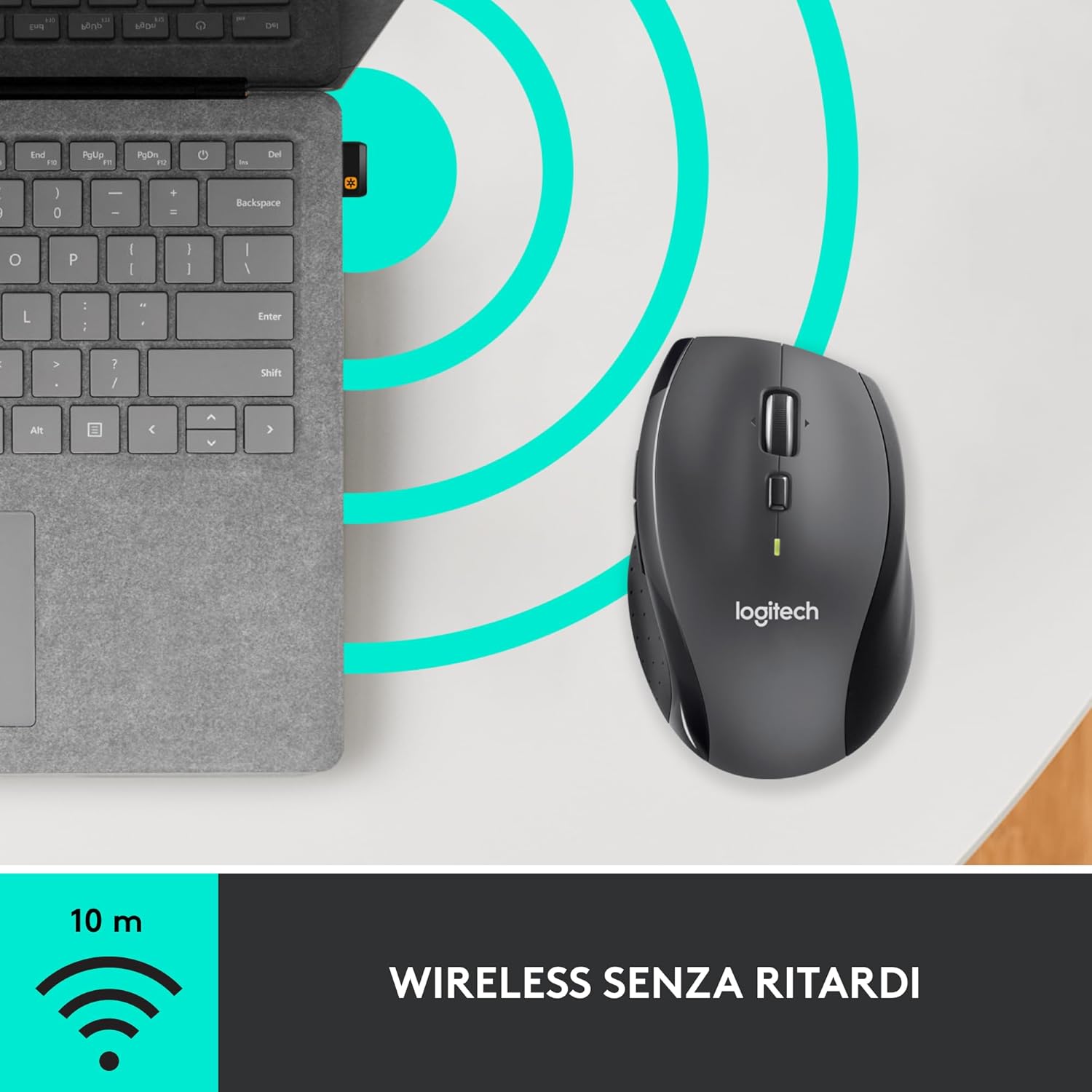
- Locate the small USB Unifying receiver. It may be stored inside the battery compartment of the mouse.
- Monohia te kaiwhiwhi USB ki tetahi tauranga USB e waatea ana ki to rorohiko.
- Whakakāhia te kiore mā te whakamahi i te pātene Whakakā/Whakaweto kei raro.
- Your computer should automatically detect the mouse. If not, visit the Logitech support website for driver installation.
4. Nga Tohutohu Whakahaere
4.1. Nga Mahi Kiore Taketake
The M705 mouse features standard left and right-click buttons, a scroll wheel, and additional programmable buttons.

4.2. Panuku Tere-Hiper
E rua nga ahuatanga o te wira panuku:
- Aratau Tere-Hipero: Press the button directly below the scroll wheel to unlock it for smooth, rapid scrolling through long documents or web wharangi.
- Aratau Pāwhiri-ki-Pāwhiri: Press the button again to engage precise, stepped scrolling, ideal for navigating lists or image galleries.

4.3. Patene Papatono
The M705 features five programmable buttons, including two thumb buttons and tilt-scroll functionality. These can be customized using the Logitech Options software.

5. Whakaritenga
Hei iriti i te kaha katoa o to kiore M705, tango me te whakauru i te punaha Logitech Options mai i te Logitech mana. webpae. Ma tenei rorohiko ka taea e koe te:
- Assign custom functions to the five programmable buttons.
- Adjust tracking speed (DPI).
- Configure application-specific settings.
- Tirohia te mana puhiko.

6. Tiaki
6.1. Te horoi
Hei horoi i to kiore, whakamahia he kakahu ngohengohe, kore-puru. Mo te paru maro, paku dampen the cloth with water. Avoid using harsh chemicals or abrasive materials, as these can damage the mouse surface or internal components.
6.2. Whakakapinga Pūhiko
When the battery indicator light on your mouse begins to flash or if performance degrades, it's time to replace the batteries. Follow the steps in Section 3.1 to replace the two AA batteries. Dispose of old batteries responsibly according to local regulations.
7. Te Raru
7.1. Kaore Te Kiore e Whakautu
- Me whakarite kua whakakā te kiore.
- Tirohia te taumata pākahiko me te whakakapi i nga pākahiko ki te tika.
- Verify the USB Unifying receiver is securely plugged into a working USB port.
- Whakamātauria te mono i te kaiwhiwhi ki tetahi tauranga USB rereke, ki tetahi rorohiko rereke ranei hei wehe i te take.
- Mena kei te whakamahi i te puku USB, ngana ki te hono tika ki te rorohiko.
7.2. Nekehanga Pehu Pohehe
- Horoia te pūoko whatu kei raro o te kiore.
- Ensure you are using the mouse on a suitable surface. Highly reflective or transparent surfaces may cause tracking issues. A mouse pad is recommended.
- Check for interference from other wireless devices. Move the mouse closer to the USB receiver.
7.3. Unifying Receiver Issues
If the mouse loses connection or you need to pair it with a new receiver, download the Logitech Unifying Software from the Logitech support website. This software guides you through the pairing process.
8. Whakatakotoranga
| Āhuahira | Taipitopito |
|---|---|
| Waitohu | Logitech |
| Ingoa Tauira | M705 |
| Tau tauira | 910-001949 |
| Hangarau Hononga | Wireless (2.4 GHz USB Unifying Receiver) |
| Hangarau Hangarau Nekehanga | Taiaho |
| Whakataunga Nekehanga | 1000 DPI (up to 3200 DPI maximum resolution) |
| Te maha o nga Patene | 5 Patene Papatono |
| Puna Mana | Battery (2 x AA Alkaline) |
| Toharite Pūhiko Ora | Tae atu ki te 3 Tau |
| Mokowoko Korekore | Tae atu ki te 10 mita |
| Tauwehe Puka | Right-hand ergonomic |
| Ahu (L x W x H) | 20 x 13 x 12 cm (Ngā rahinga o te takai hua) |
| Taumaha | 136 karamu |
| Pūnaha Whakahaere Hototahi | Windows 7, 8, 10; macOS 10.11 or later; Chrome OS; Linux |
9. Pūtāhui me te Tautoko
Mo nga korero mo te whakamana me te tautoko hangarau, tirohia te Logitech mana website or contact Logitech customer service. Keep your proof of purchase for warranty claims.


