1. Fampidirana
Thank you for choosing the Cherry KW 7100 Mini Multi-Device Compact Keyboard. This manual provides essential information for setting up, operating, and maintaining your new keyboard. Designed for versatility and portability, this keyboard offers seamless connectivity across multiple devices.
2. Inona no ao anaty boaty
- Cherry KW 7100 Mini Multi-Device Compact Keyboard
- USB-C to USB-A Charging/Connection Cable
- 2x AAA Batterie
- 2.4 GHz Wireless Nano Receiver (stored magnetically in the keyboard)
- Carrying Case
- Boky torolalana

Sary 1: Ambony midina view of the Cherry KW 7100 Mini Keyboard.
3. Fametrahana
3.1. Fametrahana bateria
- Tadiavo ny toerana misy ny bateria eo ambanin'ny fitendry.
- Atsofohy ny fonony.
- Ampidiro ny batteries AAA roa, hiantohana ny polarity marina (+/-).
- Akatona tsara ny saron'ny efitrefitra bateria.
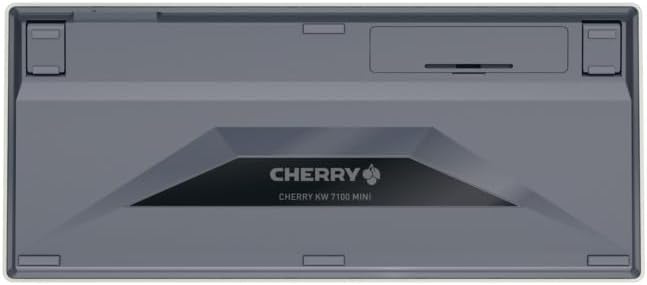
Figure 2: Underside of the keyboard with the battery compartment.
3.2. Mampifandray ny Keyboard
The Cherry KW 7100 Mini supports three connection methods: Bluetooth, 2.4 GHz Wireless, and Wired USB-C.
3.2.1. Bluetooth Connection (Up to 3 Devices)
- Alefaso ny kitendry amin'ny alàlan'ny fametahana herinaratra eo amin'ny sisiny.
- Press and hold one of the Bluetooth channel keys (F1, F2, or F3) for 3-5 seconds until the corresponding LED indicator blinks rapidly. This indicates pairing mode.
- On your device (laptop, smartphone, tablet), navigate to Bluetooth settings and search for available devices.
- Select "Cherry KW 7100" from the list to pair. The LED will stop blinking and remain solid for a few seconds upon successful connection.
- Repeat for up to two additional devices using the other Bluetooth channel keys (F1, F2, or F3).
3.2.2. Fifandraisana tsy misy tariby 2.4 GHz
- Locate the 2.4 GHz wireless nano receiver, typically stored magnetically in a slot on the underside of the keyboard.
- Insert the nano receiver into an available USB-A port on your computer.
- Alefaso amin'ny alalan'ny bokotra herinaratra ny fitendry. Tokony hifandray ho azy amin'ny mpandray ny fitendry.
3.2.3. Fifandraisana USB-C misy tariby
- Ampifandraiso amin'ny seranana USB-C eo amin'ny fitendry ny tendrony iray amin'ny tariby USB-C omena.
- Ampifandraiso amin'ny seranana USB-A misy ao amin'ny solosainao ny ilany ilan'ny tariby USB-C.
- The keyboard will function as a wired keyboard.
Video 1: Demonstrating the setup and typing experience of the Cherry KW 7100 Mini Keyboard.
4. Fampandehanana ny Kitendry
4.1. Fifandimbiasan'ny fitaovana mifandray
To switch between paired Bluetooth devices, simply press the corresponding Bluetooth channel key (F1, F2, or F3) that your device is paired to. The keyboard will automatically connect to the selected device.
4.2. Function Keys (FN)
The keyboard features a dedicated FN key, typically located near the right Shift key. This key, in combination with other keys, activates secondary functions such as media controls, screen brightness, and other system commands. Refer to the keycap legends for specific FN key combinations.
4.3. Tondro LED
LED indicators on the keyboard provide information about its status:
- Bluetooth Channel LEDs (F1, F2, F3): Indicate the currently active Bluetooth connection or pairing mode.
- Caps Lock LED: Mirehitra rehefa miasa ny Caps Lock.
- LED Status bateria: Manondro ny haavon'ny bateria ambany.
4.4. tongotra azo zahana
The keyboard is equipped with stable, fold-out feet on the underside. These allow you to adjust the typing angle for improved ergonomics and comfort.
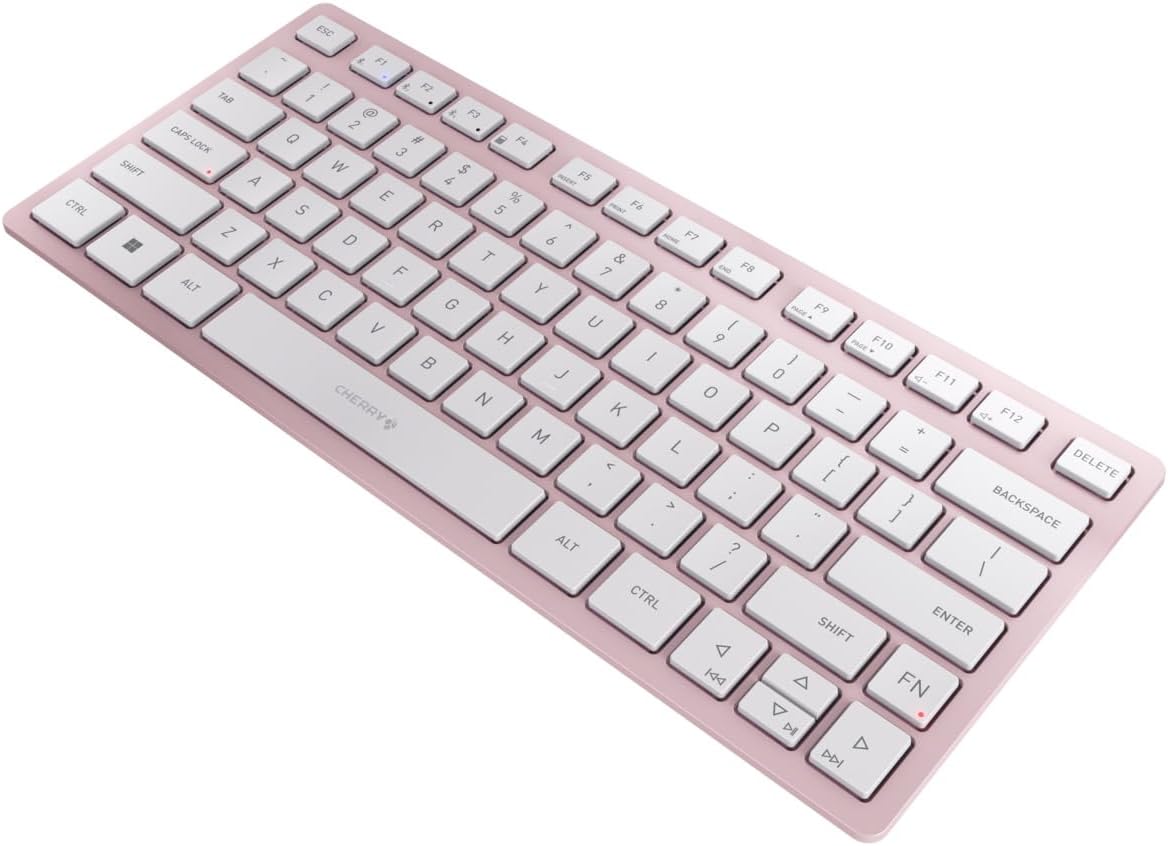
Sary 3: Angled view of the keyboard, highlighting its slim profile.

Sary 4: lafiny view showing the adjustable feet extended for an ergonomic typing angle.
5. Fikojakojana
5.1. Fanadiovana
To clean your keyboard, gently wipe the keycaps and surface with a soft, lint-free cloth. For stubborn dirt, slightly dampen the cloth with water or a mild, non-abrasive cleaning solution. Avoid excessive moisture and do not spray cleaners directly onto the keyboard.
5.2. fitahirizana
When not in use, especially during travel, store the keyboard in its included carrying case to protect it from dust, scratches, and minor impacts.

Figure 5: The keyboard stored in its protective carrying case.
6. Famahana olana
6.1. Keyboard Not Connecting
- Ataovy azo antoka fa mandeha ny klavier.
- Jereo ny bateria ary soloy raha ilaina.
- For Bluetooth, ensure the correct channel (F1, F2, or F3) is selected and the keyboard is in pairing mode (blinking LED).
- For 2.4 GHz wireless, ensure the nano receiver is securely plugged into a USB-A port.
- Try connecting via the USB-C cable to rule out wireless issues.
- Avereno indray ny fitaovanao ary andramo hampiaraka indray.
6.2. Keys Not Responding
- Check the connection as described above.
- Ataovy azo antoka fa tsy misy poti-javatra mipetraka eo ambanin'ny fanalahidy.
- Raha mampiasa fifandraisana misy tariby ianao dia andramo mampiasa seranana na tariby USB hafa.
6.3. Faharetan'ny bateria fohy
- Ataovy azo antoka fa mampiasa bateria AAA vaovao sy avo lenta ianao.
- Turn off the keyboard when not in use to conserve battery power.
7. Famaritana
| endri-javatra | famaritana |
|---|---|
| Anarana modely | KW7100 |
| Laharana modely | JK-7100US-19 |
| Marika | serizy |
| Teknolojia fifandraisana | Bluetooth 5.1 (3 channels), 2.4 GHz Wireless, USB-C Wired |
| Fitaovana mifanentana | Laptop, Smartphone, Tablet |
| Famaritana kitendry | Compact, Multi-Device |
| Mekanisma fototra | CHERRY SX Scissor Mechanism |
| Loharanon-kery | 2x AAA Batterie |
| fanafenana | AES-128 |
| Ny refin'ny vokatra | 11.6 x 5.1 x 0.6 santimetatra |
| Lanja entana | 1.4 kg |
| KEVITRA | Metal, plastika |
| loko | Voninkazo serizy |
8. Warranty sy fanohanana
This product is covered by Cherry's standard manufacturer warranty. For detailed warranty information, technical support, or service inquiries, please visit the official Cherry webtranokala na mifandray mivantana amin'ny fanohanan'ny mpanjifany.
Mpanamboatra: serizy
Webtranokala: www.cherry.de


