
INSTRUCTION MANUAL
Matter Switch Module
(1CH,2CH,3CH,4CH)
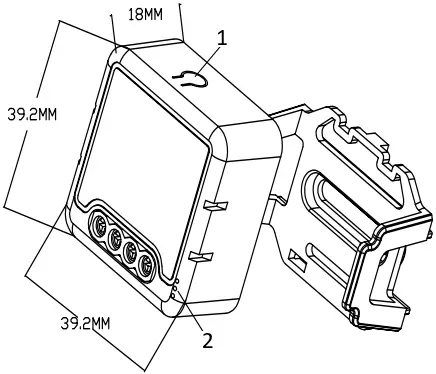
Mounting Clip
1. Reset Key
2. Indicator Light


Wiring Instructions and Diagrams
- Turn off the power supply before carrying out any electrical installation work.
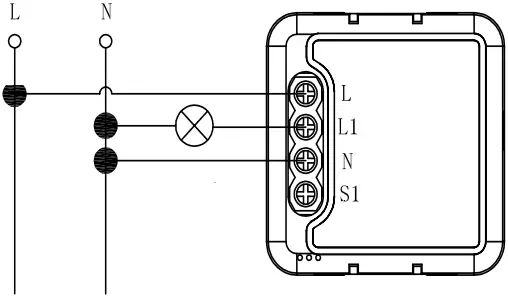
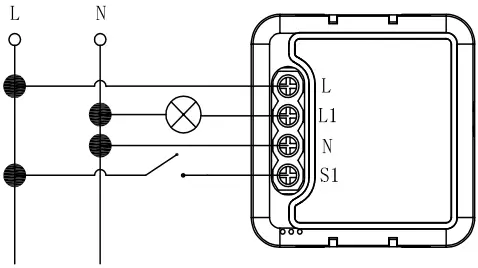
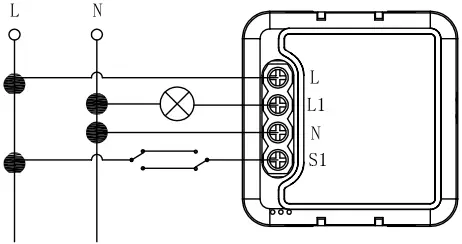
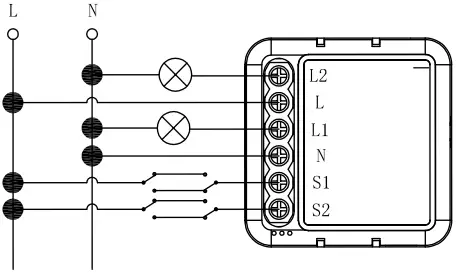
- Connect wires according to the wiring diagram.
- Insert the module into the junction box.
- Turn on the power supply and follow switch module configuration instructions.
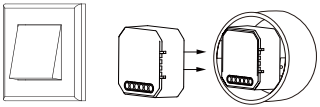
Without Switch
TECHNICAL SPECIFICATIONS
| Product type | Matter Switch Module |
| Voltage | AC100-240V 50/60Hz |
| Max. load |  1CH : 16A 2CH : 2x5A 1CH : 16A 2CH : 2x5A3CH : 3×3.3A 4CH : 4×2.5A |
| Operation frequency | 2.412GHz-2.484GHz |
| Operation temp. | -10℃ + 40℃ |
| Protocol | Matter |
| Operation range | <100m |
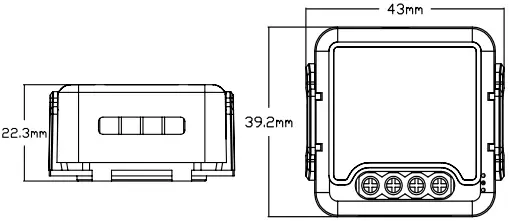
| Dims (WxDxH) | 39.2×39.2×18 mm |
| IP rating | IP20 |
| Warranty | 2years |
| Certificates | CE ROHS |
with mounting clip
1CH Matter Switch Module
Single Control
Double Switch
INSTALLATION
 Warnings:
- Installation must be carried out by a qualified electrician in accordance with local regulations.
- Keep the device out of reach of children.
- Keep the device away from water , damp or hot environment.
- Install the device away from strong signal sources such as microwave oven that may cause signal interruption resulted to abnormal operation of the device.
- Obstruction by concrete wall or metallic materials may reduce the effective operation range of the device and should be avoided.
- Do NOT attempt to disassemble, repair or modify the device.
2CH Matter Switch Module
Without Switch

Single Control
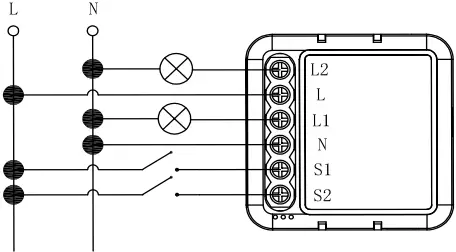
Double Switch
3CH Matter Switch Module
Without Switch
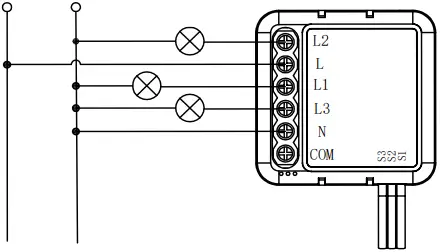
Single Control
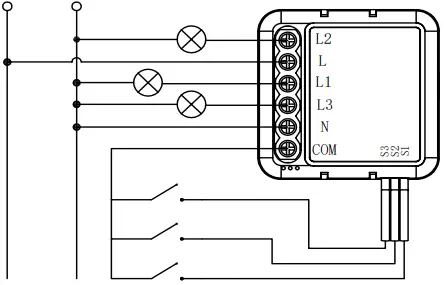
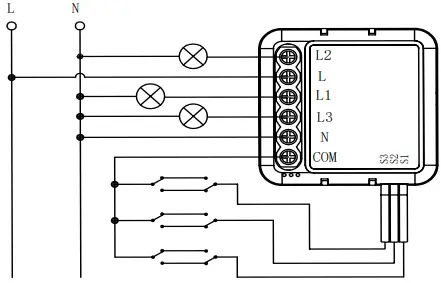
4CH Matter Switch Module
Without Switch
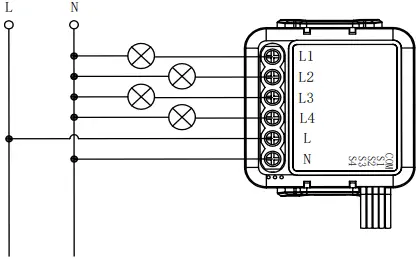
Single Control
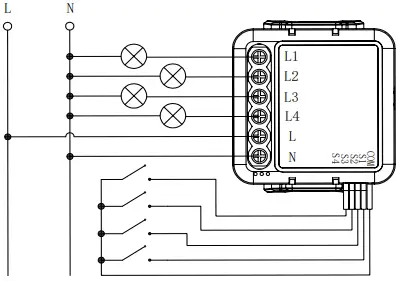
Double Switch

Home APP Instruction (1)
Pay attention:
(1) The mobile phone lOS system version must be 16.0 or later.
(2) A home hub (such as HomePod, HomePod mini, App ble TV, or iPad)must be set up to add the Matter accessory to the home App;
(3) The Wi-Fi configured when pairing must be in the LAN with the hub.
Download App
(1) Open the APP Store, search the “Homekit” and download the APP.
(2) After the download,open the APP and log in using the local iCloud account.
Add device
Be default, the device is in standby mode (the pairing indicator flashes); without the network status, please press the reset key for 5 seconds, and then add the device.
The Device only supports 2.4GHz Wi-Fi signal, need to use the home hub to add.
Scan the device QR code to add (2)

Add via Serial number (3)
a, The APP automatically searches for the nearby devices, clicks the device icon, and input the serial number to add

(4)
b. If no device is found, clicks “My Accessory Isn’t Shown Here”

Share device (5)
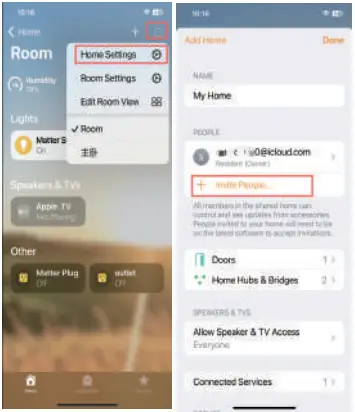
FAQ
a. Please check whether device is powered on.
b. Make sure your mobile and switch module are under the same 2.4 Ghz WIFI network.
c. Whether it’s in good internet conditions.
d. Make sure the password entered in App is correct.
e. Make sure the wiring is correct.
Most of your household electrical appliances can be, such as lamps, laundry machine, coffe maker, etc.
You can still control the device connected the switch module with your traditional switch and once WIFI is active again the device connected to module will connect automatically to your WIFI network.
You have to re-connect our Wi-Fi switch module to the new Wi-Fi network accordingly as per the App User Manual.
press the reset key for about 10 seconds until the indicator light inside the module is flashing quickly for pairing.
Documents / Resources
 | 1CH Switch Module |
References
- User Manualmanual.tools
Comment créer une scène avec l’interrupteur 1CH wiki Switch module
How do I create a scene with the 1CH Switch Module?
Since the Matter Made 1CH Switch Module uses the Matter protocol and is designed for use with the Apple Home (HomeKit) app, scenes are created directly within that application. Follow these steps based on the app interface shown in the manual:
Note: To use automation and scenes with Matter devices, you must have a home hub set up, such as a HomePod, HomePod mini, Apple TV, or iPad.
Note: The user mentioned "wiki Switch module"; this appears to be a reference to the product name or a specific app version, but the instructions remain standard for the Matter/HomeKit ecosystem described in the manual.
Resetting for Pairing: If you cannot see the device to add it to a scene, ensure it is paired. You can reset the device by pressing the reset key for about 10 seconds until the indicator light flashes quickly.
Wiring Warning: Ensure the module is installed by a qualified electrician according to the wiring diagrams provided in the manual before attempting software setup.
Technical Support: If you are using a different Matter-compatible app (like Google Home or Alexa), the "Add Scene" or "Routine" function will be located in that specific app's settings menu.
Manual Reference: See the "Home APP Instruction" section on page 2 of your manual for visual guidance on the Home app interface.
Troubleshooting: If the device is not responding, check that your mobile device and the switch module are on the same 2.4 GHz Wi-Fi network.
Read the full Q&A page