Ievads
The Intermec PB51 is a rugged, 4-inch direct thermal mobile receipt printer designed for demanding field service, route accounting, and point-of-service applications. It offers fast, reliable printing performance to enhance productivity for mobile workers.
This manual provides essential information for the proper setup, operation, maintenance, and troubleshooting of your PB51 printer.
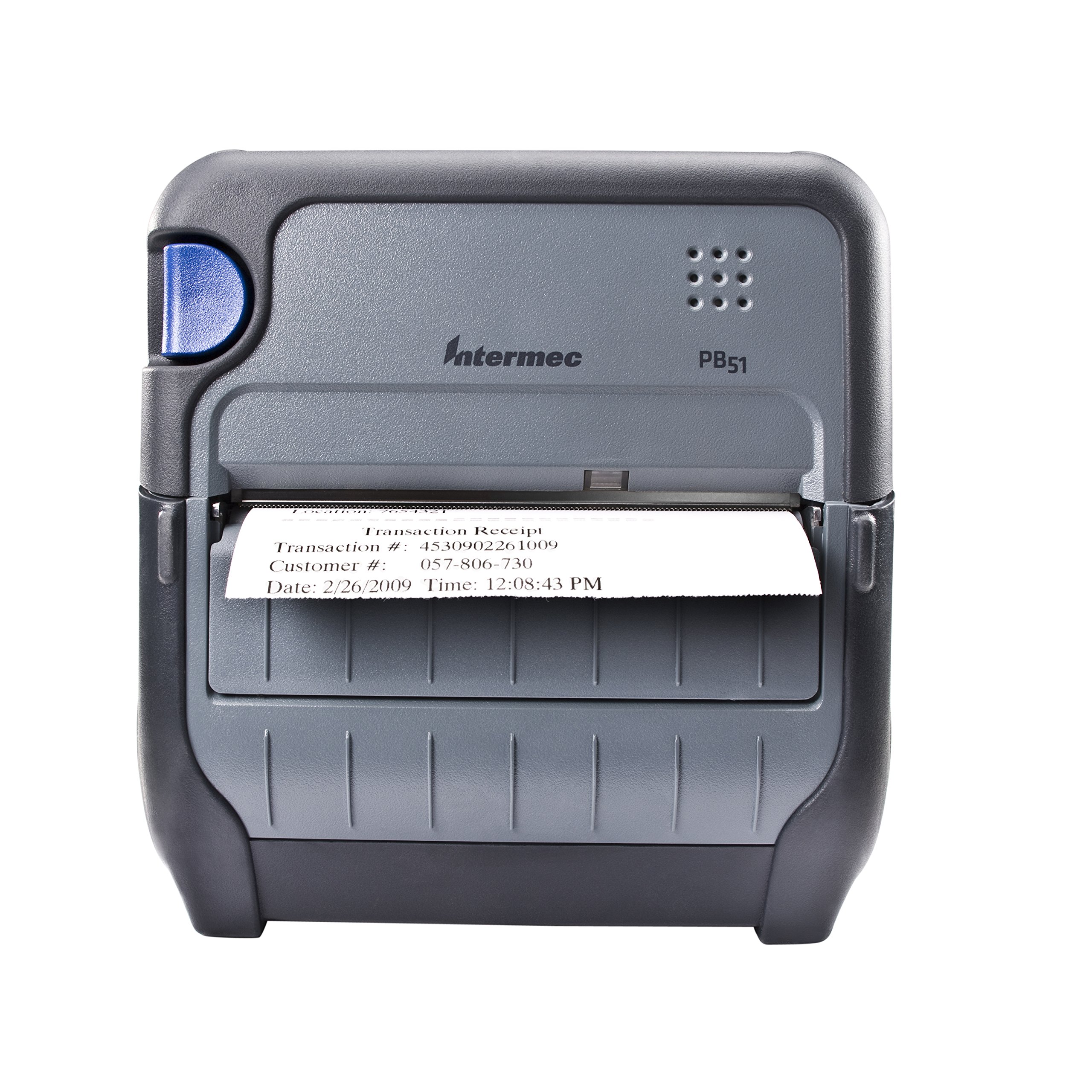
1. attēls. Priekšpuse view of the Intermec PB51 mobile receipt printer. A receipt is partially ejected from the front slot, displaying "Transaction Receipt", "Transaction #: 4530902261009", "Customer #: 057-806-730", and "Date: 2/26/2009 Time: 12:08:43 PM". The printer features a dark gray casing with a blue button on the left side and the "Intermec PB51" logo on the top panel.
Iestatīšana
1. Izpakošana un pārbaude
- Uzmanīgi izņemiet printeri un visus piederumus no iepakojuma.
- Pārliecinieties, vai ir visas pavadzīmē norādītās sastāvdaļas.
- Inspect the printer for any visible damage. If damage is found, contact your supplier immediately.
2. Akumulatora uzstādīšana un uzlāde
- Pārliecinieties, vai printeris ir izslēgts.
- Atrodiet printera akumulatora nodalījumu.
- Ievietojiet akumulatoru, pārliecinoties, ka kontakti ir pareizi izlīdzināti.
- Droši aizveriet akumulatora nodalījumu.
- Connect the AC adapter to the printer and a power outlet. The battery indicator light will show charging status. Allow the battery to fully charge before first use.
3. Termopapīra ievietošana
- Atveriet papīra nodalījuma vāku.
- Insert the thermal paper roll with the print-side facing the print head.
- Pull a small amount of paper out past the print mechanism.
- Close the paper compartment cover firmly until it latches.
- The printer's paper sensors will detect the paper, minimizing lost transactions.
4. Connectivity Setup (Bluetooth / USB / Serial)
- Bluetooth: Turn on the printer and enable Bluetooth on your host device (e.g., smartphone, tablet, or computer). Meklēt available devices and select the PB51. Pair using the default PIN (refer to the printer's display or documentation for the specific PIN).
- USB: Connect the printer to your host device using a standard USB cable. Install the necessary printer drivers on your host device if prompted.
- Sērija: Connect the printer to your host device using a serial cable. Configure the serial port settings (baud rate, data bits, parity, stop bits) on both the printer and the host device to match.
Lietošanas instrukcijas
1. Ieslēgšana/izslēgšana
- Lai ieslēgtu, nospiediet un turiet barošanas pogu, līdz displejs iedegas.
- To power off, press and hold the power button until the display indicates shutdown, then release.
2. Čeka drukāšana
- Ensure the printer is powered on and connected to your host device.
- Open the application on your host device that generates receipts or invoices.
- Initiate the print command from your application. The PB51 is designed for 20-30% faster time-to-receipt printing.
- The printer will automatically feed and print the receipt.
- Tear off the receipt along the serrated edge.
3. LCD displeja lietošana
The standard LCD display provides important information about the printer's status, battery level, connectivity, and error messages. Use the navigation buttons (if present) to scroll through menu options and settings.
Apkope
1. Drukas galviņas tīrīšana
- Power off the printer and disconnect it from any power source.
- Atveriet papīra nodalījumu.
- Viegli noslaukiet drukas galviņas virsmu ar neplūksnojošu drānu dampar izopropilspirtu.
- Pirms vāka aizvēršanas un printera ieslēgšanas ļaujiet drukas galviņai pilnībā nožūt.
- Perform this cleaning regularly, especially if print quality degrades.
2. Akumulatora kopšana
- Lai maksimāli palielinātu akumulatora darbības laiku, izvairieties no biežas akumulatora pilnīgas izlādes.
- Store the printer and battery in a cool, dry place when not in use for extended periods.
- Use only genuine Intermec replacement batteries.
3. Vispārējā tīrīšana
Noslaukiet printera ārpusi ar mīkstu, damp cloth. Do not use harsh chemicals or abrasive cleaners. Ensure no liquid enters the printer's openings.
Problēmu novēršana
| Problēma | Iespējamais cēlonis | Risinājums |
|---|---|---|
| Printeris neieslēdzas | Low or dead battery; faulty power adapter; loose battery connection. | Charge the battery; check power adapter connection; re-seat the battery. |
| Nav drukas izejas | No paper; paper loaded incorrectly; connectivity issue; print head dirty. | Load paper correctly; check Bluetooth/USB/Serial connection; clean print head. |
| Slikta drukas kvalitāte | Dirty print head; incorrect paper type; low battery. | Clean print head; ensure thermal paper is used; charge battery. |
| Savienojuma problēmas | Incorrect pairing; driver issues; out of range. | Re-pair Bluetooth; reinstall drivers; move closer to host device. |
If the problem persists after attempting these solutions, please contact Intermec customer support.
Specifikācijas
| Funkcija | Detaļas |
|---|---|
| Modeļa nosaukums | PB51B33004100 |
| Drukas tehnoloģija | Tiešā termiskā |
| Printera izvade | Vienkrāsains |
| Maksimālais materiāla izmērs | 4 collas |
| Savienojamības tehnoloģija | USB, Serial, Bluetooth |
| Preces svars | 42 Ounces (approx. 2.63 lbs) |
| Iepakojuma izmēri | 10.2 x 10 x 5 collas |
| Kontrollera tips | Android (saderīgs) |
| Ražotājs | Intermec |
Garantija un atbalsts
Specific warranty information for the Intermec PB51 printer is not available in this document. Please refer to the warranty card included with your product or visit the official Intermec (now Honeywell) webvietni, lai iepazītos ar detalizētiem garantijas noteikumiem un nosacījumiem.
For technical support, service, or to purchase accessories, please contact your authorized Intermec/Honeywell dealer or visit their official support portal.


