Įvadas
This manual provides essential instructions for setting up, operating, maintaining, and troubleshooting your OPPO Reno 12 F 5G CPH2637 smartphone. Please read this guide thoroughly to ensure proper use and to maximize the device's capabilities.
1. Sąranka
1.1 Išpakavimas ir pirminė apžiūra
Atsargiai išimkite visus daiktus iš pakuotės. Patikrinkite, ar yra šie komponentai:
- OPPO Reno 12 F 5G CPH2637 išmanusis telefonas
- C tipo USB kabelis
- Maitinimo adapteris
- SIM išstūmimo įrankis
- Greitos pradžios vadovas (šis dokumentas)
Prieš tęsdami, patikrinkite, ar įrenginyje nėra fizinių pažeidimų.
1.2 SIM kortelių įdėjimas
The OPPO Reno 12 F 5G CPH2637 supports Dual SIM functionality.
- Suraskite SIM kortelės dėklą įrenginio šone.
- Įkiškite SIM kortelės išstūmimo įrankį į mažą skylutę šalia dėklo ir švelniai paspauskite, kol dėklas iššoks.
- Įdėkite nano-SIM korteles į tam skirtus dėklo lizdus, užtikrindami, kad auksiniai kontaktai būtų nukreipti žemyn.
- Atsargiai stumkite dėklą atgal į įrenginį, kol jis bus lygiai su šonu.
1.3 Įrenginio įkrovimas
Prieš pirmąjį naudojimą rekomenduojama visiškai įkrauti įrenginį.
- Prijunkite USB C tipo laidą prie telefono apačioje esančio įkrovimo prievado.
- Kitą laido galą prijunkite prie maitinimo adapterio.
- Įkiškite maitinimo adapterį į sieninį lizdą.
- Ekrane pasirodys įkrovimo indikatorius.
1.4 Įjungimas ir pradinė konfigūracija
To power on the device, press and hold the Power button located on the side until the OPPO logo appears. Follow the on-screen instructions to complete the initial setup, including language selection, Wi-Fi connection, Google account setup, and security settings.
2. Naudojimo instrukcijos
2.1 Pagrindinė navigacija
The OPPO Reno 12 F 5G CPH2637 features a touchscreen interface. Use gestures such as tapping, swiping, pinching, and spreading to interact with the device. The navigation bar at the bottom of the screen typically includes Back, Home, and Recent Apps buttons.
2.2 Skambinimas ir žinučių siuntimas
Norėdami skambinti, atidarykite Telefonas programėlėje įveskite numerį ir palieskite skambinimo piktogramą. Norėdami išsiųsti žinutę, atidarykite Žinutės programėlėje palieskite naujos žinutės piktogramą, įveskite gavėją ir savo žinutę, tada palieskite „Siųsti“.
2.3 Prisijungimas prie tinklų
Your device supports both Wi-Fi and 5G cellular networks.
- „Wi-Fi“: Eikite į Nustatymai > „Wi-Fi“., įjunkite „Wi-Fi“, pasirinkite norimą tinklą ir, jei reikia, įveskite slaptažodį.
- 5G korinio ryšio duomenys: Ensure your SIM card has an active 5G plan. Go to Settings > Mobile Network > Data usage to manage your cellular data.
2.4 Kameros naudojimas
Atidarykite Fotoaparatas app from your home screen or app drawer. Tap the shutter button to take a photo. Swipe left or right to switch between different camera modes such as Photo, Video, Portrait, and Night. Tap on the screen to focus on a specific area.
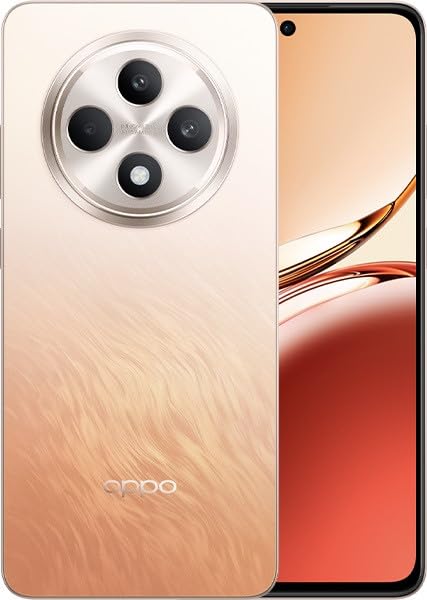
Image: OPPO Reno 12 F 5G CPH2637 smartphone in Amber Orange. This image displays the front and back of the device, highlighting its design and camera module.
2.5 Saugos funkcijos
The device offers various security options to protect your data:
- Piršto atspaudo atrakinimas: Užregistruokite savo pirštų atspaudus Settings > Password & Biometrics > Fingerprint.
- Atrakinimas pagal veidą: Nustatykite veido atpažinimą Settings > Password & Biometrics > Face.
- Ekrano užraktas: Choose a PIN, pattern, or password for screen lock in Settings > Password & Biometrics > Lock screen password.
3. Priežiūra
3.1 Prietaiso valymas
Use a soft, lint-free cloth to clean the screen and body of your phone. Avoid using harsh chemicals, abrasive materials, or aerosol sprays, as these can damage the device's finish and coatings. For stubborn smudges, slightly damplt audinį supilkite vandeniu.
3.2 Programinės įrangos naujiniai
Reguliariai tikrinkite, ar yra programinės įrangos atnaujinimų, ir juos įdiekite, kad užtikrintumėte optimalų našumą, saugumą ir prieigą prie naujų funkcijų. Eikite į Nustatymai > Apie įrenginį > Atnaujinta , kad patikrintumėte, ar yra galimų atnaujinimų.
3.3 Akumuliatoriaus priežiūra
To prolong battery life, avoid exposing the device to extreme temperatures. It is recommended to keep the battery charge between 20% and 80% for daily use. Avoid leaving the phone plugged in for extended periods after it is fully charged.
3.4 Saugojimo valdymas
Periodiškai review ir ištrinkite nereikalingus files, apps, and media to free up storage space. You can check storage usage in Nustatymai > Apie įrenginį > Saugykla.
4. Problemų sprendimas
4.1 Įrenginys neįsijungia
If your device does not turn on, ensure it is sufficiently charged. Connect it to the charger for at least 15 minutes, then try pressing and holding the Power button again for 10-15 seconds.
4.2 Tinklo ryšio problemos
If you experience issues with cellular data or Wi-Fi:
- Įjungti ir išjungti lėktuvo režimą.
- Iš naujo paleiskite įrenginį.
- For cellular issues, ensure your SIM card is properly inserted and your plan is active.
- For Wi-Fi issues, restart your router and ensure you are within range.
4.3 Programėlių strigimas arba užstrigimas
If an app is not responding, try force-closing it from the Recent Apps screen. If the issue persists, clear the app's cache and data in Nustatymai > Programos > [Programos pavadinimas] > Saugyklos naudojimasKraštutiniu atveju pašalinkite ir iš naujo įdiekite programėlę.
4.4 Gamyklinių parametrų atkūrimas
A factory reset will erase all data on your device and restore it to its original factory settings. Back up all important data before performing a factory reset. Eikite į Nustatymai > Sistemos nustatymai > Atsarginių kopijų kūrimas ir nustatymas iš naujo > Telefono nustatymas iš naujo > Ištrinti visus duomenis.
5. Specifikacijos
| Funkcija | Specifikacija |
|---|---|
| Prekės ženklas | OPPO |
| Modelio pavadinimas | Reno 12 F 5G |
| Modelio numeris | CPH2637 |
| Atminties talpa | 256 GB |
| Įdiegtos RAM atminties dydis | 12 GB |
| Korinio ryšio technologija | 5G |
| Ryšio technologija | 5G |
| SIM kortelių lizdų skaičius | Dvi SIM kortelės |
| Spalva | Amber Orange |
| Žmogaus sąsajos įvestis | Jutiklinis ekranas |
| Formos faktorius | Šiferis |
6. Garantija ir palaikymas
Your OPPO Reno 12 F 5G CPH2637 is covered by a limited warranty. Please refer to the warranty card included in your product packaging for specific terms and conditions, including warranty period and coverage details. For technical support, service inquiries, or further assistance, please visit the official OPPO support websvetainėje arba susisiekite su jų klientų aptarnavimo linija savo regione.


