1. Įvadas
This manual provides instructions for the installation, operation, and maintenance of the Poly Studio V52 USB Video Bar. The Poly Studio V52 is designed for medium-sized meeting rooms, offering 4K UHD video conferencing capabilities with advanced AI features for an enhanced collaborative experience.
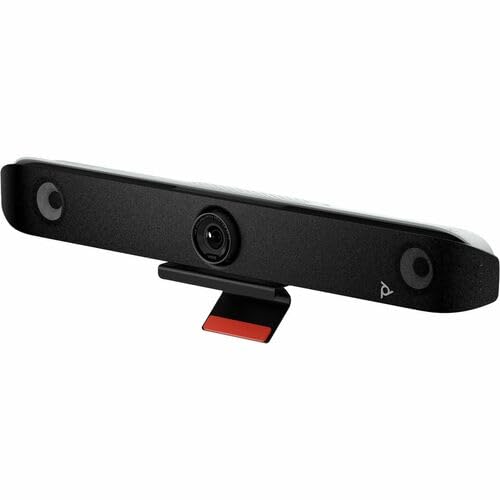
1.1 paveikslas: Priekyje view of the Poly Studio V52 USB Video Bar, showcasing the central camera and integrated speakers.
2. Pakuotės turinys
Prieš tęsdami montavimą, patikrinkite, ar pakuotėje yra visi reikalingi daiktai:
- Poly Studio V52 USB Video Bar
- Maitinimo adapteris ir laidas
- USB Cable (Type-A to Type-C or Type-C to Type-C, depending on model)
- HDMI kabelis
- Wall Mount Kit (if included)
- Greitos pradžios vadovas
- Saugos ir reguliavimo informacija
3. Produktas baigtasview
The Poly Studio V52 integrates a 4K camera, powerful speakers, and advanced microphones into a single device. Key features include:
- 4K UHD kamera: 20 Megapixel sensor with a 95° Field of View (FOV) and 5x digital zoom for clear visuals.
- Integruotas garsas: 4-way speakers deliver room-filling sound, complemented by advanced microphone arrays.
- „Poly Director“ dirbtinis intelektas: Intelligent camera framing to keep participants in view.
- NoiseBlockAI & Acoustic Fence: Technologies for noise reduction and clear voice pickup.
- Lankstus ryšys: USB for host connection, HDMI for display output, and RJ-45 for network.

3.1 paveikslas: Kampuotas view of the Poly Studio V52, highlighting its sleek design and integrated components.
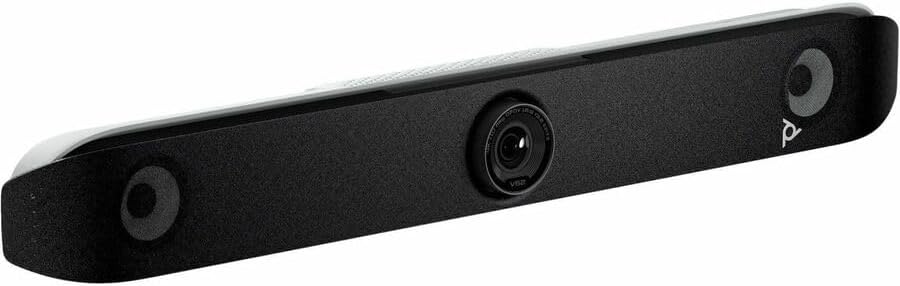
3.2 paveikslas: Galinis view of the Poly Studio V52, illustrating the various connectivity ports including USB, HDMI, and Ethernet.
4. Sąranka
4.1 Fizinis išdėstymas
Position the Poly Studio V52 either above or below your display in the meeting room. Ensure it has a clear line of sight to all participants. If using a wall mount, follow the instructions provided with the wall mount kit.
4.2 Jungiamieji kabeliai
- Prijunkite maitinimą: Plug the power adapter into the Poly Studio V52 and then into a power outlet.
- Prijunkite USB: Connect one end of the USB cable to the USB port on the Poly Studio V52 and the other end to a USB port on your meeting room PC or laptop. This connection enables video, audio, and device control.
- Connect HDMI Out: Connect an HDMI cable from one of the HDMI Out ports on the Poly Studio V52 to an HDMI input on your display(s). The Poly Studio V52 has two HDMI Out ports for dual display support.
- Connect HDMI In (Optional): If you need to share content from another device (e.g., a laptop) directly through the video bar, connect an HDMI cable from that device to the HDMI In port on the Poly Studio V52.
- Prijungti tinklą (neprivaloma): For network management or specific conferencing platforms, connect an Ethernet cable from the RJ-45 port on the Poly Studio V52 to your network switch or router.
Once connected, the device will power on automatically or can be powered on via its power button (if present).
5. Naudojimo instrukcijos
5.1 Pradinis įjungimas
After connecting power, the Poly Studio V52 will typically power on and perform a self-check. Indicators on the device will show its status.
5.2 Naudojimas su konferencijų programine įranga
The Poly Studio V52 functions as a standard USB video and audio device. To use it with your preferred video conferencing application (e.g., Zoom, Microsoft Teams, Google Meet):
- Launch your video conferencing application on the connected PC.
- Navigate to the application's audio and video settings.
- Select "Poly Studio V52" as the camera, microphone, and speaker device.
- Adjust volume and other settings as needed within the application.
5.3 Camera Control and AI Features
The Poly Studio V52 features Poly DirectorAI for automatic camera framing. This technology automatically adjusts the camera to keep all participants in view or to focus on the active speaker. Manual camera controls (pan, tilt, zoom) may be available through the conferencing application or a dedicated Poly management application, if installed.
6. Priežiūra
6.1 Prietaiso valymas
Norint išlaikyti optimalų našumą ir išvaizdą:
- Prieš valydami įsitikinkite, kad prietaisas yra išjungtas ir atjungtas.
- Išorinius paviršius valykite minkštu, sausu, nepūkuotu skudurėliu.
- Įsisenėjusioms dėmėms lengvai nuvalykiteampNuvalykite šluostę vandeniu. Venkite naudoti stiprias chemines medžiagas, abrazyvinius valiklius ar tirpiklius.
- Gently clean the camera lens with a lens cleaning cloth, if necessary.
6.2 Firmware atnaujinimai
Periodically check for firmware updates from the manufacturer's website. Firmware updates can provide new features, performance improvements, and bug fixes. Follow the manufacturer's instructions for applying updates.
7. Problemų sprendimas
| Problema | Galima priežastis | Sprendimas |
|---|---|---|
| Ekrane nėra vaizdo išvesties. | HDMI cable loose or faulty; incorrect display input selected; device not powered on. | Check HDMI cable connections. Ensure display is on correct input. Verify Poly Studio V52 is powered on. |
| Iš garsiakalbių nesklinda garsas. | Volume muted on device or PC; incorrect audio output selected in conferencing software. | Increase volume. Select "Poly Studio V52" as the speaker in your conferencing application settings. |
| Mikrofonas neužfiksuoja garso. | Microphone muted; incorrect audio input selected in conferencing software. | Unmute microphone. Select "Poly Studio V52" as the microphone in your conferencing application settings. |
| Camera not detected by PC. | USB cable loose or faulty; USB port issue; driver issue. | Ensure USB cable is securely connected. Try a different USB port on the PC. Restart PC. Check device manager for driver status. |
| Tinklo ryšio problemos. | Ethernet cable loose; network configuration issue. | Check Ethernet cable connection. Verify network settings on the device (if accessible) or consult network administrator. |
8. Specifikacijos
| Produkto pavadinimas | Poly Studio V52 USB Video Bar |
| Prekės ženklas | HP (polimeras) |
| Modelio numeris | V52 (A09D4AA#ABA) |
| Kameros raiška | 20 megapikselio |
| Laukas View (FOV) | 95° |
| Maksimali vaizdo raiška | 3840 x 2160 (4K UHD) |
| Maksimalus kadrų dažnis | 60 kadrų per sekundę |
| Garso funkcijos | Noise Reduction (NoiseBlockAI), Acoustic Fence, 4-way speakers |
| Tinklo technologija | 10/100/1000Base-T Gigabit Ethernet, Wireless LAN |
| Sąsajos / prievadai | 1x Network (RJ-45), 1x HDMI In, 2x HDMI Out, USB |
| Gaminio matmenys (I x P x A) | 33.3 x 8.3 x 5.8 colio |
| Prekės svoris | 11.45 svaro |
| UPC | 198122618262 |
9. Garantija ir palaikymas
The Poly Studio V52 USB Video Bar is covered by a manufacturer's warranty. For specific warranty terms, duration, and conditions, please refer to the warranty documentation included with your product or visit the official HP/Poly support websvetainę.
For technical support, driver downloads, firmware updates, and additional resources, please visit the official Poly support portal or contact HP customer service. Keep your product model number (V52) and serial number ready when contacting support.
Palaikymas internetu: https://www.poly.com/us/en/support