1. Įvadas
This manual provides detailed instructions for the setup, operation, and maintenance of your KOORUI 27E6QCA 27-inch Curved QHD 180Hz Gaming Monitor. Please read this manual thoroughly before using the product to ensure proper functionality and to prevent damage.
2. Pakuotės turinys
Patikrinkite, ar jūsų gaminio pakuotėje yra visi toliau išvardyti daiktai:
- 1 x KOORUI 27E6QCA Monitor
- 1x maitinimo laidas
- 1 x DisplayPort (DP) kabelis
- 1 x Vartotojo vadovas
- 1x maitinimo adapteris
- 1x monitoriaus stovas
- 1 x monitoriaus bazė

Vaizdas: priekis view of the KOORUI 27E6QCA Curved Gaming Monitor, showcasing its 27-inch curved display and sleek design.
3. Produktas baigtasview
The KOORUI 27E6QCA is a 27-inch curved gaming monitor designed for an immersive visual experience. Key features include:
- Ekranas: 27-inch VA Panel with 1500R curvature.
- Rezoliucija: QHD (2560x1440) for clear and detailed images.
- Atnaujinimo dažnis: 180 Hz sklandžiam judesiui.
- Atsakymo laikas: 1ms (MPRT) to minimize motion blur.
- Spalvų gama: 85% DCI-P3 for rich and accurate colors.
- Adaptyvusis sinchronizavimas: Compatible with Adaptive Sync technology to reduce screen tearing and stuttering.
- Akių apsauga: Features like blue light filter and flicker-free technology for reduced eye strain.
- Ryšys: Multiple HDMI and DisplayPort inputs.
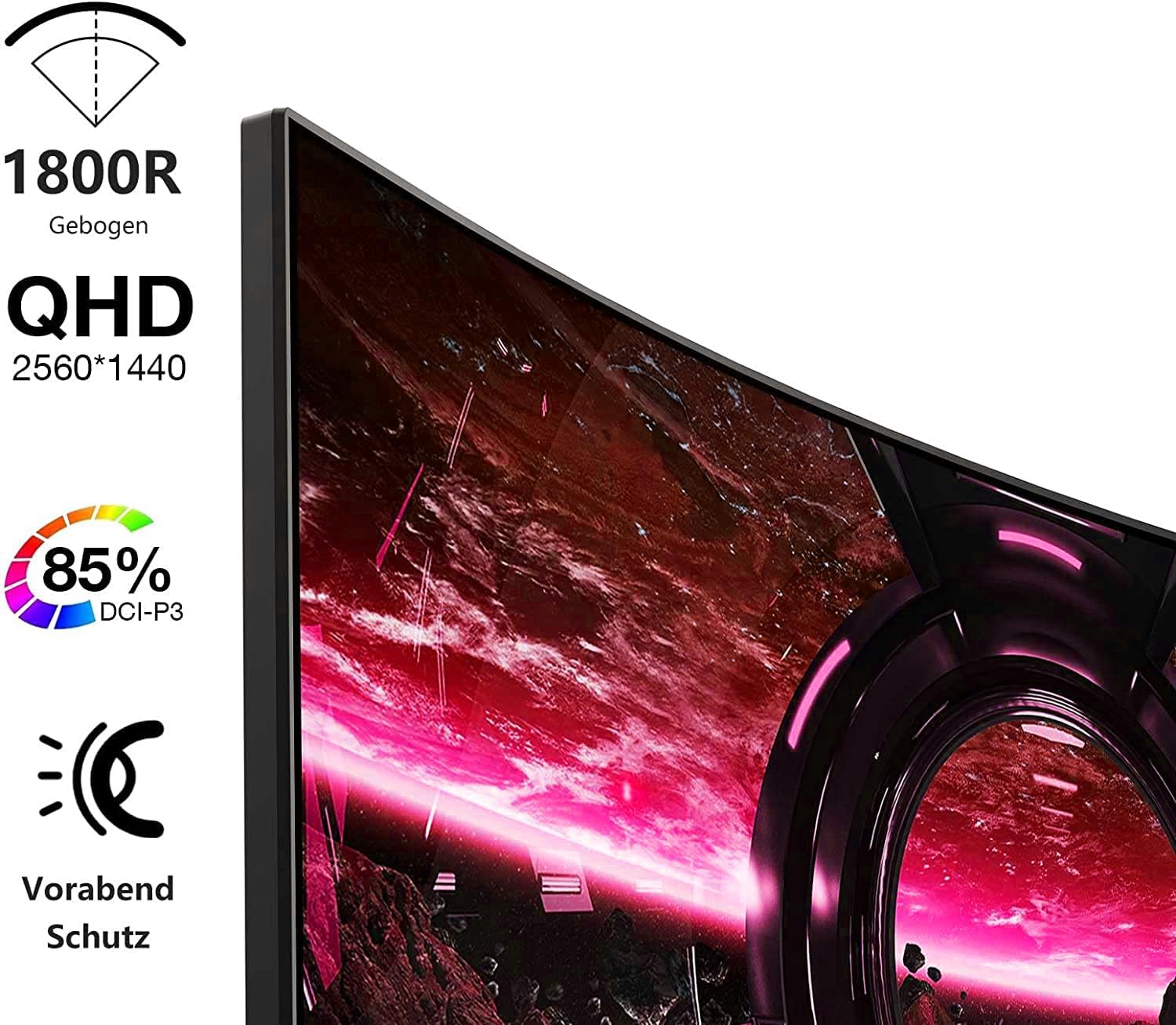
Image: Visual representation of the monitor's key features, including its 1500R curvature, QHD resolution (2560x1440), 85% DCI-P3 color coverage, and eye protection technology.
4. Sąrankos instrukcijos
4.1 Stovo surinkimas
- Carefully remove the monitor, stand, and base from the packaging.
- Attach the stand to the base, ensuring it clicks securely into place or is fastened with the provided screw.
- Attach the assembled stand to the back of the monitor. Ensure the connection is firm.

Vaizdas: Galinis view of the KOORUI 27E6QCA monitor, showing the attachment point for the stand and the overall back panel design.
4.2 Prisijungimas prie įrenginio
The monitor supports HDMI and DisplayPort connections. Use the appropriate cable for your device.
- „DisplayPort“ (DP): Connect one end of the DP cable to the DisplayPort output on your computer's graphics card and the other end to the DisplayPort input on the monitor. This connection is recommended for achieving the full 180Hz refresh rate and QHD resolution.
- HDMI: Connect one end of an HDMI cable (version 1.4 or higher recommended) to the HDMI output on your device and the other end to one of the HDMI inputs on the monitor.
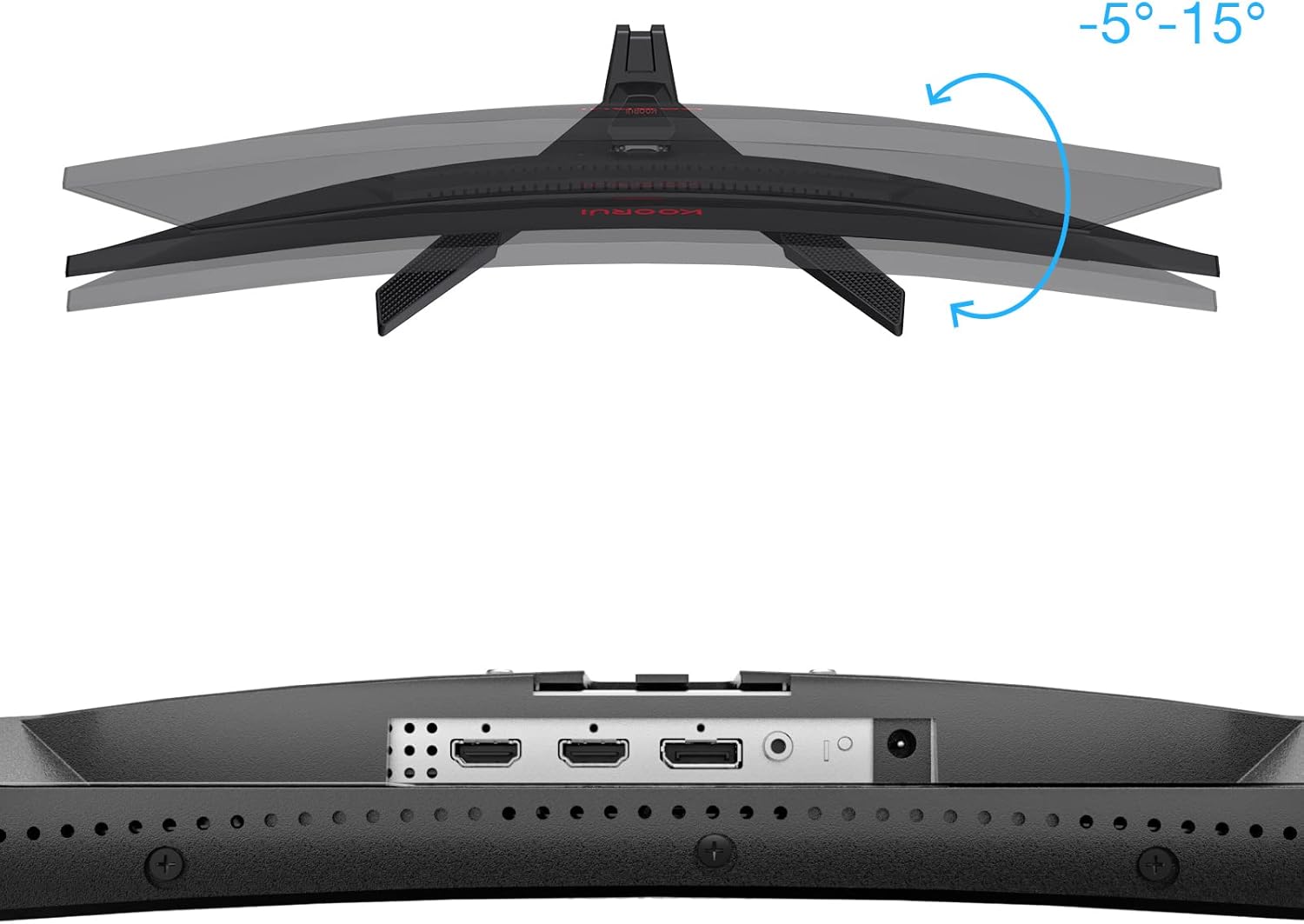
Vaizdas: Stambus planas view of the monitor's rear ports, including HDMI and DisplayPort inputs, along with an illustration of the monitor's tilt adjustment range (-5° to 15°).

Image: Diagram illustrating the monitor's compatibility with various devices such as PS5, Xbox, Laptops, and Nintendo Switch via its multiple connection interfaces.
4.3 Maitinimo jungtis
- Prijunkite maitinimo adapterį prie monitoriaus maitinimo įvesties.
- Plug the power cable into the power adapter, then plug the other end of the power cable into a wall outlet.
5. Naudojimo instrukcijos
5.1 Maitinimo įjungimas/išjungimas
- Maitinimas: Short press the multi-function joystick button located on the back of the monitor.
- Išjungti: Long press the multi-function joystick button for a few seconds.
5.2 Meniu naršymas
The monitor features a single multi-function joystick button for navigating the On-Screen Display (OSD) menu.
- Access OSD: Short press the joystick button when the monitor is on.
- Naršyti: Push the joystick left/right/up/down to move through menu options.
- Patvirtinti: Norėdami patvirtinti pasirinkimą, paspauskite valdymo svirties mygtuką.
- Grąžinti: Push the joystick up to go back to the previous menu or exit the OSD.

Image: Diagram illustrating the functions of the multi-function joystick button on the rear of the monitor: long press for power off, short press for power on, push left for minus, push right for plus, push up for return, and press for confirm.
5.3 Ekrano nustatymai
Adjust various display settings through the OSD menu:
- Ryškumas / kontrastas: Reguliuokite vaizdo ryškumą ir ryškumą.
- Spalvų nustatymai: Keisti spalvų temperatūrą, gamą ir sodrumą.
- Vaizdo režimas: Select from preset modes (e.g., Standard, Game, Movie, Text).
- Žaidimo nustatymai:
- Adaptyvusis sinchronizavimas: Enable this feature to synchronize the monitor's refresh rate with your graphics card, reducing screen tearing and stuttering. Ensure your graphics card supports Adaptive Sync.
- Reakcijos laikas (perjungimas): Adjust for faster pixel response, reducing ghosting.
- Žaidimo režimai: Specific modes like RTS, FPS, Reticle, and Timer are available to optimize visuals for different game genres.
- Įvesties šaltinis: Rankiniu būdu pasirinkite tarp HDMI ir DisplayPort įvesčių.
For optimal gaming performance, ensure your operating system's display settings are configured to the monitor's native resolution (2560x1440) and highest refresh rate (180Hz).
6. Priežiūra
Tinkama priežiūra užtikrina jūsų monitoriaus ilgaamžiškumą ir našumą.
- Ekrano valymas:
- Prieš valydami visada išjunkite monitorių ir atjunkite maitinimo laidą.
- Šiek tiek naudokite minkštą, be pūkelių šluostę dampnuplaukite vandeniu arba specializuotu ekrano valikliu.
- Nepurkškite valiklio tiesiai ant ekrano.
- Venkite naudoti abrazyvinius valiklius, alkoholio pagrindu pagamintus tirpalus ar tirpalus.
- C valymasasing: Monitorių nuvalykite minkštu, sausu skudurėliu.asing.
- Vėdinimas: Įsitikinkite, kad monitoriaus ventiliacijos angos nėra užblokuotos, kad jis neperkaistų.
7. Problemų sprendimas
Jei kyla problemų dėl monitoriaus, žr. šiuos įprastus trikčių šalinimo veiksmus:
7.1 Nėra galios
- Įsitikinkite, kad maitinimo laidas yra tvirtai prijungtas prie monitoriaus ir maitinimo lizdo.
- Patikrinkite, ar maitinimo lizdas veikia, prijungdami prie jo kitą įrenginį.
- Patikrinkite, ar tinkamai prijungtas maitinimo adapteris.
7.2 Nėra signalo / Tuščias ekranas
- Confirm that the video cable (DP or HDMI) is securely connected to both the monitor and your computer/device.
- Įsitikinkite, kad monitoriaus OSD meniu pasirinktas teisingas įvesties šaltinis.
- Check if your computer/device is powered on and not in sleep mode.
- Jei yra, išbandykite kitą vaizdo kabelį arba prievadą.
7.3 Image Flickering or Tearing
- Enable Adaptive Sync in the monitor's OSD menu and ensure it is enabled in your graphics card settings.
- Verify that your graphics drivers are up to date.
- Check the refresh rate setting in your operating system's display settings. It should be set to 180Hz.
7.4 Ghosting or Motion Blur
- Adjust the "Response Time" or "Overdrive" setting in the OSD menu. Experiment with different levels to find the optimal balance.
- Ensure Adaptive Sync is enabled.
7.5 Incorrect Resolution or Refresh Rate
- Go to your operating system's display settings and set the resolution to 2560x1440 and the refresh rate to 180Hz.
- Ensure you are using a DisplayPort cable or an HDMI cable that supports these specifications.
8. Specifikacijos
| Funkcija | Specifikacija |
|---|---|
| Prekės ženklas | KOORUI |
| Modelio numeris | 27E6QCA |
| Ekrano dydis | 27 colių |
| Skydelio tipas | VA |
| Kreivumas | 1500R |
| Rezoliucija | QHD (2560 x 1440 pikselių) |
| Krašto santykis | 16:9 |
| Atnaujinimo dažnis | 180 Hz |
| Reagavimo laikas | 1 millisecond (MPRT) |
| Spalvų gama | 85% DCI-P3 |
| Kontrasto santykis | 2000:1 |
| Ryšys | HDMI (x1), DisplayPort (x1) |
| Pasvirimo reguliavimas | -5° iki 15° |
| Energijos suvartojimas | 78 vatų |
| Matmenys (I x P x A) | 61.2 x 45.2 x 18.5 cm |
| Svoris | 5.1 kilogramo |
| Ypatingos savybės | Blue Light Filter, Curved, Flicker-Free, Adaptive Sync |

Image: Diagram showing the approximate dimensions of the KOORUI 27E6QCA monitor, including height (40cm), width (50cm), and depth (30cm).
9. Garantija ir palaikymas
For warranty information and technical support, please refer to the warranty card included in your product package or visit the official KOORUI websvetainėje. Išsaugokite pirkimo kvitą kaip pirkimo įrodymą garantiniams reikalavimams.


